Home
» Games
»
How to Tweak AMD Radeon Settings for the Best Gaming Performance in Windows
How to Tweak AMD Radeon Settings for the Best Gaming Performance in Windows
Are you experiencing low FPS or lag when playing games on your Radeon GPU PC? If so, this is the place to go.
In this article, Quantrimang.com will share the best AMD Radeon GPU settings that will help you get the best gaming performance on your computer.
Make some basic changes in AMD Radeon settings
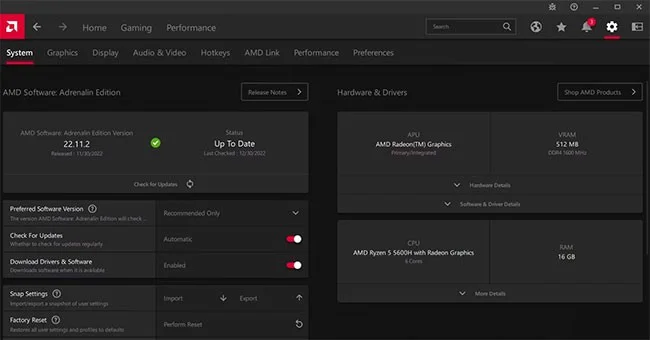
Before you start changing your AMD Radeon GPU settings, make sure you have the latest AMD graphics card drivers installed on your computer. To check, open AMD Radeon Software and click the gear icon in the upper right corner, then System.
In the System window , you will see the version of Radeon software running on your computer. Click the Check for Updates option to check for any available driver updates.
Check Driver Updates option in AMD software
You can also set the Check For Updates option to Automatic and enable the Download Drivers & Software option .
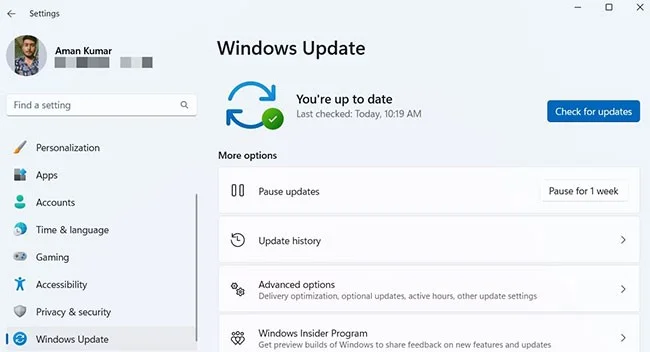
Sometimes, outdated Windows versions are also one of the reasons behind low frame rates or stuttering issues in games. The solution in this case is to download the latest Windows updates.
To do this, open the Settings menu using Win + I or by using any other method to open Settings on Windows . Select Windows Update from the left panel, then click the Check for Updates option . Windows will now search for and download any available updates.
Check for update options in Windows Settings
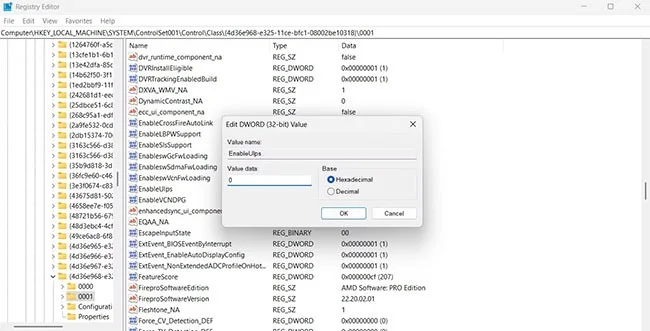
Along with downloading the latest Windows and graphics driver updates, you must disable ULPS (Ultra Low Power State) in the Registry. Follow these steps:
Note : Editing the Registry can be risky as a wrong operation can make your computer unstable. So make sure to back up the Registry before performing the steps below.
2. Click the Edit option on the top bar and select Find from the context menu.
3. Select the Keys, Values , and Data check boxes .
4. Type ULPS in the search bar and press Enter.
5. Right-click the EnableUlps key in the right pane and select Modify from the context menu.
6. Enter 0 in the Value data field and click OK.
EnableUlps Option in Registry
Check if there is any performance improvement. If not, you can enable ULPS by entering 1 in the Value data of EnableUlps and save the changes.
AMD Radeon Settings That Are Most Beneficial for Your Gaming Experience
Now that you have downloaded the latest Windows and graphics updates on your computer, let's check what changes you need to make in your AMD Radeon settings.
1. Configure Global Graphics settings
The first thing you should look at is your Global Graphics settings. Tweaking your Global Graphics settings will automatically apply changes to all games installed on your computer.
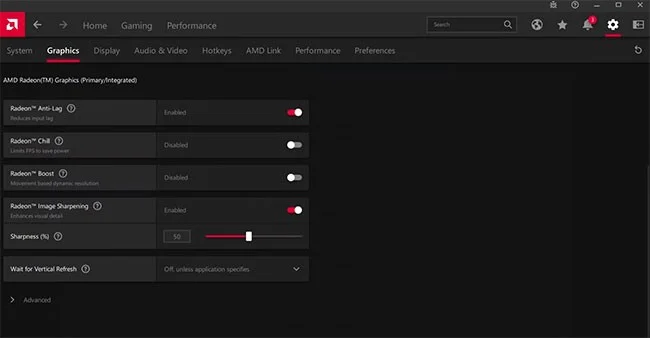
To access the Global Graphics section, open AMD Radeon Software, click the gear icon, then switch to the Graphics tab.
The first setting you can enable is Radeon Image Sharpening , which will ensure you get the best clarity in games. This setting usually works fine for most games, but sometimes it can make things worse.
Radeon Image Sharpening Options in AMD Radeon
Therefore, you must check the performance of the game after enabling this setting. If everything is fine, then you should enable this setting permanently.
Sharpness level is something that will vary from game to game. In Battle Royale games like Warzone and Valorant, set your Sharpness level to around 80 - 90%.
But when playing casual games like Forza or FIFA, keep the sharpness around 40 to 50%. Note that the lower the saturation level, the better gaming performance you will get.
The Wait for Vertical Refresh option should be set to Off unless application specifies , especially if you plan to enable the AMD Radeon Freesync option. Otherwise, consider setting it to Always off.
Now, click on the drop-down icon before the Advanced option.
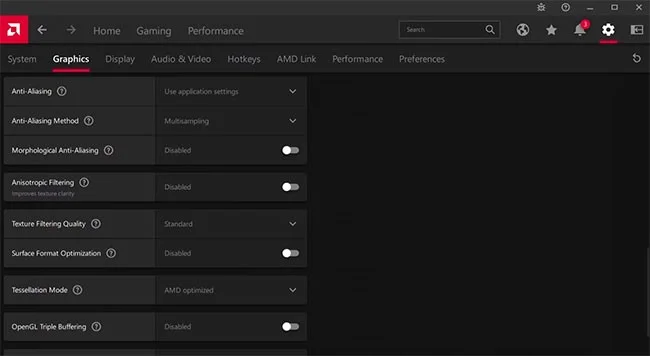
Set the Anti-Aliasing and Anti-Aliasing Method options to Use application settings and Multisampling respectively.
AMD Radeon Software Anti-Aliasing Options
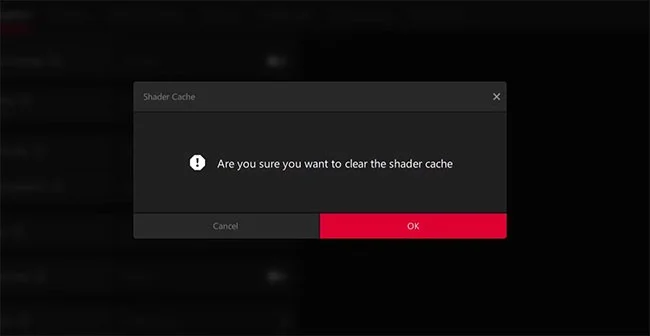
You need to reset the Shader cache if you haven't done so recently. To do so, click the Perform Reset option next to Reset Shader Cache and click Yes to the prompt that appears.
Clear Shader cache
These are all the changes you need to make in the Graphics tab. Other than the changes mentioned above, leave all other options in the Graphics tab to their default values.
2. Change Display & Video settings
AMD Radeon Software offers a variety of display settings that you can configure to get better gaming performance. Here are the changes you need to make in the Display tab of Radeon Software.
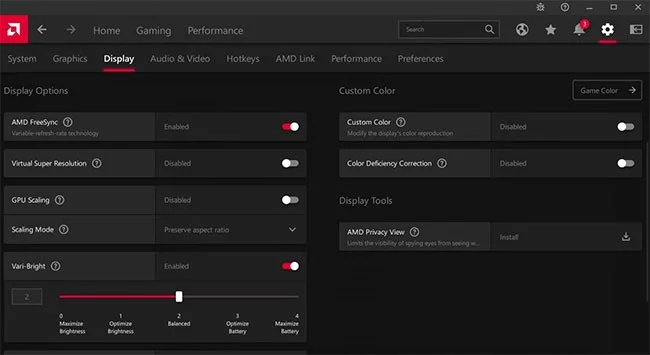
To get started, enable the AMD FreeSync option. This automatically refreshes your display to match the game's current frame rate. Note that this setting only applies to FreeSync-compatible monitors.
Enable AMD FreeSync in Radeon Software
If you are using Radeon Super-resolution , you can enable the GPU scaling option. Otherwise, keep it at the default setting, which is Off.
You should enable the Integer Scaling option , especially if you frequently play 8-bit style titles like Zelda, Pokemon or Terraria.
Display Color Enhancement is another personal preference option. You can set it to Vivid Gaming if you want more vivid colors in games.
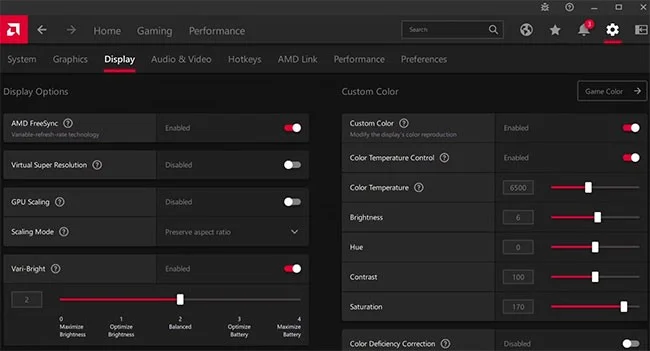
Now, enable the Custom Color option and apply the following changes:
Color Temperature - 6500
Brightness - 6
Hue - 0
Contrast - 100
Saturation - 170
Custom Color Options
Next, switch to the Audio & Video tab . Here, you can choose the video profile you prefer. While different profiles offer distinct viewing experiences, we recommend choosing the Cinema Classic option.
3. Adjust Preferences
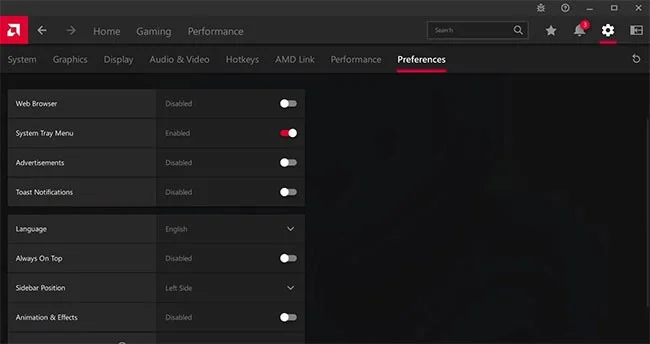
AMD Radeon Preferences Settings
As the name suggests, the Preferences tab contains everything related to personal preferences and will vary for different users. But to get the best gaming performance, the article recommends applying the following settings:
In-Game Overlay - Disabled
Web Browser - Disabled
System Tray Menu - Enabled
Advertisement - Disabled
Toast Notification - Disabled
Always On-Top - Disabled
Animation & Effects - Disabled
AMD Radeon Software is a great utility for optimizing your PC's gaming performance. While it has a lot of features, you don't have to worry about most of them because they work best on default settings.
Now that you've successfully customized your AMD Radeon software, why not learn more about the important Nvidia control panel settings you must enable to get the best system performance?