🚀 Imagine transforming your cluttered home office into a sleek professional studio with just one click. That's the magic of Microsoft Teams background images. Whether you're presenting to clients or chatting with colleagues, the right background can boost your credibility and keep everyone focused. Ready to level up your virtual presence? Let's dive in!
What Are Microsoft Teams Background Images and Why Do They Matter?
Microsoft Teams background images let you replace your real-life surroundings with virtual scenes during video calls. From office vibes to beach escapes, they hide distractions like laundry piles or barking pets while adding personality to your meetings.
Why bother? Studies show visual appeal influences perceptions— a polished background signals professionalism. Plus, Teams' latest updates make it seamless across desktop, mobile, and web. ✨
Step-by-Step: How to Set Microsoft Teams Background Images Before a Meeting
Getting started is a breeze. Follow these steps for instant impact:
- 1️⃣ Open Microsoft Teams and join or start a meeting.
- 2️⃣ Click the three dots (More actions) next to your camera icon.
- 3️⃣ Select Show background effects.
- 4️⃣ Browse the gallery or upload custom images (more on that later).
- 5️⃣ Preview and apply—done! 👍
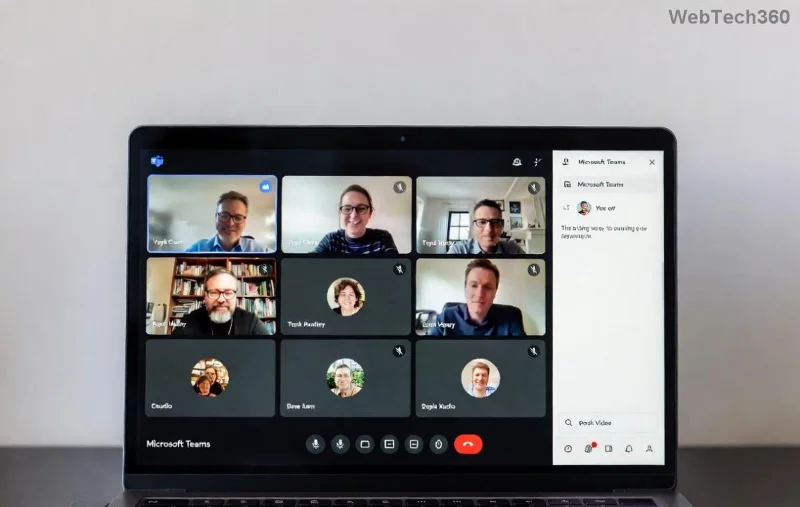
Pro tip: Test in a solo preview to avoid surprises. Your video feed updates in real-time!
Unlock Custom Microsoft Teams Background Images: Upload Your Own
Teams' default gallery is solid, but custom images let your brand shine. Here's how:
- ✅ In the background effects pane, click Add new.
- ✅ Choose PNG or JPG (ideal resolution: 1920x1080 pixels for HD clarity).
- ✅ Ensure your image has a clear center area—Teams auto-blurs edges for realism.
Design tips: Use tools like Canva for branded templates. Avoid busy patterns; opt for subtle gradients or logos. Your custom library syncs across devices!
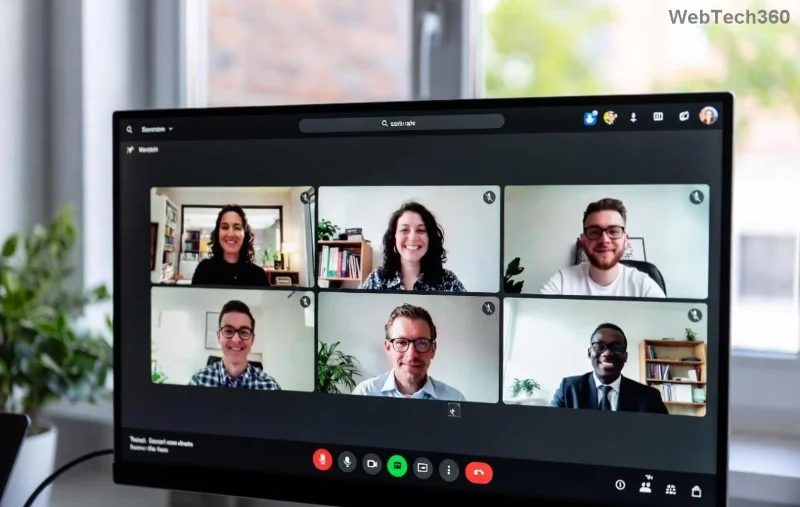
Best Practices to Use Microsoft Teams Background Images Effectively
It's not just about slapping on an image—do it right for maximum effect:
| Do's ⭐ | Don'ts ❌ |
|---|---|
| Match your brand colors for consistency. | Overly bright or distracting visuals. |
| Center yourself perfectly in previews. | Low-res images that pixelate on big screens. |
| Blur for privacy in sensitive calls. | Funny memes in professional settings. |
Bonus: Enable Blur my background for a quick pro look without images. It's perfect for impromptu calls!
10 Pro Tips for Microsoft Teams Background Images Mastery
Stand out with these game-changers:
- 🔥 Seasonal themes: Switch to festive backgrounds for holidays—keeps meetings fun.
- 📱 Mobile magic: Pinch to preview on phones; effects work flawlessly.
- 👥 Team branding: Share custom packs via admin settings for uniformity.
- ⚡ Performance hack: Disable effects on slow connections to avoid lag.
- 🎨 High-contrast: Ensure text overlays (like your name) pop against the background.
- 🌟 Gallery gems: Favorites include "Modern office" for pros and "Nature blur" for calm vibes.
- 🔒 Privacy first: Custom images stay private unless shared.
- 📥 Bulk upload: Admins can push backgrounds enterprise-wide.
- 🖥️ Multi-monitor: Effects apply only to your camera feed.
- 💡 Lighting match: Pair with good lights for shadow-free results.
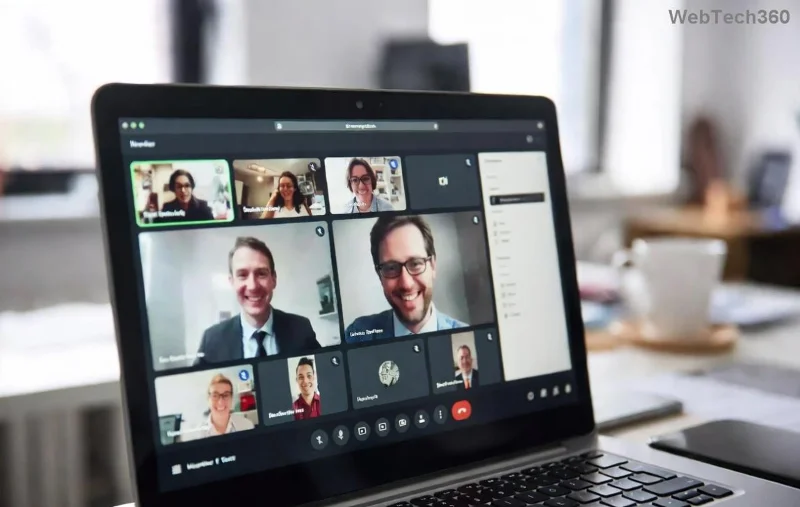
Troubleshooting Common Issues with Microsoft Teams Background Images
Effects not showing? Update Teams to the latest version. On web? Check browser permissions. For deeper dives, visit the official guide: Microsoft Teams Support.









