The compass is a useful application on the phone that helps us determine directions when traveling, traveling, ... Did you know how to use the compass on your phone? Refer to the article to learn how to see the compass on your iPhone quickly, simply!
- This article is guided in Vietnamese (including the interface and instructions in words). If your phone is using English, you can see how to change the phone language from English to Vietnamese as follows:
>>> Instructions on how to change the language from English to Vietnamese on iPhone, iPad
- The article was made on iPhone 7 Plus (iOS 13.5.1) . For iPhone models and other iOS versions, the procedure will be similar.
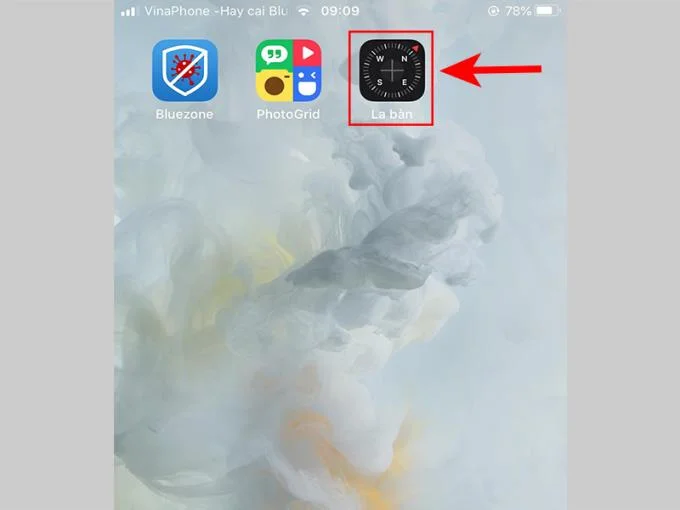
1. Step 1: Open the Compass application
First we go to the home screen and start the Compass application.
2. Step 2: See the compass
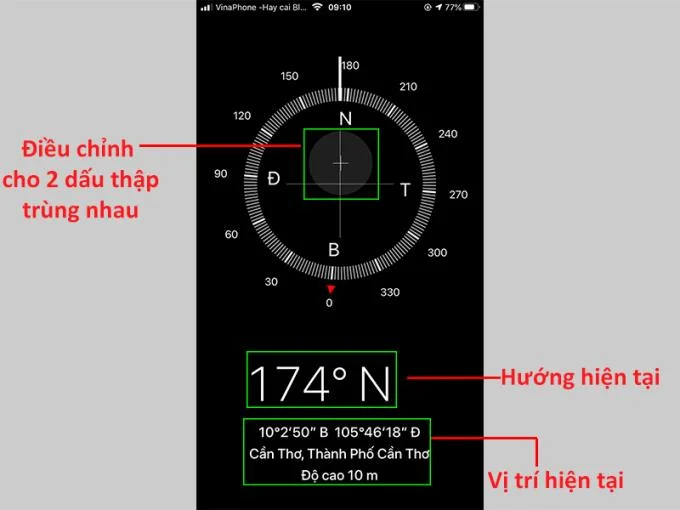
To see the compass correctly, you should adjust your phone so that the 2 crosses (+) in the center of the compass coincide .
Keeping your phone level on your palm, turn around to determine your direction (the example in the picture is 174 degrees to the south). Below is information about the coordinates and altitude of the current position.
![How to view compass on iPhone: Fast, simple, anyone can do it!]()
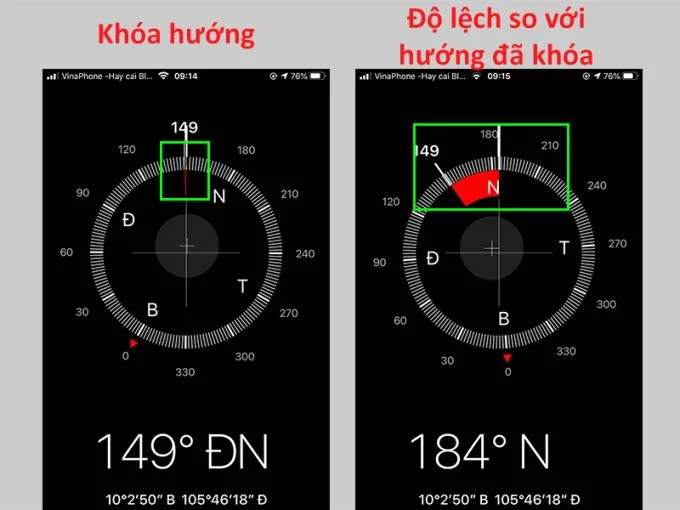
To fix a direction, we immediately click on that position on the screen> When moving, the part highlighted in red is the deviation from the locked direction, based on this you will adjust the direction to avoid distraction> Click screen again to unmark.
![How to view compass on iPhone: Fast, simple, anyone can do it!]()
Some notes when viewing the Compass on iPhone:
- The accuracy of the compass can be affected by magnetic interference.
- The digital compass has only good support for basic navigation, can not satisfy the requirement of determining the direction with high accuracy.
This article has just guided you how to see the compass on the iPhone quickly, simply, and easily. Hope the information in the article will be useful to you. Thanks and see you in the next posts!
See more:
>> What is a compass sensor?
>> 4 ways to make your iPhone smoother, running smoothly like new