Battery saver is equipped to extend battery life on the device. Helps users not to worry about using a device that requires communication and is out of battery. The tutorial to turn on and off battery saving mode on Samsung Android will help you manipulate each different level of battery saving on the device.
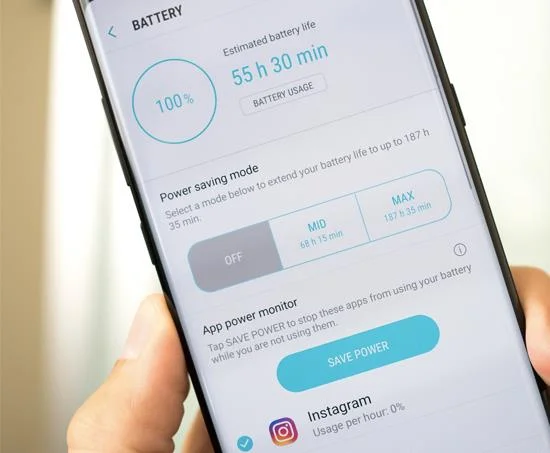
The operation to turn on and off battery saving mode on Samsung is as follows:
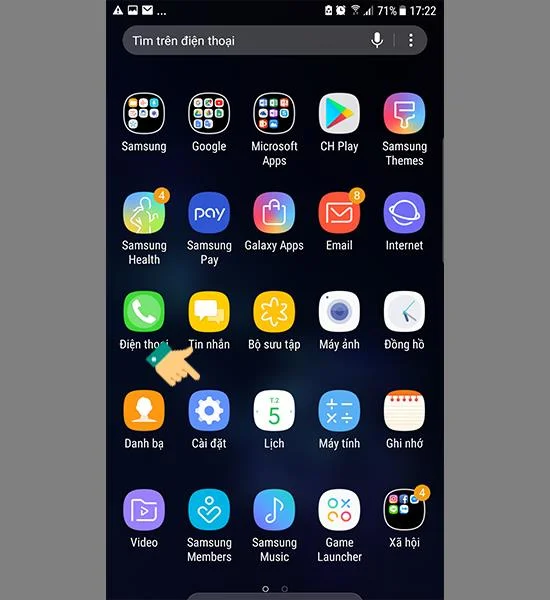
Step 1 : You go to "Settings".
![Instructions to turn on and off battery saving mode on Samsung]()
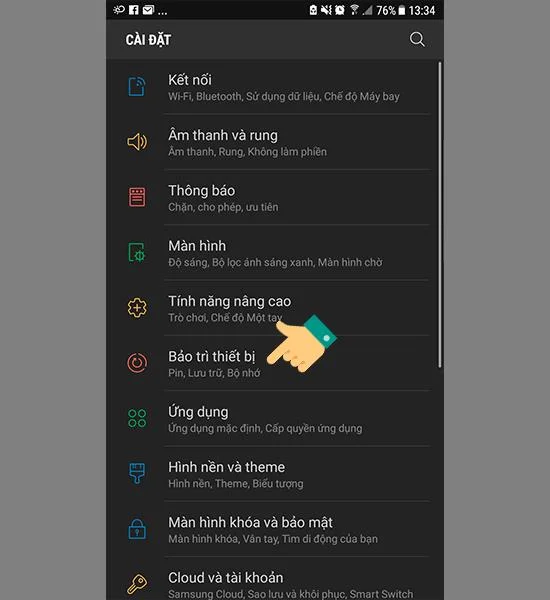
Step 2 : Access the "Device maintenance" section.
![Instructions to turn on and off battery saving mode on Samsung]()
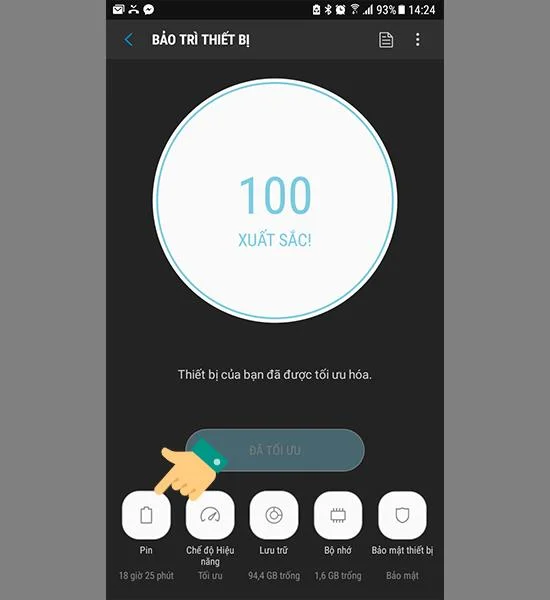
Step 3 : You select "Pin".
![Instructions to turn on and off battery saving mode on Samsung]()
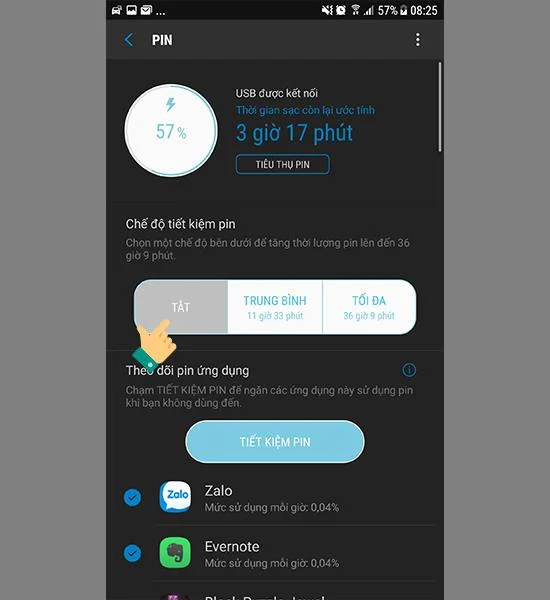
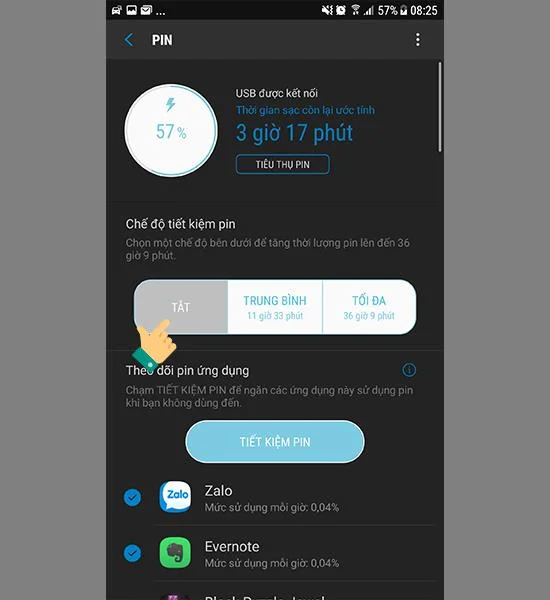
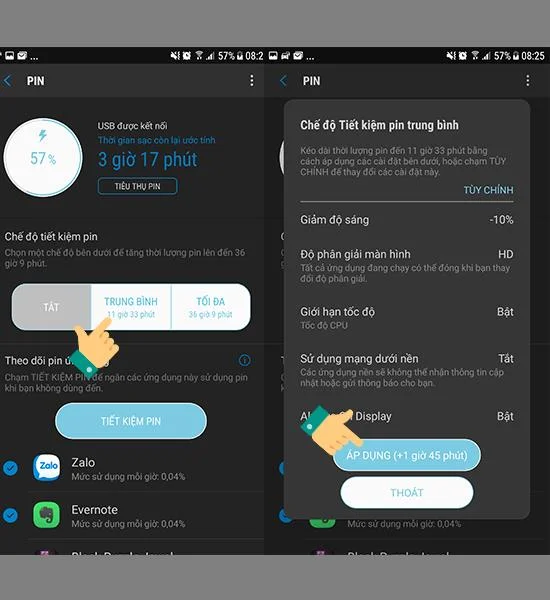
Here you will see 3 items namely " Off " saving mode, saving " Average ", and saving " Max ".
![Instructions to turn on and off battery saving mode on Samsung]()
"Average" battery saver: Basic battery saving mode such as 10% decrease in brightness compared to reality, limit 70% of performance, prevent background apps from draining battery power and turn off Always on display function. . Helps you to prolong the usage time but still keep the normal user interface.
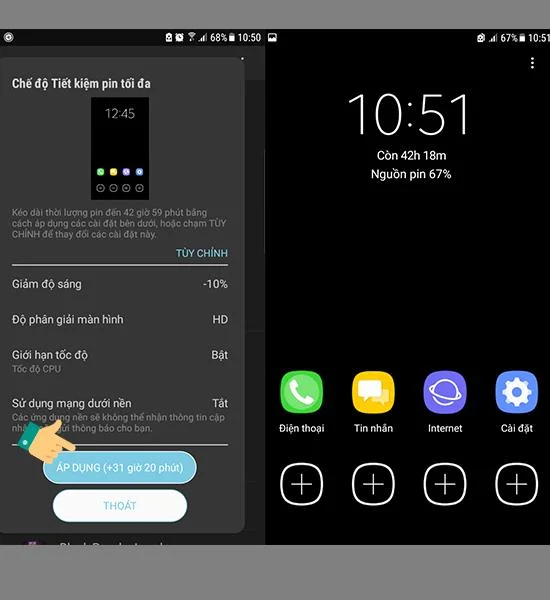
Battery saver "Maximum" : This battery saver mode will limit use of basic apps only such as listening to calls, texting, and adding some apps to stay connected. Suitable for you to keep in touch, listen to calls for a long time but the battery is quite low. The device will switch to simple and single mode with black background. You can use the "Max" mode when you need to keep the connection for a long time.
![Instructions to turn on and off battery saving mode on Samsung]()
Step 4 : You choose to enter the desired battery saving mode and select "Apply".
![Instructions to turn on and off battery saving mode on Samsung]() For example, I choose the battery saver mode "Average".
For example, I choose the battery saver mode "Average".
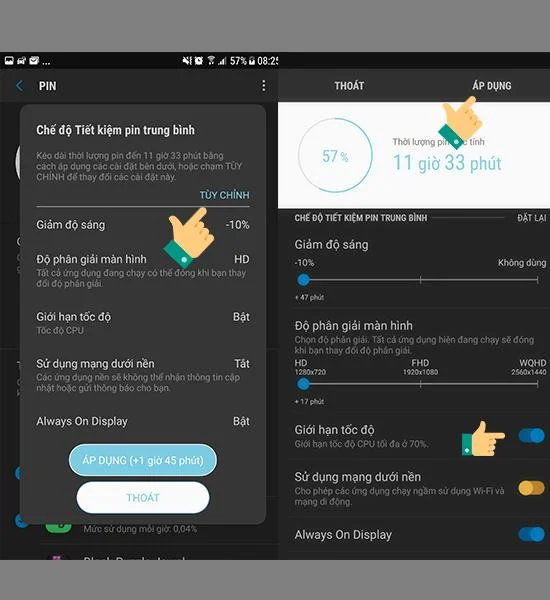
You can change the settings in the battery saver mode when selecting that power saving mode and selecting "Custom" changes such as screen resolution, background usage on and off, ... then select " Apply "to change settings in that battery saver mode.
![Instructions to turn on and off battery saving mode on Samsung]() I customize the "Average" battery saver mode to reduce the HD resolution, turn on Always on display.
I customize the "Average" battery saver mode to reduce the HD resolution, turn on Always on display.
Step 5 : You select "Off" to turn off battery saving mode.
![Instructions to turn on and off battery saving mode on Samsung]()
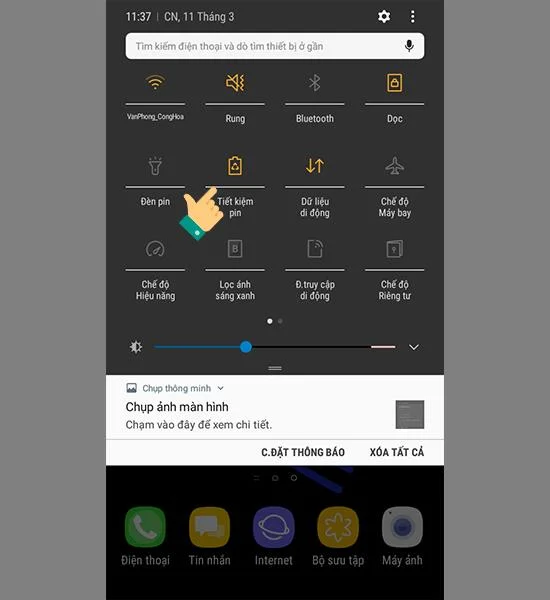
You can also toggle fast battery saving mode on and off in the status bar. You slide down the status notification bar from the top. Select the battery icon to toggle power saving mode on and off.
![Instructions to turn on and off battery saving mode on Samsung]()
Above is a guide to turn on and off battery saving mode on Samsung, allowing you to prolong battery life as well as keep in touch with people while still having quite a percentage of battery. Good luck!
 For example, I choose the battery saver mode "Average".
 I customize the "Average" battery saver mode to reduce the HD resolution, turn on Always on display.