Home
» Today
»
Landline Not Working? How to Check Your Phone and Connection Before Calling Your Provider
Landline Not Working? How to Check Your Phone and Connection Before Calling Your Provider
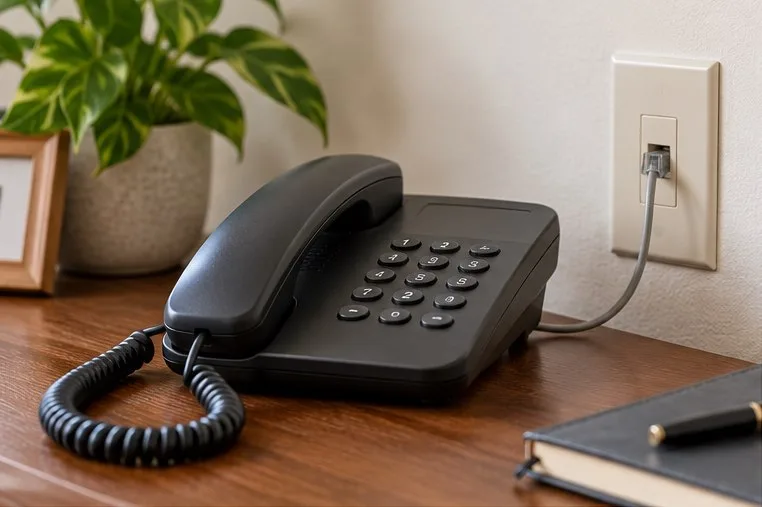
A simple corded phone can help isolate a handset or jack issue.
A home phone that suddenly has no dial tone can have a simple handset or cord problem, a fault in one wall jack, or a provider outage. The checks are different depending on how your service reaches the phone. If you need emergency help and this line is not working, use another working phone or ask someone nearby to call 911. Do not place a test call to 911. A battery backup may keep some provider equipment powered for a limited time, but backup arrangements and service behavior vary; confirm your setup with your provider instead of assuming emergency calling will continue during an outage.
Identify the kind of home phone service
Look at where the phone cord goes. A traditional phone line may connect to a wall jack, while digital voice service commonly connects the phone to a labeled TEL or PHONE port on a modem, gateway, or optical network terminal. Some homes distribute gateway-based voice through wall jacks, but that depends on the provider’s installation. A cordless phone also needs power for its base and a charged handset battery, even when the phone service itself is working.
If you are unsure which service you have, check your bill, provider app, equipment labels, or account page. Confirm that your plan includes home phone service. AT&T notes that only plans including phone service provide a dial tone, and Xfinity’s troubleshooting guidance starts with handset and battery checks before testing jacks or a direct gateway connection. These provider-specific steps are useful examples, but follow the instructions for your own service and equipment.
Check whether the problem affects one phone or every phone
Write down what you hear and what each device shows: no dial tone, a busy signal, static, a “line in use” message, or calls that fail only in one direction. Try a second phone if one is available. If only one handset fails, the handset, its power adapter, battery, or short phone cord may be the cause. If several phones fail, check the service, gateway, or shared wiring before replacing a handset.
For a cordless phone, make sure the handset is seated on its base, the base is plugged into a working outlet, and the battery is charged. Check that every handset is on-hook. For any phone, make sure cords are firmly seated and show no visible damage. Do not force a connector into a port that does not match its label.
Use a simple, one-device-at-a-time test
Unplug extra phones and phone-connected accessories, then test one known-working phone. If your provider’s service uses wall jacks, try that phone at another jack. If you have digital voice service and your provider permits it, connect one phone directly to the gateway’s labeled TEL or PHONE port. This can help distinguish a gateway or service issue from a problem in the home’s internal wiring. Do not connect a wall jack to a gateway port unless your provider’s instructions specifically say to do so.
When several devices share a line, reconnect them one at a time and retest after each connection. If the issue returns after a particular phone or accessory is reconnected, leave that device unplugged and contact its manufacturer or your provider. This isolation method is consistent with Verizon’s home-phone troubleshooting steps. If a security alarm, medical-monitoring unit, fax, or other critical device uses the phone line, check its instructions before disconnecting it; a phone test may affect that equipment.
Check the provider connection and power safely
Check your provider’s outage or service-status page before changing settings. A neighborhood outage can make every handset appear broken. If your digital voice equipment has warning lights, note their labels and colors for the provider rather than guessing what they mean. Make sure the gateway or voice equipment is connected to power and that its power cord is secure.
If the provider recommends restarting a gateway, follow its steps and allow it to reconnect before testing. Restarting a gateway can interrupt internet, television, and other connected services as well as phone service; AT&T specifically warns that restarting its Wi-Fi gateway interrupts all AT&T services. Do not repeatedly unplug equipment or reset it to factory settings unless the provider tells you to. A factory reset can erase settings without repairing a carrier outage or line fault.
Do not open a network interface device (NID), optical network terminal (ONT), wall plate, or provider enclosure to inspect wiring. Verizon identifies the NID with traditional voice service and the ONT with Fios Digital Voice, and warns customers not to open or test those lines during loud hum, rain, thunderstorms, or other hazardous weather. If a provider’s test point needs checking, ask the provider to guide you or send a technician. Stop if you see damaged wiring, water, sparks, or smell burning.
When to contact your phone provider
Contact the provider if all phones are affected, a direct gateway test still fails, there is persistent static or a loud hum, the status page reports an outage, or the phone stopped working after a service or equipment change. Tell support when the issue began, whether incoming and outgoing calls both fail, what you hear, which equipment lights are on, and which simple tests you completed. Ask whether the service is traditional line-powered voice or gateway-dependent digital voice, whether there is a known outage, and what backup-power equipment your exact setup supports.
Do not assume a battery installed in a modem, gateway, or cordless handset powers every device in the home. A backup unit may support only particular provider equipment and may have a limited runtime; other services may stop when their own equipment loses power. Ask the provider how to check the battery, what it powers, how long it is expected to last, and what to do if it is depleted. Keep another way to reach emergency services available, especially if anyone at home depends on the phone or connected medical or security equipment.
Quick checklist
Use another working phone for an emergency; do not test by calling 911.
Check that phone service is included in your plan and look for a provider outage.
Charge cordless handsets and confirm the base or gateway has power.
Test one known-working phone and reconnect devices one at a time.
Use only the gateway port or jack specified for your service.
Keep out of provider enclosures and damaged or wet wiring; ask the provider to test them.