
Trail Blazers vs Warriors: Portland Wins 116–94 — Score and Replay Guide, Updated 5:14 p.m. AEDT
Portland beat Golden State 116–94 in the NBA Cup. Find the official final score, box score, play-by-play and Australian replay options.
Facing a frozen screen, repeated login rejections, or transaction timeouts right when you need to send funds can cause significant stress. When the Lloyds Bank mobile banking app experiences connectivity issues or unexpected errors, determining whether the problem lies with Lloyds' core servers or your personal mobile setup is critical. Before attempting to make an urgent transfer or assuming a payment has failed, following a systematic checklist can prevent duplicate transactions, clear common device cache conflicts, and provide immediate banking alternatives.
Destaques:
Last verified: November 27, 2026, at 13:05 UTC.
Mobile banking applications rely on secure handshakes between your mobile device, local telecommunication routes, and the bank’s central processing architecture. App disruptions generally fall into two distinct categories: nationwide infrastructure outages or client-side device conflicts.
When Lloyds undergoes unscheduled server downtime or essential core maintenance, the app may display generic connectivity alerts, refuse biometric authentication (Face ID or fingerprint recognition), or drop connection during session validation. In contrast, if the banking network is operating normally, app failure is typically triggered by corrupted local cached data, outdated operating system builds, aggressive VPN and DNS routing blocks, or weak Wi-Fi signals.
If you need to make an urgent payment, work through these verified troubleshooting steps sequentially to quickly isolate and solve the problem:
Before modifying any phone configuration or clearing data, verify whether the disruption is widespread. Check the official Lloyds Bank Service Status page. Lloyds posts regular operational status reports for mobile app access, online desktop banking, card payments, and Faster Payments processing. If a major platform-wide outage is declared, troubleshooting on your handset will not restore connectivity; the bank's technical teams must deploy an infrastructure fix.
Banking applications implement strict security policies that automatically reject connections over unstable networks or public Wi-Fi hotspots with restrictive firewall rules. Disable your Wi-Fi connection and test the app using cellular 4G/5G mobile data. Conversely, if your mobile carrier is throttling bandwidth or experiencing packet loss, switch to a trusted private Wi-Fi network. Remember to temporarily disable active VPN or proxy profiles, as dynamic IP masking can trigger automated anti-fraud security blocks.
Background background session tokens can occasionally stall in memory. Force-close the Lloyds Bank app from your recent apps overview rather than simply returning to your home screen. Next, perform a full restart of your smartphone. Rebooting clears temporary operating system caches, renews your local IP lease, and terminates conflicted background services.
Financial apps frequently roll out mandatory security patches to maintain compliance with updated API protocols. Navigate to the Apple App Store on iOS or the Google Play Store on Android, search for the official Lloyds Bank app, and inspect whether an "Update" button is displayed. If your operating system is pending a major security update, install it as well to resolve compatibility bugs.
For Android users, open your device's Settings > Apps > Lloyds Bank > Storage and tap Clear Cache. This cleans out temporary corrupted asset files without deleting your profile data. Avoid selecting "Clear Data" unless you are prepared to re-register the device. On iOS, if repeated restarts fail, uninstall the application entirely, reboot your iPhone, and download a fresh copy directly from the App Store. Note that reinstalling will require going through two-factor device verification upon your next login.
If an app failure persists and your payment cannot wait, do not repeatedly press submit buttons on a stalled screen, as this risks duplicate transaction processing. Utilize these reliable alternative channels:
No. Your bank account details, balance, saved payees, and transaction history are stored securely on Lloyds Bank central servers, not on your physical phone. Reinstalling the app merely removes local application binaries. However, you will need your login credentials and may need to complete an SMS or phone verification prompt to register the device again.
If the app disconnected during authentication or transfer execution, do not re-send the money immediately. Check your account balance via browser-based Online Banking or call Telephone Banking using the number on the back of your card. A representative can verify whether the Faster Payment was accepted, queued, or reversed before you attempt another submission.
Yes. Commercial VPNs route your internet traffic through shared data center IP addresses that are often flagged by bank cybersecurity systems to protect accounts against credential-stuffing attacks. Turning off your VPN or adding an exclusion rule for the Lloyds app often immediately restores normal connectivity.
Portland beat Golden State 116–94 in the NBA Cup. Find the official final score, box score, play-by-play and Australian replay options.

Stay safer during hot weather with practical heatwave tips: hydrate, cool your home, protect at-risk people, and recognize heat exhaustion and heatstroke.

The Spurs beat the Lakers 99–96 in San Antonio. See where to track NBA scores, box scores, game updates, and Australian tipoff times.
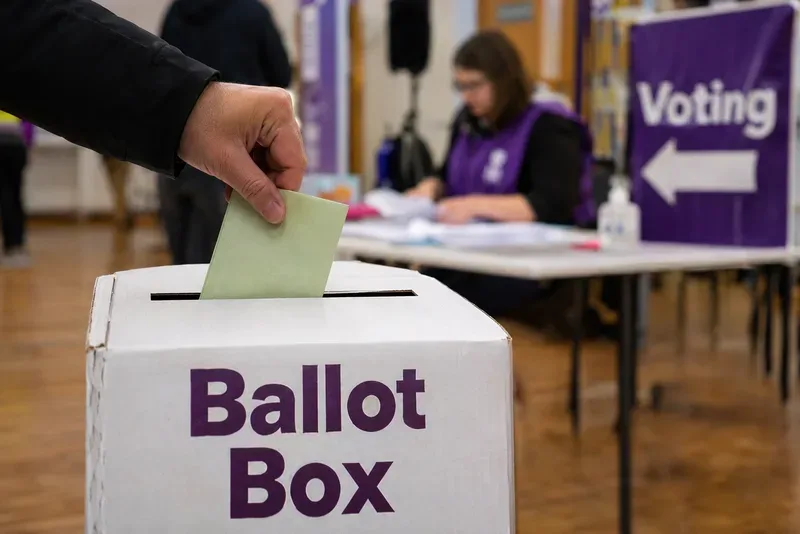
Find the latest Victoria election count on the VEC website and ABC tracker, understand preferences and seat totals, and check the 2026 declaration timeline.

Seattle hosts Edmonton at 7 p.m. PST after Kaapo Kakko’s late two-goal surge gave the Kraken a 4–2 win. Canadian start times, storylines and lineup notes.

Toronto beat Brooklyn 124-100 in the NBA Cup group-stage finale. See Scottie Barnes’ 34 points, Immanuel Quickley’s triple-double and what’s next.

Kyle Connor scored twice as Winnipeg beat New York 3–1. See the pregame context, scoring turns, goalie performances and what the result means.

Comprehensive preview of Golden State Warriors vs. Portland Trail Blazers: tactical breakdowns, key matchups, rebounding battles, and what to watch.

Learn how prospector David Hole found the 17-kilogram Maryborough meteorite, what its H5 chondrite classification means, and how its age differs from its time on Earth.

A clear guide to the Pacers–76ers NBA Cup matchup: group stakes, earlier meetings, key players, injury context, and the Indianapolis tipoff converted to Australian time.