Home
» Today
»
Microsoft Copilot: What It Does and How to Use Its AI Features
Microsoft Copilot: What It Does and How to Use Its AI Features
Microsoft Copilot can answer questions, help draft and revise text, work with sources you provide, and offer tools such as voice, image creation, or Microsoft 365 app assistance. The practical choice is which Copilot experience fits your task: the free personal assistant, Copilot included with an eligible individual Microsoft 365 plan, or a work or school account. The same app can show different features depending on the account and its license. This guide reflects Microsoft’s documentation checked on September 21, 2026; availability and usage limits can change.
What Microsoft Copilot does
Copilot is Microsoft’s AI assistant. You can ask it a question in everyday language and request a response in a useful form, such as a summary, outline, email draft, explanation, or list of next steps. Depending on the experience available to you, it can also work with files and other sources, create images or documents, support voice interactions, and help with Microsoft 365 apps.
For everyday tasks, a useful way to think about Copilot is as a first-draft and exploration tool. It can help you get started or reorganize information, but it does not guarantee that an answer is accurate, current, complete, or appropriate to send without review. Microsoft lists different capabilities in its overview of the Microsoft Copilot app, and notes that what appears depends on your subscription.
Which Copilot option fits your needs?
Start by matching the account to the material you want Copilot to use. Microsoft’s app adapts between a personal Microsoft account and a work or school Microsoft Entra account. A subscription may also determine whether Copilot is available inside desktop apps, what sources it can reference, and which advanced tools appear.
Your situation
Good place to start
Main trade-off
You want to try AI for general questions, brainstorming, or web-based tasks.
Microsoft Copilot at no cost, in a browser or app.
It may not include the same Microsoft 365 app integration, file context, or advanced features available with eligible subscriptions.
You regularly work in Word, Excel, PowerPoint, Outlook, or OneNote using a personal Microsoft account.
Check whether your Microsoft 365 Personal, Family, Premium, or Pro plan includes the Copilot access you need.
Features depend on the plan and, for some individual plans, whether you are the subscription owner. AI usage limits apply.
You want help with workplace or school material.
Sign in with the organization account and confirm that your administrator has enabled the relevant Copilot license and features.
Available apps, organizational data access, and protection controls depend on the organization’s license and configuration.
Microsoft’s current comparison of free Copilot and Copilot in Microsoft 365 explains these distinctions in more detail. Check that page before subscribing: feature names, eligibility, and usage limits are subject to change. For work or school use, follow your organization’s instructions about which account and files are approved.
How to use Copilot for a practical task
These four steps work for a common job: turning a rough project update into a concise, reusable draft. The interface images below are conceptual illustrations of documented Copilot patterns, not screenshots of a live account. Your screen may look different.
1. Open Copilot with the right account
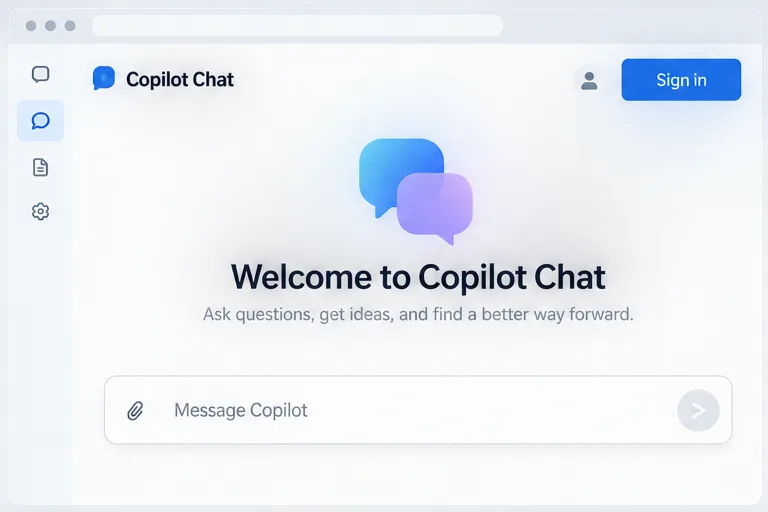
Choose the personal or work/school account that matches the task. For general web questions, start with the free Copilot experience. If you want Copilot to use Microsoft 365 content or work inside desktop apps, sign in to the eligible Microsoft 365 experience. On a shared or managed device, check the account avatar before entering a prompt so that the conversation goes to the intended account.
Conceptual interface illustration: Copilot Chat’s welcome view and message box. Sign-in options and page layout can vary by account.
2. Give it a specific request
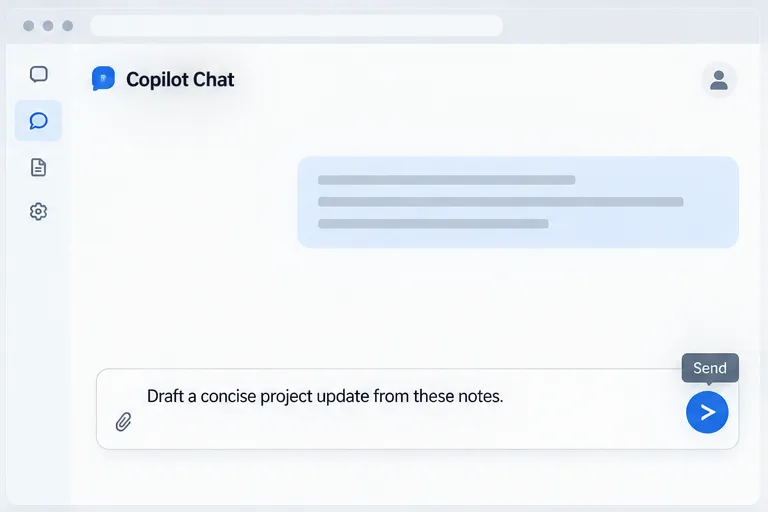
Write a prompt that names the task, audience, format, and any limits. “Help me with this” leaves Copilot to guess; “Draft a concise project update for a nontechnical audience, using three bullets and flagging any missing dates” gives it a clearer target. Then ask for one revision at a time, such as a shorter version or a more neutral tone. In Copilot Chat, Microsoft’s documented flow is to enter a prompt in the “Message Copilot” box and send it; available prompt tools can add task-specific capabilities.
Conceptual interface illustration: a prompt in the Copilot Chat composer. State the audience and desired format to make the request easier to follow.
3. Add source material when the answer depends on it
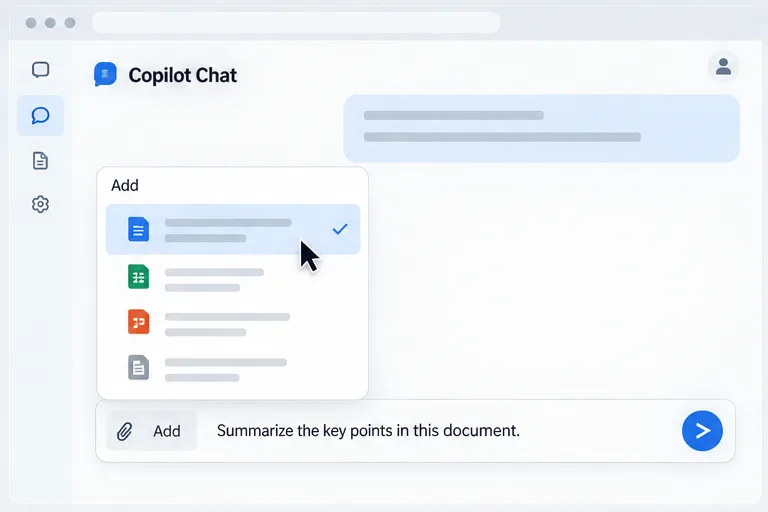
If you need a summary of a document, provide the source instead of asking Copilot to infer its contents. In supported Copilot Chat experiences, the Add control lets you add or manage sources for a prompt. Some Microsoft 365 Copilot subscriptions also allow references to specific files, meetings, emails, or people. What you can attach or reference depends on the account, license, and organization settings.
Be precise about the job: “Summarize the key points in this document in five bullets. Separate stated facts from open questions.” If Copilot produces a summary, compare important figures, names, and deadlines with the original. Do not upload confidential work material to a personal account unless your organization has approved that use.
Conceptual interface illustration: the Add menu and a selected document source. The available source types vary across Copilot experiences.
4. Review, refine, and keep the result where you can use it
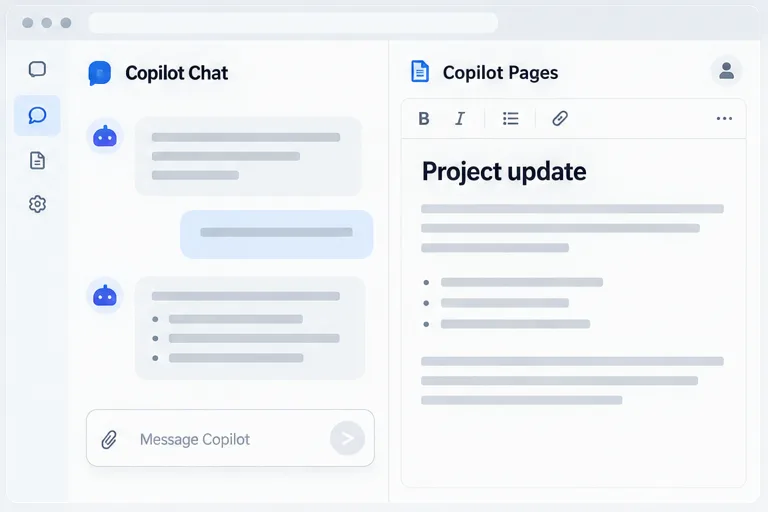
Read the response before copying or sharing it. Ask Copilot to revise unclear sections, check its statements against your source, and correct the draft directly when needed. For a response you want to continue developing, Copilot Pages provides an editable canvas beside chat; Microsoft documents using prompts to expand or update a page and making direct edits in the canvas. Pages and sharing options may depend on the signed-in experience.
Conceptual interface illustration: Copilot Chat beside an editable Copilot Pages draft. The exact layout and availability may vary.
Other AI features worth choosing for specific jobs
Voice: Microsoft documents dictation, read-aloud, and voice chat. These can help when you want to speak a prompt, listen to a response, or work hands-free. Voice support is limited to selected languages, so check the current language list if this matters to you.
Image creation and editing: When available, describe the image you want, then refine details such as style, color, or composition. Use this for ideation or a draft visual, and check the result carefully before publishing it.
Research and analysis tools: Some Copilot Chat experiences offer specialized capabilities such as Researcher or Analyst, or options to draft a page, document, worksheet, or presentation. They can save setup time, but you still need to check claims and calculations against trusted sources and your own requirements.
Microsoft 365 app help: If your plan includes Copilot in Office apps, it can assist with content in Word, Excel, PowerPoint, Outlook, or OneNote. This is most useful when you already work in those apps; it is less compelling if you only need occasional general questions.
Choose free Copilot when you want a low-commitment way to explore ideas, ask general questions, or draft text from information you can safely provide. Consider an eligible individual Microsoft 365 plan when your work often happens in Office apps and the included Copilot features justify the subscription and usage limits. Use a work or school account for organization material only when that account and feature are approved for the task.
Whichever option you use, treat Copilot’s output as a draft. Check dates, names, calculations, and factual claims against the source material. For important decisions, use authoritative sources and human review. Before sending a prompt or attaching a file, pause to confirm which account is active and whether the material is appropriate for that Copilot experience. That quick check helps you get useful assistance without mixing personal and organizational work.