
How To Add Text In Procreate

Have you been looking for ways to sharpen your design skills? If so, Procreate is a dynamic application that can help you achieve this goal. Adding text is one of its primary functions. The feature is handy when you want to add titles, labels, and essential information to your artwork. It helps personalize your designs and enhances audience engagement.
How To Add Text In Procreate

This article explains how add text in Procreate.

How to Add Text in Procreate

Adding text in Procreate is relatively straightforward. Even though the feature wasn’t initially included in the app, it’s a welcome addition.

Here’s how to add text:

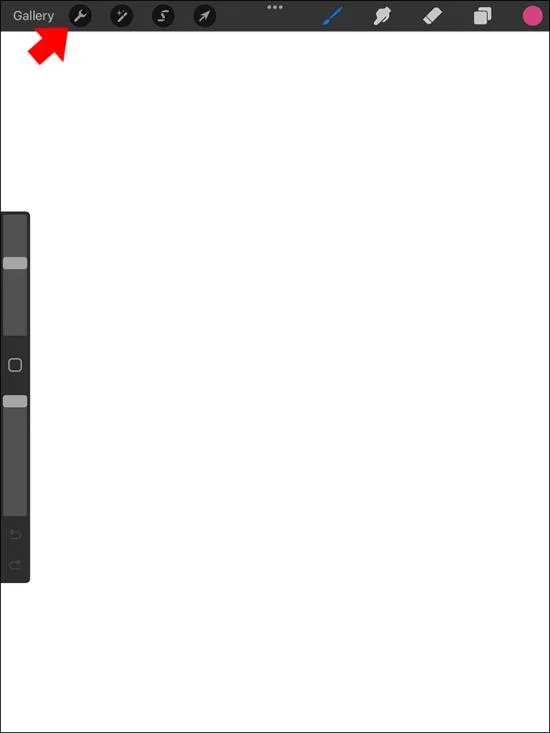
  1. Launch Procreate and tap the “Wrench” icon on the toolbar.
    How To Add Text In Procreate
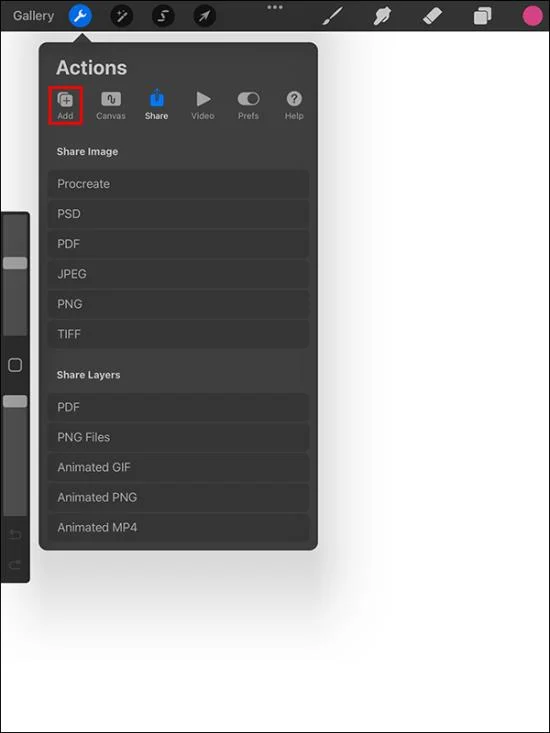
  2. An “Action” panel will be displayed. Click on the blue “Add” icon with a plus symbol.
    How To Add Text In Procreate
  3. Choose “Add Text.”
    How To Add Text In Procreate
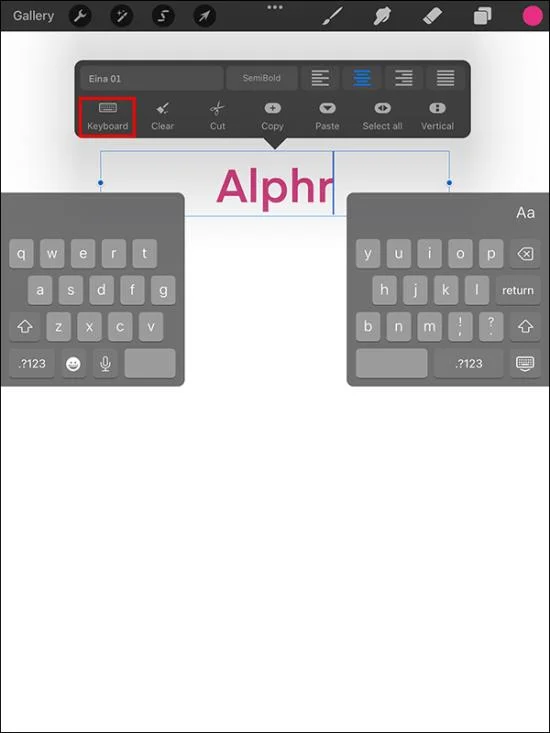
  4. Input your information inside the displayed text bounding box using the keyboard that will pop up. If you can’t see the keyboard, double-tap the “Add text” option to access “Text settings” and select the “Keyboard” icon.
    How To Add Text In Procreate

Editing Text in Procreate

This raster editing graphics app also offers a variety of text styling options. Here’s how you can modify your text once you’ve added it to Procreate:

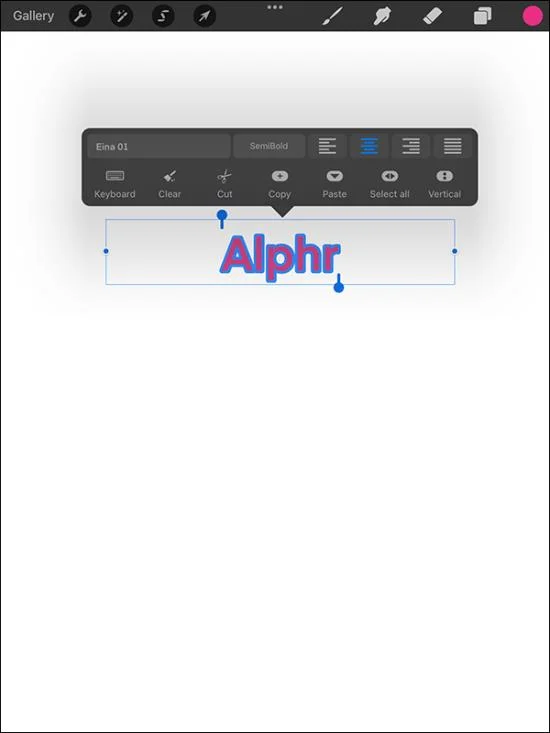
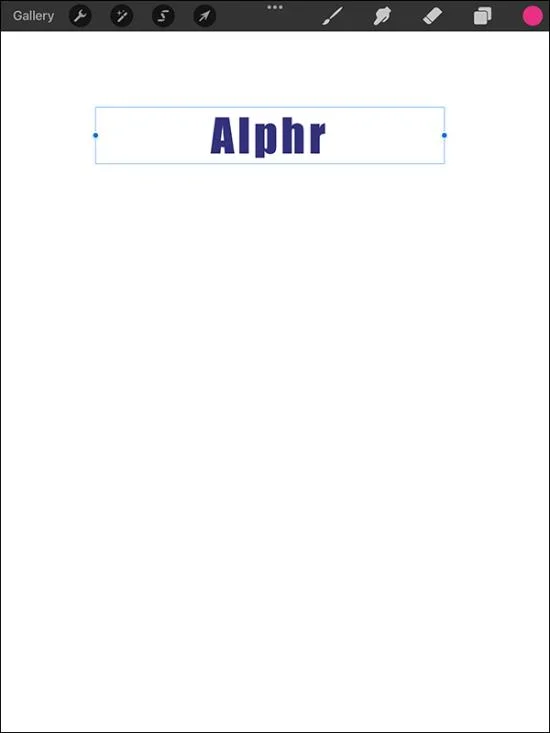
  1. Double-tap on your text to highlight it.
    How To Add Text In Procreate
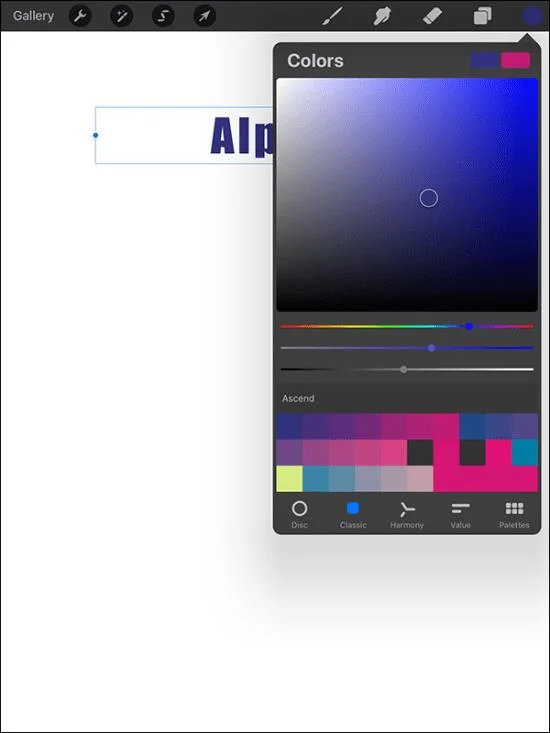
  2. A toolbox will be displayed above the bounding box holding the text. You can change the color, alignment, and text box layout. Using this panel, you can also erase, copy, cut, and paste the text.
    How To Add Text In Procreate
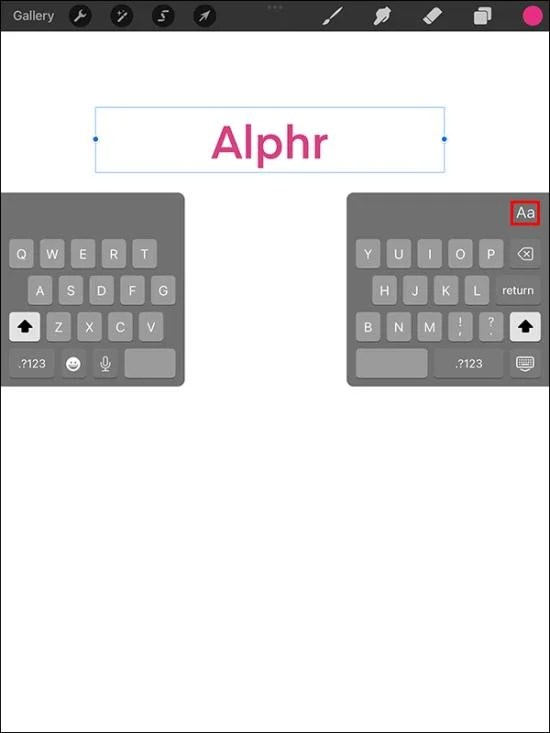
  3. Navigate to the top right corner of your keyboard and select “Aa.” This will help you access the font options.
    How To Add Text In Procreate
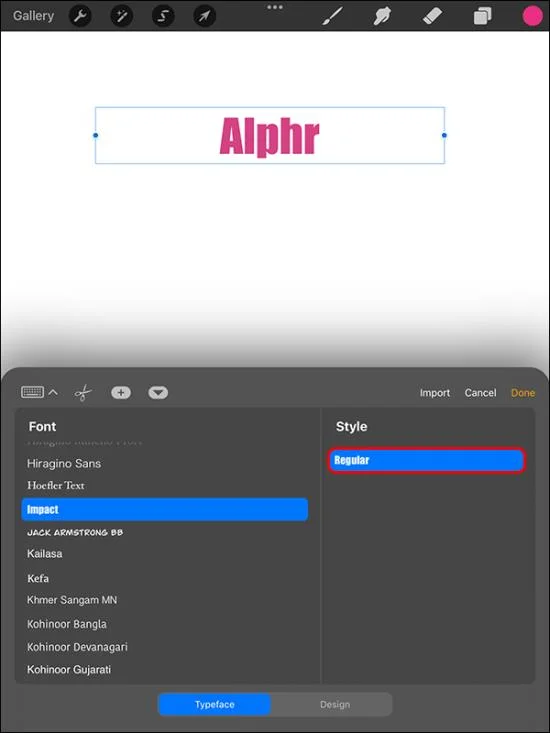
  4. Choose your preferred font type from the options displayed. You can also import fonts if you can’t get your desired style in the default options.
    How To Add Text In Procreate
  5. After selecting the font, you’ll need to pick a style for your text. Most fonts feature bold, standard, and italic styles. But it may vary in some cases.
    How To Add Text In Procreate
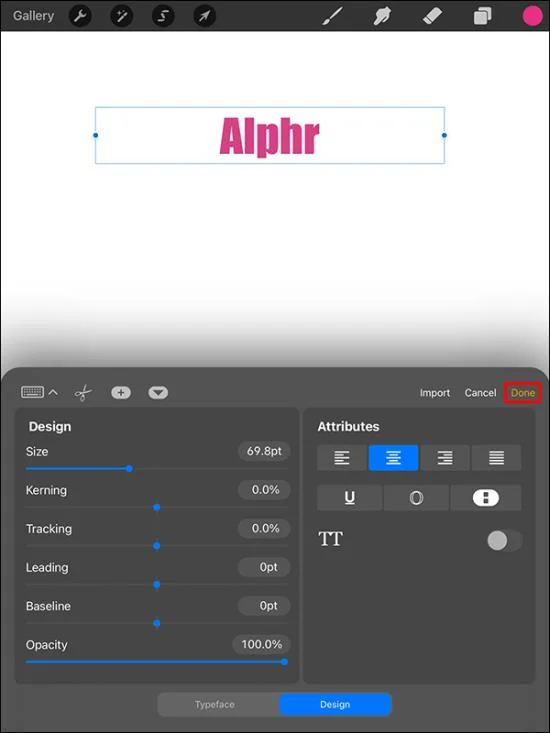
  6. Adjust the text design and select your preferred text attributes.
    How To Add Text In Procreate
  7. Browse through your text settings and confirm that every design option checks out.
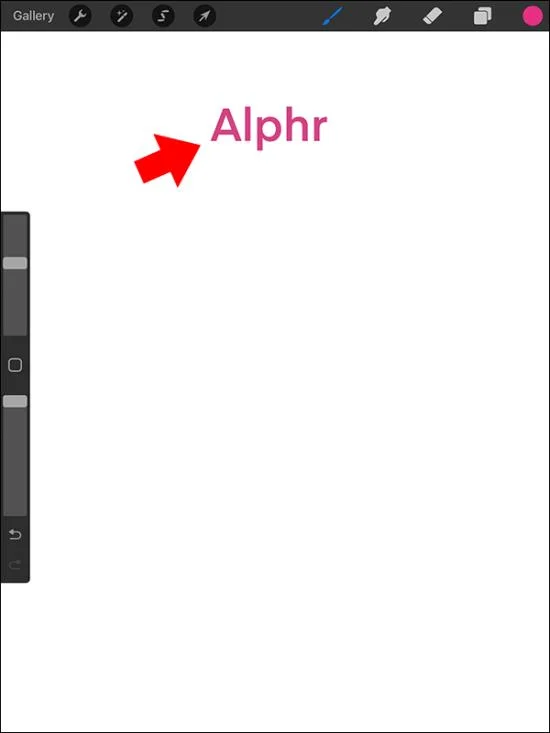
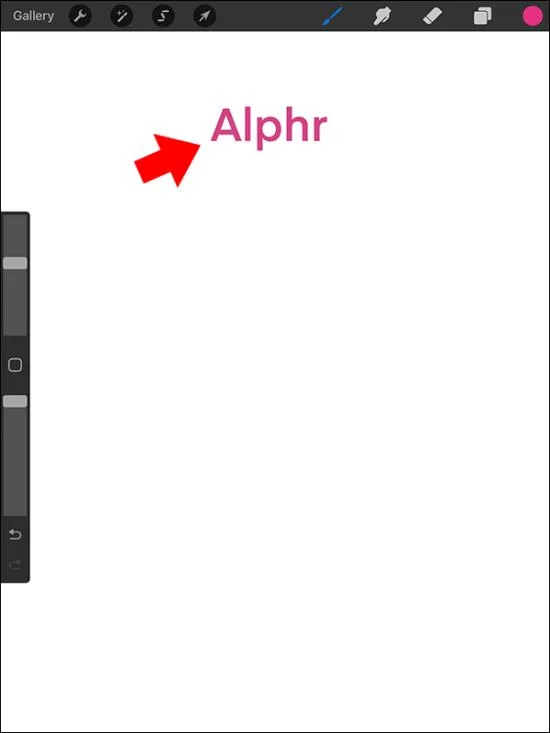
  8. Use your finger or stylus to correctly position the text on your artwork and select “Done.”
    How To Add Text In Procreate

Your text is ready for use.

How to Fix Procreate Edit Text Not Working

This is a common issue that many users encounter after updating the app. Thankfully, it can be easily resolved.

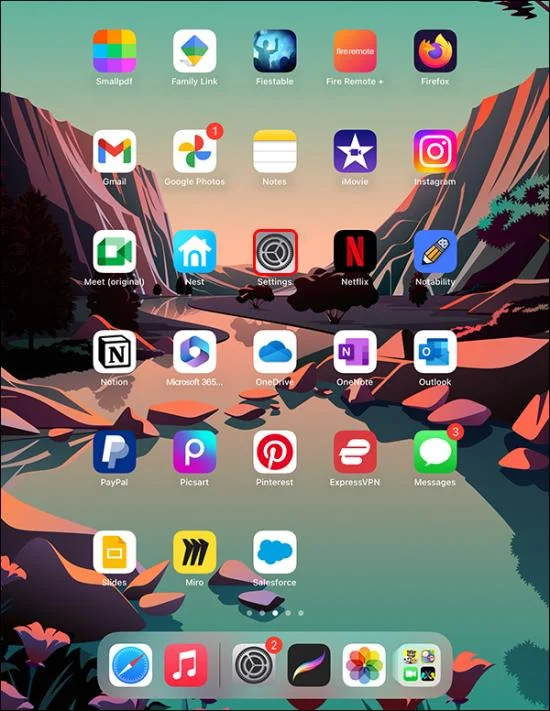
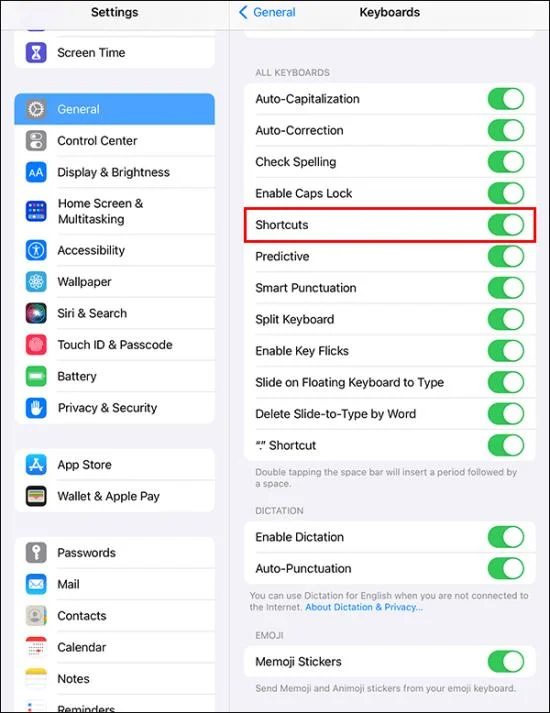
  1. On your iPad, open “Settings.”
    How To Add Text In Procreate
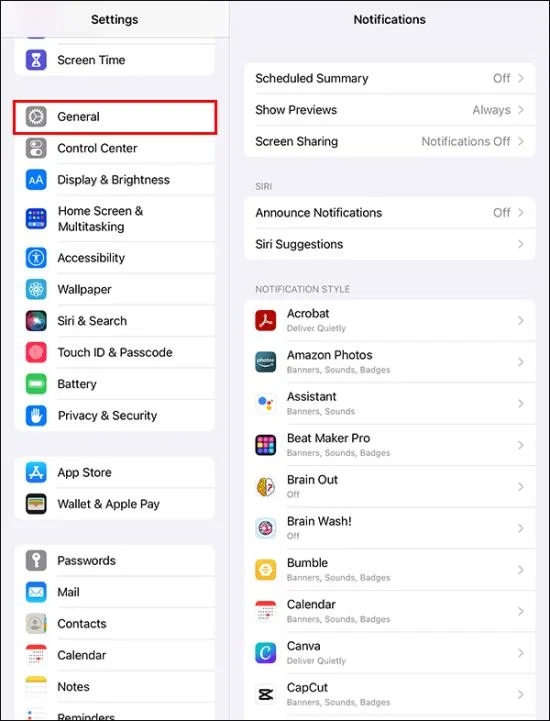
  2. Choose “General.”
    How To Add Text In Procreate
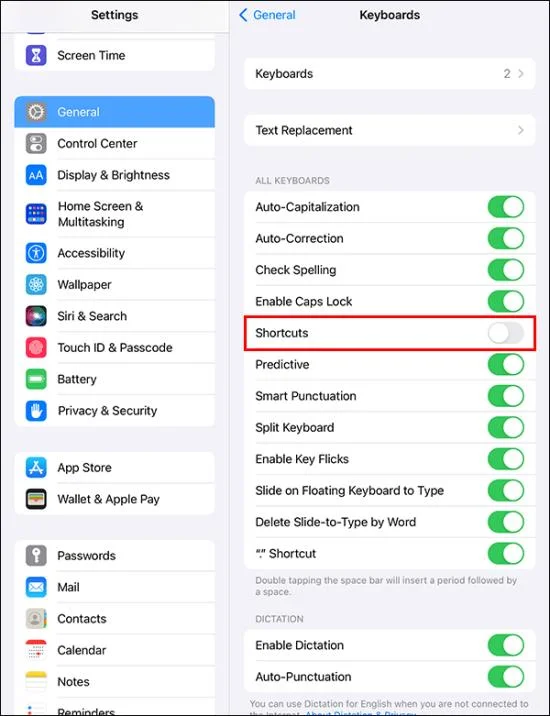
  3. Scroll down the dropdown menu and find “Shortcuts.”
    How To Add Text In Procreate
  4. Toggle the switch and ensure it turns green.
    How To Add Text In Procreate

This switch tends to go off most of the time without reason. Once this happens, the edit text tab disappears.

Adding Shadow to Text in Procreate

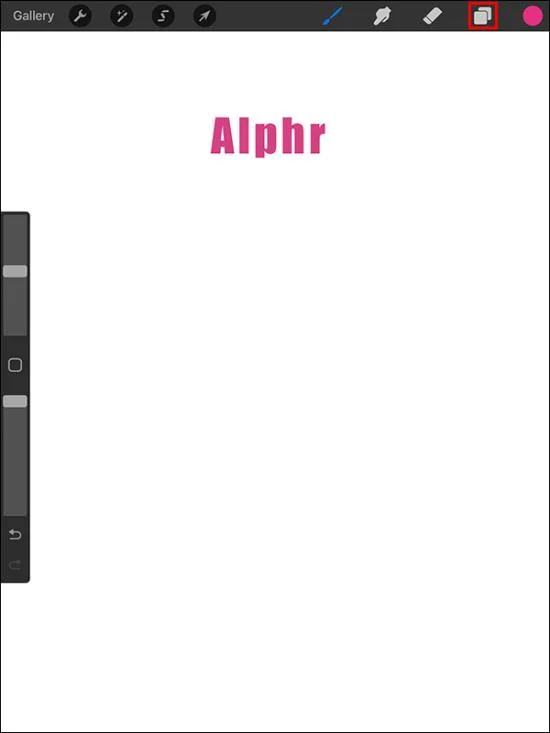
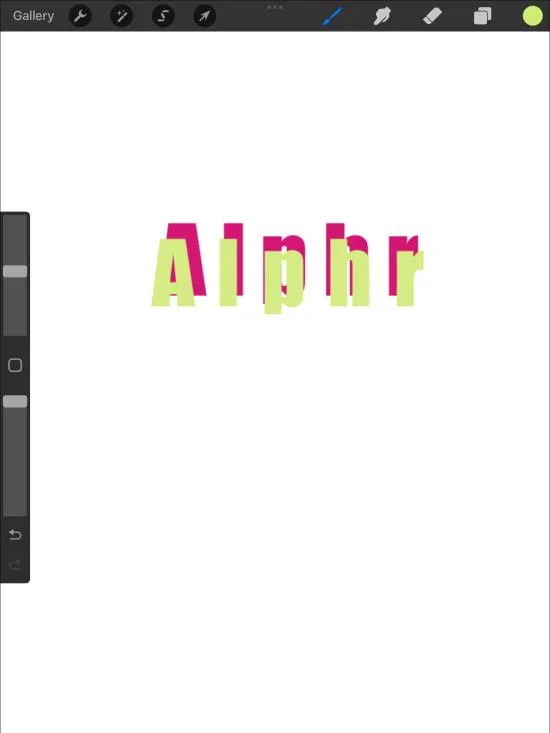
This is an excellent way to make added text pop and add depth to your design. Before starting the process, you must ensure that the Alpha Lock setting has been applied. Here’s what you need to do:

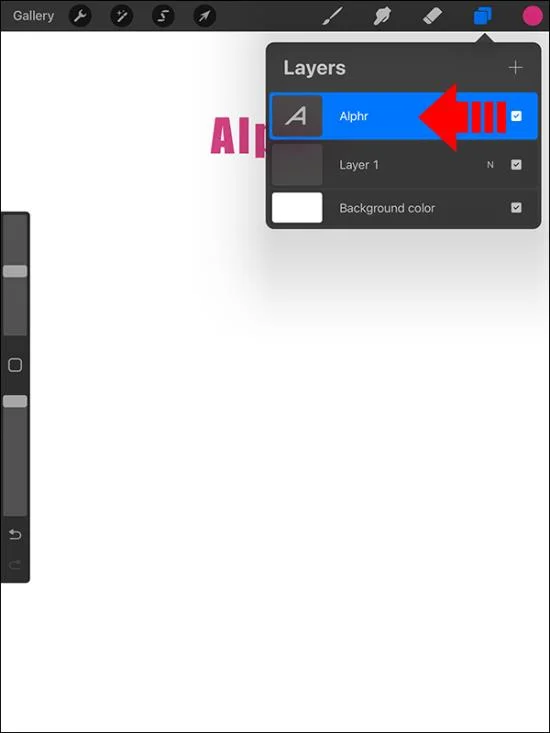
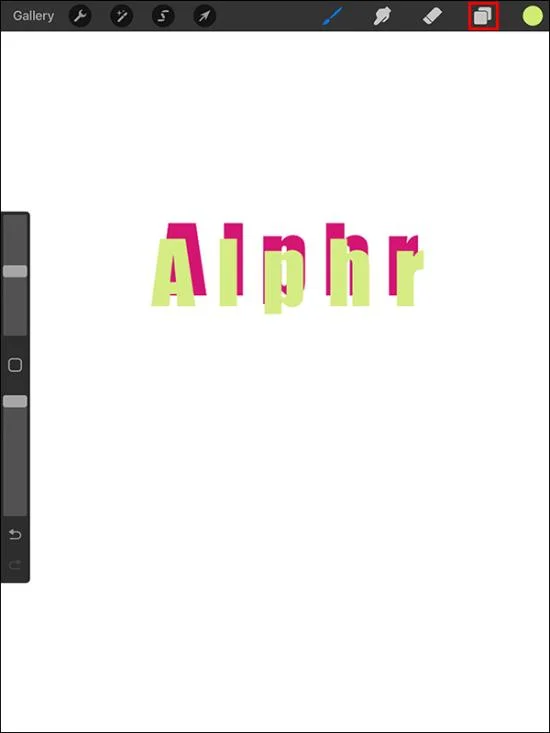
  1. Open your “Layers” panel.
    How To Add Text In Procreate
  2. Go to your text layer and swipe left.
    How To Add Text In Procreate
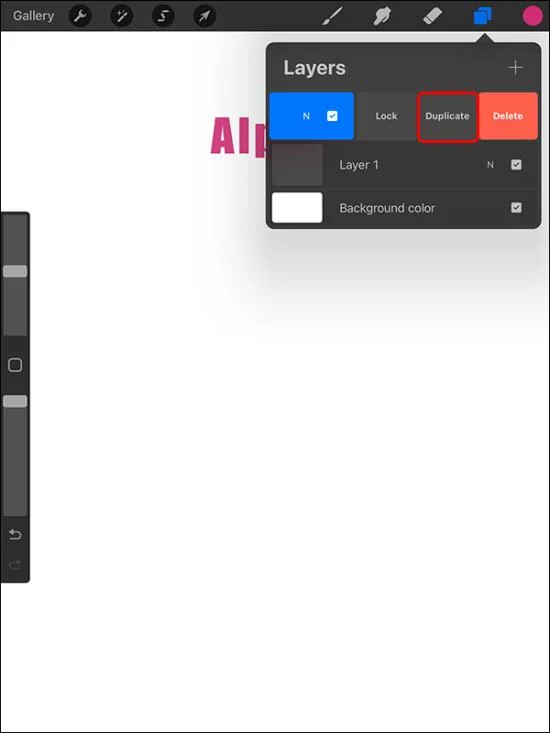
  3. Choose “Duplicate” to produce a copy of the text layer.
    How To Add Text In Procreate
  4. Select the shadow color you want to apply to the text. Choose a different shade from your original text and create a shadow effect.
    How To Add Text In Procreate
  5. Your text will be filled with the color you chose.
    How To Add Text In Procreate
  6. Adjust the position of your text until you obtain your desired shadow illusion.
    How To Add Text In Procreate

Deleting Text in Procreate

Design changes may require you to erase text from your artwork. Here’s how it’s done:

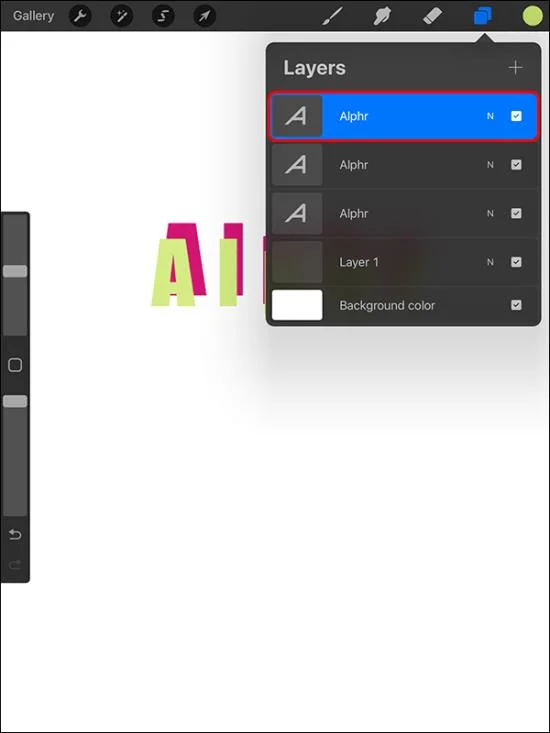
  1. Open the “Layers” menu.
    How To Add Text In Procreate
  2. Find the layer that holds your text.
    How To Add Text In Procreate
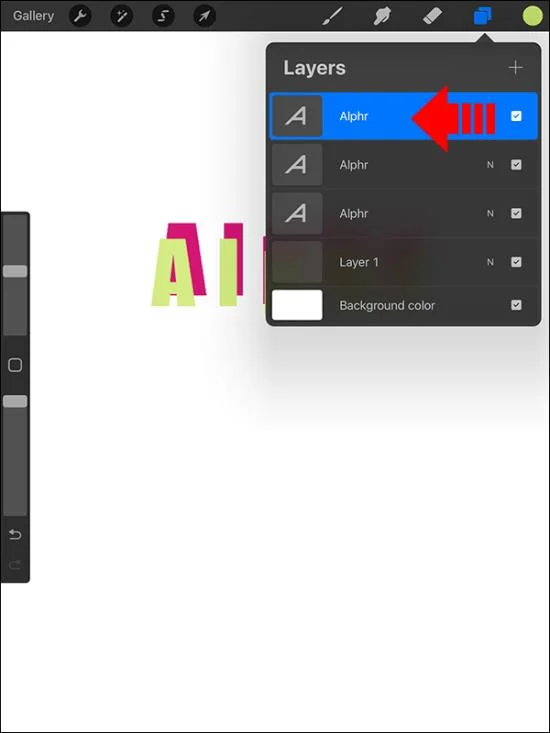
  3. Slide the layer towards the left.
    How To Add Text In Procreate
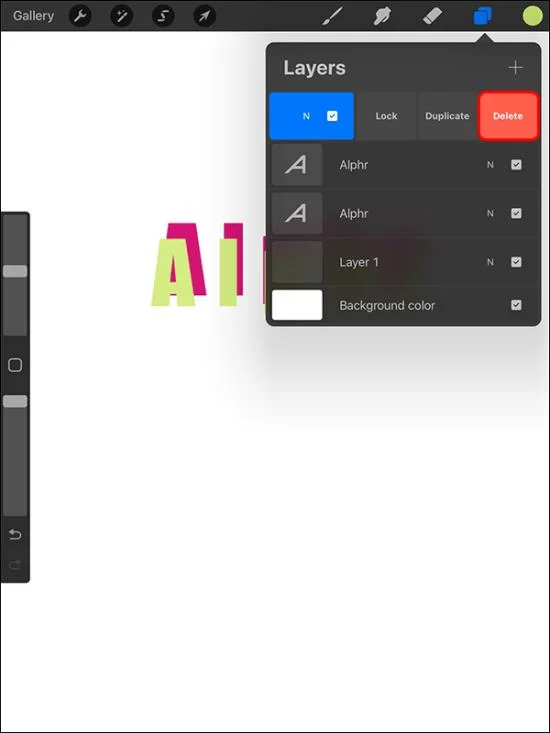
  4. A lock, duplicate, and delete option will be displayed. Select “Delete.”
    How To Add Text In Procreate

Rasterizing Your Text in Procreate

Unlike other design creation and editing apps such as Illustrator, which are vector-based, Procreate works with raster text. This means you’ll see noticeable changes when you resize your text in the app.

Here’s how you can rasterize your text:

  1. Open the “Layers” panel.
    How To Add Text In Procreate
  2. Select your text layer.
    How To Add Text In Procreate
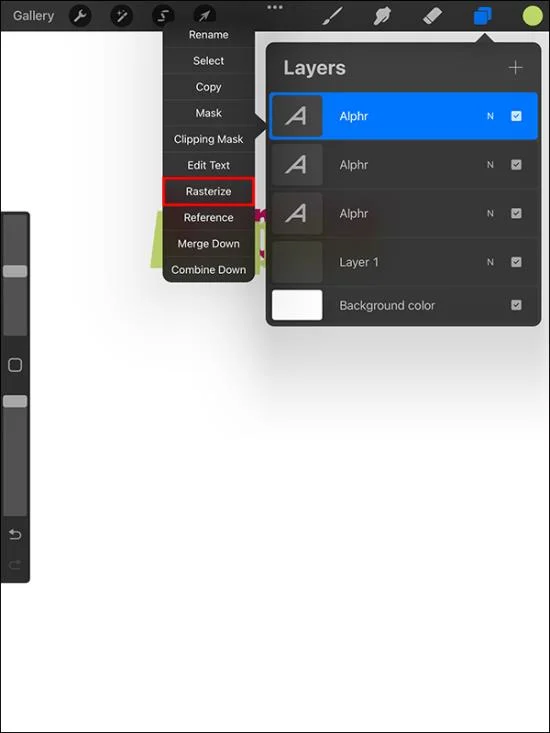
  3. Choose “Rasterize.”
    How To Add Text In Procreate

Rasterizing your text helps to transform it into a non-text layer. This allows you access to more options on the layer’s panel.

Masking Rasterized Text

This method is ideal if you’re looking for a way to overlay a design over added text in Procreate. It can help you change colors and add textures quickly. This increases your productivity since you don’t have to keep creating new files whenever you want to make changes. You can mask rasterized text by selecting the layer and choosing a clipping mask.

Here are the adjustments you can make:

  • Transform: Helpful in scaling and distorting images.
  • Adjust: Allows you to explore color and texture effects.
  • Deactivate: This enables you to view pre- and post-illusions of the text design.

Text Style Options in Procreate

The design panel is handy for modifying your text format. You can use a few essential properties to change your text styles. Here are some essential options and their functions:

  • Kerning: This helps adjust the space between two letters. Ensure you place your cursor between the layers you want to distance or push closer before making the changes.
  • Leading: Unlike kerning, this property signifies the distance between two lines. If you’ve got multiple lines within your artwork, this setting is ideal for decreasing or widening the space.
  • Tracking: This method is convenient for decreasing or increasing the space between all letters within the text box.
  • Baseline: This shows the horizontal axis that your text occupies.
  • Opacity: If you want to adjust the transparency of your text, this setting will help you. To reduce the opacity level, move the slide to the left. Shifting it to the right will increase opacity.

You can find all these options within the Edit Style menu.

Spice Up Your Art With Text

Procreate isn’t only about drawing. It allows you to create unique artwork by adding text. Learning how to add text can help you quickly transform simple images into functional designs. The feature offers numerous benefits. Whether you want to create a base for hand lettering or need to elevate your art, the value of adding text can’t be overlooked.

Have you ever added text in Procreate? If so, did you use any of the tips and tricks featured in this article? Let us know in the comments section below.

Leave a Comment

What Young Riders Should Know About Moving Their Motorcycles Across Cities

What Young Riders Should Know About Moving Their Motorcycles Across Cities

Long-distance travel can involve heavy traffic, changing weather conditions, and rider fatigue. If you are also dealing with the responsibilities of moving home, such as packing belongings or coordinating accommodation, a long ride may add unnecessary pressure to an already busy schedule.

Solving Microsoft Teams Shortcut Error Not Opening

Solving Microsoft Teams Shortcut Error Not Opening

Tired of Microsoft Teams shortcut error preventing you from opening the app? Follow our expert, step-by-step guide with the latest fixes for instant resolution. Works on Windows, Mac & web – no tech skills needed!

Solving Microsoft Teams Task Management Sync Error

Solving Microsoft Teams Task Management Sync Error

Tired of Microsoft Teams Task Management Sync Error halting your workflow? Follow our proven, step-by-step fixes to resolve sync issues fast and restore seamless task collaboration. No tech expertise needed!

Troubleshooting Microsoft Teams Wiki Error Formatting

Troubleshooting Microsoft Teams Wiki Error Formatting

Struggling with Microsoft Teams Wiki Error Formatting? This step-by-step guide reveals proven fixes for common wiki tab issues, ensuring smooth editing and collaboration in Teams. Get back to productive wikis fast!

How to Fix Microsoft Teams Installation Error for Linux

How to Fix Microsoft Teams Installation Error for Linux

Struggling with Microsoft Teams installation error on Linux? Discover step-by-step fixes for Ubuntu, Fedora & more. Resolve dependency issues, crashes, and errors quickly with our ultimate guide. Get Teams running smoothly today!

Solving Microsoft Teams Error Page Not Loading

Solving Microsoft Teams Error Page Not Loading

Struggling with Microsoft Teams "Error Page" not loading? Get step-by-step fixes for desktop, web, and mobile. Solve Microsoft Teams Error Page issues quickly and resume seamless teamwork today.

Solving Microsoft Teams Error Screenshot Issues

Solving Microsoft Teams Error Screenshot Issues

Tired of Microsoft Teams "Error Screenshot" blocking your workflow? Get proven, step-by-step solutions to resolve screenshot errors in Teams instantly and boost productivity. No tech skills needed!

How to Fix Microsoft Teams Error U User

How to Fix Microsoft Teams Error U User

Tired of Microsoft Teams "Error U" User blocking your chats? Get proven, step-by-step fixes to clear cache, reset, and restore seamless collaboration instantly.

Where are Microsoft Teams Registry Keys Located on Windows 11?

Where are Microsoft Teams Registry Keys Located on Windows 11?

Unlock the precise locations of Microsoft Teams registry keys on Windows 11. Step-by-step guide to find, access, and safely tweak them for optimal performance and troubleshooting. Essential for IT pros and Teams enthusiasts.

How to Fix Microsoft Teams Training Error Video Lag

How to Fix Microsoft Teams Training Error Video Lag

Tired of Microsoft Teams "Training Error" Video Lag ruining your meetings? Follow our step-by-step guide with the latest fixes for smooth video calls—no more frustration!









