Pop Culture Costume Ideas That Will Dominate Halloween 2026

Plan a recognizable Halloween 2026 look with pop culture costumes inspired by Spider-Man, Supergirl, Toy Story 5, Moana, Mario, and Wednesday.
Deciding whether or not to leave your PS5 in Rest Mode involves weighing a number of factors. This guide explores nine key pros and cons to help you make an informed choice about this convenient but sometimes problematic feature.
Benefits of Using Rest Mode for PS5
First, let's start with all the reasons why you might want to leave your PS5 in Rest Mode.
1. Update and download in Rest Mode
You probably already know this, but you can update and download games on your PS5 in Rest Mode. This allows your PS5 to use minimal power while downloading new games or updating installed ones. This way, you can always play your favorite live service video games without having to wait for an update or patch.
2. Charge peripherals while PS5 is in Rest Mode
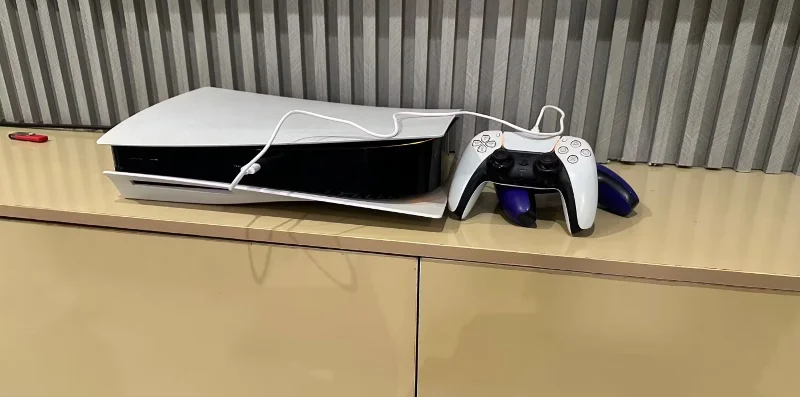
Basically, the controller can only charge when the PS5 is on, so leaving the PS5 in Rest Mode while the controller is connected will help ensure you have enough power for your next session.
You can also use PS5 while in Rest Mode as a temporary charging station for other accessories or a power source for smart home devices.
3. Play and install games remotely
Another reason to keep your PS5 in Rest Mode is to be able to access it remotely while it's in that state. Once you've set up and started using remote play, you'll be able to use any supported mobile device to play video games on your PS5 when you're not using it.
You can also buy and install games on your PS5 when you're not using it. All you have to do then is buy and install the game through the PlayStation App.
4. Use Rest Mode to pause the game
Putting your PS5 into Rest Mode won't close the game. Instead, it'll put the game in a permanently paused state, where you can pick up right where you left off when you come back. This is great for games that don't let you save at certain points but you're forced to quit at that point.
Picking up where you left off is much faster than starting the game from scratch and loading a save.
5. Rest Mode consumes power like PS5 when turned off
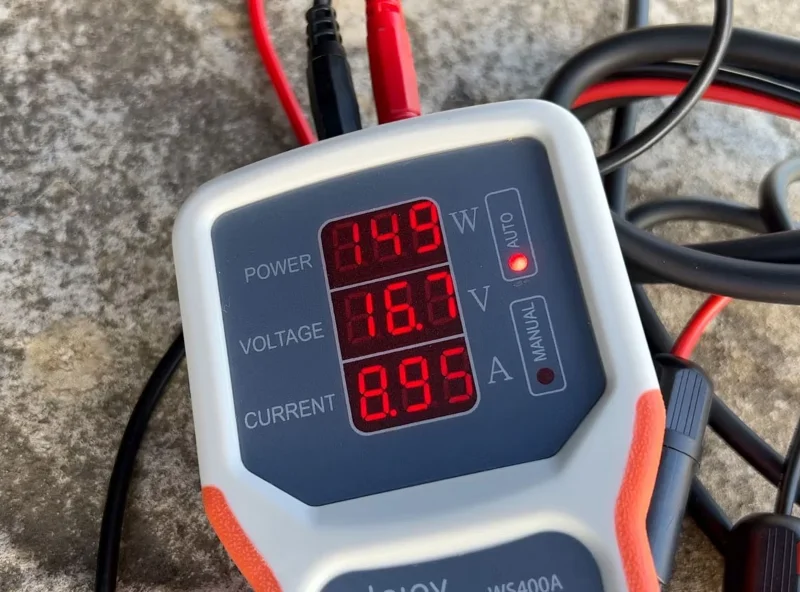
When it comes to power, the PS5 will use around 200 watts on average when running games. When you turn off the PS5 (and it's still plugged in), it will use around 1.30 watts.
Rest Mode, however, only uses 1.50 watts, which is about the same as the PS5 when powered off. So it saves power while still providing a lot of features and keeping games from freezing.
Disadvantages of Using Rest Mode on PS5
There are plenty of good reasons to put your PS5 in Rest Mode, but sometimes, it's better to power it down completely.
1. Rest Mode still consumes power
Rest Mode doesn't use much, but it still uses power. If you're leaving home for vacation—or don't plan on using your PS5 for a long time—unplug it. PS5 power consumption can add up over time.
Additionally, the PS5 may wake up while in Rest Mode, turning on the TV or monitor (or vice versa), both of which can drain power while you're away. Additionally, some users have complained that the PS5's fan is still running after putting it in Rest Mode. It may be by design or a bug, but it definitely drains power.
2. Unwanted updates can increase your Internet bill
While it's nice to sit back and start a game of Fortnite without any updates, letting your PS5 update in Rest Mode means it'll also update installed games in your library that you don't want to play.
If you have automatic updates enabled on your PS5, there's no option to choose which games it updates, so everything gets updated. And really big updates can run up your internet bill.
3. Rest Mode can cause heat buildup and reduce the lifespan of PS5
It may be using minimal resources, but Rest Mode is still using resources. Leaving the PS5 in Rest Mode while it is constantly performing one task or another means that it will eventually shorten the life of the console. When operating in Rest Mode, the SSD in the PS5 is writing data and the CPU is performing tasks.
Without a cooling fan, these tasks can cause the CPU to get quite hot. This activity and heat can build up and reduce the overall lifespan of the components.
4. The bug may affect apps and games that crash.
Sometimes games can crash in Rest Mode. This isn’t common, and some people have used their PS5 for years without encountering this issue. However, a large number of people using Rest Mode on their PS5 have encountered this. If you plan on using Rest Mode a lot instead of saving your game, you may be in for a nasty surprise when your game crashes.
Obviously, the pros outweigh the cons, and you can use Rest Mode regularly if you want to. However, everyone has unique circumstances, and some of these cons may be a deal-breaker for some people. In any case, if you regularly leave your PS5 in Rest Mode, you should understand exactly what you’re doing.
Plan a recognizable Halloween 2026 look with pop culture costumes inspired by Spider-Man, Supergirl, Toy Story 5, Moana, Mario, and Wednesday.
Sort leftover Halloween candy safely, share or repurpose sealed treats, and choose food use or compost for pumpkins based on their condition.
Compare workplace Halloween costume choices by respect, dress code, mobility, and safety—and learn when a subtle accessory or a policy check is the better option.
Find a couples costume that fits your style, budget, and comfort level, from Addams Family classics to original inside-joke duos.
Need a last-minute high school Halloween costume? Compare 10 easy closet-based ideas by prep time, comfort, school-day practicality, and simple safety checks.
Use a simple 2026 Halloween decorating timeline for indoor décor, outdoor displays, and fresh pumpkins, with practical adjustments for weather and events.
Mix five vivid, approachable Halloween cocktails with measured recipes, simple prep tips, and an alcohol-free option for your party guests.
Find 15 office-friendly Halloween costume ideas for 2026, with practical checks for dress codes, respectful themes, comfort, and workplace safety.
Plan a fun elementary school Halloween party with easy crafts, games, inclusive treats, costume tips, and a sample 75-minute classroom schedule.
Compare realistic side hustles for 2026 by startup cost, fees, flexibility, and income control, with current tax and scam guidance from official sources.








