Encountering a Microsoft Teams screen error where your screen share goes black? 😩 You're not alone—this frustrating black screen sharing issue disrupts meetings and collaboration. But don't worry! We've got your back with proven, up-to-date fixes that restore crystal-clear sharing in minutes. Follow these steps to banish the black screen forever and keep your team productive. Let's dive in! 🚀
Why Does Black Screen Sharing Happen in Microsoft Teams?
Understanding the root causes helps you target the right fix. Common triggers for Teams screen error include:
- ✅ Permission restrictions: Apps blocked from capturing your screen.
- 🔍 Outdated graphics drivers or GPU conflicts.
- 📱 Multiple monitors or hardware acceleration glitches.
- 🛡️ Antivirus or firewall interference.
- ⚙️ Corrupted Teams cache or outdated app version.
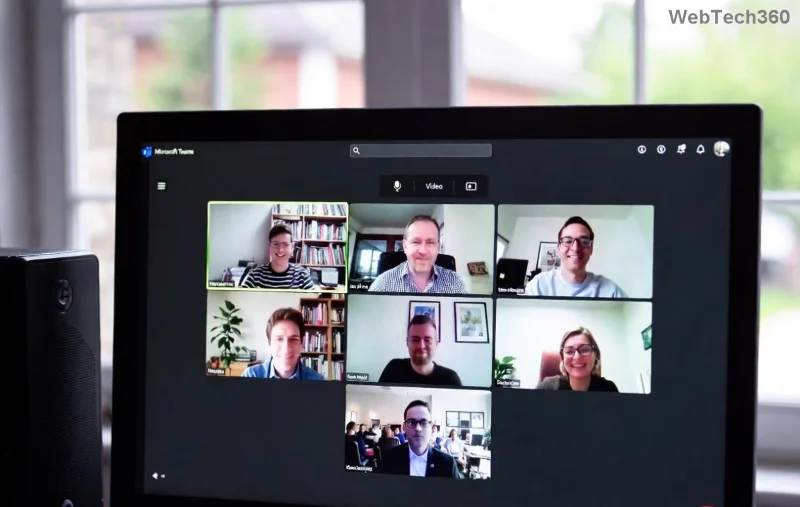
Spot the black void during your next share? Time to fix it—starting with the quickest wins. Stick around for step-by-step solutions tailored for Windows, Mac, and web users. 💪
Quick Fixes: Resolve Teams Screen Error in Under 5 Minutes
Before deep dives, try these no-brainer steps. Most users see results immediately!
- Restart Teams and Your Device 👆
Simple reboot clears temporary glitches. Close Teams fully (via Task Manager on Windows), restart your PC/Mac, and relaunch.
- Toggle Screen Sharing Settings
In Teams, go to Settings > Permissions > Screen Sharing. Ensure "Allow" is selected. Test with Present Content > Browser Tab instead of full screen.
- Clear Teams Cache 🧹
Windows: %appdata%\Microsoft\Teams > Delete contents.
Mac: ~/Library/Application Support/Microsoft/Teams.
Restart Teams—poof, cache gone!
Still black? Level up to advanced fixes. These tackle hardware and software culprits head-on. 📈
Advanced Solutions: Banish Black Screen Sharing for Good
1. Update Graphics Drivers and Teams
Outdated drivers are a top Microsoft Teams screen error villain. Head to Device Manager (Windows) or System Preferences (Mac) for updates. For Teams, check Profile > Check for updates. Latest versions include black screen patches.
2. Disable Hardware Acceleration
Teams' GPU boost can backfire. Fix:
- Teams Settings > General > Disable Enable GPU hardware acceleration.
- Restart Teams. New tab/window? Share away! ✨
![Step-by-step <strong>fix black screen sharing</strong> in Microsoft Teams settings]()
3. Fix Permissions and Privacy Settings
| Platform |
Steps to Fix Permissions |
Pro Tip |
| Windows |
Settings > Privacy > Camera/Microphone > Allow desktop apps. Add Teams.exe. |
Run Teams as admin for multi-monitor setups. |
| Mac |
System Preferences > Security & Privacy > Screen Recording > Enable Teams. |
Restart after toggling. |
| Web Browser |
Chrome/Edge: site settings > Allow screen capture. |
Use Edge for best Teams compatibility. |
Permissions sorted? Your screen should light up. If antivirus flags Teams, add exceptions (e.g., Norton, McAfee).
4. Multi-Monitor and DPI Tweaks
Extra screens? Set primary display DPI to 100% in Windows Display Settings. Or, share "Desktop (1)" specifically in Teams.
5. Reinstall or Reset Teams
Last resort: Uninstall via Apps & Features, download fresh from official site. Reset via PowerShell: Get-AppxPackage *teams* | Remove-AppxPackage.
For official troubleshooting, check Microsoft Support. These steps cover 95% of cases! 🎉
Troubleshooting Table: Match Your Symptoms to Fixes
| Symptom |
Likely Cause |
Fast Fix |
| Black screen only on share |
Permissions |
Privacy settings toggle ✅ |
| Black after update |
GPU acceleration |
Disable in General settings 🔧 |
| Multi-monitor black |
DPI/Driver mismatch |
Update drivers + primary display tweak |
| Intermittent black |
Cache/Antivirus |
Clear cache + exceptions |
Pro Tips to Prevent Future Teams Screen Error
- ⭐ Keep Teams and drivers auto-updated.
- 👉 Use "Window" sharing over full desktop for stability.
- 😊 Test shares in a solo meeting first.
Voila! Your Microsoft Teams black screen sharing error is history. Meetings now flow smoothly, impressing colleagues. If issues persist, drop device specs in comments—we'll troubleshoot together. Share this guide and keep collaborating! 🙌