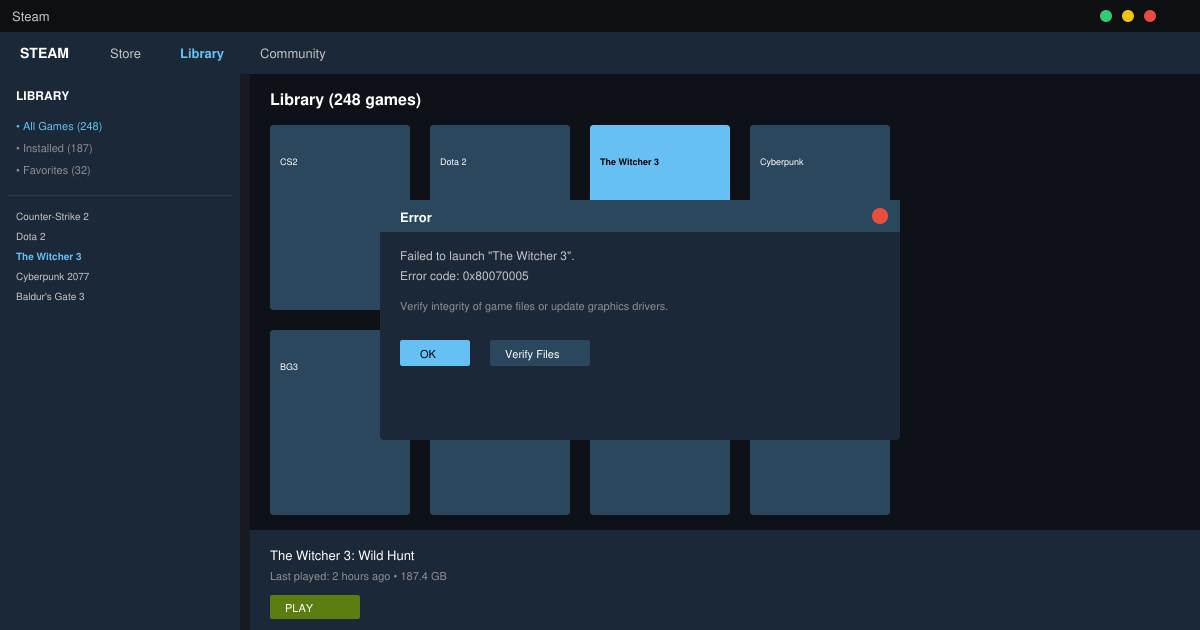
When a Steam game will not launch, the problem is usually tied to corrupted files, outdated drivers, or conflicting software. This guide walks through the most effective fixes in the order they resolve issues for most users. You will have your game running again in the majority of cases by following these exact steps.
Common Reasons a Steam Game Will Not Launch
Steam games fail to start for several predictable reasons. Missing or damaged game files top the list, followed by graphics driver problems and permission issues on Windows. Less common causes include antivirus interference and outdated Steam client versions. Identifying the exact cause is not required before trying the fixes below.
Make sure Steam itself is fully updated before beginning. Right-click Steam in the system tray and select Exit, then relaunch it from the desktop shortcut. This clears temporary glitches that sometimes block game executables.
Step-by-Step Fixes for Steam Game Will Not Launch
-
Verify Integrity of Game Files
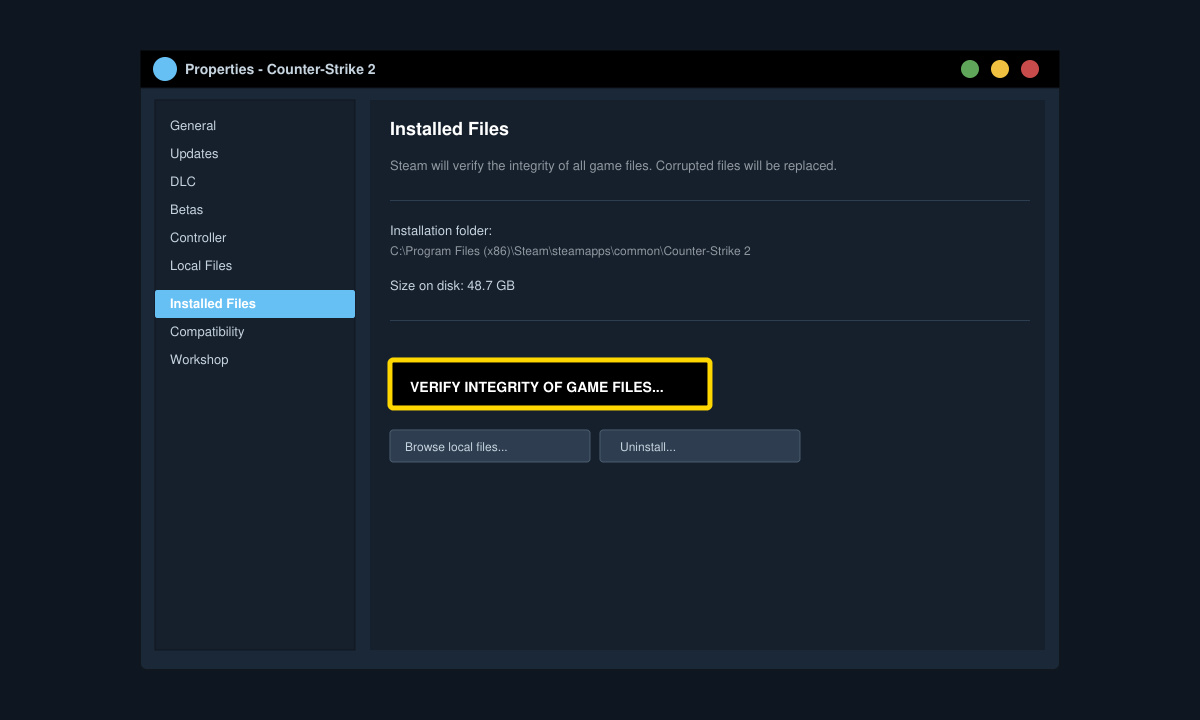
Open your Steam library, right-click the affected game, and choose Properties. Click the Installed Files tab on the left, then select the Verify integrity of game files button. Steam will scan and replace any corrupted files automatically. This step fixes launch failures for roughly half of users.
-
Update Graphics Drivers
Download the latest drivers directly from NVIDIA, AMD, or Intel depending on your GPU. Run the installer in clean mode if the option appears. Restart your PC afterward, then attempt to launch the game again from Steam.
-
Run the Game Executable as Administrator
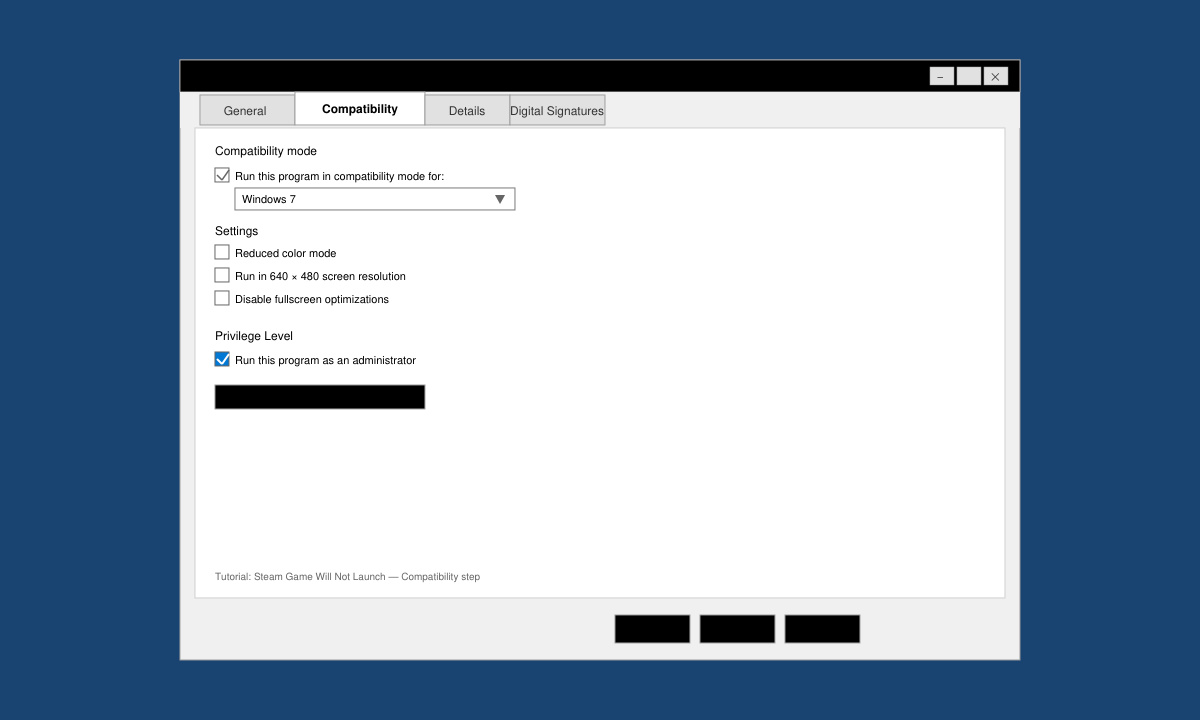
Navigate to the game folder inside Steam\steamapps\common. Right-click the main .exe file, select Properties, and check the Run this program as an administrator box on the Compatibility tab. Apply the change and test the launch from Steam.
-
Disable Overlay and Third-Party Software
In Steam, go to Steam > Settings > In-Game and uncheck Enable the Steam Overlay. Temporarily close Discord, NVIDIA GeForce Experience, and any RGB software. Launch the game once more to test.
-
Change Compatibility Mode
Still in the game executable Properties window, set Compatibility mode to Windows 8 or Windows 7. Click Apply and try launching again. Switch modes one at a time rather than testing multiple options at once.
Additional Troubleshooting Tips
- If the game still refuses to start, delete the appcache folder inside your Steam directory and restart Steam.
- Check Windows Event Viewer under Windows Logs > Application for specific error codes related to the game executable.
- Reinstall the Visual C++ Redistributables from the official Microsoft download page if multiple games fail to launch.
- Avoid using VPNs during testing, as they can interfere with Steam's connection to game servers.
Frequently Asked Questions
Does verifying files delete my saves?
No. Verifying integrity only replaces damaged or missing files and leaves your save data untouched.
Can I fix Steam game will not launch without reinstalling the game?
Yes. The steps above resolve the issue in most cases without a full reinstall. Reinstall only after trying every listed fix.
Why does the game crash immediately after the Steam launch button is clicked?
Immediate crashes almost always point to graphics driver conflicts or missing Visual C++ packages. Updating drivers and reinstalling the redistributables usually corrects this.
Conclusion
Following the ordered fixes above resolves Steam game will not launch problems for the vast majority of players. Start with file verification and driver updates, then move through the remaining steps only if needed.