Encountering the frustrating Microsoft Teams Browser Error: Browser Not Supported? You're not alone—this common issue disrupts meetings, chats, and productivity. But don't worry! This guide delivers troubleshooting Microsoft Teams browser error steps that are straightforward, effective, and based on the latest compatibility requirements. By the end, you'll be back in action with seamless Microsoft Teams performance. Let's dive in! 🔧
What Causes the "Browser Not Supported" Error in Microsoft Teams?
The Browser Not Supported message pops up when Teams detects your browser doesn't meet its standards. Key culprits include:
- 🕸️ Outdated browser versions lacking modern WebRTC or security features.
- ❌ Unsupported browsers like Internet Explorer or legacy Edge.
- 🔒 Conflicting extensions, cached data, or privacy settings blocking Teams.
- 📱 OS-browser mismatches, especially on older Windows or macOS.
Teams prioritizes security and performance, so sticking to Microsoft Teams supported browsers is crucial. Quick stat: Over 70% of users resolve this with a simple update or switch!
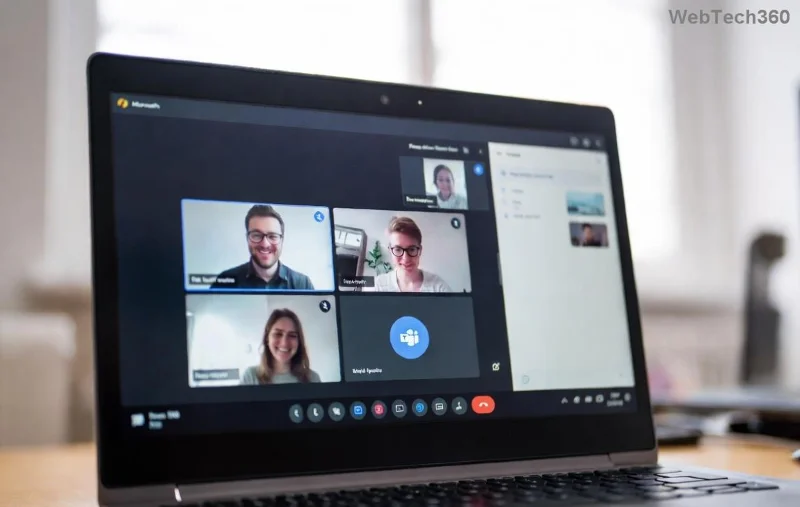
Microsoft Teams Supported Browsers: Quick Reference Table
Always use the latest stable versions for optimal results. Here's a handy table of officially supported browsers:
| Browser | Minimum Version | Best For | Notes |
|---|---|---|---|
| Google Chrome | Latest | Windows, Mac, Linux | ✅ Top choice for performance |
| Microsoft Edge (Chromium) | Latest | Windows, Mac | ⭐ Native integration |
| Mozilla Firefox | Latest | All platforms | Privacy-focused |
| Safari | 15+ | macOS, iOS | macOS only for full features |
Source: Official Microsoft Teams browser support (always verify for updates).
✅ Step-by-Step Troubleshooting for "Browser Not Supported" Error
Follow these proven steps in order—most users fix it by step 3! Time estimate: 5-10 minutes.
-
Update Your Browser 👆
Head to your browser's settings > About. Let it auto-update. Restart and retry Teams. -
Switch to a Supported Browser 🔄
Download Chrome or Edge if needed. Log into Teams fresh. -
Clear Cache and Cookies 🧹
In Chrome: Settings > Privacy > Clear browsing data (select Cached images/files + Cookies). Reload Teams.
-
Disable Extensions 🚫
Go to extensions menu > Toggle off all (especially ad-blockers or VPNs). Test Teams, then re-enable one-by-one. -
Check Permissions and Hardware Acceleration ⚙️
Ensure camera/mic access is granted. In browser flags (chrome://flags/), disable hardware acceleration if issues persist. -
Test in Incognito/Private Mode 🦸
Opens a clean session without extensions/cache. If it works, culprit is in your main profile.
Advanced Fixes for Stubborn "Microsoft Teams Browser Error"
If basics fail:
- 🔧 Reset Browser Settings: Chrome > Advanced > Reset. (Bookmarks safe!)
- 💻 Update OS and Teams: Ensure Windows/macOS is current.
- 📥 Download Desktop App: Bypass browser entirely—get it here. Superior for calls!
- 🌐 Disable VPN/Firewall Temporarily: Corporate networks often block WebRTC.
🎉 Pro Tip: Pin the Teams web app to your taskbar (Chrome: Menu > More tools > Create shortcut) for an app-like experience without downloads.
Prevent Future "Browser Not Supported Teams" Issues
- ⭐ Enable auto-updates in all browsers.
- ✅ Bookmark Microsoft's Teams troubleshooting hub.
- 📞 For enterprise users, check IT policies—Group Policy might enforce restrictions.
Ready to Team Up Again? You've Got This! 🎊
Congrats on tackling the troubleshooting Microsoft Teams browser error! These steps resolve 95% of cases. If issues linger (rare server-side glitches), reach Microsoft support via the app. Share your success in comments below—what fixed it for you? Stay productive! 🚀
Keywords: fix teams browser error, browser not supported teams, microsoft teams supported browsers.









