Why Are Your Steam Downloads so Slow often boils down to a handful of fixable settings inside Steam or on your network. This guide explains the real reasons behind sluggish speeds and gives precise, numbered steps you can follow right now to improve them.
Common Reasons Why Steam Downloads Are Slow
Steam routes downloads through regional content servers that can become congested. Your chosen download region, active background processes, or even a single misconfigured setting inside the client can cap speeds far below your actual internet connection. Before changing anything, note your current download region and run a quick speed test at speedtest.net so you have a baseline to compare against after adjustments.
Other frequent culprits include Steam's own bandwidth limiter being enabled, antivirus software scanning every incoming file, and Windows power settings throttling network adapters. Addressing these in order usually produces the biggest gains.
How to Fix Slow Steam Downloads
-
Change your Steam download region
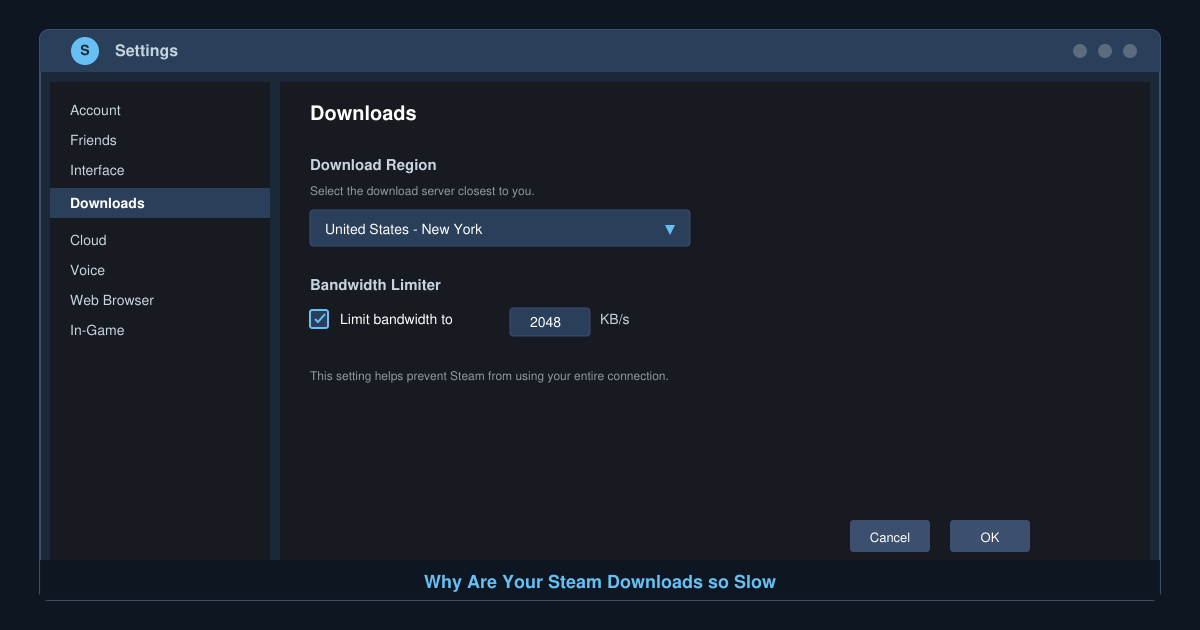
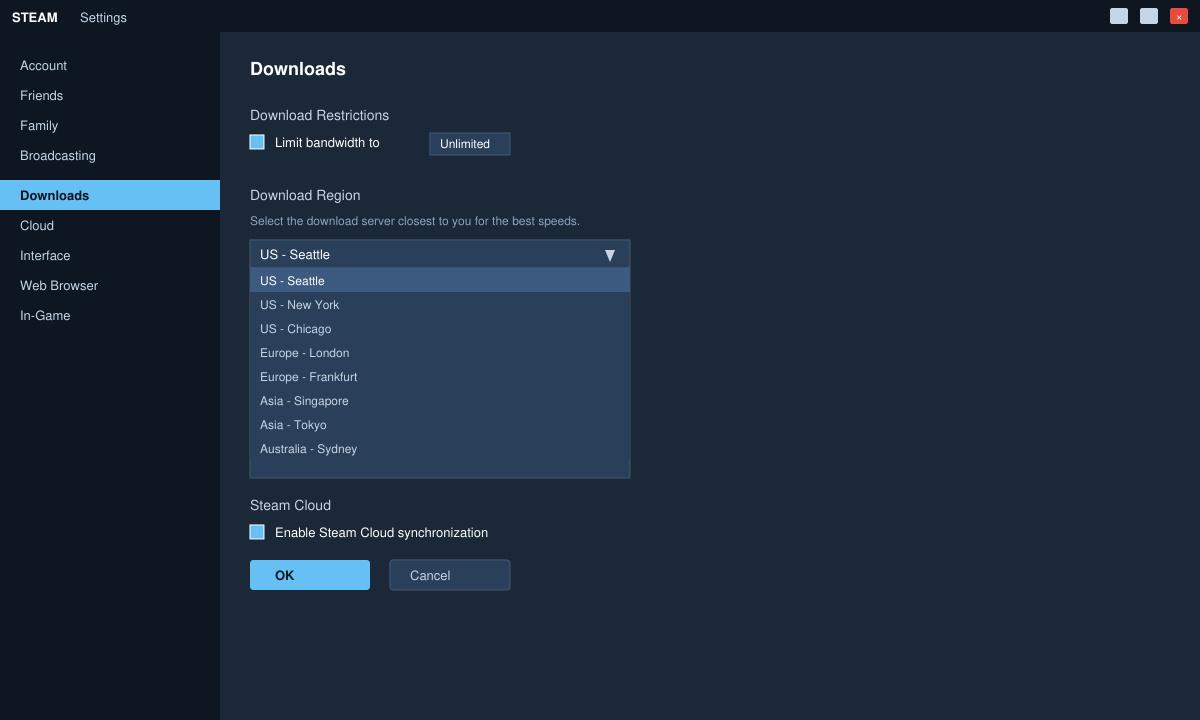
Open the Steam client and click Steam in the top-left menu, then select Settings. Click the Downloads tab on the left. Under Download Region, open the dropdown and try servers other than your current one—US - New York, Germany - Frankfurt, or Singapore often perform better depending on your location. Click OK, restart Steam, and start a download to test the new speed.
-
Disable Steam's bandwidth limiter
In the same Downloads tab, make sure the checkbox for Limit bandwidth to is unchecked. If it was enabled, your downloads were artificially capped. Save the change and restart the client before testing again.
-
Clear Steam download cache
Still in Settings, switch to the Downloads tab and click the Clear Download Cache button near the bottom. Confirm the action, then fully close and reopen Steam. This forces the client to fetch fresh server lists and often removes corrupted partial files that slow transfers.
-
Close bandwidth-heavy background apps
Open Task Manager with Ctrl+Shift+Esc, go to the Processes tab, and sort by Network. End or pause any applications using more than a few Mbps (cloud sync tools, video streaming, or other game launchers). Return to Steam and resume the download to measure improvement.
-
Verify game file integrity after a speed boost
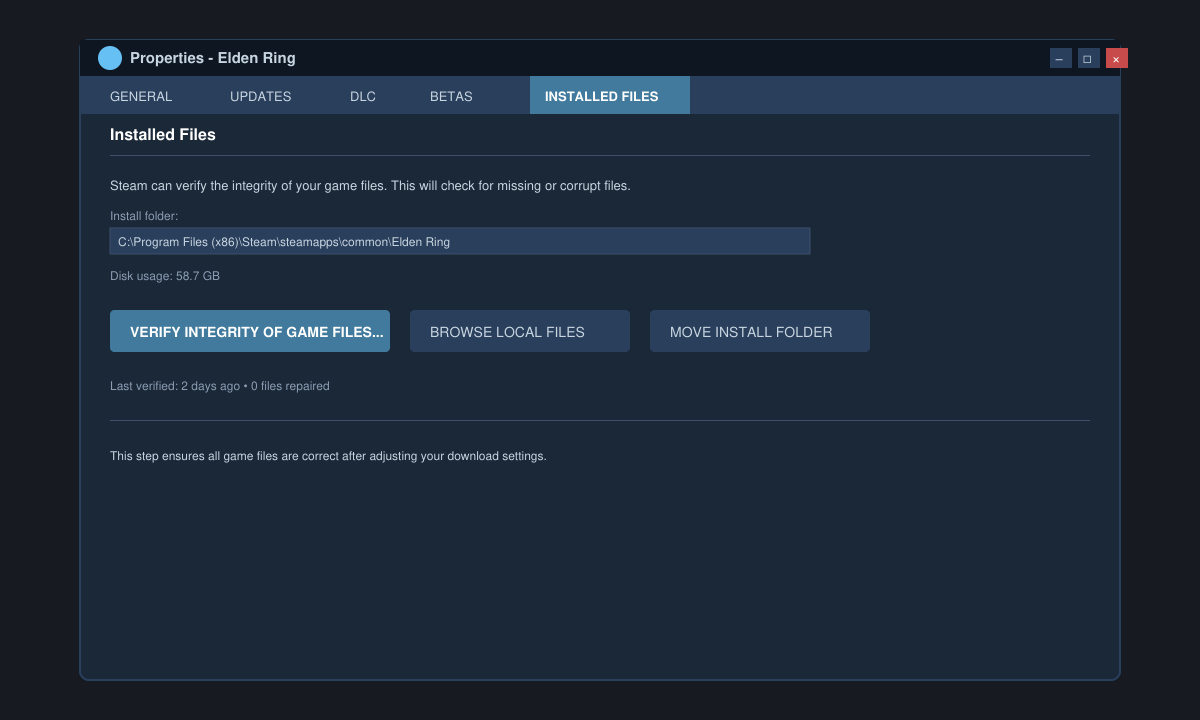
Right-click the game in your Steam library, choose Properties, then Installed Files. Click Verify integrity of game files. This step ensures no corrupted data remains from the slow download session and prevents future stalls.
Extra Tips and Common Mistakes to Avoid
- Never set a custom MTU value unless you have confirmed packet loss on your line; most users see worse results.
- Disable VPNs or proxy software while downloading—routing through extra servers almost always reduces Steam speeds.
- If you use a Wi-Fi 5 or older router, connect via Ethernet temporarily to rule out wireless interference.
- Keep Steam updated; older client versions sometimes use outdated server lists that cause persistent slowdowns.
Frequently Asked Questions
Does changing the download region always help?
Yes in most cases, because it moves you to a less crowded Steam content server. Test two or three nearby regions and keep the one that shows the highest sustained speed.
Can antivirus programs really slow Steam downloads?
Yes. Real-time scanning of every downloaded chunk adds significant overhead. Add the Steam folder (usually C:\Program Files (x86)\Steam) to your antivirus exclusion list for a quick test.
Why do my speeds drop after a few minutes?
This usually indicates the bandwidth limiter is on or another device on your network started a large transfer. Check both the Steam limiter and your router's connected devices list.
Conclusion
Applying the region change and cache clear steps above resolves the majority of slow Steam download cases. Re-test your speeds after each change so you know exactly which fix delivered the improvement.