Home
» Wiki
»
Why do many people prefer AI photo editing over manual techniques?
Why do many people prefer AI photo editing over manual techniques?
Many people still consider AI as a shortcut or an aid in photo editing, finding it extremely useful. While some prefer a hands-on approach, there are a few reasons why many people rely on AI tools.
AI tools are a lifesaver, especially when you’re short on time. Using AI photo editing tools allows you to streamline your photo editing process by analyzing your images and making recommendations, along with other time-saving features like auto-adjustments and auto-masking.
The output generated will require some tweaking to correct and improve, but overall it saves you a lot of time compared to doing everything manually.
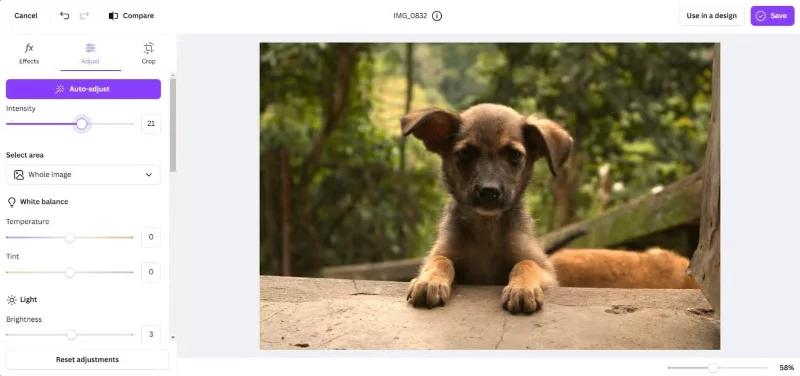
Automatic color adjustment with AI engine
In the image above, the author used Canva’s auto-adjust tool to quickly apply a comprehensive set of image adjustments—saving the time it would take to manually adjust each setting. This feature provides a solid starting point for your edits, which you can then further refine to suit your style.
While the adjustments may not convey any level of artistry or style, they are often good enough to use without further editing, especially if you're short on time and need to edit an entire batch of photos.
2. Can easily change or delete anything in the photo
One of the most frustrating things about manual photo editing is having to deal with unwanted elements in your photo. Imagine taking a perfect photo only to realize there’s a random stranger or an ugly sign in the background. Manually removing these distractions can be a pain, and often requires a lot of time to mask out and manually edit.
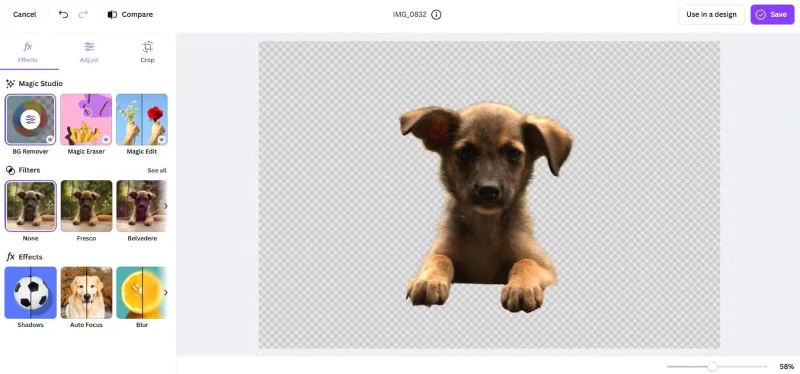
Easily remove background with AI photo editor
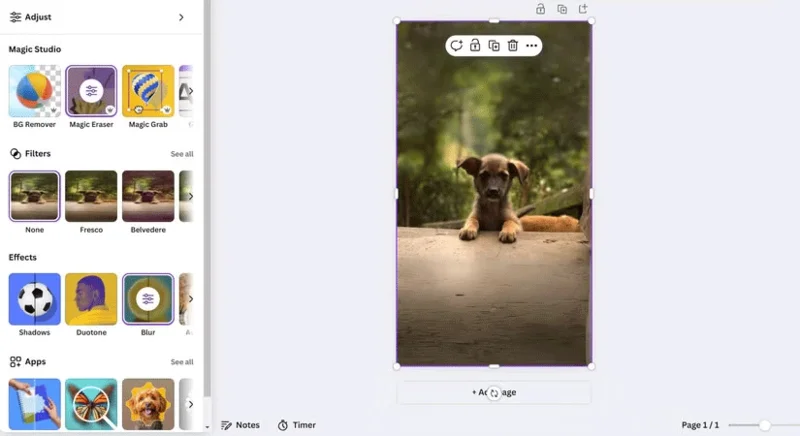
This is where AI tools shine. Canva’s AI Magic Eraser lets you paint over unwanted objects and it seamlessly erases them, leaving the background intact. Adobe’s Content-Aware Fill is another game-changer.
If you need to remove a larger object or reposition elements in your photo, these tools make it easy. Gone are the days of manually copying pixels or fiddling with complex layers in Photoshop for hours.
3. AI helps beginners edit more advanced
Before AI tools, photo editing seemed intimidating. Learning software like Photoshop required time, patience, and a bit of talent. But with AI, even beginners can create impressive edits with ease.
If you are someone who doesn't have the time to learn advanced photo editing techniques, you can use a browser-based photo editor, as many of them have implemented AI, allowing you to export acceptable edits without requiring any skills.
Canva's AI toolset lets you make all sorts of edits without spending time learning how to use them online. If you want to add or replace something in a photo, just scan the area and describe what you want. Whether it's adding a bouquet of flowers to someone's hand or replacing a cloudy sky with a sunny one, the tool makes it easy.
Google Photos’ Magic Editor is also worth mentioning. It takes beginner-friendly editing to the next level by allowing users to dynamically adjust backgrounds, reposition subjects, and even change lighting. These features were once reserved for professional photographers, but are now available to anyone with a smartphone.
What's most appreciated about these AI-powered features is how they make it possible for anyone to edit difficult things. You don't have to be a Photoshop expert to get good results.
When you want to go beyond simple edits and dive into creativity, Generative AI tools are your secret weapon. They open up artistic possibilities that manual methods simply can't achieve, at least not without hours of effort.
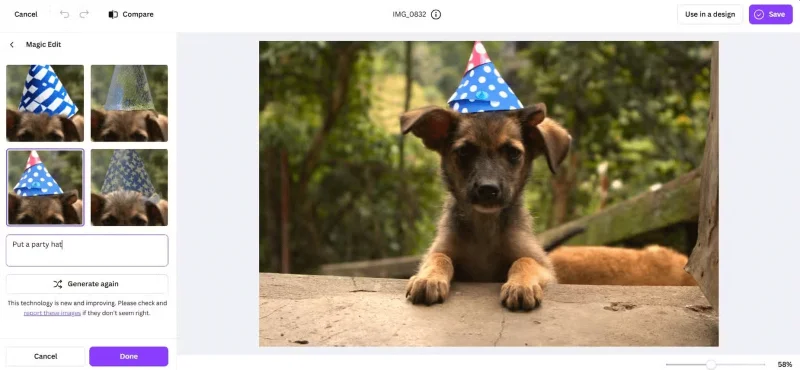
Canva's text-to-image tool is a favorite. It lets you describe what you want to see, and AI will generate a custom image based on your description. In this example, just shade in the area you want to edit and provide a description to add a hat to the dog.
Using Generative AI on images
These tools aren’t just for fun. They’re also practical. You can use Generative AI to create backgrounds for presentations, placeholders for design projects, and even unique social media posts that stand out from the crowd.
AI photo editing tools like Canva, Google Photos, and Adobe Photoshop Express have changed the way people approach photography. They save you time, make it easy to edit or transform images, and open the door to creative possibilities you never imagined. Whether you’re a casual user or a seasoned photographer, these tools can make your life easier and your photos better.
If you're hesitant to try AI for editing, give it a try. You can turn to AI tools whenever you want to enhance or transform your photos.