Why does Apple always focus on form over function?

With two recent product launches, Apple has shown that it prioritizes form over function. Both the new Magic Mouse USB-C and the Mac mini feature odd design elements that have many questioning Apple’s entire design philosophy.

Apple's Magic Mouse still charges from the bottom

Why does Apple always focus on form over function?
Apple Magic Mouse charging on the table

In 2015, Apple made the controversial decision to put the Lightning port (for charging) on ​​the bottom of the Magic Mouse 2. This meant that you couldn't use the mouse while it was charging, a rather absurd design decision that was ridiculed by both critics and users at the time. While many people loved the Magic Mouse, they didn't understand the absurdity of the port placement.

Nearly a decade on, Apple hasn't changed the port's location despite switching to USB-C for charging. The release of the new Magic Mouse with USB-C gave Apple the perfect opportunity to improve the design — moving the charging port from the bottom to the bottom of the mouse.

That way, when the Magic Mouse is running low on battery, users can continue using the mouse while it's plugged in and charging — without much impact on the mouse's appearance.

The new Mac Mini has a power button on the bottom

Why does Apple always focus on form over function?
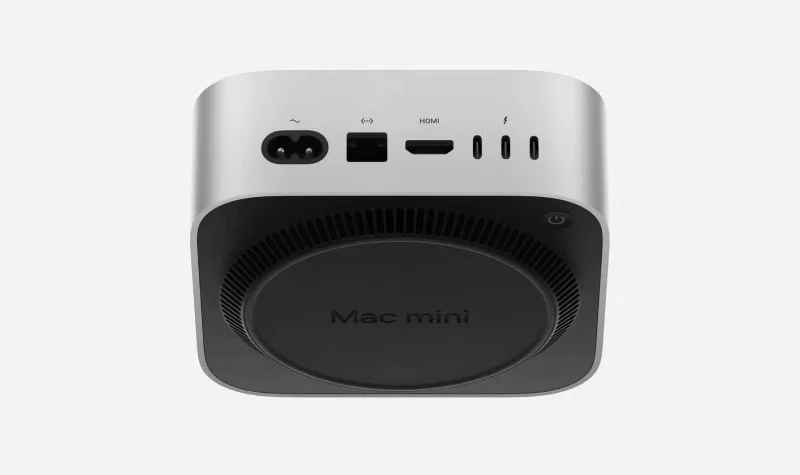
Mac mini 2024 showing ports and power button

The same week Apple unveiled the USB-C Magic Mouse, it unveiled a redesigned Mac mini powered by the M4 and M4 Pro chips. While many praised the hardware upgrades, there was one rather ridiculous redesign decision.

Like the Magic Mouse, Apple decided to take advantage of the underside of the Mac mini. This time, for the power button. Yes, you heard that right. Apple figured the best place to put the accessible switch was on the underside of the Mac mini, meaning you have to lift it up and tilt it to turn it on or off.

Sure, as many Apple enthusiasts have pointed out, the power button isn’t used very often. But that’s not the point. A button that’s such a fundamental part of a product shouldn’t be tucked away and placed in a place that’s difficult to reach. It’s not user-friendly. The new Mac mini may be perfect for some, but the power button placement is ridiculous.

Why Apple Should Stop Prioritizing Looks Over Function?

Apple has built a reputation for making beautiful products. But form should never take precedence over function. If you’re creating products for the masses, as Apple does, the end user should be the top priority when designing and developing those products. When that’s not true, you’re doing your customers a disservice.

People absolutely love the clean lines and great aesthetics of Apple products. After all, we’re paying a lot of money for them, so they should look good. But the need for aesthetics should never take precedence over how well they meet the needs of the user.

It’s clear that Apple is making a conscious decision here, weighing the pros and cons of placing components in certain locations. However, the company has missed the mark with these specific aspects of both the Magic Mouse and the Mac mini.

Leave a Comment

Side Hustles That Actually Pay in 2026: 7 Realistic Options and the Tradeoffs to Know

Side Hustles That Actually Pay in 2026: 7 Realistic Options and the Tradeoffs to Know

Compare realistic side hustles for 2026 by startup cost, fees, flexibility, and income control, with current tax and scam guidance from official sources.

Remote Work Ergonomics in 2026: Upgrade Your Home Office Without Overbuying

Remote Work Ergonomics in 2026: Upgrade Your Home Office Without Overbuying

Upgrade your home office ergonomics with current OSHA and NIOSH guidance on chair fit, monitor height, laptop setup, lighting, and movement.

Why Emotional Intelligence Matters in Leadership—and How to Build It

Why Emotional Intelligence Matters in Leadership—and How to Build It

Learn why emotional intelligence matters in leadership, where it helps most, how to strengthen it, and how to tell whether your approach is working.

How to Transition to a Tech Career Without a Degree: A Results-First Roadmap for 2026

How to Transition to a Tech Career Without a Degree: A Results-First Roadmap for 2026

A practical roadmap for moving into tech without a degree: choose an accessible role, build job-ready skills, prove them with projects, and use hiring feedback to improve.

Building a Personal Brand on LinkedIn in 2026: What Still Works, What Changed, and What to Ignore

Building a Personal Brand on LinkedIn in 2026: What Still Works, What Changed, and What to Ignore

Build a credible LinkedIn personal brand in 2026 with current profile, content, newsletter, analytics, verification, and visibility guidance from LinkedIn.

Quiet Quitting vs. Quiet Firing in 2026: What’s Really Changing at Work

Quiet Quitting vs. Quiet Firing in 2026: What’s Really Changing at Work

Quiet quitting and quiet firing are catchy labels, not diagnoses. Learn what is verified, what depends on context, and what employees and managers can do next.

The Rise of the Fractional Executive: When Part-Time C-Suite Leadership Makes Sense

The Rise of the Fractional Executive: When Part-Time C-Suite Leadership Makes Sense

Fractional executives offer senior leadership without a full-time hire. Learn when the model works, what to ask, and the risks to manage.

How to Negotiate a Raise During Q4 Performance Reviews: A Practical 2026 Decision Guide

How to Negotiate a Raise During Q4 Performance Reviews: A Practical 2026 Decision Guide

Prepare a stronger Q4 raise request with current wage data, timing options, compensation tradeoffs, and scripts for yes, partial, or no outcomes.

6 High-Income Skills You Can Start Learning Before 2026 Ends

6 High-Income Skills You Can Start Learning Before 2026 Ends

Choose a high-income skill you can realistically start before 2026 ends, with current pay data, learning priorities, and a practical self-check.

Mastering the Hybrid Work Schedule: A Practical Framework That Actually Holds Up

Mastering the Hybrid Work Schedule: A Practical Framework That Actually Holds Up

Build a hybrid work schedule around tasks, team overlap, and measurable outcomes. See sample patterns, warning signs, and when to adjust your plan.









