Desk Decorating Ideas for a Spooky Office Cubicle

Create a spooky office cubicle with Halloween desk decor ideas that keep your workspace usable, tidy, and mindful of workplace safety.
There are limits to what ChatGPT knows, but it is bound to give you what you ask for, even if the results are incorrect. This means that ChatGPT can make mistakes, even some common ones, especially when summarizing information that you are not paying attention to.
ChatGPT may ignore or misinterpret prompts
If you give a chatbot a lot of data to sort through, even a complex prompt, it can deviate from the instructions and follow its own interpretation.
Making too many requests at once is one of the mistakes to avoid. But it can also be that the chatbot doesn't recognize a specific word or phrase you use.
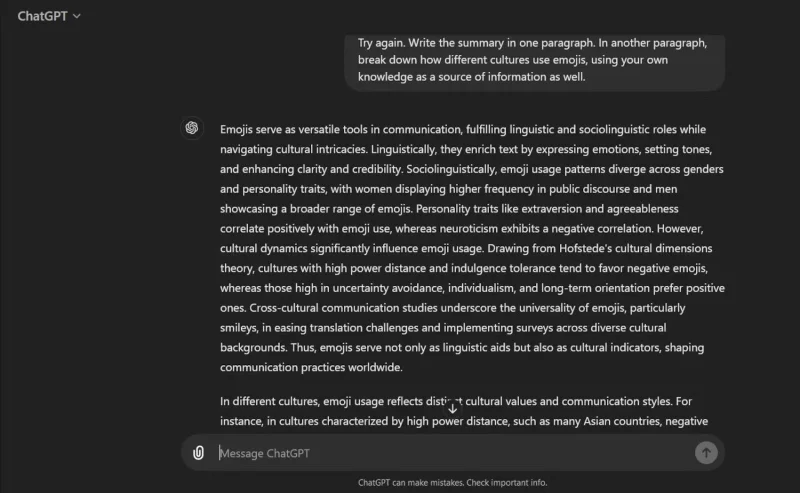
In the following example, ChatGPT receives a lot of information about the linguistic function of emojis. The simple prompt intentionally asks the chatbot to summarize everything and explain the connection between emojis and cultures.
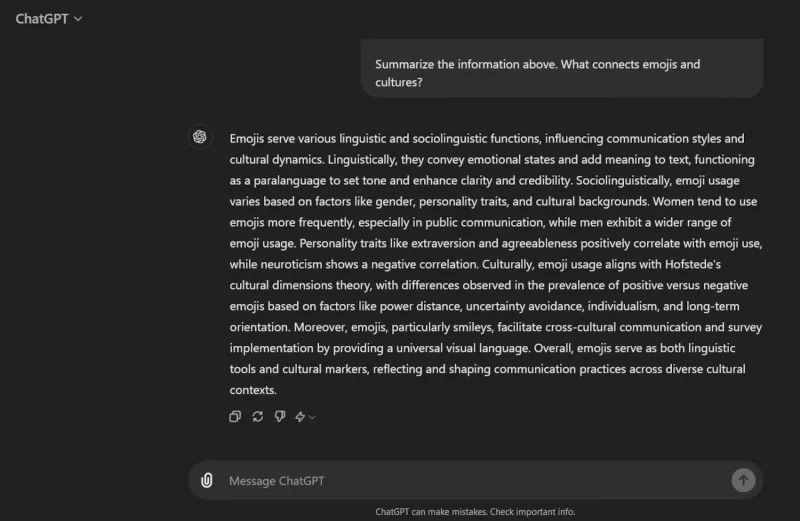
The chatbot merged both responses into one paragraph. The next prompt with clearer instructions asked it to dig deeper into its knowledge base.
This is why you should make sure your instructions are accurate, provide context where necessary, and monitor ChatGPT’s results. If you report any errors immediately, the chatbot can produce more accurate results.
ChatGPT may ignore the information you provide.
ChatGPT is smart, but it shouldn't cram in details about a particular topic without making it clear what's important.
The problem here is that without proper guidance, the algorithm will cherry-pick information that it thinks is relevant to the report or list you need.
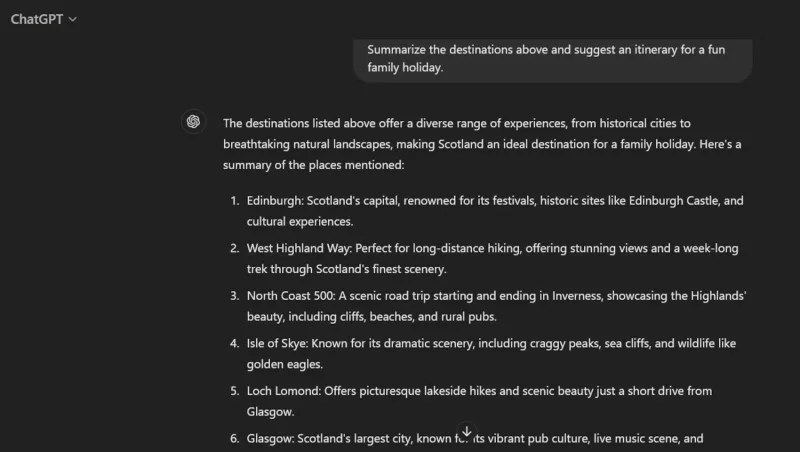
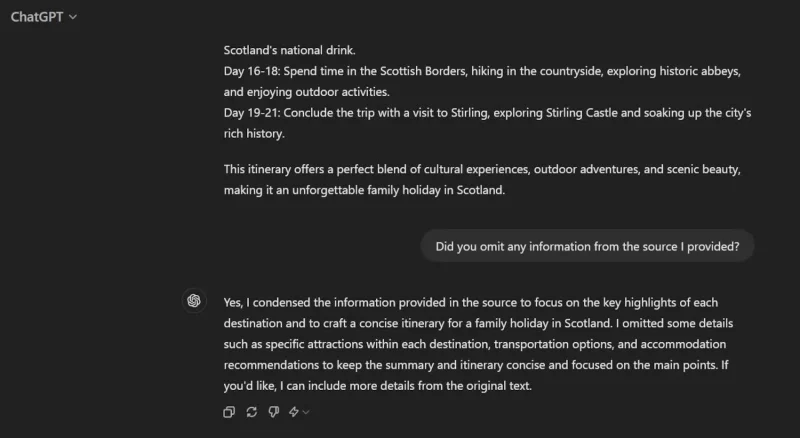
To test ChatGPT, ChatGPT was asked to summarize a long text about must-see destinations in Scotland and create an itinerary for a family holiday.
When asked if it missed any details, it admitted that it had left out certain information, such as specific attractions and transportation options. Accuracy was its goal.
There is no guarantee that ChatGPT will use the details you expect, so plan and word your prompt carefully to ensure your chatbot summary is accurately worded.
ChatGPT may use incorrect alternatives
OpenAI has updated GPT-4o with data available through October 2023, while GPT-4 Turbo has data available through December of that same year. However, the algorithm’s knowledge isn’t infinite or reliable with real-time events—it doesn’t know everything about the world. Furthermore, it won’t always reveal that it lacks data on a particular topic unless you ask it directly.
When summarizing text containing such obscure references, ChatGPT can replace them with alternatives it understands or make up details about them.
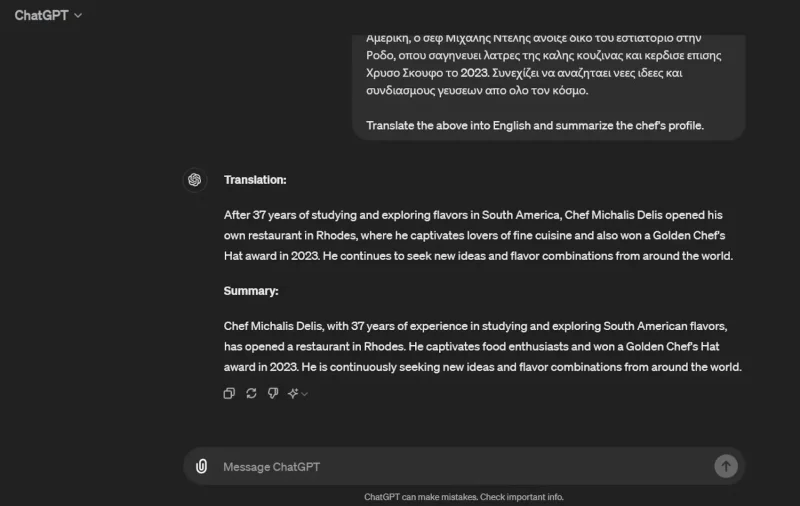
The following example involves an English translation. ChatGPT does not understand the Greek name of the Toque d'Or award, but instead of highlighting the problem, it simply gives a literal and incorrect translation.
Company names, books, awards, research links, and other elements may disappear or be changed in the chatbot's summary. To avoid major mistakes, be aware of ChatGPT's content creation limits.
ChatGPT can get the facts wrong
It’s important to learn all you can about how to avoid mistakes with Generative AI tools . As the example above demonstrates, one of the biggest problems with ChatGPT is that it misses certain information or learns things incorrectly. This can then affect any text it generates.
If you ask for a summary of different data points that contain events or concepts that are foreign to ChatGPT, the algorithm may interpret them poorly.
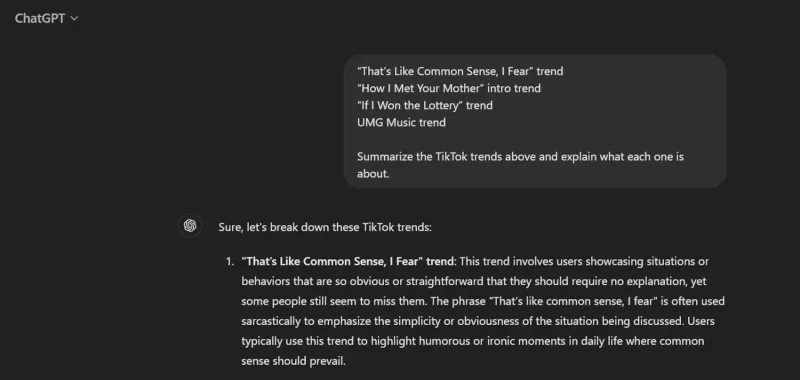
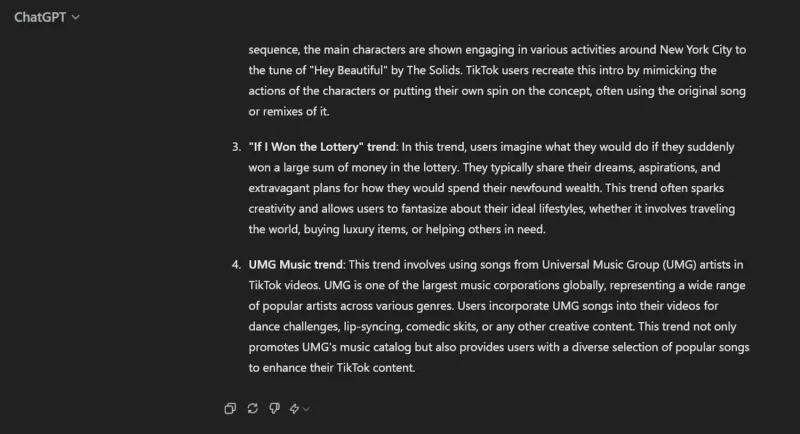
In the example below, the prompt asks ChatGPT to summarize four TikTok trends and explain what each one means.
Most of the explanations are either slightly wrong or lack specifics about what the posters are supposed to do. The description of the UMG Music trend is particularly misleading. The trend has changed since the category was removed from TikTok, and users are now posting videos to criticize rather than support UMG, something ChatGPT was unaware of.
The best solution is to not blindly trust AI chatbots. Even if ChatGPT aggregates information you provide yourself, make sure to check the descriptions and claims and note any inaccuracies. Then you’ll know how to structure your prompts for the best results.
ChatGPT may misidentify word or character limits.
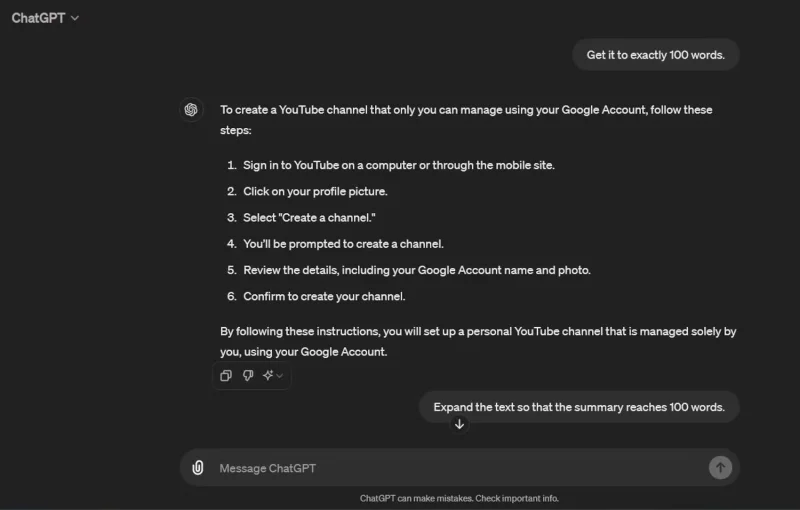
While OpenAI has improved ChatGPT with new features, it still seems to struggle with basic instructions, such as following specific word or character limits.
The test below shows that ChatGPT needs some prompts. It still falls short or exceeds the required number of words.
That's not the worst mistake that can happen with ChatGPT, but it's one more factor to consider when vetting the summaries it generates.
Be specific about the desired length of your content. You may need to add or remove some words here and there. Take some time to double check if you are working on projects with strict word limits.
Overall, ChatGPT is fast, intuitive, and constantly improving, but it still makes mistakes. So don't completely trust ChatGPT to accurately summarize the text you need.
The cause is usually related to missing or incorrect information in ChatGPT's database. ChatGPT's algorithm is also designed to automatically respond without having to constantly check for accuracy. For now, the best course of action is to develop your own content with ChatGPT as a powerful assistant that needs to be constantly monitored.
Create a spooky office cubicle with Halloween desk decor ideas that keep your workspace usable, tidy, and mindful of workplace safety.
Plan a recognizable Halloween 2026 look with pop culture costumes inspired by Spider-Man, Supergirl, Toy Story 5, Moana, Mario, and Wednesday.
Sort leftover Halloween candy safely, share or repurpose sealed treats, and choose food use or compost for pumpkins based on their condition.
Compare workplace Halloween costume choices by respect, dress code, mobility, and safety—and learn when a subtle accessory or a policy check is the better option.
Find a couples costume that fits your style, budget, and comfort level, from Addams Family classics to original inside-joke duos.
Need a last-minute high school Halloween costume? Compare 10 easy closet-based ideas by prep time, comfort, school-day practicality, and simple safety checks.
Use a simple 2026 Halloween decorating timeline for indoor décor, outdoor displays, and fresh pumpkins, with practical adjustments for weather and events.
Mix five vivid, approachable Halloween cocktails with measured recipes, simple prep tips, and an alcohol-free option for your party guests.
Find 15 office-friendly Halloween costume ideas for 2026, with practical checks for dress codes, respectful themes, comfort, and workplace safety.
Plan a fun elementary school Halloween party with easy crafts, games, inclusive treats, costume tips, and a sample 75-minute classroom schedule.








