
Kawaii Halloween Decor Without Gore or Jump Scares

Create a gentle Halloween look with pastel colors, friendly ghosts, easy no-carve accents, and practical safety tips for your home.
Falling for a deepfake can make you the laughing stock of your group of friends. At worst, they can manipulate you and cause more harm. Knowing what to look out for will reduce your chances of becoming a victim.
Table of Contents
Reverse image search is one of the easiest ways to tell if what you're looking at is fake. Do this when people are trying to trick you with fake profiles, and it's also effective at identifying deepfakes.
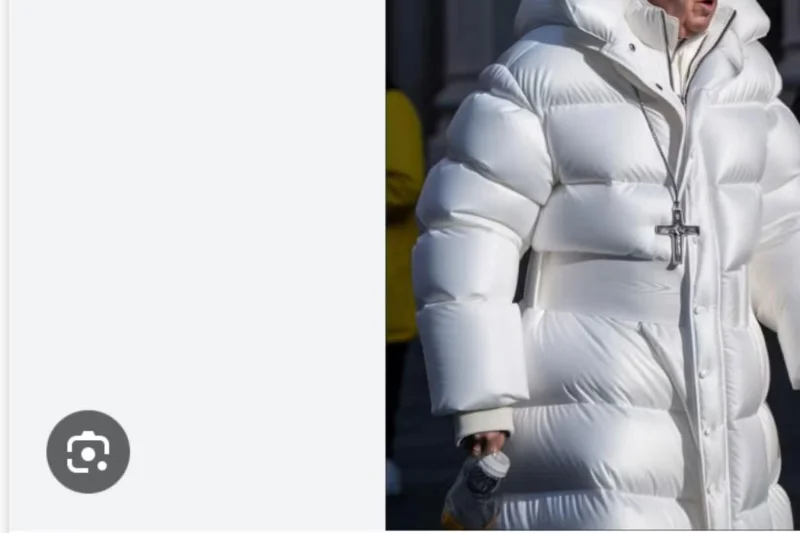
You can easily do a reverse image lookup using Google Lens. Find the content you want to check and click on the Lens logo (as shown below). You’ll see this next to an image when you expand it. If you see the image on multiple sites, with different names – or is clearly from a stock site – you can be pretty sure it’s fake.
If you've seen a deepfake video, you can use free reverse lookup tools like Deepware . These tools work in a similar way to reverse phone lookup websites.
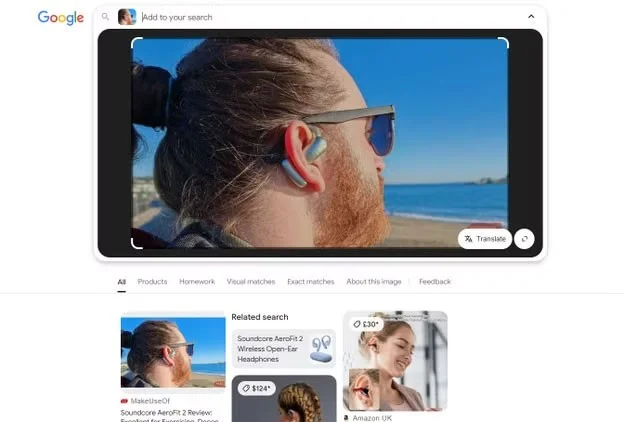
Spotting a fake social media profile can be more difficult. The best option here is to search for the profile image in Google and do a reverse lookup. Search for the profile name and username, along with the social network name; once you’ve done that, select the image associated with that profile via the Lens icon.
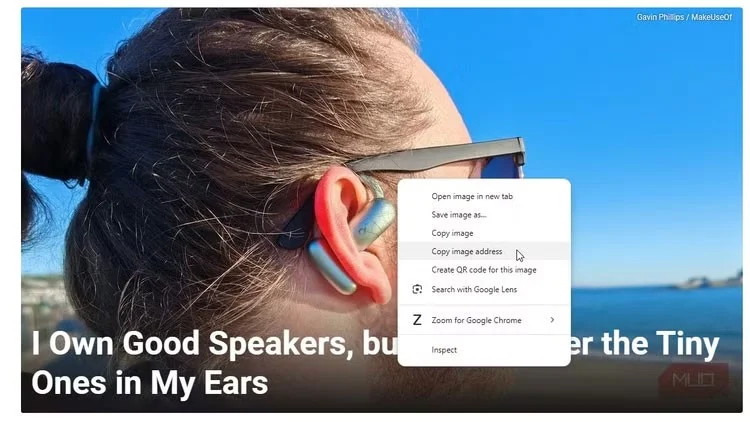
Or, right-click on the image, then select Copy image address . Go to Google and select Search by Image , in the Google search bar. Then, press CTRL + V to paste the image address into the search bar, and then complete the search.
Just like photos, you can check to see if the images have different names on multiple sites – or if they come from stock sites. If so, you can be sure they're fake.
Worryingly, AI video call scams are on the rise. The good news is that you can make sure you're not being fooled by a deepfake with a simple live interaction test.
Ask the person calling you to quickly tilt their head to one side. If the video is fake, it will look unnatural. It will also be easy to tell with the delay, as it will look more robotic.
Alternatively, you can say something that confuses them. AI video callers are not good at reacting quickly, which will catch them off guard. It’s a good idea to end the call if you notice issues that worry you.
When you watch a video of a real person, they look human, right down to their facial expressions. People joke that AI has no personality, but these tools are really not good at reproducing human emotions.
If you’re worried that you’re looking at a deepfake, looking for facial inconsistencies is one of the easiest ways to tell if it’s real. Look to see if they can easily change their expressions and how their mouth moves when they speak.
While not everyone speaks perfectly, you can still tell if someone is genuine or not based on these things alone.
Deepfake photos and videos often have obvious signs that they are not real. For example, people's hands will look unnatural, especially when they try to put them in their pockets.
You should also look out for unnatural movements. For example, they might move their arms in ways that a normal person wouldn’t. Pay attention to how the person interacts with the background, too. In many cases, the deepfake will be so isolated that it’s clearly fake.
One of the easiest ways to tell if a video is a deepfake is to listen to the voice. In many cases, the people in deepfakes will sound robotic, even with AI enhancements. And in other cases, you’ll hear their voices distorted.
In many deepfake videos, you will hear crashes that sound like the computer isn't working properly. Most of the time, these crashes aren't caused by camera problems, but rather by the deepfake creator not reviewing their video to check.
AI is notoriously bad at interacting with objects and people. You might remember the deepfake Pope's coat, and while convincing, there was one very obvious sign that it was fake. His cross looked more like a bag than a necklace. What's more, the middle of his coat looked like a weightlifting belt.
Pay attention to other poor object interactions that may be more obvious at first glance. For example, the person’s hat or glasses may look unnatural. Watch how they interact with the table, the food, and everything around them, too.
Deepfakes are common, and many of them are very convincing. However, you can usually tell if an image or video is real with just a few simple steps. If anything looks different from how a normal person would react, consider it a red flag.
Create a gentle Halloween look with pastel colors, friendly ghosts, easy no-carve accents, and practical safety tips for your home.
Create a spooky office cubicle with Halloween desk decor ideas that keep your workspace usable, tidy, and mindful of workplace safety.
Plan a recognizable Halloween 2026 look with pop culture costumes inspired by Spider-Man, Supergirl, Toy Story 5, Moana, Mario, and Wednesday.
Sort leftover Halloween candy safely, share or repurpose sealed treats, and choose food use or compost for pumpkins based on their condition.
Compare workplace Halloween costume choices by respect, dress code, mobility, and safety—and learn when a subtle accessory or a policy check is the better option.
Find a couples costume that fits your style, budget, and comfort level, from Addams Family classics to original inside-joke duos.
Need a last-minute high school Halloween costume? Compare 10 easy closet-based ideas by prep time, comfort, school-day practicality, and simple safety checks.
Use a simple 2026 Halloween decorating timeline for indoor décor, outdoor displays, and fresh pumpkins, with practical adjustments for weather and events.
Mix five vivid, approachable Halloween cocktails with measured recipes, simple prep tips, and an alcohol-free option for your party guests.
Find 15 office-friendly Halloween costume ideas for 2026, with practical checks for dress codes, respectful themes, comfort, and workplace safety.








