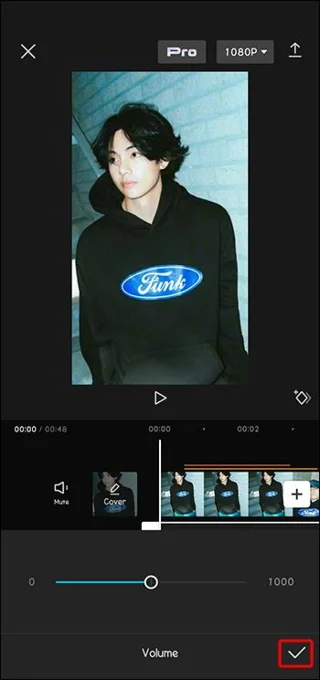
When you’re trying to capture the attention of as many viewers as possible, you’ll want to use every available CapCut tool. Overlays help make a video more complex, engaging more viewers. This can increase your followers and fame. Using their array of tools like overlay, CapCut lets you make trending and attention-grabbing videos.

While overlays add a deep, creative element to your videos in the form of multiple dimensions, doing so is relatively a simple process. This article will teach you how to use overlays in CapCut.
How to Utilize CapCut Overlays
When you want to add extra pizazz to your video, but you don’t want to change the original content, the overlay feature is the perfect tool. These steps will walk you through the process to add an overlay to a CapCut video.
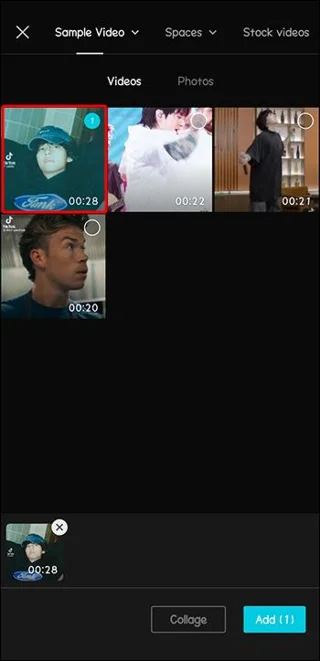
- Open the CapCut video that you want to edit.

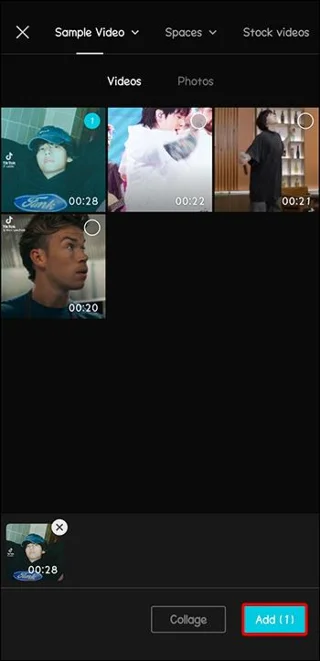
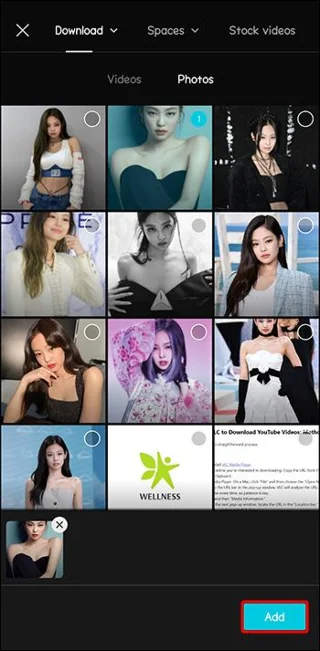
- Tap “Add” to begin a new project that will hold your overlays.

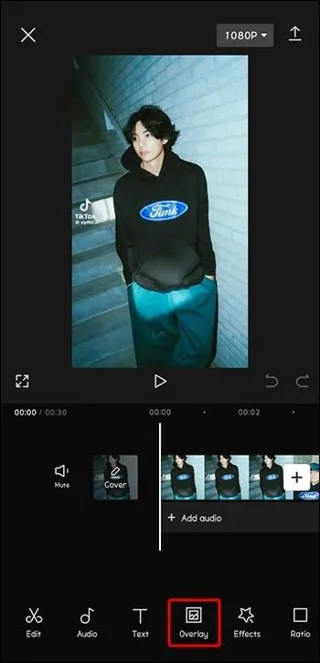
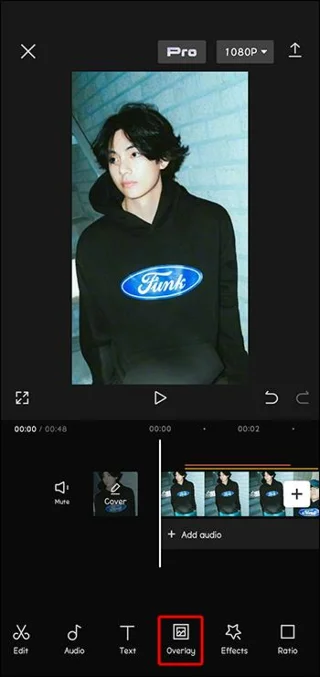
- Select the “Overlay” feature from the bottom menu.

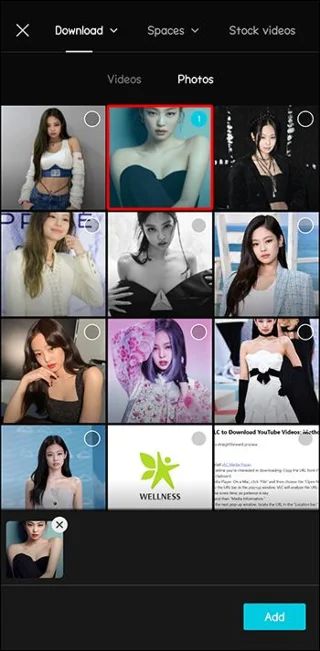
- Scroll to find the overlay that you want to use.

- Click “Add” to use this overlay.

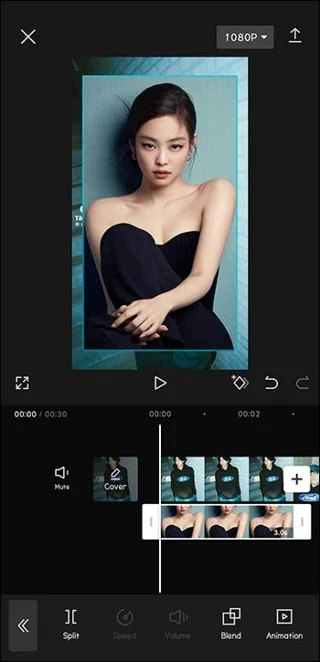
- Adjust the overlay size and position relative to the video by dragging it.

- Adjust it until you are happy with your overlay design.

How to Add Text Overlays
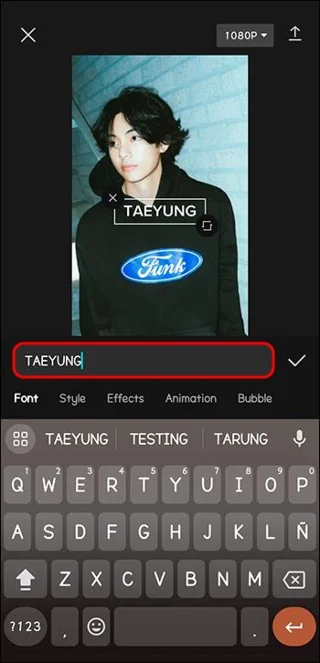
If you want to add some text to your video that will display like an overlay, the process to add it is also simple. And you don’t actually need to access the overlay menu to do so.
- Open the video to which you want to add text in CapCut.

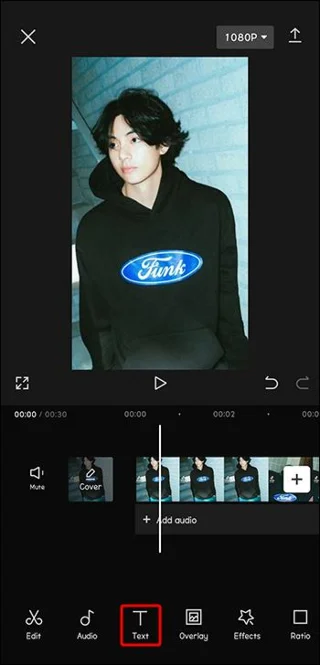
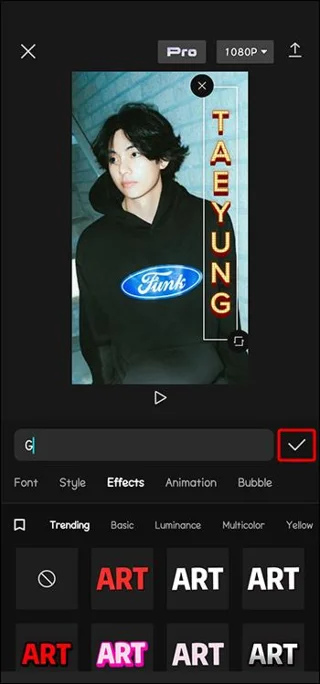
- Choose the “text” option to begin to add text to your video.

- Type the text that you want as an overlay into the designated input box.

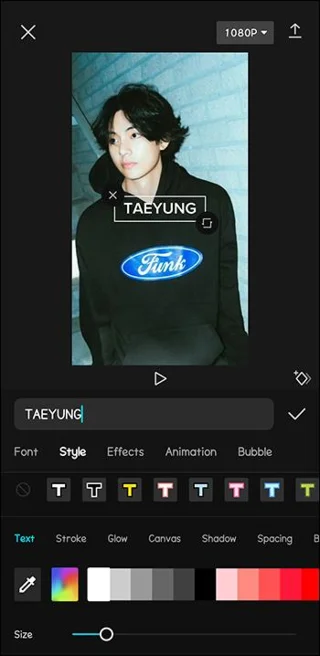
- Adjust the color, size, and font if necessary.

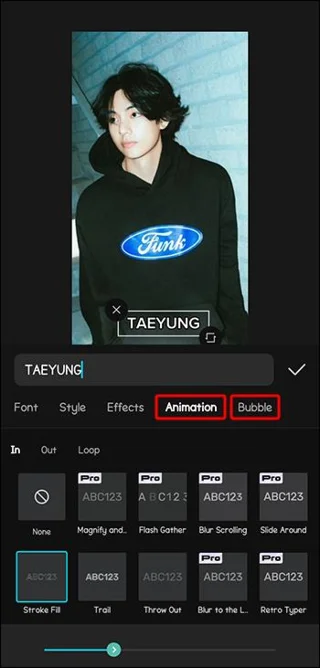
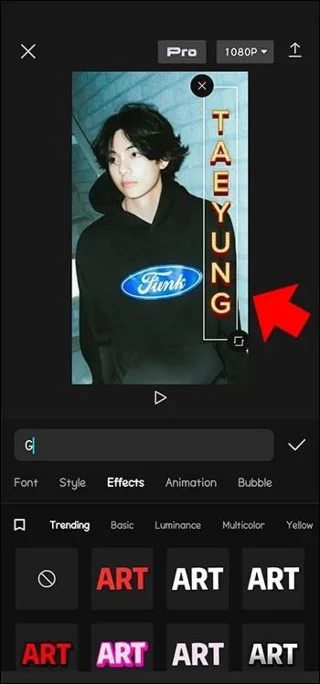
- Add animation or bubble effects if you desire.

- Drag the text around to your desired position.

- Tap the “Check” when you are finished to save.

When you embellish videos with text, the text strings are automatically formatted as an overlay. So added text doesn’t need to be edited through the overlay menu.
How to Add Sticker Overlays
Stickers are a popular way to dress up your CapCut videos. They make videos really pop with fun. Fortunately, CapCut has a library of stickers from which to choose.
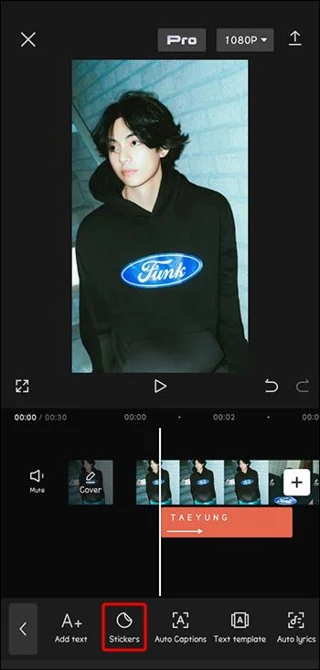
- With your video open, select “Sticker” from the menu.

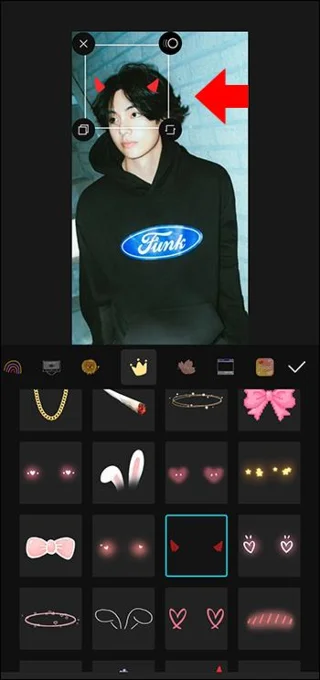
- Browse for the perfect sticker for your project.

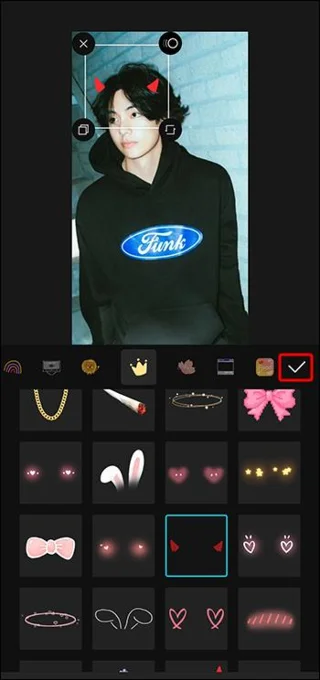
- Move the sticker around to position it. You can resize it as well.

- Tap the “Check” to save.

How to Add Audio Overlays
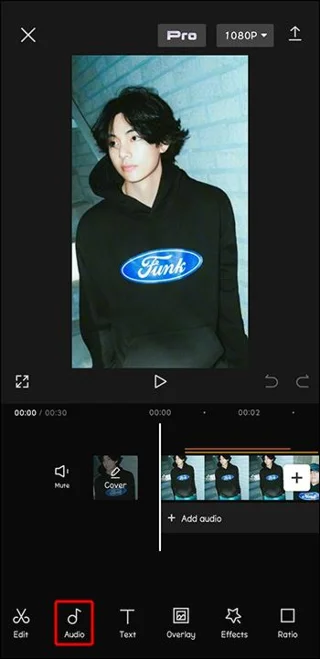
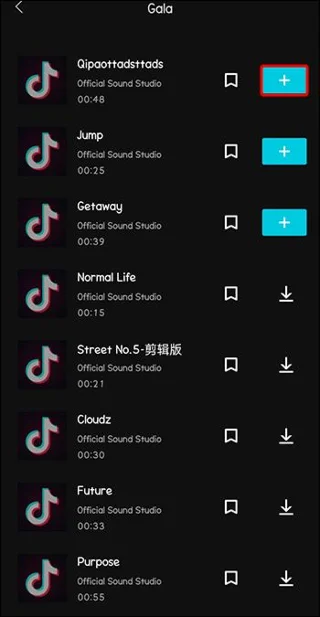
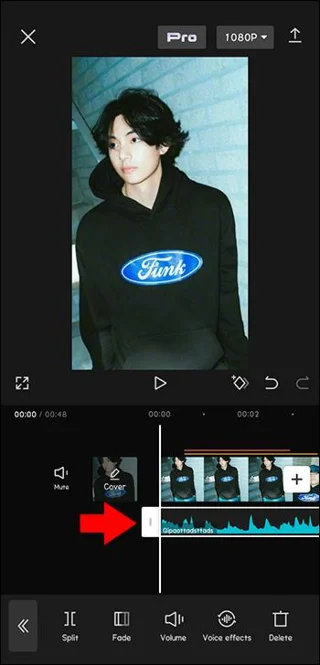
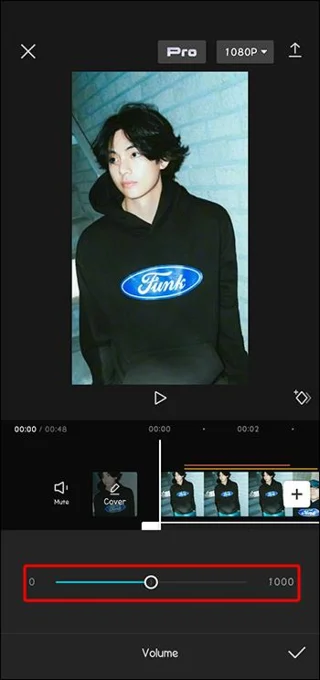
Videos with catchy music or sound clips are much more engaging and memorable. If your video doesn’t contain any audio, or you feel it could benefit from more, you can overlay audio tracks on top of the images or an existing audio track to enhance and improve its appearance.
- Open your video in CapCut and choose the menu option “Audio.”

- Scroll through the library to select an audio overlay.

- Adjust the position of the audio if necessary.

- Adjust the volume control of the audio.

- When you’re done, tap the “Checkmark” to save your work.

How to Add Video Overlays
While it’s common knowledge that you can add effects to your video, you might be surprised to find out that you can overlay another video on top of videos as well. This layered effect adds a wonderful complexity to your finished project.
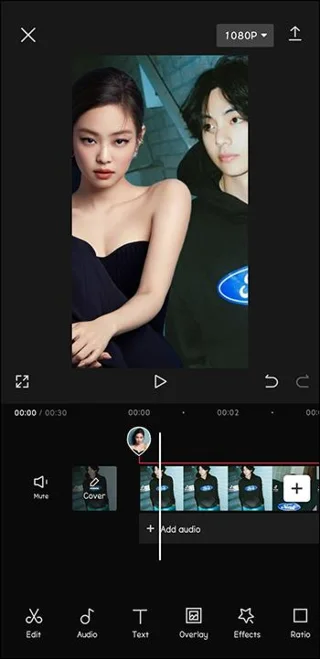
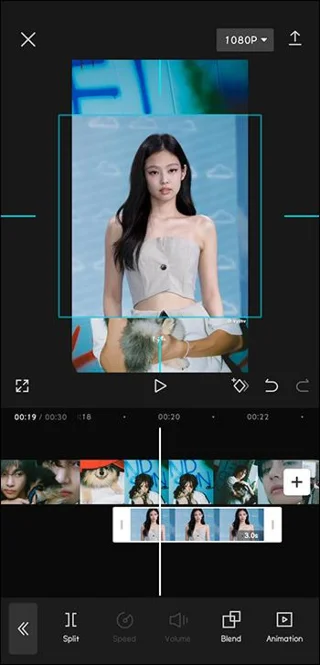
- Choose “Overlay” from the bottom menu.

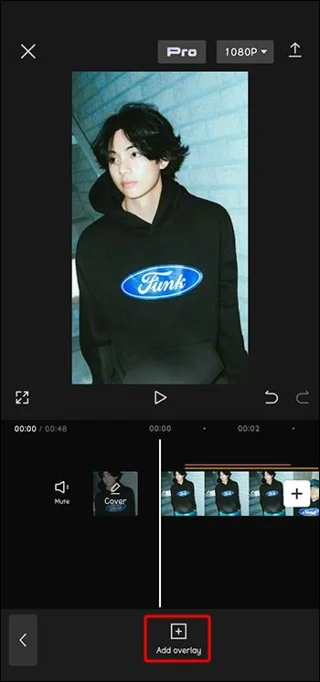
- Click the “Add overlay” icon to select the second video you wish to use.

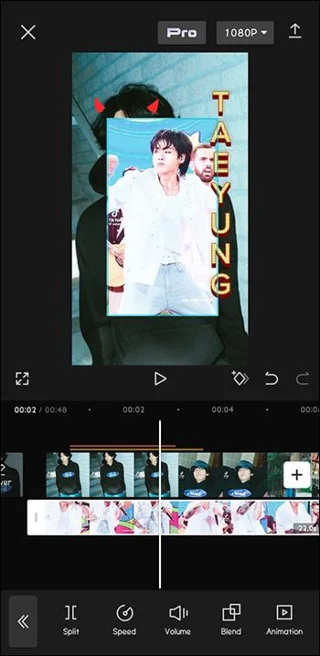
- Both videos will now be on your screen. You can drag and zoom them to adjust the project look.

Editing Overlays
Once you’ve perfected just the right overlay for your video, there are a few ways you can customize it. Editing options include adjusting the opacity, animation, changing the blend mode, and applying filters. These individualization options can ensure your overlay perfectly complements your video project.
How to Adjust Overlay Opacity
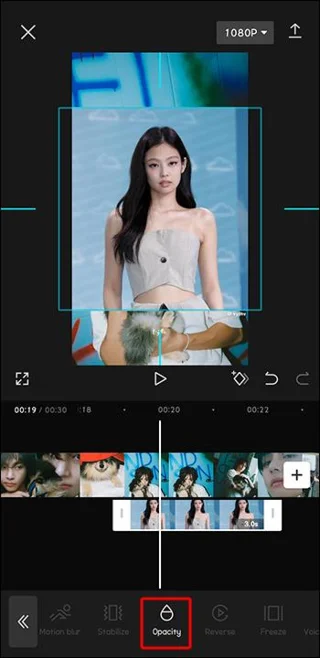
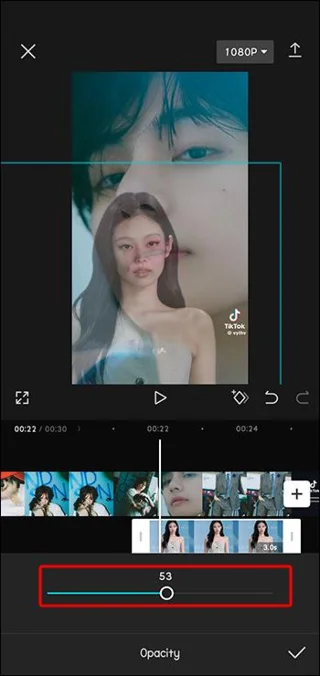
Once you have added an overlay to a project, you can edit it to get just the right look. One of the aspects of an overlay is its opacity, or how transparent the layer is. To edit opacity, follow these steps.
- Choose the overlay in question.

- On the menu, select “Opacity.”

- Use the slider to adjust the transparency of the overlay.

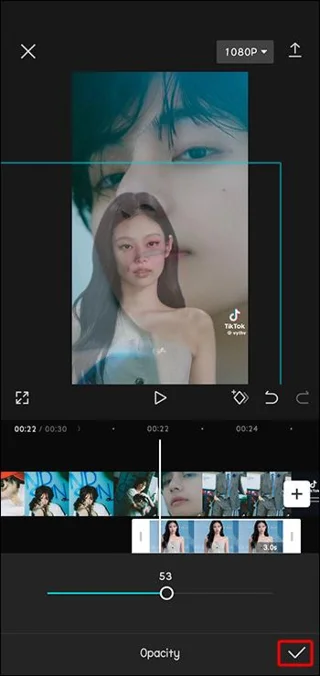
- When you are finished adjusting, tap the “Checkmark” icon.

How to Apply Filters to an Overlay
Filters add a unique flair to added videos and overlays. They can change the entire appearance and feel of a TikTok video.
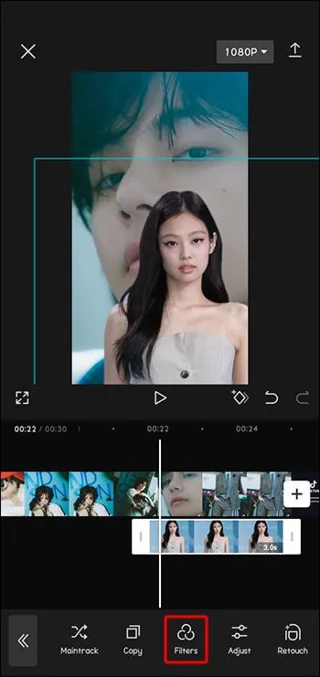
- With your overlay selected, choose the “Filters” icon from the menu.

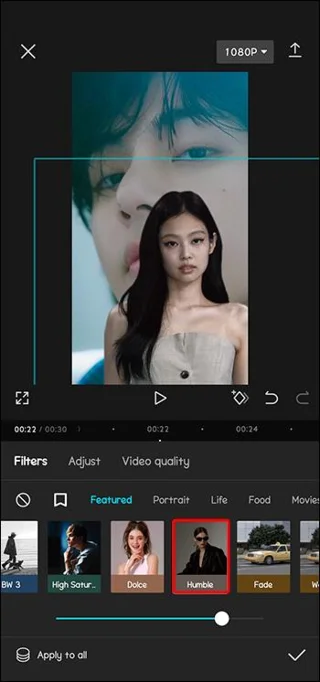
- Choose and adjust your filter.

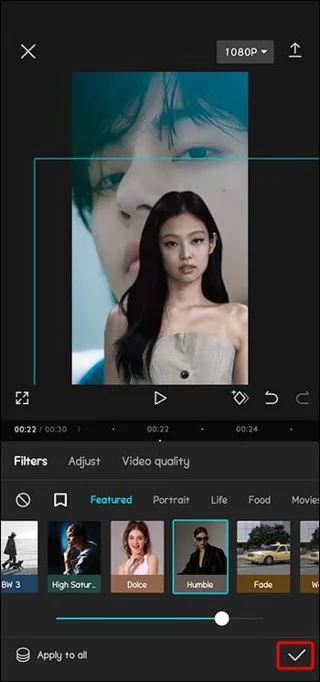
- Tap the “Check” when the overlay editing is complete.

Using Interesting Overlays
Now that you know how to use CapCut overlays in your video projects, what kinds of things can you do with them? Here are some creative ways to use CapCut overlays.
Greenscreen Overlay
The greenscreen overlay is a popular addition that allows parts of one video to be seen in certain areas of another. For instance, you can use a video that has a television with a greenscreen overlay in it. Then, you can insert a second background video that will appear to be playing on the television of your foreground video. Greenscreens make for very creative video layering.
Dark Filter Overlay
You can take a video with excellent lighting (such as the glow of bright mid-day), then add a dark filter overlay to make your video look like it was taken at night. This allows a perfect video with none of the lighting challenges of nighttime photography. The dark filter overlay can help you mimic a nighttime mood with daytime video quality.
Animated Overlays
Although you can take a video in a beautiful field, you can’t coordinate hundreds of butterflies swirling around you. But you can add them with an animated overlay. Animated overlays can add effects like birds flying overhead. You can simulate leaves falling all around your subject. Swirling flowers or butterflies can add a fairytale touch to your video. Overlays add dynamic content that an everyday camera can’t provide for your pictures and videos.
FAQ
Can I use multiple overlays on the same video?
Yes, you can add multiple overlays to the same video. CapCut has set a limit of six overlays, but there are tutorials online to explain how to circumvent the limit and add even more if you need to.
What do I do if my overlay does not match the length of my video?
If your overlay overlaps the video, you can adjust the duration of your overlay to match the video length. Simply use the “Trim” feature in the “Layers” tab and fix the length of the overlay.
Perfecting Videos with CapCut Overlays
When you want to engage your audience with captivating videos, use your imagination to make a new and unique idea come to life with CapCut overlays. Overlays add a creative impact that upgrades average video projects to outstanding ones. Use overlays to make videos more intriguing and give your creations a professional feel. CapCut overlays can help take your project to a new level and attract more followers.
Have you used CapCut overlays to spice up your TikTok or other videos? Do you have favorite overlays that you use again and again? Tell us all about them in the comments below.