Discord is a VOIP application. This is generally used to communicate with people. You can easily chat with the persons and even do a lot more. But sometimes we face the Discord update failed issue. Even when you close and restart the app, it won’t work. This does not have any effect on the web version.
The reason behind the Discord update keeps failing is the Discord installer/update. The Discord update failed error may occur due to the bug when you update. If you reinstall the app, then the problem can be fixed. But if it does not, then the problem is in the app files/windows file. We can clear the files related to the Discord app.
Contents
How to Fix Discord Update Failed in Windows 10
Solution 1: Clean Reinstall Discord
Here you have just manually to delete some Discord files. Follow the steps given below
Step 1: First, check that the Discord isn’t in the system tray. If you have then, right-click the Discord icon and Quit Discord.
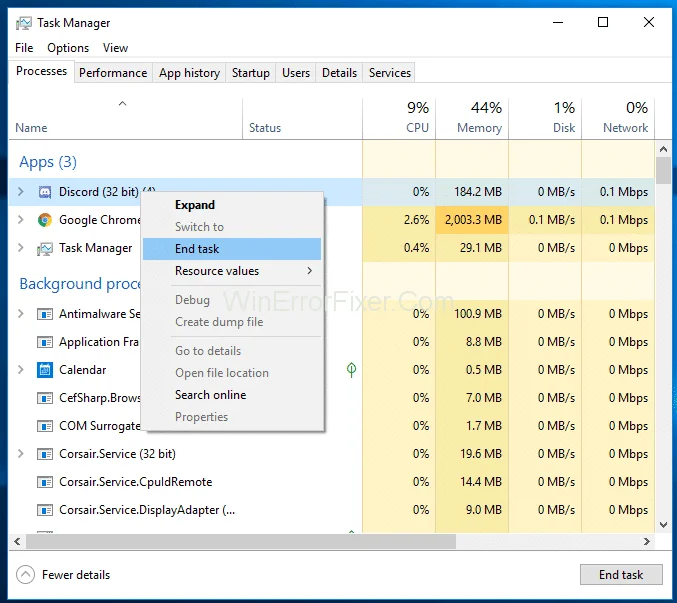
Step 2: Press Ctrl + shift+ Esc simultaneously to open the task manager.
Step 3: If you find Discord in the process list, then select Discord. Click on the End Task.
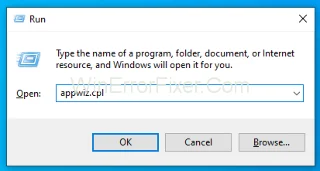
Step 4: Hold the Windows key and press R.
Step 5: Now type appwiz.cpl and press enter.

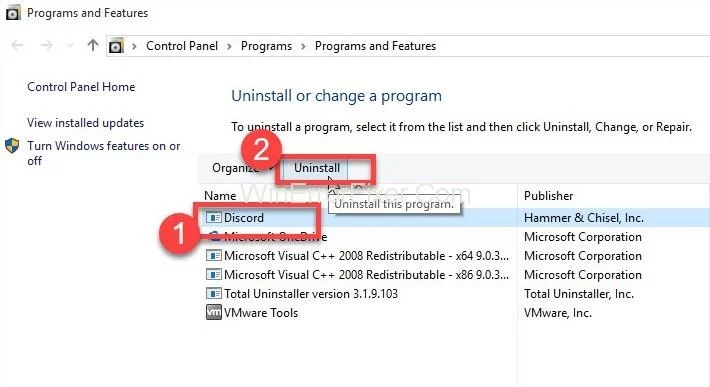
Step 6: Select Discord from the list of installed applications.
Step 7: Click Uninstall and follow the following instructions.

Step 8: Again, press the Windows key and press Enter.
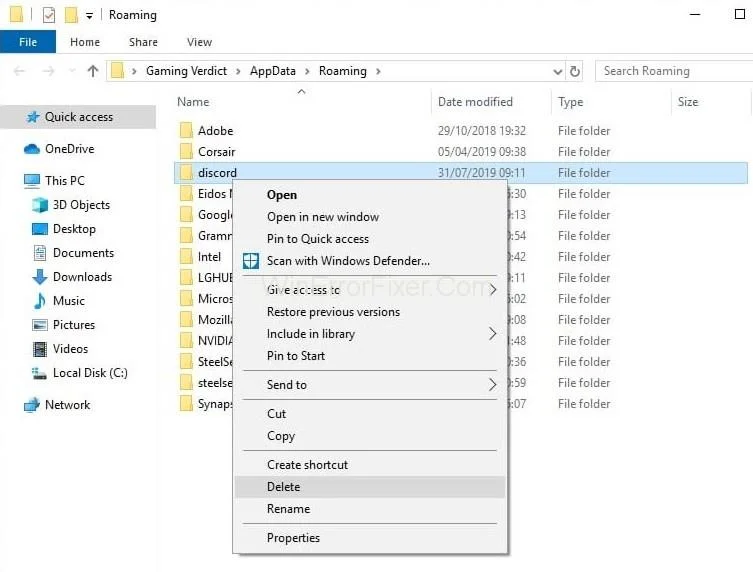
Step 9: Type %appdata% and press Enter.
Step 10: Right-click on the Discord folder, delete it and confirm any additional prompts.

Step 11: Now, you can press backspace once.
Step 12: Double click on the %Localappdata% folder again.
Step 13: Right-click on Discord folder. Select delete and confirm the additional prompts.
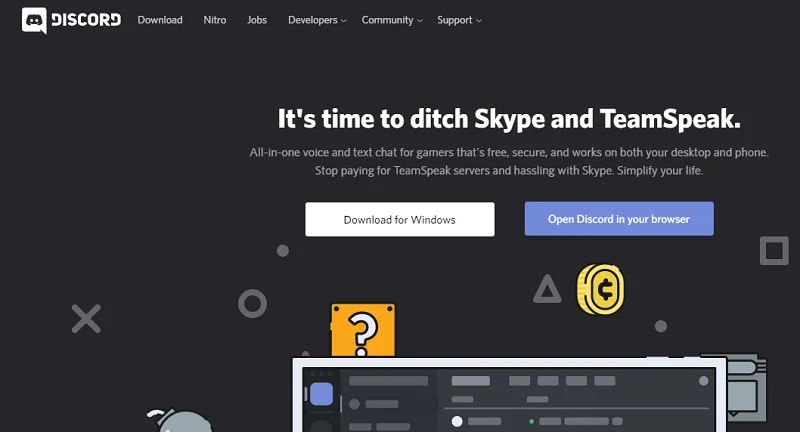
Step 14: Now download the Discord installer.
Step 15: Double click to run the Discord installer. Now follow the instructions given on-screen.
Try to install Discord when the computer restarts.
Solution 2: Run Discord as Admin
Here are some easy steps:-
Step 1: Close the Discord app.
Step 2: Now reboot.
Step 3: If the Discord app starts automatically, then close it.
Step 4: The Discord system should not be in the System tray. If it is there, the right click on Discord icon and select Quit Discord.
Step 5: Hold Ctrl + Shift + Esc simultaneously to open the task manager.
Step 6: If you find the Discord in the list, then select and click on End Task.

Step 7: Right-click and select Run as Administrator.
Step 8: If you can’t find a Discord icon on Desktop, then press the Windows key and Right-click → Discord → More → Run as administrator.
Step 9: Now, when the app starts, the update should install. This should fix the Discord Update Failed error, but if not, then you should move to the next method.
Solution 3: Reinstall Discord
This method has worked for many users. Follow the steps given below
Step 1: Download the Discord installer.
Step 2: Now, double click to run the Discord installer. Later follow the instructions given on the screen.

Note: You do not have to uninstall your old version.
Related Posts:
Conclusion
We hope that the methods will help you to fix the Discord update failed error. Now you can enjoy interacting with the people around you.