Home
» Games
»
How to mod weapons and items in Mini World: Block Art
How to mod weapons and items in Mini World: Block Art
Video: How to Mod Weapons and Items in Mini World: Block Art
In Mini World: Block Art, players have access to an array of necessary items for survival and creative building. However, to ensure your gaming experience remains engaging and less monotonous, modding items in the game is an exciting feature worth exploring. This feature utilizes Plugins to allow players to edit item parameters, alter their nature, skills, appearance, or even devise entirely new items.
To mod items in Mini World, you must first switch the language to Vietnamese. For a detailed guide, see this article.
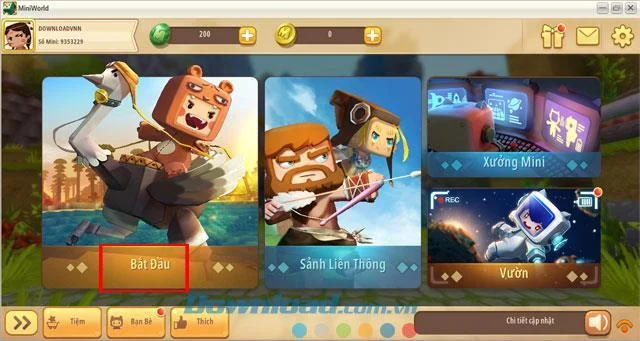
Step 1: Start Mini World and click Start to access the interface for creating a new map.
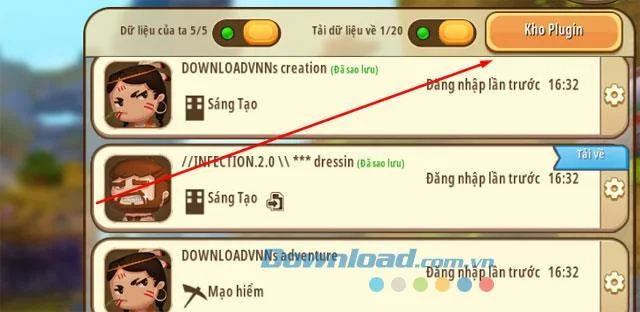
Step 2: Click Plugin Warehouse to initiate item modding.
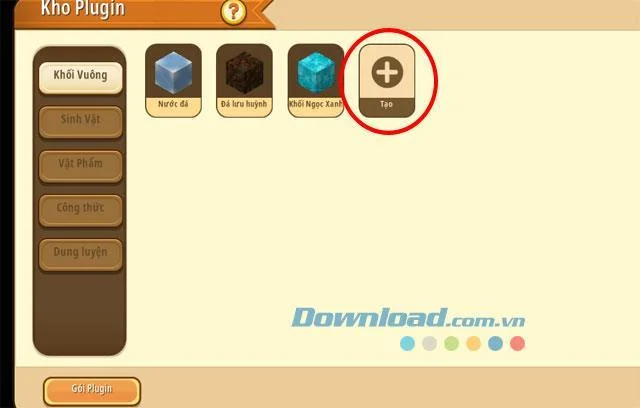
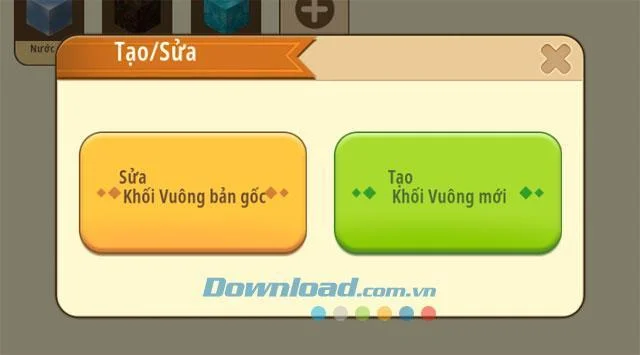
Inside the Plugin repository, you can modulate Squares, Creatures, Items, or change existing formulas. Click Create to add or edit items.
You can edit existing items or create new ones based on current game items.
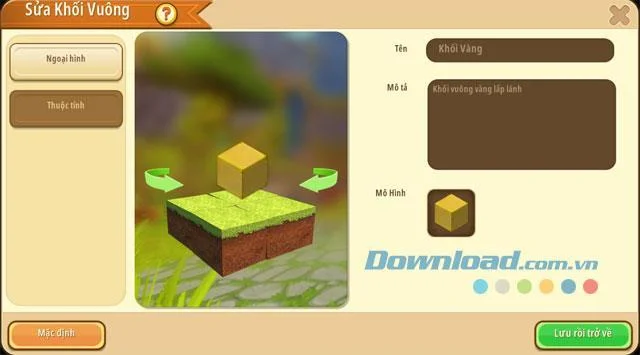
In the Appearance section, you can edit Name and Item Description.
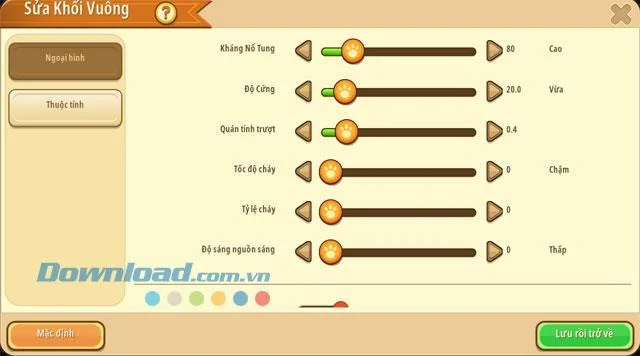
Adjust important attributes like Explosion Resistance and Hardness.
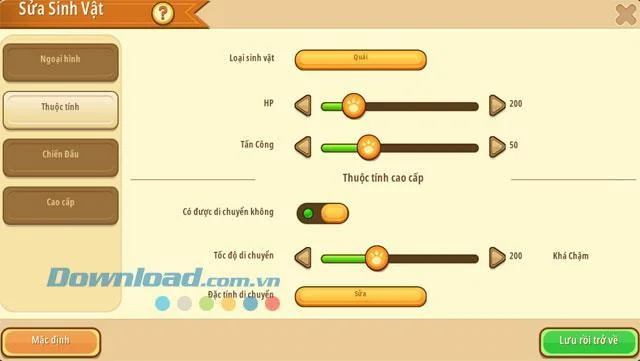
For Creatures, set health levels, attack damages, movement speed, and dropped items.
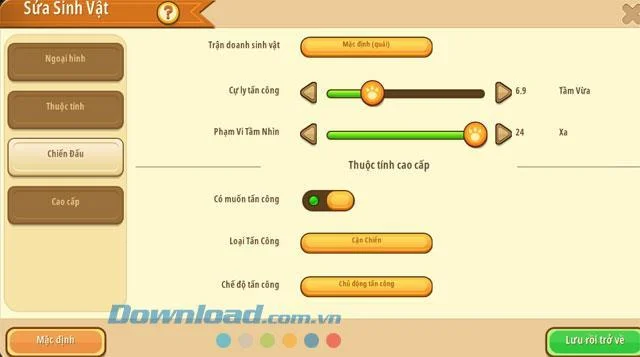
Modify monster attributes such as attack range, vision range, and attack skills.
Save your changes and return to the main menu.
2. How to Add Mods to the Game
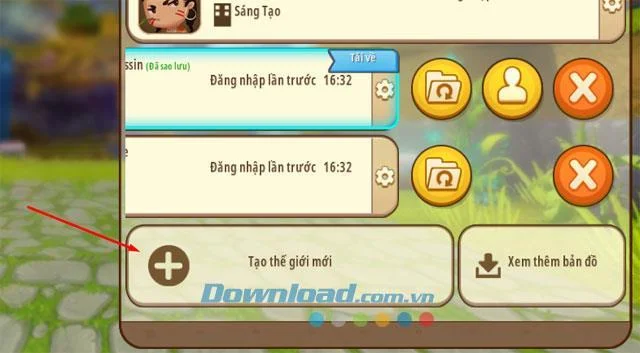
Step 1: Click Create New World.
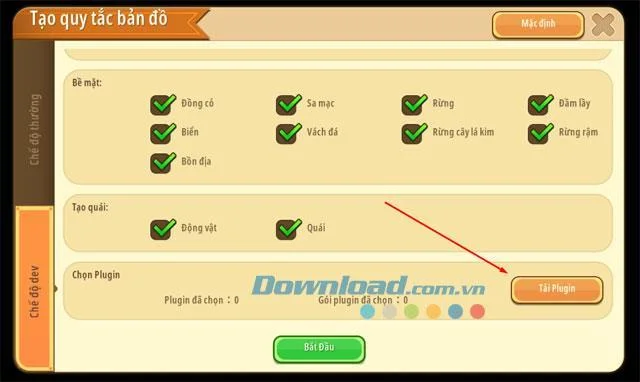
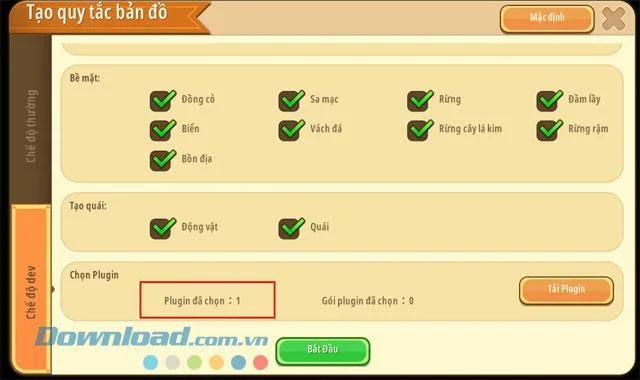
Step 2: In the Create Map Rule section, click Download Plugin to integrate your newly created mod into the map.
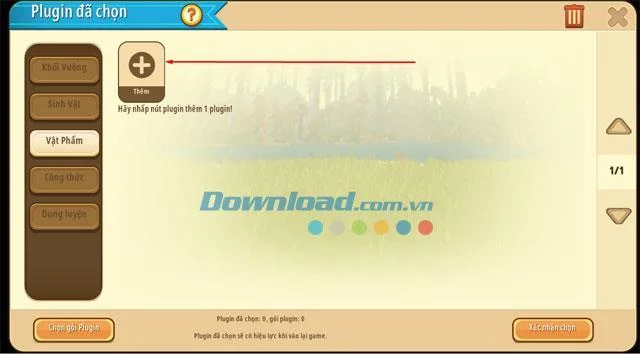
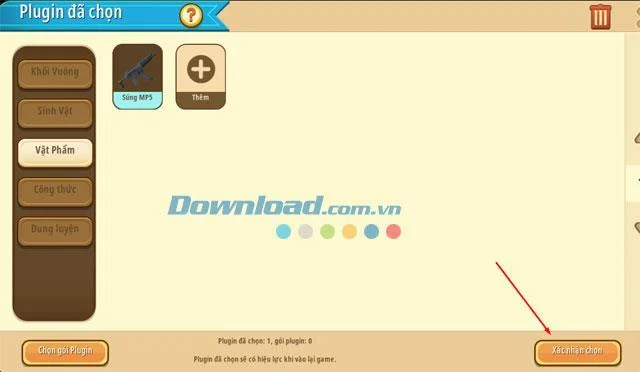
Click Add to include the modified item. Ensure you select the modified item.
After selecting the mod, click Confirm Select.
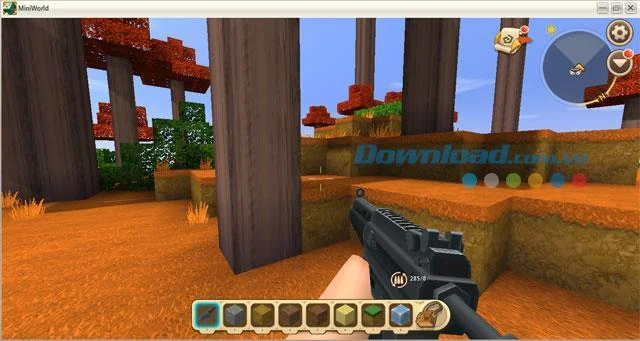
Finally, click Start to test your new mod.
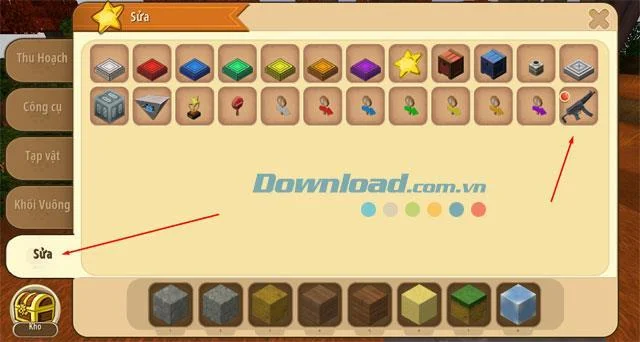
Once in the game, press B to open the inventory where you will find the modded item.
In this guide, I have modified the Submachine Gun into an MP5 Gun, showcasing the ability to personalize your gaming experience.
This guide on how to mod weapons and items in Mini World: Block Art aims to enhance your gameplay by letting you modify the items and resources in the game.
Updates for 2021
Note: Do not edit the Plugin Pack inside the Plugin Pack editor, as this could result in it disappearing from your current Plugin Packs.
Important: This version (0.30.x) may also delete all installed Plugin Packs. It is advisable to move Plugin Packs to the world where you want to use them.
Requirements
Minimum Requirements for Modding
Requirement
Windows
Android
Text Editor
Visual Studio Code or Notepad++
DroidEdit or Quoda
File Explorer
Not Applicable
ES File Explorer
Getting Started
To create a mod, start by making the following folder structure:
/ -- my_first_plugin_pack (your folder/pack name)
    | -- behavior (behavior plugin, how the game is interpreted)
        | -- actor (monsters/animals plugins)
        | -- block (blocks plugins)
        | -- item (items plugins)
        | -- receipe (non specified)
        | -- crafting (craft plugins)
    | -- resource (resources folder, it's useless at the moment)
        | -- models (.obj models)
        | -- shader (shaders, no file extension found)
        | -- sounds (.ogg sounds)
        | -- textures (.png images)
            | -- block (textures for blocks)
            | -- entity (textures for entities)
    | -- icon.png (the plugin icon, shown in Plugin Library)
    | -- pack_manifest.json (the file that handles the metadata)
This is the necessary folder structure. Remember not to change the order of folders, or the pack may not function properly.
pack_manifest.json and its Components
Add the following structure to your pack_manifest.json file:
{
    "name": "My First Plugin Pack",
    "en_name": "My First Plugin Pack",
    "description": "Hello World!",
    "author": "Your Name Here",
    "pack_version": "0.6",
    "api_version": "0.14.0",
    "mod_type": 0,  // 0 for Plugin Pack
    "uuid": "xxxxxxxx-xxxx-xxxx-xxxx-xxxxxxxxxxxx"
}
This structure handles all the metadata for your pack. Replace 'xxxxxxxx-xxxx-xxxx-xxxx-xxxxxxxxxxxx' with your own UUID generated from Online UUID Generator.
Testing Your Plugin Pack
To use your Plugin Pack, transfer the Plugin Pack folder to your mods directory:
Windows: Press Win + R, input %appdata%, navigate to the folder miniworlddata410/data/mods
Android: Open File Explorer > search for miniplay/com.playmini.miniworld/data/mods
Congratulations on creating your first Plugin Pack! Start creating plugins to enhance your game.
Basic Plugin Pack Template
The MWH.json Plugin Pack template is available on GitHub for you to start working with your own packs. Instructions can be found in the README.md file.


Timmy Cat -
LOL just tried to mod my fishing rod, and it ended up looking like a giant lollipop! But hey, it works
Kylie M. -
Awesome content! The visuals made the steps so much clearer. Can’t wait to see more guides like this
Kathy 4ever -
This is the best tutorial I've found! I really appreciate the detailed explanations you provided.
Cathy L. -
Does anyone have tips on creating weapons with more damage? I'm trying to make a killer sword
Mikaela F. -
Thank you for sharing this! I found it super helpful, especially the part about saving the files correctly.
Jack Smith -
Great guide! I've been trying to mod my weapons in Mini World for ages. This step-by-step approach really helped me out
Leo Tan -
OMG! Just finished adding a rainbow trail to my items! This is the best
Rob the Builder -
I had no idea this was possible! Thanks for opening my eyes to a whole new level of gameplay!
Ellie Rose -
Wow, I just made my bow shoot fireworks! This is such a cool mechanic
Garry Tech -
Wow, I didn't know you could mod items this way! I'm excited to explore all the possibilities
Eric IT -
Just a heads up, don't forget to backup your game before modding! I learned that the hard way
Linda Wong -
Hey, does anyone know if these mods work on mobile too? Would love to tweak my items on the go
Lily Nguyen -
I love how creative you can get with this! Just finished modding my armor to look like dragon scales
Hannah 29 -
Is there a limit to how many mods we can apply? I want to go all out on my items
Mike Knight -
Can anyone give me more examples of mods? I'm looking for inspiration for my next project
Kevin 77 -
So excited to try this out! I'll let you all know how my first mod goes!
Happy Gamer -
Yay! I finally managed to mod a weapon successfully! It feels so satisfying to see the results
Tommy Boy -
Can someone help me? I followed the steps but my mods aren't showing up in the game. Do I need to reset something
Sammy Paws -
Did anyone else think modding would be harder? This feels so accessible now
Penny D. -
Just finished my first mod! I changed my pickaxe to mine faster. This is so fun!
Sandy Lee -
I love the tips on customizing items! I never knew you could change their appearances like that. Can't wait to try!
Jerry B. -
This was super informative! Appreciate the time you took to write this guide
Lee H. -
I have a question—what if I want to backtrack and undo a mod? Is that easy to do
Emma T. -
Thanks for this guide! I’ll definitely share it with my friends who play Mini World!
Daisy 8 -
Can you believe this? I modified my items and my friends were so impressed! Totally worth it!
Jenna Green -
This is awesome! I just modified my sword to have a cool fire effect. Thanks for the clear instructions