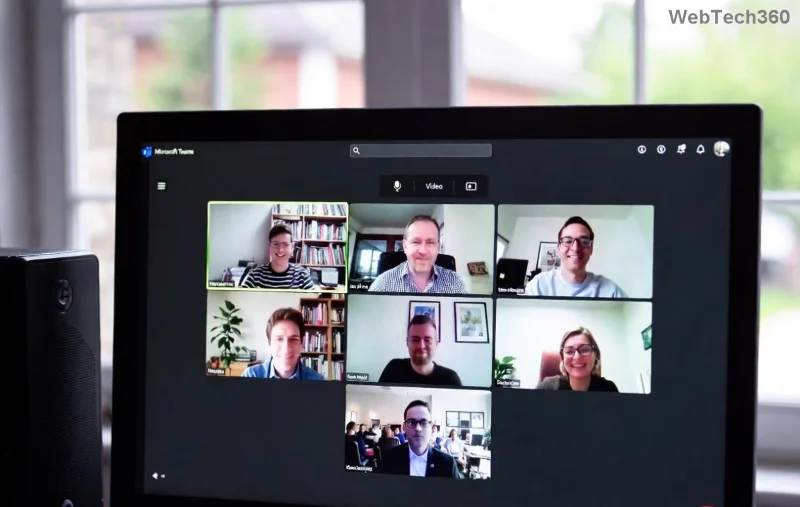
How to Assign Participants to Breakout Rooms in Microsoft Teams

Ever felt your Microsoft Teams meetings dragging on with everyone talking over each other? 🚀 Enter breakout rooms – the game-changer for interactive sessions. Whether you're leading workshops, classes, or team brainstorms, learning how to assign participants to breakout rooms in Microsoft Teams will transform chaos into focused discussions. This guide delivers precise, up-to-date steps so you can set it up in minutes and keep your audience hooked.

Ready to dive in? Let's break it down – pun intended! 👇

What Are Breakout Rooms in Microsoft Teams and Why Use Them?

Breakout rooms let you split large meetings into smaller groups for deeper collaboration. Perfect for debates, role-plays, or project huddles. Benefits? Increased participation, better focus, and fresh ideas. According to Microsoft's official docs, they're available to meeting organizers and co-organizers in the latest Teams updates.

Prerequisites Before Assigning Participants

  • ✅ You must be the meeting organizer or co-organizer.
  • ✅ Meeting must have 10+ participants for optimal use (works with fewer too).
  • ✅ Use the desktop app or web version of Teams for full features – mobile has limitations.
  • ⭐ Pro tip: Pre-assign rooms in the meeting calendar for zero hassle during live sessions.

Step-by-Step: How to Assign Participants to Breakout Rooms in Microsoft Teams

Follow these foolproof steps during a live meeting. We'll cover creation first, then assignment magic. 😊
  1. 1️⃣ Start or Join Your Meeting
    Launch your Teams meeting. Ensure all participants are present.
  2. 2️⃣ Access Breakout Rooms
    Click the More actions button (three dots ⋯) in the meeting toolbar. Select Breakout rooms from the menu.
  3. 3️⃣ Create Rooms
    Choose Create rooms. Set the number of rooms (up to 50) and participants per room. Hit Add rooms – done!
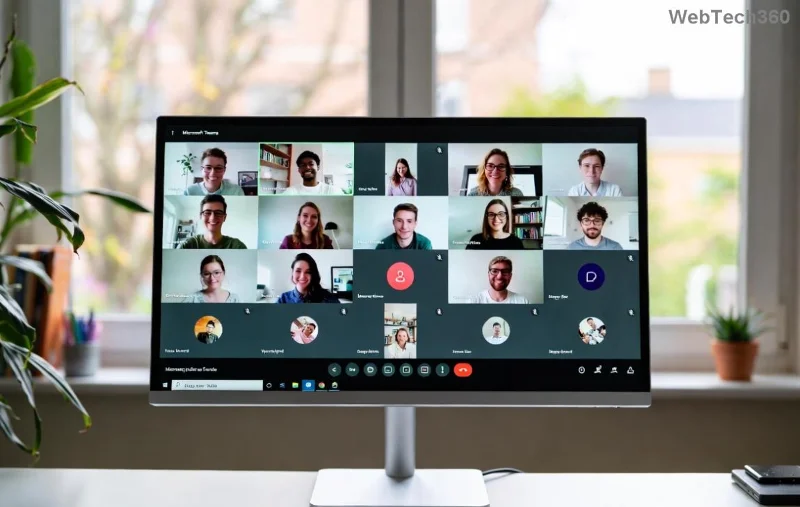
Microsoft Teams breakout rooms creation interface showing room setup options

Now, the star feature: assigning participants!

  1. 4️⃣ Choose Assignment Method
    In the Breakout rooms window:
    • Automatically: Teams distributes participants evenly. Ideal for quick setups.
    • Manually: Drag-and-drop or select names to assign precisely – perfect for groups or roles.
    • By group: If predefined, assign whole groups at once.
    Click Assign participants.
  2. 5️⃣ Customize and Launch
    Rename rooms, set timers, or allow participants to return to main. Select Open or Start to launch. Participants get a notification to join! 🎉
  3. 6️⃣ Manage During Session
    Switch between rooms, add/remove participants, or end early via the Breakout rooms pane.

Manual vs. Automatic Assignment: Which to Choose?

Not sure? Use this handy table to decide:

Method Best For Pros Cons
Automatic Large, random groups Fast; even distribution No control over pairings
Manual Specific teams/roles Precise control; customizable Time-consuming for big meetings
Pre-assign (Calendar) Scheduled events Seamless; no live setup Requires advance planning

Pre-Assign Participants: The Pro Move

For ultimate efficiency, pre-assign in Outlook or Teams calendar:

  1. Schedule meeting > Breakout rooms > Pre-assign.
  2. Enter names or import from Excel.
  3. Participants auto-join on start. Genius for recurring classes! 🌟

Advanced Tips to Elevate Your Breakout Rooms

  • Set Timers: Auto-return after 10-30 mins keeps momentum.
  • Recycling Rooms: Reuse setups for multiple rounds.
  • Presenter Controls: Move between rooms as a fly-on-the-wall.
  • Enable participant self-selection for choice-based grouping.
  • 📱 Share room links post-meeting for async follow-ups.

Want to integrate polls? Combine with Teams Forms for feedback goldmines.

Troubleshooting Common Issues

Hit a snag? Here's your fix-it toolkit:

Troubleshooting breakout rooms in Microsoft Teams showing participant assignment errors
  • Option Missing? Check license (Education/Business) and update Teams.
  • Can't Assign? Ensure co-organizer role; refresh app.
  • Participants Not Joining? Remind via chat; check permissions.
  • 💡 Clear cache or restart for glitches – 99% success rate!

For deep dives, visit Microsoft Learn.

Wrap-Up: Level Up Your Meetings Today

Mastering how to assign participants to breakout rooms in Microsoft Teams unlocks dynamic, engaging sessions that wow attendees. Start small – try it in your next huddle – and watch productivity soar. Got questions? Drop them below; we've got more Teams hacks coming. What's your favorite breakout trick? Share and subscribe for updates! 👏

Leave a Comment

How to Assign Participants to Breakout Rooms in Microsoft Teams

How to Assign Participants to Breakout Rooms in Microsoft Teams

Master how to assign participants to breakout rooms in Microsoft Teams with this step-by-step guide. Boost meeting engagement, automate assignments, and troubleshoot like a pro for seamless virtual collaboration.

How to Fix Microsoft Teams Giá Error Pricing Update

How to Fix Microsoft Teams Giá Error Pricing Update

Struggling with Microsoft Teams "Price Error" after the latest pricing update? Discover step-by-step fixes to resolve it quickly, restore seamless collaboration, and avoid subscription headaches. Updated with the newest solutions.

Solving Microsoft Teams Background Error Transparency

Solving Microsoft Teams Background Error Transparency

Struggling with Microsoft Teams Background Error Transparency? Discover proven step-by-step fixes for blurry, glitchy virtual backgrounds. Restore perfect transparency in Teams meetings effortlessly. Updated with the latest solutions.

How to Fix Microsoft Teams Đăng nhập Error (Login)

How to Fix Microsoft Teams Đăng nhập Error (Login)

Struggling with Microsoft Teams "Đăng nhập" login error? Discover step-by-step fixes for smooth sign-in. Clear cache, update app, and more – no tech skills needed! Works on Windows, Mac, and web.

Solving Microsoft Teams Web Error 503 Service Unavailable

Solving Microsoft Teams Web Error 503 Service Unavailable

Tired of Microsoft Teams Web Error 503 Service Unavailable blocking your meetings? Discover quick, step-by-step fixes to resolve the 503 error fast – no tech skills needed! Clear cache, check status, and get back to collaborating seamlessly.

Troubleshooting Microsoft Teams Update Error 0x80070002

Troubleshooting Microsoft Teams Update Error 0x80070002

Stuck with Microsoft Teams Update Error 0x80070002? Discover proven troubleshooting steps to resolve this frustrating issue quickly and get your Teams app updated seamlessly for uninterrupted collaboration.

Solving Microsoft Teams Error AADSTS50020: User Account Conflict

Solving Microsoft Teams Error AADSTS50020: User Account Conflict

Tired of Microsoft Teams Error AADSTS50020 blocking your sign-in? Discover step-by-step fixes for user account conflicts, backed by the latest Azure AD solutions. Get back to work fast!

How to Fix Microsoft Teams Microphone Error No Sound

How to Fix Microsoft Teams Microphone Error No Sound

Tired of Microsoft Teams microphone error with no sound? Discover quick, step-by-step fixes for Teams mic not working on Windows, Mac, and more. Restore crystal-clear audio in minutes!

How to Fix Microsoft Teams Task Management Error

How to Fix Microsoft Teams Task Management Error

Tired of the Microsoft Teams "Task Management" Error disrupting your workflow? Discover proven fixes like clearing cache, updating Teams, and troubleshooting permissions to get back to seamless collaboration in minutes. Updated with the latest solutions.

How to Fix Microsoft Teams How to Teams Help Error

How to Fix Microsoft Teams How to Teams Help Error

Frustrated by the Microsoft Teams 'How to Teams' Help Error? Discover proven, step-by-step solutions to fix it quickly and restore smooth help access. Latest 2026 updates included for seamless teamwork.

Solving Microsoft Teams Room Error Syncing

Solving Microsoft Teams Room Error Syncing

Struggling with Microsoft Teams "Room Error" Syncing? This ultimate guide provides step-by-step fixes for Microsoft Teams Room Error Syncing issues, ensuring seamless meetings and quick resolutions. Updated with the latest tips.

Troubleshooting Microsoft Teams Workflows Power Automate

Troubleshooting Microsoft Teams Workflows Power Automate

Master troubleshooting Microsoft Teams Workflows Power Automate issues with step-by-step fixes for common errors. Get your automations running smoothly – no more frustration! Proven solutions for triggers, permissions, and more.

Solving Microsoft Teams Restart Error (2026)

Solving Microsoft Teams Restart Error (2026)

Struggling with Microsoft Teams "Restart Error" in 2026? Discover proven, step-by-step fixes to resolve the endless restart loop quickly. Clear cache, reset app, and more for seamless collaboration. Get back online fast!

How to Create Breakout Rooms in Microsoft Teams Before a Meeting

How to Create Breakout Rooms in Microsoft Teams Before a Meeting

Master how to create breakout rooms in Microsoft Teams before a meeting with this easy guide. Pre-assign participants, boost collaboration, and elevate your virtual sessions effortlessly.

How to Fix Microsoft Teams Layout Error: Sidebar Missing

How to Fix Microsoft Teams Layout Error: Sidebar Missing

Tired of Microsoft Teams sidebar missing? Get instant fixes for layout errors. Step-by-step guide with latest tips to restore your Teams sidebar fast and frustration-free.