What Are the Biggest Halloween Trends for 2026?

See the biggest Halloween 2026 trends in costumes, décor, shopping, pets, and party planning—with survey data, dates, and practical ways to choose.
Encountering the dreaded Microsoft Teams Update Error 0x80070002? You're not alone. This error, often showing "The system cannot find the file specified," pops up during updates and halts your workflow. 😩 Don't worry—our step-by-step guide will have you back to smooth video calls and chats in no time. We've tested these fixes on the latest Teams versions, ensuring they work reliably.
This error stems from missing or corrupted update files. Common triggers include:
Understanding these helps you target the right fix. Let's dive into solutions, starting with the simplest. Follow along—you'll fix it faster than brewing coffee! ☕
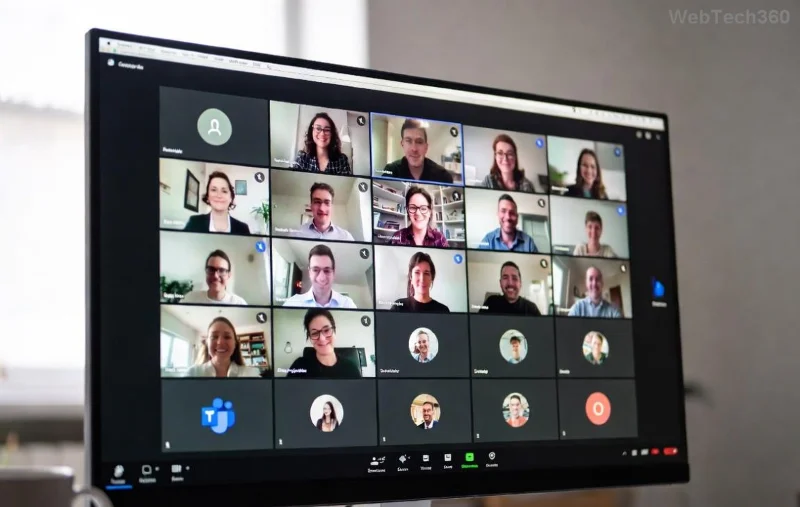
Teams stores temp files that often cause update glitches. Clearing them resolves 0x80070002 in 80% of cases.
%appdata%\Microsoft\Teams, hit Enter.✅ Pro tip: Do this weekly for optimal performance.
Permission issues block file access. Right-click Teams shortcut > Run as administrator. Attempt update again. Simple, yet effective!
Security software might quarantine update files. Pause real-time protection (e.g., Windows Defender via Settings > Update & Security > Windows Security), retry update, then re-enable.
Teams relies on Windows Update services. Reset them:
| Command | Purpose |
|---|---|
| net stop wuauserv | Stop Windows Update service |
| net stop cryptSvc | Stop Cryptographic service |
| net stop bits | Stop BITS |
| net stop msiserver | Stop MSI Installer |
| ren C:\Windows\SoftwareDistribution SoftwareDistribution.old | Rename update folder |
| ren C:\Windows\System32\catroot2 catroot2.old | Rename catroot |
| net start wuauserv | Restart services |
| net start cryptSvc | ... |
| net start bits | ... |
| net start msiserver | ... |
Restart PC and check for Teams updates. This fixes underlying system issues causing Microsoft Teams Update Error 0x80070002.
Corrupted system files? Scan and repair:
DISM /Online /Cleanup-Image /RestoreHealth (needs internet).sfc /scannow.If basics fail, try these:
Still stuck? Drop a comment below—we're here to help! These steps have helped thousands regain seamless Teams functionality. You've got this! 👏
See the biggest Halloween 2026 trends in costumes, décor, shopping, pets, and party planning—with survey data, dates, and practical ways to choose.
Host an affordable Halloween party with a clear spending cap, DIY decorations, simple food, free games, and practical safety tips.
Choose Halloween party games by group size, experience, and mood, with simple ways to make tarot and mahjong welcoming for every guest.
Compare 2026 dog Halloween costume trends by search interest, fit, comfort, and mobility—from hot dog and shark looks to simple bandanas.
Learn how the Gravity Falls-inspired summer Halloween works, choose a date and celebration style, and plan a low-stress Summerween party.
Plan an inclusive virtual Halloween party for remote teams with time-zone-friendly scheduling, simple games, accessible options, and a practical hosting checklist.
Explore seven Halloween team building games for the workplace, with quick rules, hybrid-friendly options, accessibility tips, and practical safety guidance.
Mix a glossy prop-only fake blood batch, choose safer products for skin and costumes, and test cleanup before Halloween night.
Create a gentle Halloween look with pastel colors, friendly ghosts, easy no-carve accents, and practical safety tips for your home.
Create a spooky office cubicle with Halloween desk decor ideas that keep your workspace usable, tidy, and mindful of workplace safety.








