Leftover Halloween Candy and Pumpkins: What to Do Next

Sort leftover Halloween candy safely, share or repurpose sealed treats, and choose food use or compost for pumpkins based on their condition.
Gemini Live helps you chat with Gemini assistant through voice without having to type directly. Besides, Gemini Live supports 10 different voices so that users can change as they like. You can switch to Gemini Live voice with deep tone if you want. Below are instructions to change Gemini Live voice.
Gemini Live Voice Changer Tutorial
Step 1:
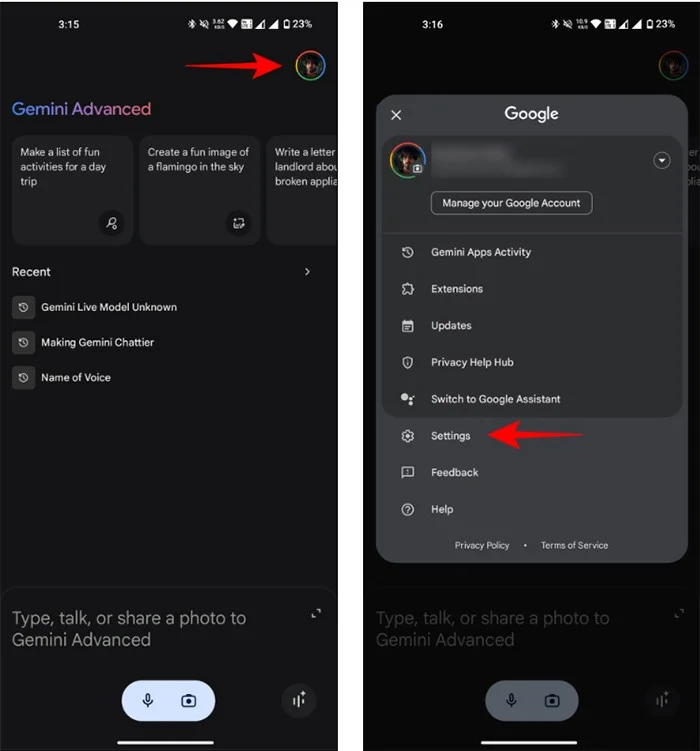
At the Gemini interface, click on the account avatar and then click on Settings in the list displayed below.
Step 2:
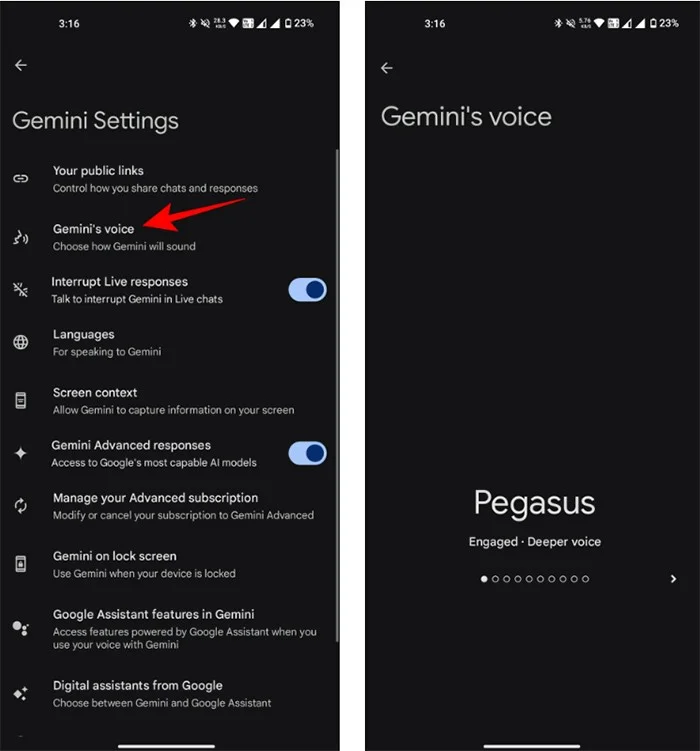
Switch to the settings interface for your Google account, click on Gemini's voice to change your Gemini Live voice.
The user will then hear the voices available in Gemini Live. Here you just need to find the Gemini Live voice you want to use .
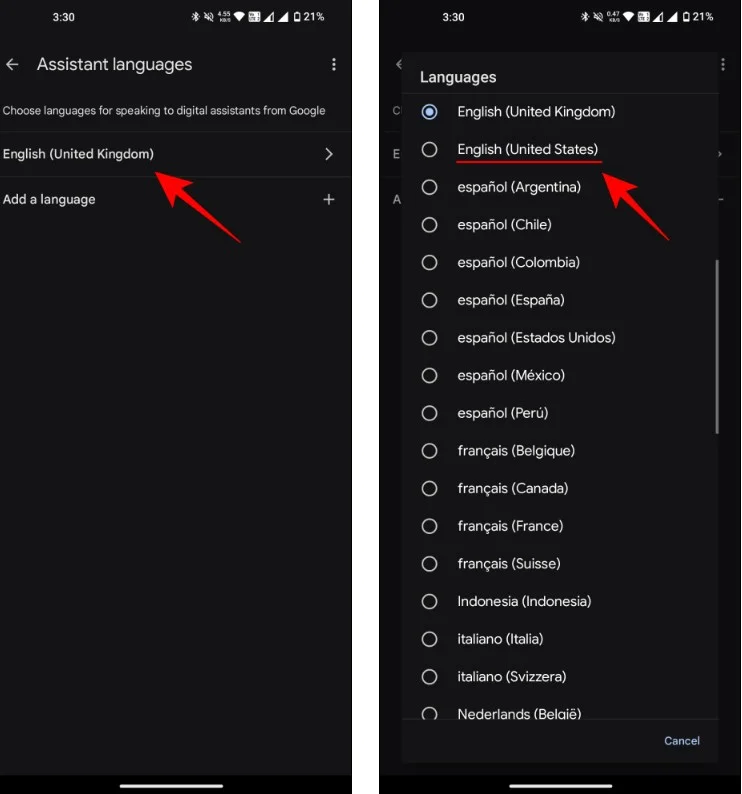
In case you don't see the Gemini Live voice change option, click on the avatar and then select Settings . Now click on Google Assistant and then click on Languages .
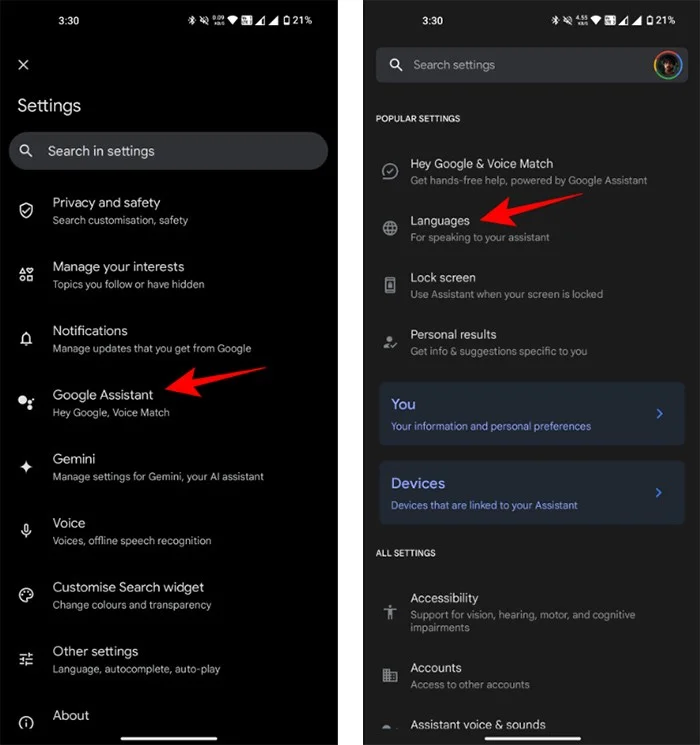
Now we will switch to English voice as shown below to use the voice change feature for Gemini Live.
Sort leftover Halloween candy safely, share or repurpose sealed treats, and choose food use or compost for pumpkins based on their condition.
Compare workplace Halloween costume choices by respect, dress code, mobility, and safety—and learn when a subtle accessory or a policy check is the better option.
Find a couples costume that fits your style, budget, and comfort level, from Addams Family classics to original inside-joke duos.
Need a last-minute high school Halloween costume? Compare 10 easy closet-based ideas by prep time, comfort, school-day practicality, and simple safety checks.
Use a simple 2026 Halloween decorating timeline for indoor décor, outdoor displays, and fresh pumpkins, with practical adjustments for weather and events.
Mix five vivid, approachable Halloween cocktails with measured recipes, simple prep tips, and an alcohol-free option for your party guests.
Find 15 office-friendly Halloween costume ideas for 2026, with practical checks for dress codes, respectful themes, comfort, and workplace safety.
Plan a fun elementary school Halloween party with easy crafts, games, inclusive treats, costume tips, and a sample 75-minute classroom schedule.
Compare realistic side hustles for 2026 by startup cost, fees, flexibility, and income control, with current tax and scam guidance from official sources.
Upgrade your home office ergonomics with current OSHA and NIOSH guidance on chair fit, monitor height, laptop setup, lighting, and movement.