20 Easy College Halloween Costumes You Can Make from Your Closet

Need a last-minute college Halloween costume? Try 20 easy, budget-friendly looks built from closet staples, plus quick styling and safety tips.
In July 2026, the National Institute for Occupational Safety and Health (NIOSH) refreshed its office-environment guidance with a message that matters just as much at home as it does in a corporate office: a healthy workstation should help you avoid over-reaching, prolonged sitting or standing, and awkward postures. NIOSH also notes that short breaks each hour can reduce discomfort for computer workers. That is not a new “perfect posture” rule. It is a useful reminder that good ergonomics is about fitting the work to your body and changing position regularly, not buying the most expensive chair you can find.
If your home office started as a laptop on a kitchen table, the highest-value upgrades are usually simple: support your back and feet, separate the laptop screen from the keyboard when possible, bring the keyboard and mouse close to your body, place the display where you can see it without bending your neck, and reduce glare. Those basics are consistent with both the NIOSH office-environment guidance updated July 16, 2026 and OSHA’s longstanding Computer Workstations eTool.
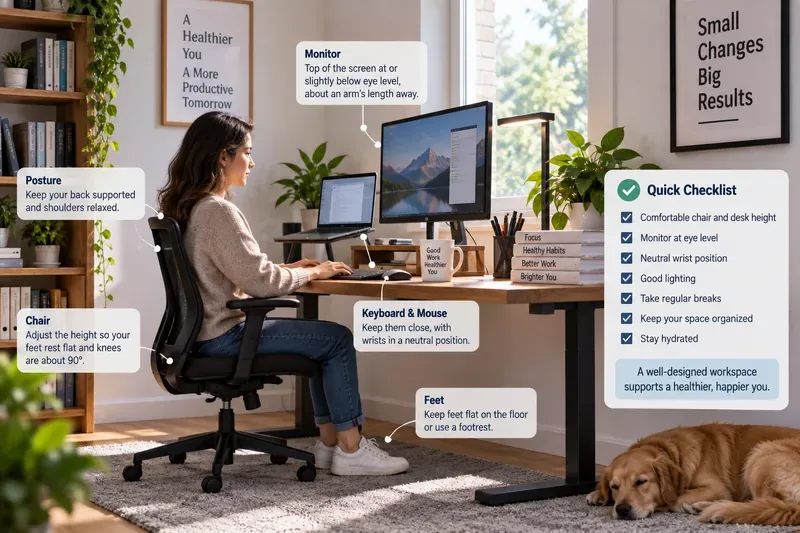
One of the most useful lines in OSHA’s workstation guidance is that there is no single correct posture or component arrangement that fits everyone. The goal is a neutral working position: your head and neck are balanced with your torso, your shoulders are relaxed, your elbows stay near your body, your wrists stay relatively straight, your lower back is supported, and your feet have firm support.
That means an expensive “ergonomic” product can still be a poor fit. A basic chair adjusted correctly may work better than a premium chair that is too deep, too tall, or impossible to position under your desk. Before buying anything, sit at your current workstation and identify the part of your body that is compensating. Are you leaning forward to read? Raising your shoulders to type? Reaching for the mouse? Tucking your feet under the chair because they do not reach the floor?
Fix the mismatch first. Then decide whether equipment is actually necessary.
Your chair does not need to force you into a rigid pose. It should support you while allowing small position changes. OSHA recommends a backrest that supports the natural curve of the spine, a comfortable seat, and foot support either from the floor or a footrest. Armrests, if used, should let the shoulders remain relaxed and the elbows stay close to the body. See OSHA’s chair guidance.
The desk and chair must work as a system. If you raise the chair so your elbows line up with the keyboard but your feet now dangle, add a footrest. That footrest does not have to be fancy; NIOSH’s home-work guidance notes that a stable box or even books can provide temporary foot support when needed.
If the desk is so high that you must shrug your shoulders to reach the keyboard, lowering the keyboard surface may matter more than replacing the chair. If a desk drawer presses against your thighs, it can also limit your ability to raise the chair to a useful height.
A laptop creates an ergonomic tradeoff because the screen and keyboard are attached. If you position the keyboard comfortably, the screen is usually too low. If you raise the screen to a better viewing height, the keyboard becomes too high to type on comfortably.
NIOSH recommends an external monitor when possible, generally placed about an arm’s length away with the top at or below eye level. If you rely on the laptop display, an external keyboard and pointing device can let you raise the laptop while keeping your hands in a better position. OSHA similarly recommends auxiliary keyboards and monitors when laptops are used as primary computers for intensive keyboard work.
For many remote workers, a low-cost laptop stand plus an external keyboard and mouse is a more meaningful ergonomic upgrade than replacing the desk. The key is not the stand itself; it is separating screen height from hand position.
OSHA’s current monitor guidance recommends putting the monitor directly in front of you, with the top line of the screen at or below eye level. It gives a preferred viewing range of roughly 20 to 40 inches from the eyes to the screen, although the right distance depends on screen size, text size, and your vision. See OSHA’s monitor guidance.
The practical test is simple: you should be able to read your normal text while your head and torso remain upright and your back stays supported. If you keep leaning toward the display, try increasing text size before moving the screen too close. If you tilt your head backward to see the top of the display, lower it.
If you use bifocals or progressive lenses, a lower monitor position may be more comfortable than a standard “eye-level” rule. Ergonomics should adapt to the person, not the other way around.
Keyboard and mouse placement is where small desk problems often become shoulder and wrist problems. OSHA recommends placing the keyboard directly in front of you with relaxed shoulders, elbows close to the body, and wrists straight and in line with the forearms. The mouse should be close enough that you do not have to repeatedly reach away from your body. See OSHA’s keyboard guidance.
Do not assume a wrist rest fixes everything. If the keyboard is too high, the mouse is far away, or the desk edge is pressing into your forearms, the larger geometry still needs correction. Move frequently used items into easy reach first.
If a full-size keyboard forces the mouse far to the right, a more compact keyboard may help some users keep the pointing device closer. That is a fit decision, not a universal recommendation.
Home offices often have strong daylight, decorative lamps, or glossy surfaces that were never arranged for eight hours of screen work. OSHA says bright light and glare can make the display harder to see, potentially encouraging eye strain and awkward viewing postures. Its quick tips include arranging the office to minimize glare from windows, desk lamps, and overhead lighting. See OSHA’s workstation-environment guidance.
A useful first move is to place the screen roughly perpendicular to a window rather than directly facing the window or putting the window directly behind the monitor. Adjust blinds, shades, or lamp positions before assuming the solution is a more powerful monitor.
NIOSH also recommends enlarging fonts when needed and adjusting display brightness and contrast so you are not squinting or leaning forward to read.
A sit-stand desk can be useful, but standing all day is not the goal. NIOSH’s July 2026 office guidance specifically says workers should avoid sitting or standing for too long. The advantage of an adjustable workstation is that it makes posture changes easier.
NIOSH’s earlier work-from-home guidance also cites research in which adding hourly five-minute breaks to conventional rest breaks significantly reduced musculoskeletal discomfort and eyestrain. It recommends regular screen breaks and suggests the familiar 20-20-20 approach for eye fatigue: every 20 minutes, look at something about 20 feet away for about 20 seconds. See the NIOSH work-from-home ergonomics guidance.
You do not need to turn every break into a workout. Stand up, refill water, walk to another room, stretch gently, or take a short call away from the desk. The point is to interrupt long periods of the same posture and the same repetitive movement.
| Budget level | Best first moves | Why they matter |
|---|---|---|
| $0 | Reposition the monitor, increase text size, move the mouse closer, adjust chair height, reduce window glare, schedule movement breaks | These fix common geometry and viewing problems without new equipment. |
| Low cost | Stable laptop riser, external keyboard and mouse, footrest, simple lumbar support, task light | These can separate screen height from hand position and improve support. |
| Moderate cost | Adjustable chair, external monitor, monitor arm, better desk or keyboard surface | Adjustability helps fit the workstation to your body and workspace. |
| Higher cost | Quality sit-stand desk, premium adjustable chair, multi-monitor or specialty equipment | Useful when you have a clear fit problem that simpler changes cannot solve. |
Do not start at the bottom row just because it sounds more “ergonomic.” OSHA’s workstation evaluation checklist is a better starting point than a furniture catalog because it helps you identify what is actually wrong.
If you work from a bedroom, shared dining area, or small apartment, permanent office furniture may not be realistic. In that case, prioritize portable adjustments: a laptop riser that stores away, a separate keyboard and mouse, a footrest, a supportive cushion, and a lamp you can reposition.
Try to preserve one reliable setup that you can recreate quickly. Constantly switching between a couch, bed, kitchen counter, and coffee table makes it harder to maintain useful screen and keyboard positions. NIOSH specifically warns that prolonged work on couches and soft chairs may be uncomfortable and recommends using back support and a more upright posture when no better option is available.
You do not need a specialist assessment to catch the most obvious setup problems. Sit down as you normally work and ask:
If several answers are “no,” fix the cheapest and most obvious mismatch first, then work for a few days before changing something else. That makes it easier to tell which adjustment actually helped.
Ergonomic adjustments can reduce exposure to awkward postures and repetitive strain, but they are not a diagnosis or treatment for every source of pain. Persistent pain, numbness, tingling, weakness, or symptoms that worsen despite workstation changes deserve appropriate medical evaluation. Likewise, an employer may have an ergonomics, occupational-health, or accommodation process that can help if your home setup is affecting your ability to work.
The durable lesson from OSHA and NIOSH is not that everyone needs the same chair, desk, or monitor height. It is that the workstation should fit the worker, reduce unnecessary reaching and awkward posture, support clear viewing, and make movement easy.
For most remote workers, that means upgrading in this order: correct the chair and desk relationship, solve the laptop screen-and-keyboard conflict, position the monitor, bring input devices closer, control glare, and build movement into the workday. Once those basics are working, premium furniture becomes an optional refinement rather than the starting point.
Need a last-minute college Halloween costume? Try 20 easy, budget-friendly looks built from closet staples, plus quick styling and safety tips.
Learn what the Teal Pumpkin Project means in 2026, how hosts can offer separate non-food treats, and how families can plan routes and review candy safely.
See what the latest 2026 Halloween survey says about trick-or-treating, community events, and practical ways to plan a safer neighborhood outing.
Plan a thoughtful Halloween moon party with optional reflection, simple stargazing, accurate 2026 sky notes, respectful spiritual framing, and safe lighting.
Build a comfortable cottagecore witch costume with beginner-friendly layers, thrifted pieces, simple makeup, practical accessories, and Halloween safety checks.
Explore BookTok-inspired horror books and Halloween decor, comparing gothic, cozy, and slasher styles with practical tips for a safe reading nook.
See the biggest Halloween 2026 trends in costumes, décor, shopping, pets, and party planning—with survey data, dates, and practical ways to choose.
Host an affordable Halloween party with a clear spending cap, DIY decorations, simple food, free games, and practical safety tips.
Choose Halloween party games by group size, experience, and mood, with simple ways to make tarot and mahjong welcoming for every guest.
Compare 2026 dog Halloween costume trends by search interest, fit, comfort, and mobility—from hot dog and shark looks to simple bandanas.