Parsec is a powerful remote hosting program that transforms your computer into the ultimate collaboration tool. Whether for creative brainstorming sessions or multiplayer gaming, Parsec accommodates a variety of needs.
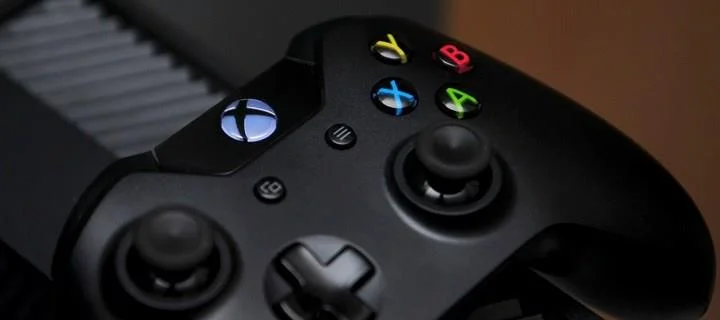
Why Use a Controller with Parsec?
When gaming with others on Parsec, connecting a controller can significantly enhance your experience. While keyboard and mouse setups are viable, many players prefer controllers for their ergonomics and ease of use.
Steps to Connect a Controller to Parsec
Connecting a controller to your Parsec setup is straightforward. Follow the steps below:
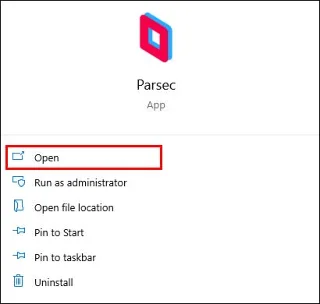
- Launch the Parsec app.

- Plug your controller into your device.
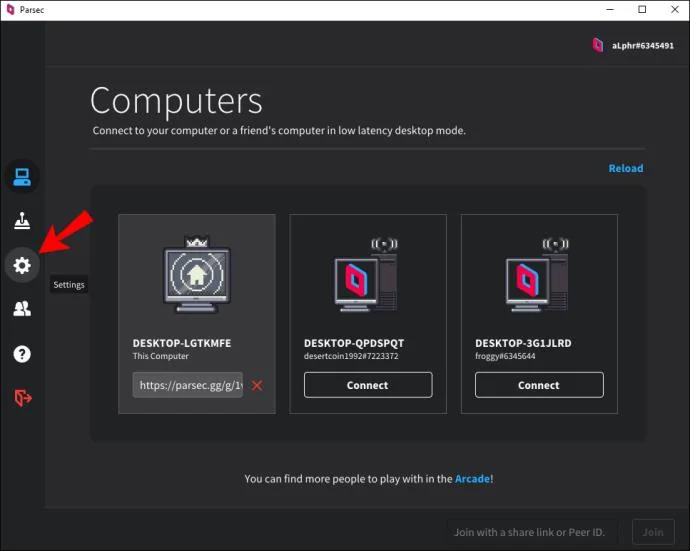
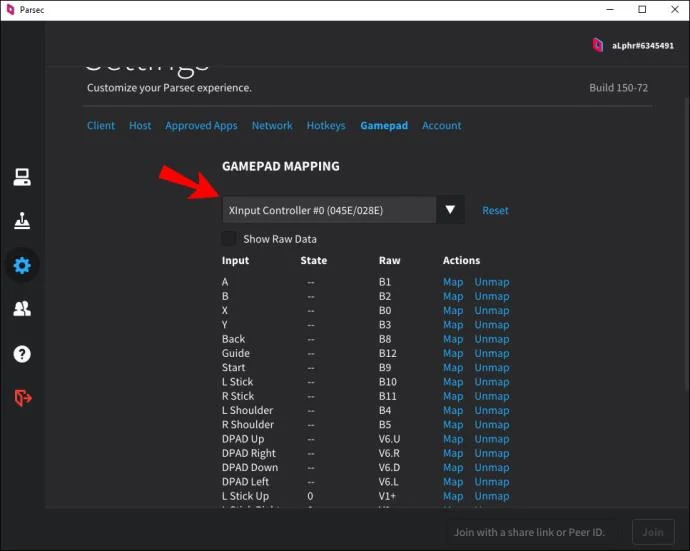
- Go to “Settings” by clicking the gear icon on the left sidebar.

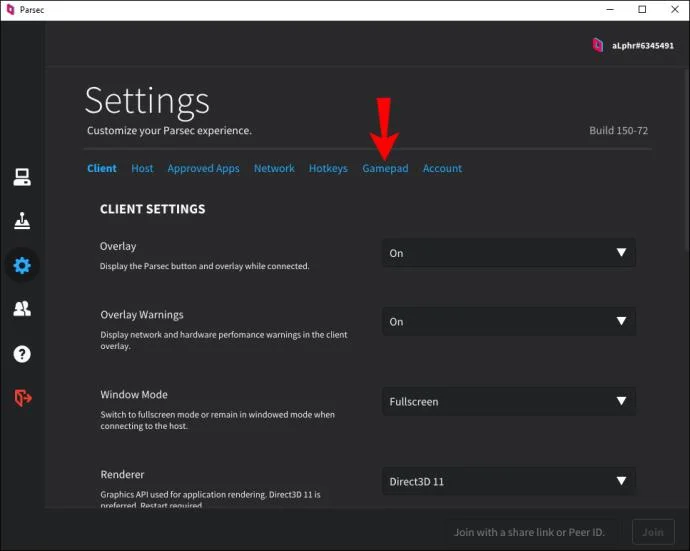
- Select “Gamepad.”

- The app will automatically detect plugged-in controllers. Your controller should appear in the list.

- (Optional) Reconfigure button mappings if needed.
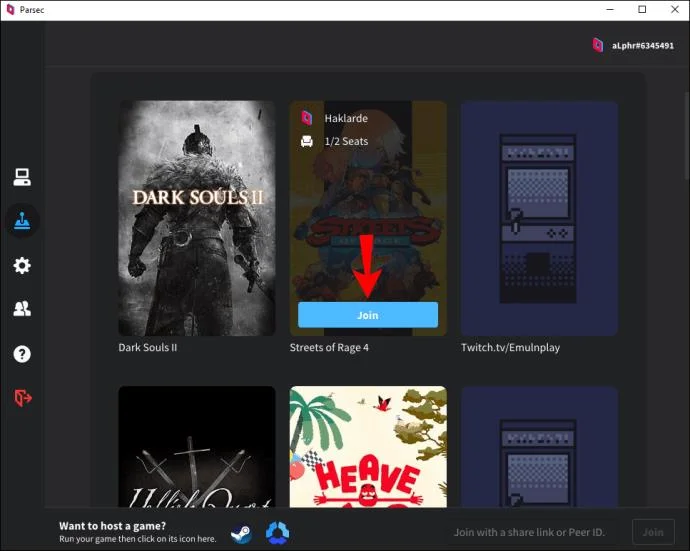
- Start playing your game!

Using Different Types of Controllers
Many players opt for older Xbox or Nintendo controllers. However, if you wish to use a PS4 or DualShock 4 controller, an additional step is necessary.
You will need to download DS4Windows, a software that emulates an Xbox 360 controller, ensuring compatibility with Parsec.
For Mac OS users, simply connect the PS4 controller via USB, and it should work seamlessly without extra software.
Does Parsec Work Well with a Controller?
Yes! Parsec fully supports controllers. After connecting with USB, the application takes care of the rest. For PS4 controllers, remember to use the DS4Windows emulator unless you are on Mac OS.
Confirming Controller Setup
To ensure your controller is set up properly, follow these quick steps:
- Open “Settings” in the Parsec app.
- Select “Gamepad” to view connected controllers.
- Adjust button mappings as desired.
- Start your gaming session.
Common FAQs
1. Can I connect 2 controllers to Parsec?
Absolutely! You can connect two controllers for a local co-op session, or invite a friend and enable “gamepad” on their profile to play multiplayer games. Ensure the game supports multiplayer mode for both controllers to function as separate players.
2. Is Remote Gaming Simplified with Parsec?
Yes, Parsec streamlines the gaming experience with its plug-and-play interface. Simply download the app, connect your controller, and join the game. Most controllers are compatible with the default controller driver pack.
Conclusion
With Parsec, connecting a controller opens a new realm of gaming possibilities. Whether you are using an Xbox, Nintendo, or PlayStation controller, the setup is simple and effective. Share your experiences or tips in the comments below!



HannahBee -
This is a game-changer for me! Really excited to try it out soon. Thanks
JimPlayz -
Anyone tried using the Parsec app on their phone to connect the controller?
HappyGamer -
I tried it with my friends last night, and it was a blast! We need more people to join us
MileyC -
Just a heads up, if you’re using a wireless controller make sure it’s fully charged
RyanS -
Thanks for the detailed instructions! Just did it successfully and I’m ready to play
Steve_M -
Can someone please help me? I can't seem to find the controller settings in my Parsec app
MaxPower -
I had no idea I could use my old controller! Now I can finally enjoy some retro games over Parsec.
Amy_R -
Hope this method works for all controllers! I have multiple types laying around
AnnaB -
Why is there a lag when using my controller on Parsec? Any tips to fix this
DaveyGaming -
I've been struggling with this for weeks! This guide saved me so much time. Highly recommend
PetLover2023 -
My cat just walked on my keyboard while I was setting this up! But at least I got it done
LucasTheWalker -
Can you use Parsec for VR games too? I’m curious
RachaelW -
Lol, I accidentally connected my old joystick instead of my controller... but it worked too
Q1ub3r -
So happy I found this! I'm always a bit lost with tech stuff. This guide was easy to follow
Jackpot_Jack -
I didn't think it was going to be this easy! My heart skipped a beat when I saw it work.
Kevin_the_Gamer -
Made my day! Finally got my Xbox controller working with Parsec. Can't wait for game night
Alex_Plays -
What’s next? Any tips on optimizing my game settings in Parsec?
JohnDoe -
Great tutorial! I finally managed to connect my controller to Parsec and it's working flawlessly. Thanks for sharing
SommerSun -
Yeah! This article helped me connect the controller without a hitch. Really appreciate it
CoolAsh -
Can someone confirm if this works on Mac too? I’m hesitant to try
Kenny457 -
Wow, I didn’t know it could connect this easily! Thanks for the clear steps.
PetraV -
I finally feel like a pro after following this guide! Perfect instructions
CaitlinR -
Thanks for this! I was able to connect my controller, and now I'm ready for my gaming marathon!
EllieJ -
Do I need any special drivers for older controllers or will everything work out of the box
NickJam -
I wish I had seen this earlier! It would have saved me a couple of hours of frustration
Jessie2023 -
I really appreciate you breaking it all down in simple steps. Big help
Gamer4Life -
If anyone is having issues with Bluetooth, make sure to check your device settings
Tommy_H3 -
Great article! I loved how straightforward it was. Super helpful!
Emily.77 -
Just connected my PS5 controller like a boss! Thanks for the help!
GamerDude -
Just tried it with my friend's setup, 10/10 would recommend! Seems to work perfectly
David_92 -
I found the best experience is with the wired connection; it just feels more responsive
Brandon_Tech -
This is exactly what I needed! Finally can game remotely without any issues
Chad_The_Man -
Connecting my controller to Parsec felt like a win for me today! Game on!
FunnyGuy99 -
Your guide is as good as my game skills! Thanks for making this easy
ChloeXOXO -
Thank you for this! I was about to give up. Connecting a controller is a breeze now
GamerGirl123 -
Awesome post! Just set it up and now I can play with my friends online. Love Parsec
SandyCheeks -
Found this guide super helpful! Thanks a ton! Can't wait to game more
SarahSmith -
Does anyone know if the setup is the same for PS4 controllers? I want to make sure before I try it.
LisaS -
Hey everyone! I’m trying to connect my controller but it keeps disconnecting. Any suggestions?