How to Fix Microsoft Teams Login Error AADSTS50011

Frustrated by the dreaded Microsoft Teams login error AADSTS50011? 😩 This common Azure Active Directory (AAD) hiccup blocks your sign-in with a message like "The reply URL specified in the request does not match the reply URLs configured for the application." Don't worry – you're not alone, and it's fixable fast!

In this concise guide, we'll pinpoint causes and deliver easy-to-follow steps to get you back collaborating. Follow along, and you'll be online in under 10 minutes. Let's dive in! ✅
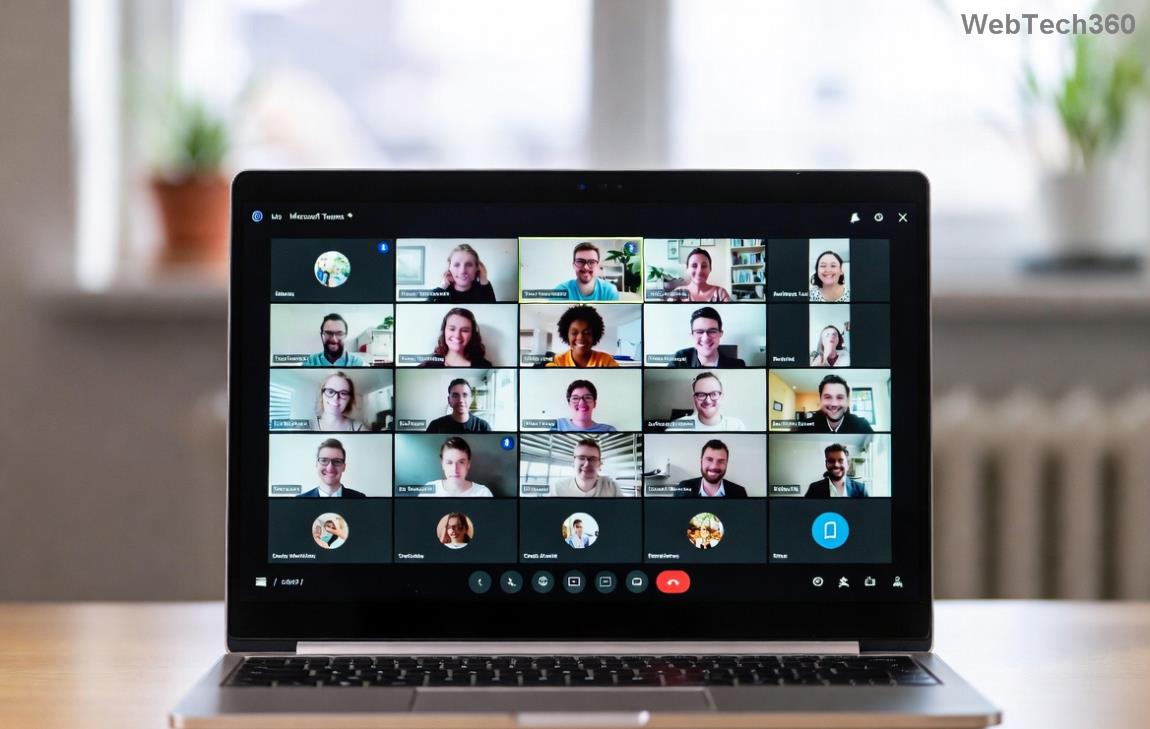
Screenshot of Microsoft Teams login error AADSTS50011 displaying reply URL mismatch

⚠️ What Causes Microsoft Teams Login Error AADSTS50011?

The error stems from a reply URL mismatch in Azure AD authentication. Teams tries to redirect after login, but the URL doesn't match your app's registered settings. Common triggers include:

  • Cached credentials or corrupted browser data.
  • Multiple sign-ins across devices.
  • Network issues like VPNs or proxies altering URLs.
  • Outdated Teams app or Azure configurations.
  • Date/time sync problems on your device.

Pro tip: 80% of cases resolve with basic cache clears. Ready to fix? Start here! 👇

🔧 Step-by-Step Fixes for Microsoft Teams Login Error AADSTS50011

1️⃣ Clear Teams Cache (Quickest Fix – 2 Minutes)

Corrupted cache is the #1 culprit. Here's how:

  1. Quit Teams completely (right-click tray icon > Quit).
  2. Press Win + R, type %appdata%\Microsoft\Teams, hit Enter.
  3. Delete all folders inside (e.g., Cache, GPUCache, IndexedDB).
  4. Restart Teams and sign in.

Success rate? Sky-high! 🎉 If not, proceed.

2️⃣ Sign Out from All Devices

Stale sessions cause mismatches:

  1. In Teams (if accessible) or Microsoft Account, go to Security > Sign out everywhere.
  2. Clear browser cache for Edge/Chrome (Teams web uses these).
  3. Try logging in again.

3️⃣ Disable VPN/Proxy & Check Network

VPNs rewrite URLs, triggering AADSTS50011:

  • Turn off VPN/proxy in Windows Settings > Network & Internet.
  • Switch to a stable Wi-Fi (avoid public networks).
  • Flush DNS: Open CMD as admin, run ipconfig /flushdns.
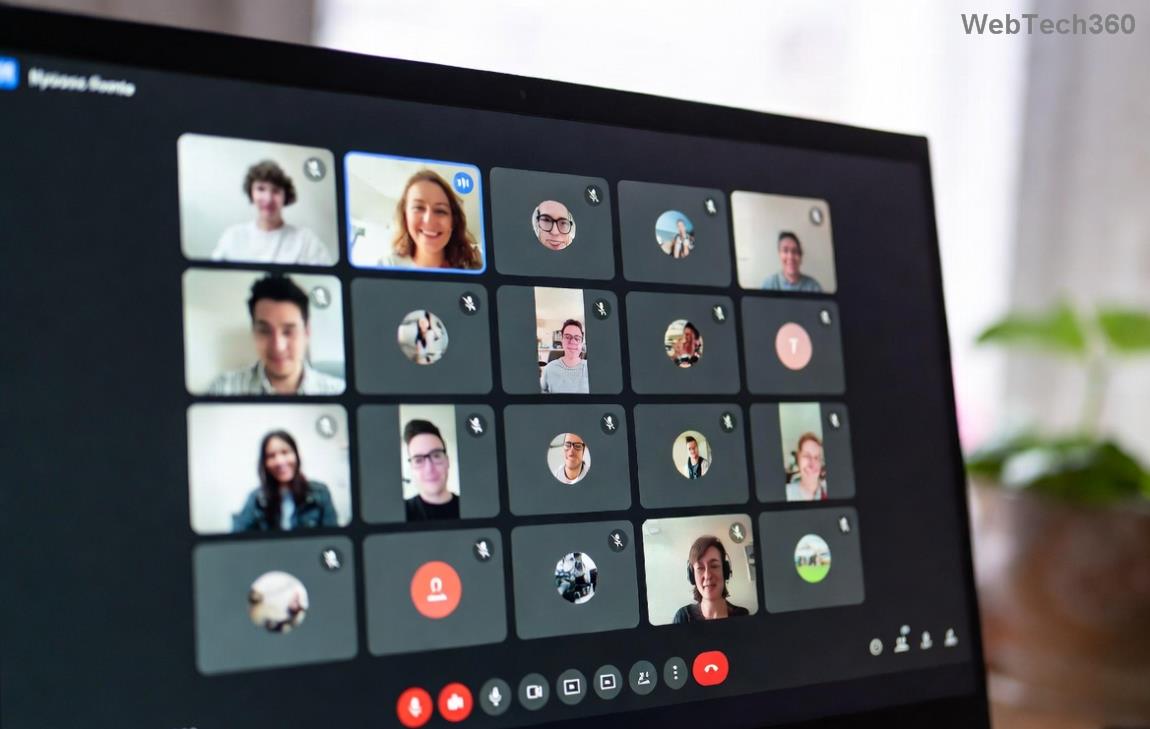
Step-by-step visual guide to clearing Microsoft Teams cache for AADSTS50011 fix

4️⃣ Update or Reinstall Teams

Outdated versions clash with new AAD protocols:

  1. Download latest Teams from official site.
  2. Uninstall old version via Settings > Apps.
  3. Install fresh and sign in.

5️⃣ Verify Device Date/Time & Browser Settings

Issue Fix
Wrong date/time Settings > Time & Language > Sync now
Browser cookies Edge/Chrome: Settings > Privacy > Clear browsing data (cookies/site data)
DoH enabled Disable DNS over HTTPS in browser flags

6️⃣ Advanced: Azure AD Admin Fixes

If you're an admin (or contact one):

  1. Login to Azure Portal.
  2. Go to Entra ID > App registrations > Search "Teams".
  3. Under Authentication, verify/add exact reply URLs like https://teams.microsoft.com/_auth/ or custom ones.
  4. Save and test.

Reference: Official Microsoft Entra error docs.

⭐ Pro Tips to Prevent Teams Login Error AADSTS50011 Recurrence

  • ✅ Use the latest Teams client always.
  • 🔒 Avoid mixing personal/work accounts.
  • 🛡️ Regularly clear cache weekly.
  • 📱 Limit active sessions to 5 devices max.

Still stuck? Run Teams in web mode (teams.microsoft.com) as a bypass.

🎊 You're Back Online!

Congrats – your Microsoft Teams login error AADSTS50011 should be history! 🚀 These steps work for the latest updates, keeping you productive. Share your success in comments below or bookmark for later. Need more Teams tips? Stick around – we've got guides on call drops and chat glitches next! 👏
Leave a Comment

How to Fix Microsoft Teams Đăng nhập Error (Login)

How to Fix Microsoft Teams Đăng nhập Error (Login)

Struggling with Microsoft Teams "Đăng nhập" login error? Discover step-by-step fixes for smooth sign-in. Clear cache, update app, and more – no tech skills needed! Works on Windows, Mac, and web.

Solving Microsoft Teams Web Error 503 Service Unavailable

Solving Microsoft Teams Web Error 503 Service Unavailable

Tired of Microsoft Teams Web Error 503 Service Unavailable blocking your meetings? Discover quick, step-by-step fixes to resolve the 503 error fast – no tech skills needed! Clear cache, check status, and get back to collaborating seamlessly.

Troubleshooting Microsoft Teams Update Error 0x80070002

Troubleshooting Microsoft Teams Update Error 0x80070002

Stuck with Microsoft Teams Update Error 0x80070002? Discover proven troubleshooting steps to resolve this frustrating issue quickly and get your Teams app updated seamlessly for uninterrupted collaboration.

Solving Microsoft Teams Error AADSTS50020: User Account Conflict

Solving Microsoft Teams Error AADSTS50020: User Account Conflict

Tired of Microsoft Teams Error AADSTS50020 blocking your sign-in? Discover step-by-step fixes for user account conflicts, backed by the latest Azure AD solutions. Get back to work fast!

How to Fix Microsoft Teams Microphone Error No Sound

How to Fix Microsoft Teams Microphone Error No Sound

Tired of Microsoft Teams microphone error with no sound? Discover quick, step-by-step fixes for Teams mic not working on Windows, Mac, and more. Restore crystal-clear audio in minutes!

How to Fix Microsoft Teams Task Management Error

How to Fix Microsoft Teams Task Management Error

Tired of the Microsoft Teams "Task Management" Error disrupting your workflow? Discover proven fixes like clearing cache, updating Teams, and troubleshooting permissions to get back to seamless collaboration in minutes. Updated with the latest solutions.

How to Fix Microsoft Teams How to Teams Help Error

How to Fix Microsoft Teams How to Teams Help Error

Frustrated by the Microsoft Teams 'How to Teams' Help Error? Discover proven, step-by-step solutions to fix it quickly and restore smooth help access. Latest 2026 updates included for seamless teamwork.

Solving Microsoft Teams Room Error Syncing

Solving Microsoft Teams Room Error Syncing

Struggling with Microsoft Teams "Room Error" Syncing? This ultimate guide provides step-by-step fixes for Microsoft Teams Room Error Syncing issues, ensuring seamless meetings and quick resolutions. Updated with the latest tips.

Troubleshooting Microsoft Teams Workflows Power Automate

Troubleshooting Microsoft Teams Workflows Power Automate

Master troubleshooting Microsoft Teams Workflows Power Automate issues with step-by-step fixes for common errors. Get your automations running smoothly – no more frustration! Proven solutions for triggers, permissions, and more.

Solving Microsoft Teams Restart Error (2026)

Solving Microsoft Teams Restart Error (2026)

Struggling with Microsoft Teams "Restart Error" in 2026? Discover proven, step-by-step fixes to resolve the endless restart loop quickly. Clear cache, reset app, and more for seamless collaboration. Get back online fast!

How to Create Breakout Rooms in Microsoft Teams Before a Meeting

How to Create Breakout Rooms in Microsoft Teams Before a Meeting

Master how to create breakout rooms in Microsoft Teams before a meeting with this easy guide. Pre-assign participants, boost collaboration, and elevate your virtual sessions effortlessly.

How to Fix Microsoft Teams Layout Error: Sidebar Missing

How to Fix Microsoft Teams Layout Error: Sidebar Missing

Tired of Microsoft Teams sidebar missing? Get instant fixes for layout errors. Step-by-step guide with latest tips to restore your Teams sidebar fast and frustration-free.

Solving Microsoft Teams Download Error for Macbook

Solving Microsoft Teams Download Error for Macbook

Struggling with Microsoft Teams Download Error on MacBook? Get step-by-step fixes for smooth installation on the latest macOS. Solve download failed issues quickly and easily.

Solving Microsoft Teams Error J Accounts

Solving Microsoft Teams Error J Accounts

Tired of Microsoft Teams Error J blocking your accounts? Get instant fixes for Error J in Teams with step-by-step guides, cache clears, and account resets. Regain access fast—no tech skills needed!

Rethinking Document Management to Streamline Your Workflow

Rethinking Document Management to Streamline Your Workflow

Work slows down when files sit in too many places, approval steps feel confusing, and people spend more time searching than actually finishing tasks. Strong document management can bring order back without making daily work feel complicated.