Couples Costume Ideas for 2026: Iconic Pairs and Clever Tropes

Find a couples costume that fits your style, budget, and comfort level, from Addams Family classics to original inside-joke duos.
Outlook and other email services have limits on the size of attachments you can use in emails. Outlook's attachment size limit is 20MB, while Gmail's attachment size limit is 25MB. When the file size to be sent exceeds the limit, sending files in email becomes difficult. Here's how to increase the Outlook attachment size limit.
How to increase Outlook attachment size limit
Step 1:
First, you access the Registry Editor on your computer. Then, depending on the version of Outlook you are installing and using on your computer, we access the path below.
Outlook 2010
HKEY_CURRENT_USER\Software\Microsoft\Office\14.0\Outlook\\PreferencesOutlook 2013
HKEY_CURRENT_USER\Software\Microsoft\Office\15.0\Outlook\\PreferencesOutlook 2016 and 2019
HKEY_CURRENT_USER\Software\Microsoft\Office\16.0\Outlook\\PreferencesStep 2:
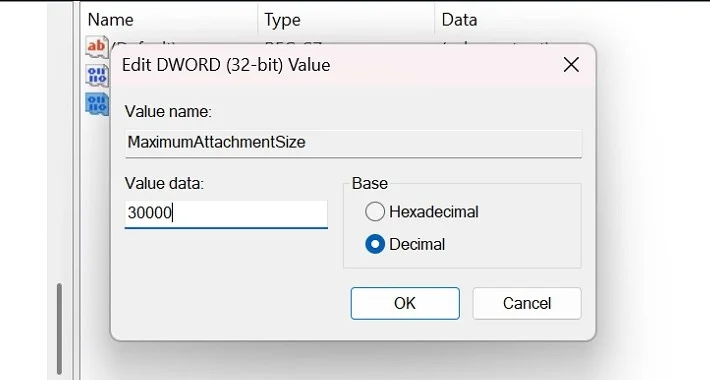
Double-click the DWORD MaximumAttachmentSize file to adjust the attachment size limit in Outlook.
If you want to send a 28MB file, enter 29000 or 30000 in Valute data to send without any problems. In the Base section, we will select Decimal. Finally, click OK to save the settings.
Other ways to send large files on Outlook
If you want to send larger files to Outlook without making any deep system changes, you can upload the file to OneDrive and then attach the file link in an Outlook email. OneDrive allows you to share files up to 2GB in size. If the file is larger than 2GB, you will need to compress the file using file compression tools or compress it into multiple parts using a Zip editor.
You can also use free file sharing services with no file size limit. If you want to send larger files without compression, you can use services like ToffeeShare, UploadNow, FileTransfer, etc.
Find a couples costume that fits your style, budget, and comfort level, from Addams Family classics to original inside-joke duos.
Need a last-minute high school Halloween costume? Compare 10 easy closet-based ideas by prep time, comfort, school-day practicality, and simple safety checks.
Use a simple 2026 Halloween decorating timeline for indoor décor, outdoor displays, and fresh pumpkins, with practical adjustments for weather and events.
Mix five vivid, approachable Halloween cocktails with measured recipes, simple prep tips, and an alcohol-free option for your party guests.
Find 15 office-friendly Halloween costume ideas for 2026, with practical checks for dress codes, respectful themes, comfort, and workplace safety.
Plan a fun elementary school Halloween party with easy crafts, games, inclusive treats, costume tips, and a sample 75-minute classroom schedule.
Compare realistic side hustles for 2026 by startup cost, fees, flexibility, and income control, with current tax and scam guidance from official sources.
Upgrade your home office ergonomics with current OSHA and NIOSH guidance on chair fit, monitor height, laptop setup, lighting, and movement.
Learn why emotional intelligence matters in leadership, where it helps most, how to strengthen it, and how to tell whether your approach is working.
A practical roadmap for moving into tech without a degree: choose an accessible role, build job-ready skills, prove them with projects, and use hiring feedback to improve.








