Excel is programmed to automate and simplify, so it often converts your fractions into something else, like a date format. This will inevitably affect your data tables, as well as add editing to the data. Here are some Excel settings changes to prevent fractions from changing while importing.
How to stop Excel from changing fractions to dates
By default, Excel converts fractions to month/day format.
There are two ways to prevent this from happening. The first method is to type 0 and a space before the fraction . When you press Enter, the fraction format is retained.
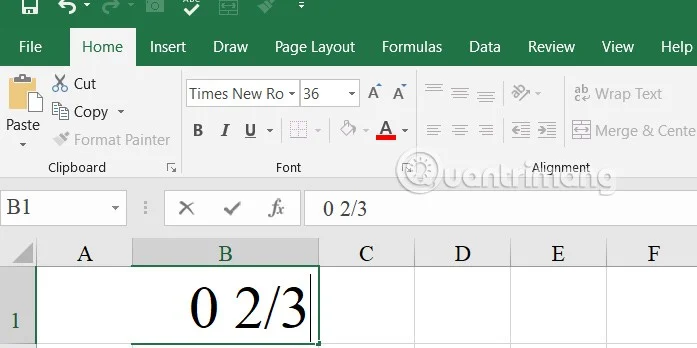
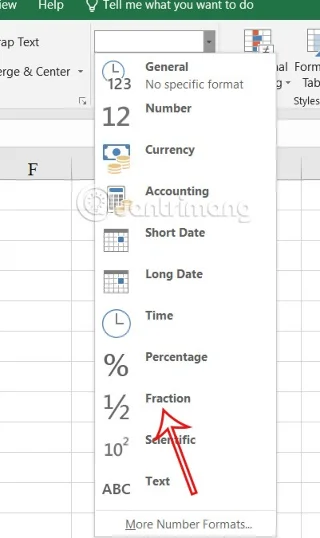
If you plan to enter multiple fractions into your worksheet, you'll need to select the data , click on the Format option, and then select Fraction . You'll need to set up the format before you enter the data.

Prevent Excel from converting fractions to reduced fractions
There is also an Excel style that automatically converts fractions to their reduced form, for example entering 4/6 into a cell will convert it to 2/3.
Step 1:
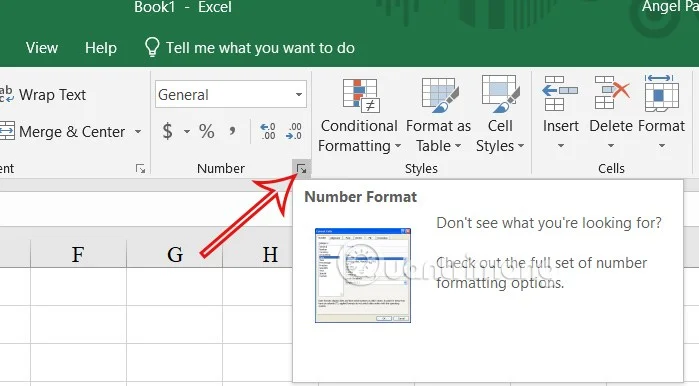
To prevent automatic fraction reduction, you need to determine which denominator to use and keep that denominator . Once you have selected the relevant cell or cells, click the arrow icon to expand the format in the Number group as shown below.

Step 2:
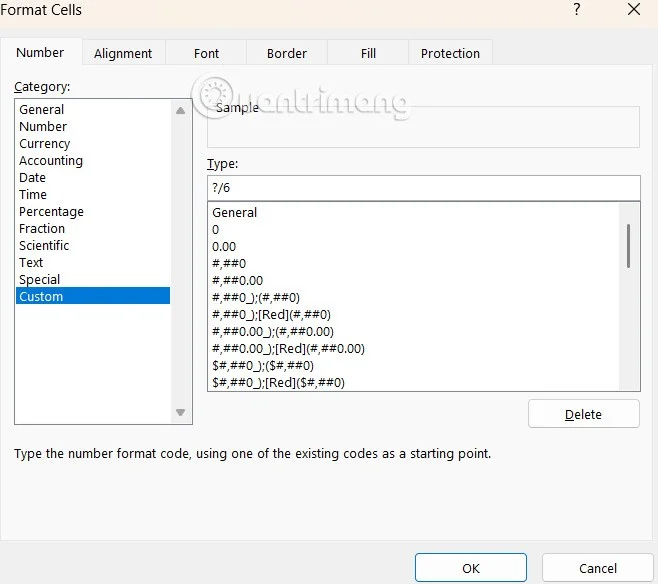
Display the new interface, the user clicks Custom to adjust again.
In the adjustment format input box, type a question mark ( ? ) followed by a forward slash ( / ) and the denominator you want to keep.

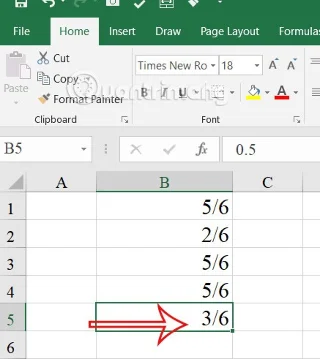
Excel will now always convert any fraction you enter into these cells to a fraction with 6 or whatever number you specify as the denominator.
For example, when you enter ½ in a cell, Excel automatically converts it to 3/6 with the 6 remaining the same.