Leftover Halloween Candy and Pumpkins: What to Do Next

Sort leftover Halloween candy safely, share or repurpose sealed treats, and choose food use or compost for pumpkins based on their condition.
Google Gemini will also support you to summarize videos like YouTube video summary on Copilot . We will enable the YouTube extension on Gemini to use video content summary. Through this summary, you can easily grasp the main ideas of YouTube videos to support other content. Below is a guide to summarize YouTube videos using Gemini.
How to use Gemini to summarize YouTube videos on your computer
Step 1:
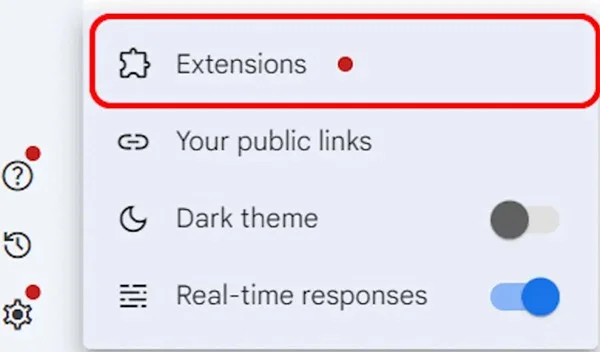
We access Gemini on the computer and then click on the gear icon , select Extensions to use the utility on Gemini .
Step 2:
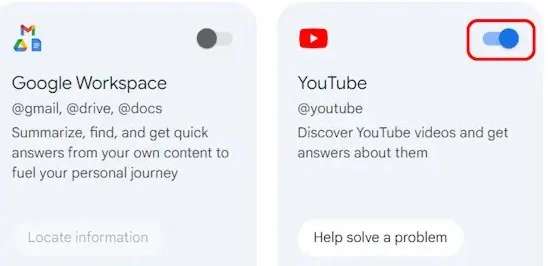
Then we will enable the YouTube widget on Gemini to use.
Step 3:
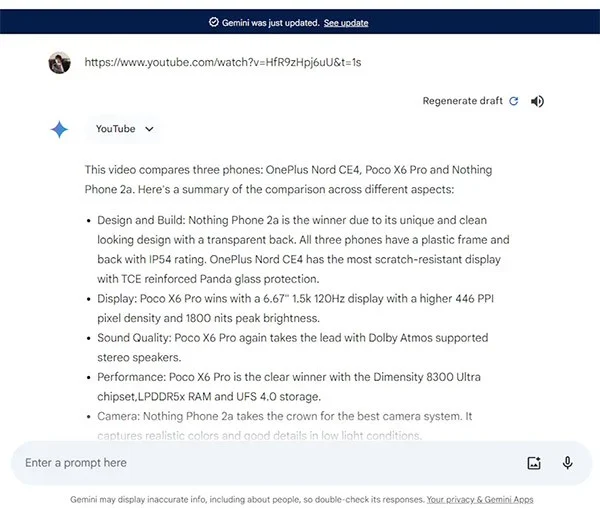
In the Gemini chat interface, we enter the YouTube video link we want to summarize and send it as usual. Immediately after that, you will see the YouTube video summary on Gemini .
How to summarize YouTube videos using Gemini on phone
Step 1:
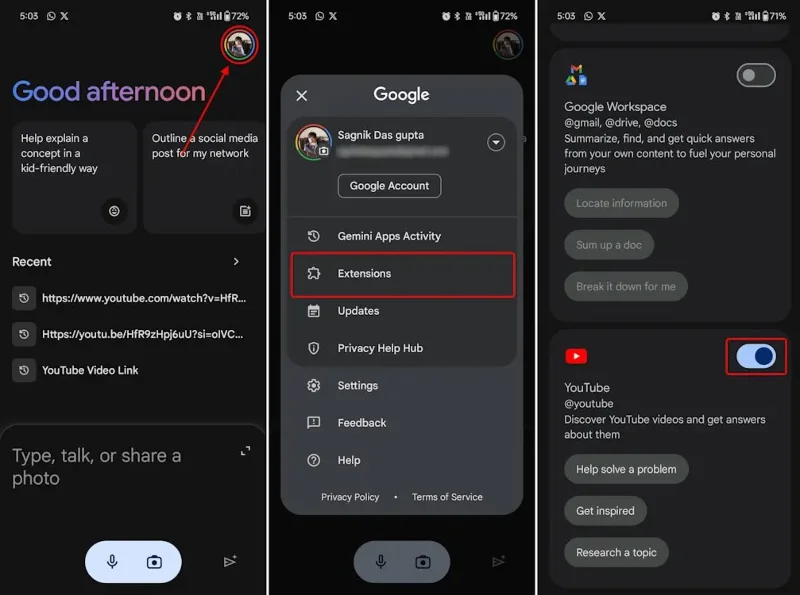
You open the Gemini application on your phone then click on the account avatar . Now we click on Extensions and also activate the YouTube extension to use.
Step 2:
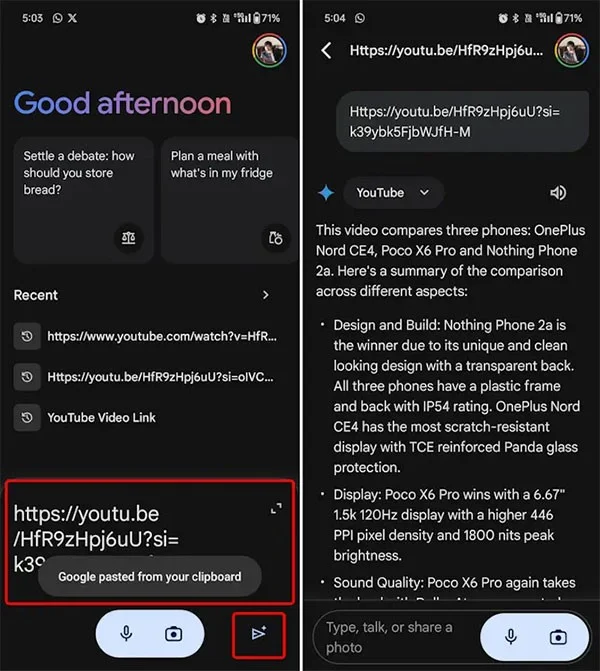
Then we also paste the YouTube video URL we want to summarize and press send. Now you will see the YouTube video summary content on Gemini.
Step 3:
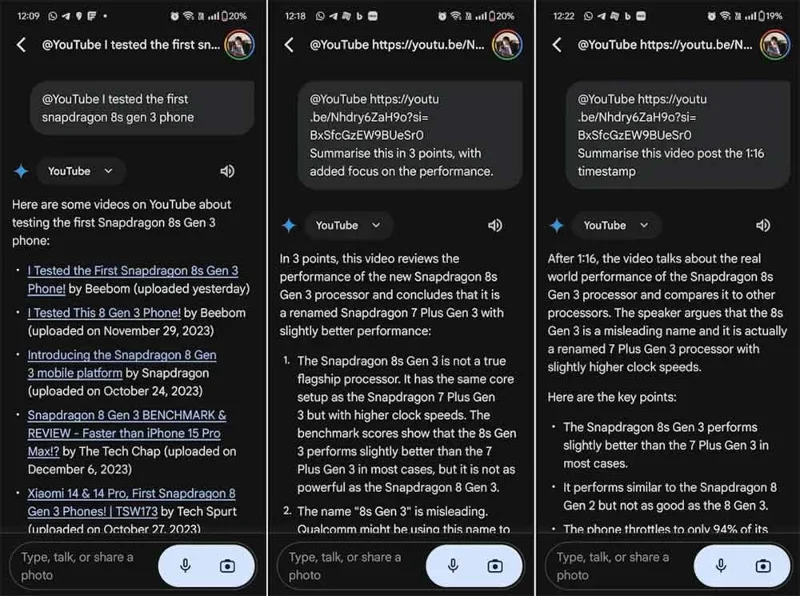
Additionally, users can enter their summary requirements, such as summarizing only which time period of the video, summarizing which aspect of the video, etc.
Sort leftover Halloween candy safely, share or repurpose sealed treats, and choose food use or compost for pumpkins based on their condition.
Compare workplace Halloween costume choices by respect, dress code, mobility, and safety—and learn when a subtle accessory or a policy check is the better option.
Find a couples costume that fits your style, budget, and comfort level, from Addams Family classics to original inside-joke duos.
Need a last-minute high school Halloween costume? Compare 10 easy closet-based ideas by prep time, comfort, school-day practicality, and simple safety checks.
Use a simple 2026 Halloween decorating timeline for indoor décor, outdoor displays, and fresh pumpkins, with practical adjustments for weather and events.
Mix five vivid, approachable Halloween cocktails with measured recipes, simple prep tips, and an alcohol-free option for your party guests.
Find 15 office-friendly Halloween costume ideas for 2026, with practical checks for dress codes, respectful themes, comfort, and workplace safety.
Plan a fun elementary school Halloween party with easy crafts, games, inclusive treats, costume tips, and a sample 75-minute classroom schedule.
Compare realistic side hustles for 2026 by startup cost, fees, flexibility, and income control, with current tax and scam guidance from official sources.
Upgrade your home office ergonomics with current OSHA and NIOSH guidance on chair fit, monitor height, laptop setup, lighting, and movement.








