Pop Culture Costume Ideas That Will Dominate Halloween 2026

Plan a recognizable Halloween 2026 look with pop culture costumes inspired by Spider-Man, Supergirl, Toy Story 5, Moana, Mario, and Wednesday.
Outlook has a feature that suggests other users based on your interactions while using Outlook. When you type someone's name in the search bar, or send an email, there will be Basic suggestions and Expanded suggestions options. If you do not like this option of suggested people in Outlook, you can completely turn it off according to the instructions below.
How to turn off suggesters in Outlook
Step 1:
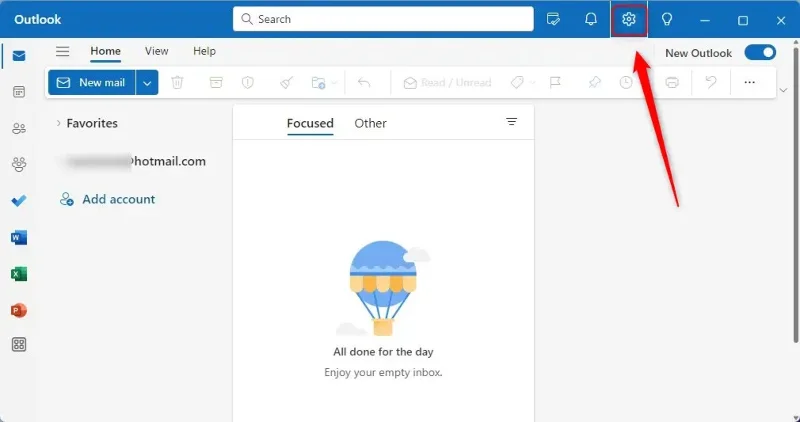
Open the Outlook application and then click on the gear icon in the top right corner of the interface.
Step 2:
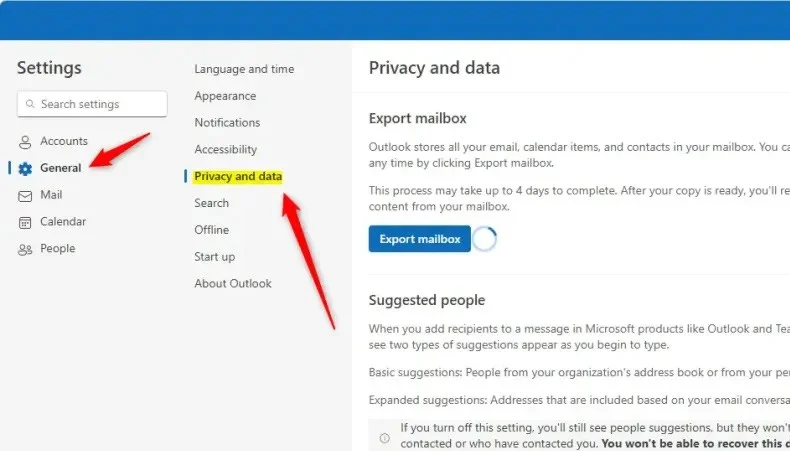
Go to the next interface, we click on General then click on Privacy and data to adjust.
Step 3:
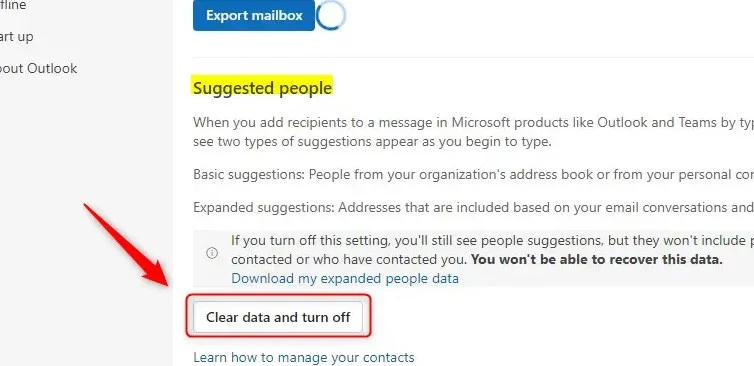
Looking at the next customization, in the Suggested people section , users will click on the Clear data and turn off setting to delete all suggested people data in Outlook and turn off this feature in Outlook.
Finally click Save below to save the settings.
In case the user wants to reuse the name suggestion feature in Outlook, just click Activate expanded contacts suggestions.
Plan a recognizable Halloween 2026 look with pop culture costumes inspired by Spider-Man, Supergirl, Toy Story 5, Moana, Mario, and Wednesday.
Sort leftover Halloween candy safely, share or repurpose sealed treats, and choose food use or compost for pumpkins based on their condition.
Compare workplace Halloween costume choices by respect, dress code, mobility, and safety—and learn when a subtle accessory or a policy check is the better option.
Find a couples costume that fits your style, budget, and comfort level, from Addams Family classics to original inside-joke duos.
Need a last-minute high school Halloween costume? Compare 10 easy closet-based ideas by prep time, comfort, school-day practicality, and simple safety checks.
Use a simple 2026 Halloween decorating timeline for indoor décor, outdoor displays, and fresh pumpkins, with practical adjustments for weather and events.
Mix five vivid, approachable Halloween cocktails with measured recipes, simple prep tips, and an alcohol-free option for your party guests.
Find 15 office-friendly Halloween costume ideas for 2026, with practical checks for dress codes, respectful themes, comfort, and workplace safety.
Plan a fun elementary school Halloween party with easy crafts, games, inclusive treats, costume tips, and a sample 75-minute classroom schedule.
Compare realistic side hustles for 2026 by startup cost, fees, flexibility, and income control, with current tax and scam guidance from official sources.








