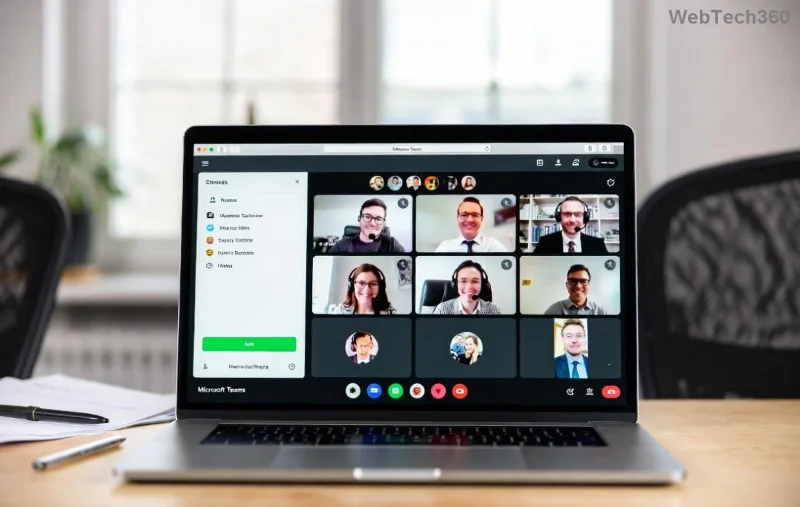
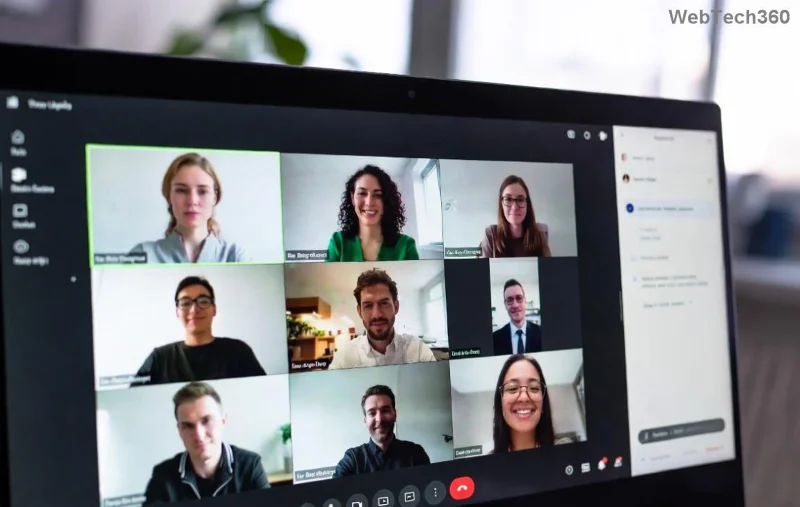
Imagine splitting your large Microsoft Teams meeting into focused, buzzing subgroups for deeper discussions—without the chaos. That's the magic of Microsoft Teams Breakout Rooms. Perfect for workshops, classes, or team brainstorms, these rooms supercharge engagement in the latest Teams updates. Whether you're a teacher, manager, or newbie host, this Microsoft Teams Breakout Rooms Tutorial for Beginners walks you through everything. Ready to level up your virtual sessions? Let's dive in! 🚀
What Are Microsoft Teams Breakout Rooms and Why Use Them?
Breakout Rooms in Microsoft Teams let you divide participants into smaller, private rooms during a meeting. It's like creating mini-meetings within your main one—ideal for interactive learning or targeted brainstorming.
- ✅ Boost Interaction: Shy participants speak up in small groups.
- ⭐ Customize Focus: Assign topics, roles, or teams automatically.
- 👏 Seamless Return: Bring everyone back with one click.
In recent Teams enhancements, features like room timers, co-organizers, and AI-suggested assignments make it even smoother. No more one-size-fits-all meetings!
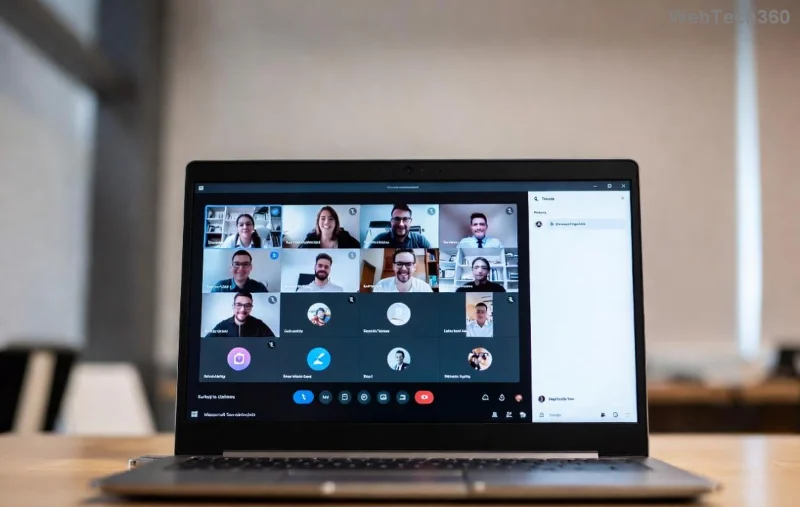
Prerequisites: Get Ready for Breakout Rooms Success
Before jumping in, ensure you're set up:
| Requirement |
Details |
| Teams Version |
Latest desktop/web app (2026 updates enabled) |
| Role |
Meeting organizer or presenter |
| License |
Teams Premium or Education for advanced features |
| Participants |
Up to 50 rooms, 200 people total |
Pro Tip: Test in a practice meeting first. Curious how to start? Keep reading for step-by-step magic. ✨
Step-by-Step: Create Breakout Rooms Before Your Meeting
Planning ahead? Pre-configure rooms in the Teams calendar for ultimate control.
- 1️⃣ Schedule a Meeting: Open Teams Calendar → New Meeting.
- 2️⃣ Breakout Tab: Click "Breakout rooms" in the meeting options pane.
- 3️⃣ Set Number of Rooms: Choose 2-50 rooms. Teams auto-distributes participants evenly.
- 4️⃣ Assign Participants:
- Automatically: Let AI handle it.
- Manually: Drag-and-drop names.
- From grid: Select by role or group.
- 5️⃣ Name Rooms: Add labels like "Group A - Brainstorm" for clarity.
- 6️⃣ Save: Hit "Save" – rooms activate when the meeting starts.
This method shines for structured events. Want to manage on-the-fly? Next up...
Managing Breakout Rooms During Your Live Meeting
Flexibility is key in dynamic sessions. Here's how to rock it live:
- 7️⃣ Open Breakout Rooms: In-meeting, click "Breakout rooms" → "Create rooms" or "Open."
- 8️⃣ Add/Recreate: Edit assignments anytime – swap people or add timers (e.g., 10 mins per room).
- 9️⃣ Move Participants: Drag between rooms or use "Move all" for reshuffles.
- 🔟 Visit Rooms: As host, hop in as fly-on-the-wall or join fully. Co-hosts can too!
- 1️⃣1️⃣ Close & Return: Announce → "Close all rooms" → Everyone returns to main. Set countdown for smooth transitions.
![Step-by-step creating breakout rooms in Microsoft Teams]()
Bonus: Enable "Allow attendees to return early" for flexibility. Feeling empowered? Let's amp it up with pro tips.
Best Practices & Pro Tips for Killer Teams Breakout Rooms
Make your sessions unforgettable:
- ⭐ Pre-Assign Strategically: Group by skill level or interest for balanced vibes.
- ✅ Set Timers & Instructions: Post clear tasks in room chats (e.g., "Discuss Q1 goals").
- 👏 Rotate Hosts: Let participants lead subgroups for ownership.
- 🚀 Integrate Tools: Share whiteboards, polls, or Loop components in rooms.
- 💡 Record Selectively: Main meeting records; rooms don't—perfect for privacy.
For educators: Use with Insights for attendance tracking. Managers? Pair with Viva for feedback. Experiment to find your flow!
Troubleshooting Common Breakout Rooms Issues
Hit a snag? Quick fixes:
| Issue |
Solution |
| Can't create rooms |
Check role/license; update Teams app |
| Participants not joining |
Notify via chat; check permissions |
| Rooms not saving |
Switch to desktop app; refresh |
| Mobile glitches |
Use web/desktop for hosting |
For official troubleshooting, visit Microsoft Support.
![Managing and troubleshooting Teams Breakout Rooms]()
Ready to Transform Your Meetings?
Congrats—you're now a Microsoft Teams Breakout Rooms pro! Start small: Host a test session today and watch engagement soar. Share your wins in the comments—what's your first breakout topic? For more Teams hacks, stick around our guides. Your collaborative future awaits! 🎉