How to Use Microsoft Teams Copilot for AI-Powered Meetings

Imagine walking out of a meeting with instant AI-powered summaries, action items, and answers to any question—all without lifting a finger. That's the game-changing reality of Microsoft Teams Copilot. This intelligent assistant, integrated seamlessly into Teams, turns chaotic discussions into streamlined productivity powerhouses. Whether you're leading a team huddle or joining a cross-continental call, Microsoft Teams Copilot handles the heavy lifting so you can focus on what matters.

Ready to dive in? This guide delivers a concise, actionable blueprint to get you started, packed with pro tips and real-world examples. By the end, you'll be wielding AI-powered meetings like a pro. Let's unlock the future of collaboration! ⭐
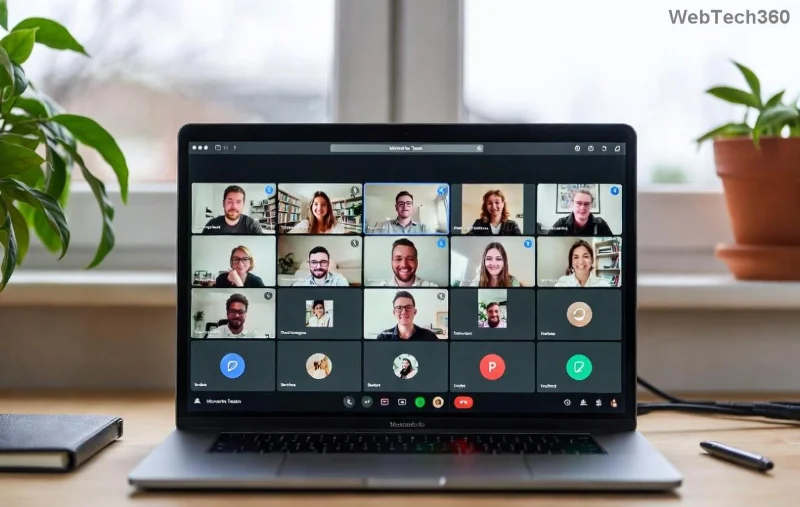
Microsoft Teams Copilot dashboard in a meeting interface

What is Microsoft Teams Copilot? The Basics

Microsoft Teams Copilot is your personal AI sidekick for AI-powered meetings, built on advanced language models from Microsoft 365. It listens, analyzes, and generates insights in real-time or post-meeting. Key perks include:

  • ✅ Automatic meeting recaps with key points and decisions.
  • ✅ Instant answers to "What was decided about the budget?"
  • ✅ AI-generated notes, agendas, and talking points.
  • ✅ Catch-up for late joiners without replaying recordings.

Pro tip: It requires a Microsoft 365 Copilot license (check with your admin). Once enabled, it's available in scheduled meetings, channels, and chats. No more "Sorry, I zoned out"—Copilot's got your back! 😎

Step-by-Step: How to Use Microsoft Teams Copilot in Meetings

Getting started is as simple as 1-2-3. Follow these steps for seamless integration into your next AI-powered meeting.

  1. 1️⃣ Enable and Access Copilot
    Join or start a Teams meeting. Spot the sparkling Copilot icon in the meeting toolbar or sidebar (it looks like a friendly robot). Click it to open the pane. If it's missing, ensure your org has rolled it out—Microsoft's official docs have the latest rollout details.
  2. 2️⃣ Activate During the Meeting
    As the meeting flows, type natural questions like "Summarize the discussion so far" or "List action items." Copilot responds instantly in the pane. Use voice mode for hands-free magic!
  3. 3️⃣ Generate Post-Meeting Insights
    After the call ends, return to the meeting chat or recap tab. Click "Copilot" and select options like "Recap" or "Ask about this meeting." Boom—AI magic delivers tailored outputs.
Step-by-step Copilot features in Microsoft Teams meeting

Master Key Features for AI-Powered Meetings

Here's where Microsoft Teams Copilot shines brightest. We've organized the top features into a handy table for quick reference:

Feature How to Use Pro Benefit
Meeting Recap Prompt: "Give me a recap" post-meeting. Unnamed highlights, decisions, and risks in seconds. 👍
Ask About Meeting Type queries like "What did Sarah say about deadlines?" Pinpoint answers from transcripts—no scrolling needed.
Generate Notes Select "Create notes" in Copilot pane. Professional, shareable summaries with timestamps.
Agenda & Talking Points Pre-meeting: "Create agenda from email." Structured starts that keep everyone on track. 🚀
Follow-Up "List unresolved items" or "Draft follow-up email." Actionable tasks assigned automatically.

These aren't just gimmicks—they're proven to slash meeting fatigue by up to 30%, per user feedback. Experiment in your next call and feel the difference!

AI-generated meeting recap example in Teams Copilot

Advanced Tips to Maximize Microsoft Teams Copilot

Level up your game with these insider hacks:

  • Combine with Channels: In team channels, use Copilot for "Summarize recent posts" to prep for AI-powered meetings.
  • Customize Prompts: Be specific—"Recap focusing on Q3 goals"—for laser-sharp results.
  • Share Outputs: Copy recaps directly to chats or export to Word/Outlook.
  • Privacy First: Copilot respects your org's data policies; no info leaves your tenant.
  • Integrate with Loop: Turn AI notes into collaborative Loop pages for real-time edits.

Stuck? Hit the feedback thumbs-up/down in Copilot for iterative improvements. Your meetings just got smarter! 👏

Common Pitfalls & Quick Fixes

Even pros hit snags. Here's a rapid troubleshoot:

Issue Fix
Copilot not visible Update Teams app; verify license via admin center.
Inaccurate summaries Refine prompts or provide context in chats.
Slow responses Check internet; try shorter meetings first.

Ready to Transform Your Workflow?

Congrats—you're now equipped to harness Microsoft Teams Copilot for unbeatable AI-powered meetings! Start small: Pick one feature for your next call and watch productivity soar. Share your wins in the comments or experiment further—what's your first Copilot prompt?

Stay ahead: Bookmark this guide and revisit for the latest enhancements. Your future self (and team) will thank you. Let's make every meeting count! 🎉

Leave a Comment

How to Use Microsoft Teams Copilot for AI-Powered Meetings

How to Use Microsoft Teams Copilot for AI-Powered Meetings

Master how to use Microsoft Teams Copilot for AI-powered meetings. Step-by-step guide with latest tips to generate recaps, answer questions, and boost productivity effortlessly. Transform your Teams experience today!

Microsoft Teams Breakout Rooms Tutorial for Beginners (2026)

Microsoft Teams Breakout Rooms Tutorial for Beginners (2026)

Master Microsoft Teams Breakout Rooms with this beginner-friendly tutorial. Step-by-step guide to creating, managing, and optimizing breakout rooms for dynamic 2026 meetings and workshops. Boost engagement now!

Solving Microsoft Teams Recording Save Error

Solving Microsoft Teams Recording Save Error

Stuck with Microsoft Teams Recording Save Error? Get instant, step-by-step fixes for saving recordings effortlessly. Proven solutions for all common issues – no tech skills needed!

How to Create a Wiki Page in Microsoft Teams

How to Create a Wiki Page in Microsoft Teams

Discover how to create a Wiki page in Microsoft Teams effortlessly. This ultimate guide covers step-by-step instructions, tips, and best practices to boost your team's knowledge sharing and productivity. Perfect for beginners!

How to Fix Microsoft Teams Error S Screen

How to Fix Microsoft Teams Error S Screen

Stuck on Microsoft Teams "Error S" screen? Discover proven, step-by-step solutions to fix Microsoft Teams Error S fast. Clear cache, restart, update & more for seamless teamwork. Works on latest versions!

How to Fix Microsoft Teams Proxy Error on Windows 10

How to Fix Microsoft Teams Proxy Error on Windows 10

Struggling with Microsoft Teams proxy error on Windows 10? Discover step-by-step fixes to resolve proxy authentication issues, connection failures, and more. Get Teams running smoothly in minutes with our expert guide.

Solving Microsoft Teams Town Hall Event Error

Solving Microsoft Teams Town Hall Event Error

Tired of Microsoft Teams Town Hall Event Error ruining your events? Get step-by-step fixes for scheduling, access, and registration issues. Restore seamless virtual town halls today with our ultimate guide.

How to Download Microsoft Teams for Mac and MacBook Air/Pro

How to Download Microsoft Teams for Mac and MacBook Air/Pro

Discover the simplest way to download Microsoft Teams for Mac, MacBook Air, and MacBook Pro. Step-by-step instructions, system requirements, and troubleshooting tips for seamless installation in the latest version. Get started now!

How to Fix Microsoft Teams Web Login Error

How to Fix Microsoft Teams Web Login Error

Stuck with Microsoft Teams Web Login Error? Get instant fixes for common issues like "Something went wrong" or login loops. Step-by-step guide to resolve Teams web login problems and stay productive. Updated with latest browser tweaks.

How to Fix Microsoft Teams Error 657rx Update Failed

How to Fix Microsoft Teams Error 657rx Update Failed

Struggling with Microsoft Teams Error 657rx Update Failed? Discover step-by-step fixes, from quick restarts to advanced troubleshooting, to get your Teams app updated and running smoothly in minutes. No tech skills required!

Solving Microsoft Teams VDI Error Lag

Solving Microsoft Teams VDI Error Lag

Tired of Microsoft Teams "VDI Error" Lag freezing your video calls? This ultimate guide delivers step-by-step fixes for VDI environments like Citrix and VMware. Optimize performance now for lag-free collaboration!

Solving Microsoft Teams Join Meeting Error via Direct Link

Solving Microsoft Teams Join Meeting Error via Direct Link

Struggling with Microsoft Teams "Join Meeting Error"? Discover proven steps to solve it via direct links. Quick fixes for seamless joining – no tech skills needed!

How to Test Your Microsoft Teams Audio and Camera Before a Call

How to Test Your Microsoft Teams Audio and Camera Before a Call

Discover simple steps to test your Microsoft Teams audio and camera before a call. Ensure crystal-clear sound and video for professional meetings every time with our easy guide. Perfect for desktop, mobile, and web users.

How to Fix Microsoft Teams Error 53003: Access Denied

How to Fix Microsoft Teams Error 53003: Access Denied

Struggling with Microsoft Teams Error 53003 Access Denied? Discover proven, step-by-step fixes to resolve it quickly. Clear cache, update Teams, bypass proxies & more for seamless collaboration. Works on Windows, Mac & web!

Step-by-Step: Uploading Custom Backgrounds to Microsoft Teams

Step-by-Step: Uploading Custom Backgrounds to Microsoft Teams

Master uploading custom backgrounds to Microsoft Teams with this easy step-by-step guide. Personalize your meetings effortlessly on desktop, web, or mobile for a professional edge.









