Skype Free Phone Calls
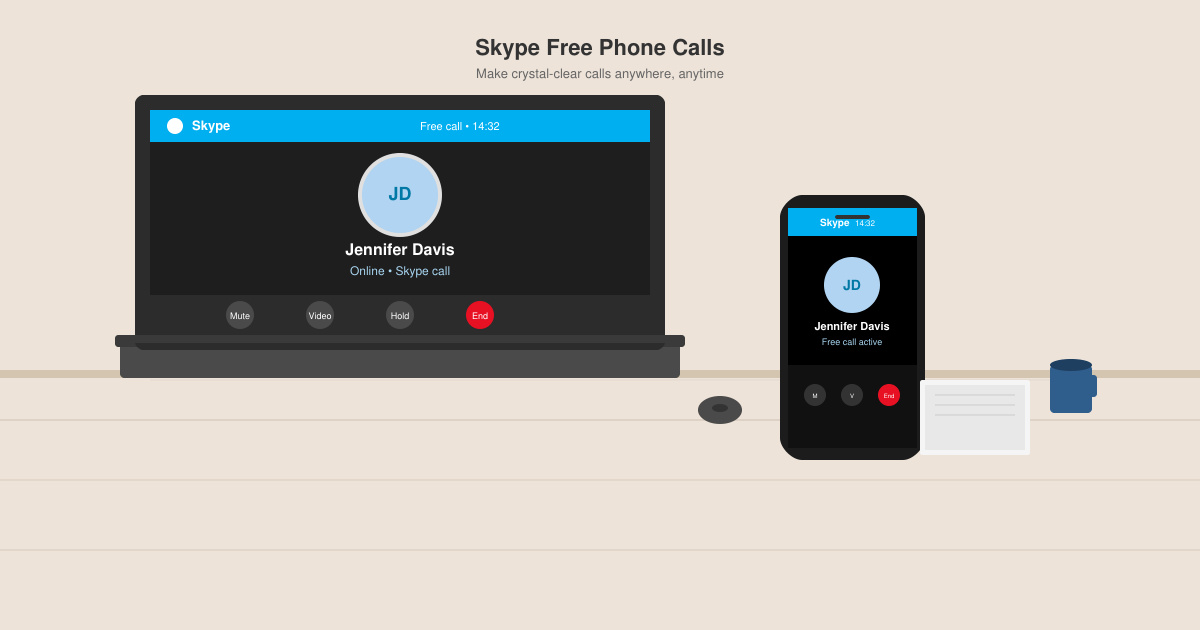
Skype Free Phone Calls let you connect with friends and family worldwide at no cost. Follow this guide to set up and start making free calls quickly and easily.
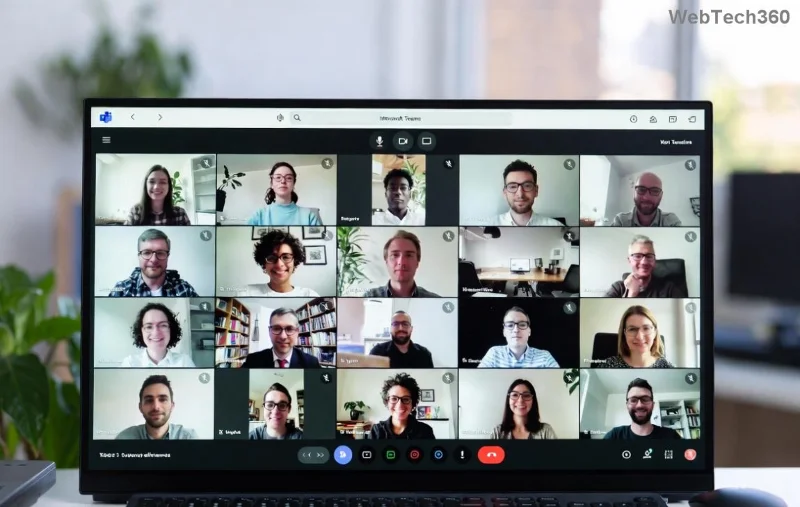
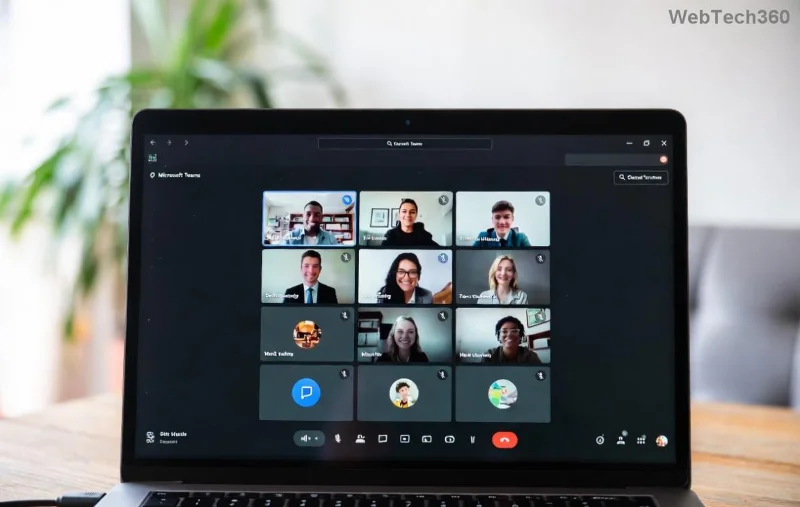
Ever joined a Microsoft Teams call only to realize your audio is muted or your camera feed is blurry? 😩 Don't let technical glitches derail your important meetings. Testing your Microsoft Teams audio and camera beforehand is a game-changer for confident, professional participation. In this guide, we'll walk you through the easiest ways to test your Microsoft Teams audio and camera before a call, using the latest features for seamless results. Ready to master your setup? Let's dive in! 👍
Quick tests save time and embarrassment. According to Microsoft's own recommendations, pre-call checks catch 90% of common issues like microphone feedback or low-light camera problems. You'll avoid awkward "Can you hear me now?" moments and focus on what matters—your content. Plus, it's super fast: under 2 minutes! ⭐
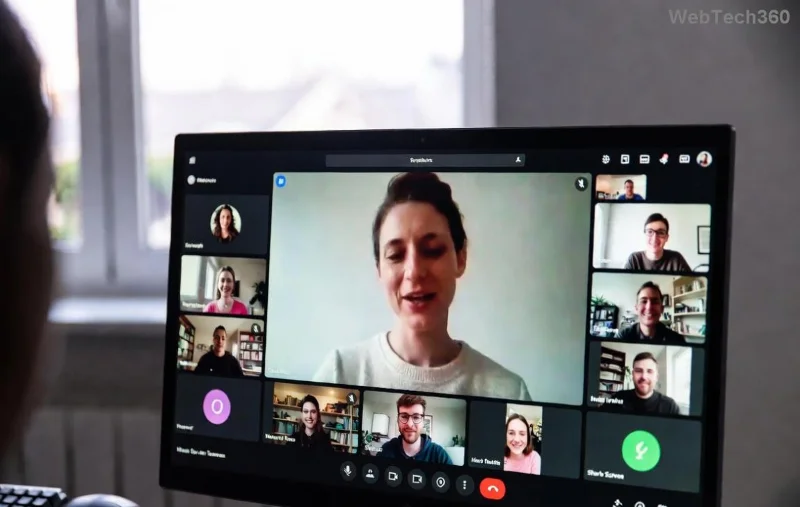
The desktop version of Microsoft Teams offers the most robust testing tools. Follow these steps for a foolproof check:
Pro tip: Enable "Automatically adjust mic sensitivity" for noisy environments. Your test call recording ensures you're crystal clear before the real deal.
On the go? Mobile Microsoft Teams has built-in testers too. Swipe up from the meeting invite and tap Preview—boom, instant Teams camera test and mic check.
Grant permissions first in your phone settings (iOS: Settings > Teams; Android: App info > Permissions). Now you're meeting-ready anywhere! 🚀
No app? Use Teams in Chrome or Edge. Join via browser and click "Show device settings" before entering:
| Step | Action | Expected Result |
|---|---|---|
| 1. Mic Selection | Choose input device | Green activity bar on speak |
| 2. Speaker Test | Select output & play tone | Clear audio playback |
| 3. Camera Test | Preview & adjust | Smooth video feed, no lag |
| 4. Full Preview | Enable video/audio | Real-time mirror view |
Browser tests are ideal for guests. Clear cache if issues arise for the smoothest Microsoft Teams camera test.
Glitches happen. Here's your troubleshooting table:
| Problem | Symptom | Fix |
|---|---|---|
| No Audio | Silent test call | Check mute toggle; update drivers via Device Manager |
| Choppy Video | Laggy camera | Lower resolution in Devices; close background apps |
| Echo/Feedback | Reverb in playback | Use headphones; enable noise suppression |
| Permissions Denied | Black screen/no mic | Re-grant in OS settings (Microsoft Guide) |
Update to the latest Teams version for AI noise cancellation and auto-framing camera features. Restart Teams post-fixes for instant wins! 🔧
Mastering these steps means flawless Microsoft Teams audio and camera every time. What's your biggest meeting pet peeve? Drop it in the comments—we've got more tips coming! 👏 Stay tuned for advanced setups like multi-camera switching. Your perfect call starts now.
Skype Free Phone Calls let you connect with friends and family worldwide at no cost. Follow this guide to set up and start making free calls quickly and easily.
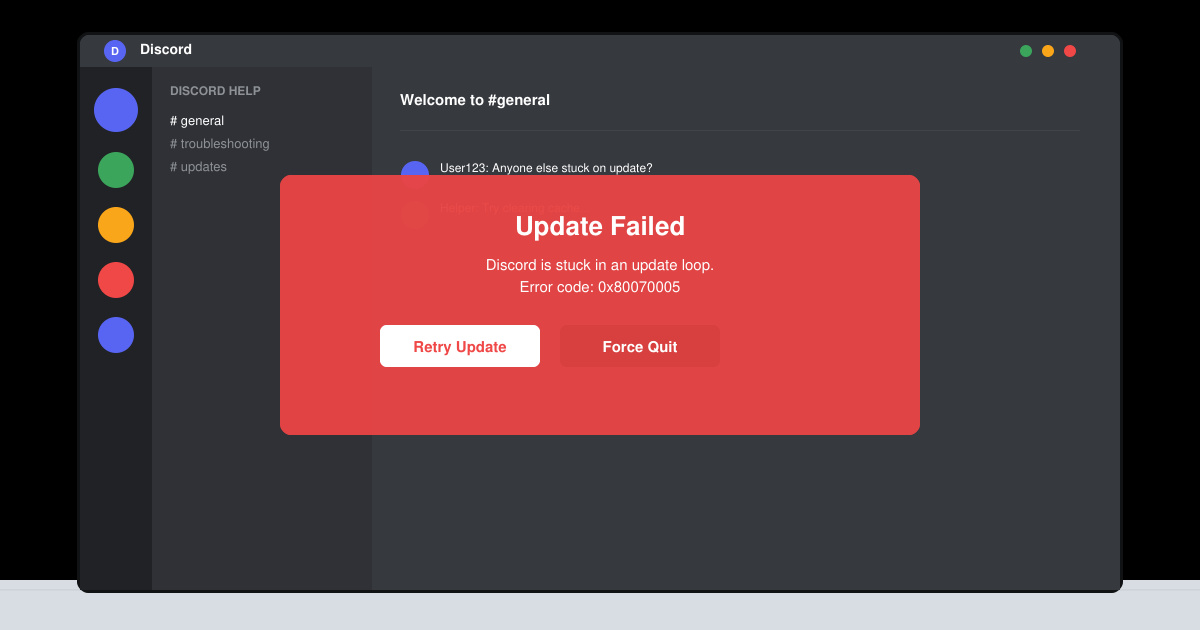
Stuck in the Discord Update Failed Loop? Follow these targeted fixes to break the cycle and complete the update without repeated failures or reinstalls.
Travel planning used to mean folders full of printed confirmations, handwritten notes, guidebooks, and a slightly terrifying number of browser tabs. Now, pretty much everything you need for a trip can live on the device already in your pocket.
Discover how Canva Free for Teachers gives educators full access to premium design tools at no cost. Verify your status and start creating classroom materials in minutes.
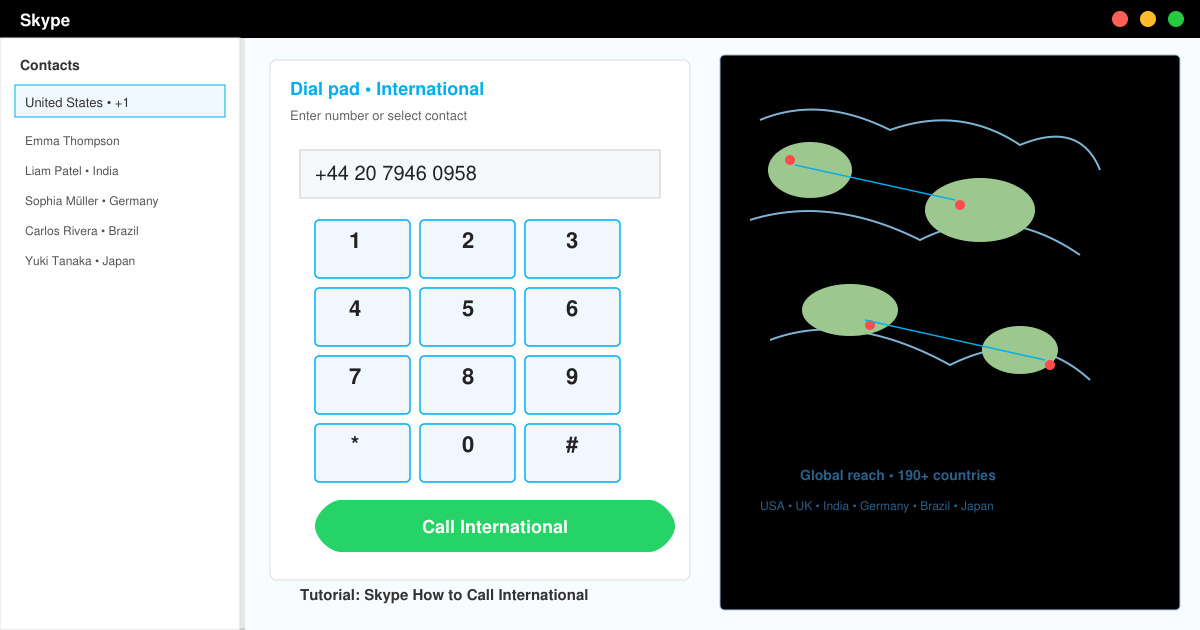
Skype How to Call International is simple and cost-effective once you set up credit and use the right country codes. Follow this guide to place clear calls from anywhere.
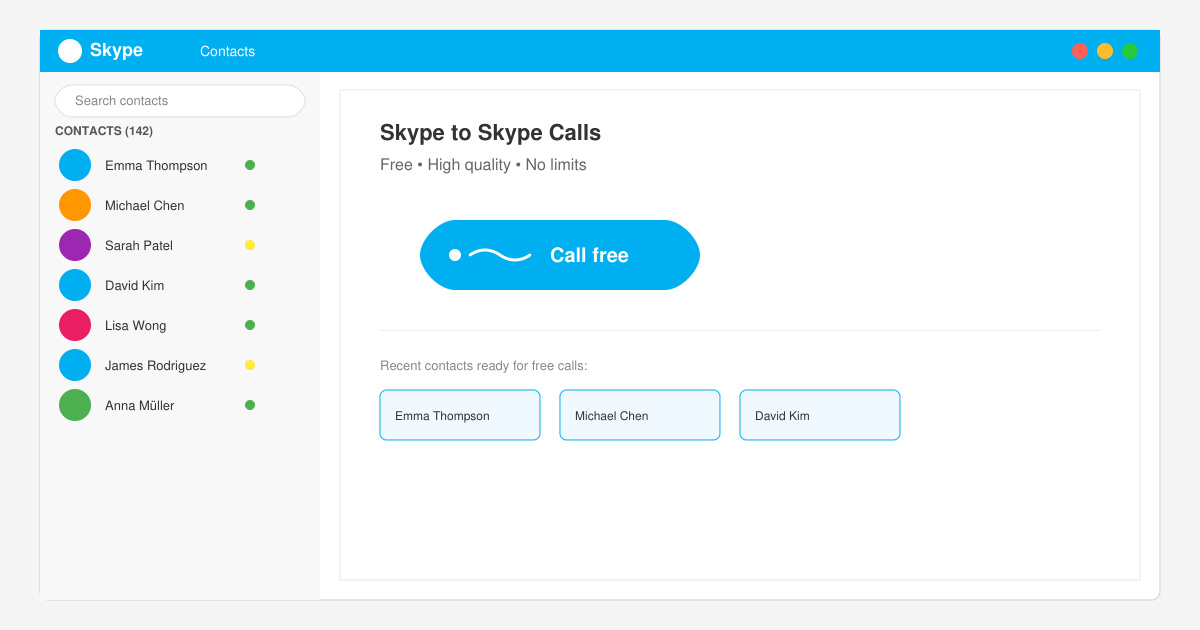
Make Skype to Skype Calls Free in minutes with this clear guide. Set up your account, add contacts, and start unlimited voice and video calls at no cost.
Fix the Your Connection is Not Private Chrome error quickly with these exact steps. Restore secure browsing by addressing certificate and settings issues in minutes.
Record heat has lifted air-conditioning demand while gas-market shocks have returned volatility to power prices. That creates a real risk of painful bills—but not a guaranteed, Europe-wide price explosion.
Large format printing has long faced criticism for its environmental impact. Traditional substrates, solvent-based inks, and short-lived promotional campaigns have all contributed to the perception that eye-catching graphics come at a high environmental cost.
Long-distance travel can involve heavy traffic, changing weather conditions, and rider fatigue. If you are also dealing with the responsibilities of moving home, such as packing belongings or coordinating accommodation, a long ride may add unnecessary pressure to an already busy schedule.