How to Use a Vegetable Steamer Basket
Master how to use a vegetable steamer basket for perfectly cooked, nutrient-rich vegetables in minutes. Follow this clear step-by-step guide to start steaming today.
WebStorm supports keyboard shortcuts for most editing, navigation, refactoring, debugging, and other commands. Remembering these hotkeys help you be more productive just by keeping your hands on the keyboard.
WebStorm encourages users to use keyboard layout in English language because the software may not correctly detect some shortcuts on other language layouts.
The following table lists some of the most useful WebStorm keyboard shortcuts that every user needs to know:
| Shortcut keys | Action |
| Press Shift twice |
Search Everywhere : Find everything related to the WebStorm or project and open, deploy or access it. |
| Ctrl + Shift + A |
Find Action : Find the command and execute it, open a tool window or search for settings. |
|
Ctrl + N Ctrl + Shift + N Ctrl + Shift + Alt + N |
Find a class, file or symbol : Find and go to the desired class, file or symbol. |
| Ctrl + E |
View recent files : Select recently opened files from the list. |
| Alt + Enter |
Show intention actions : Improve or optimize the code structure |
| Ctrl + Space |
Basic code completion : Complete the names of classes, methods, fields and keywords within the display. |
|
Ctrl + W Ctrl + Shift + W |
Extend or shrink selection : Increase or decrease the range of selections according to the given code structure. |
|
Ctrl + / Ctrl + Shift + / |
Add / remove line or block comment : Comment on the line or code block. |
| Ctrl + Shift + F7 |
Highlight usages in a file : Visualizes all occurrences of the selected paragraph in the current file. |
To view the Keymap configuration, open Settings / Preferences (Ctrl + Alt + S) and select Keymap .
WebStorm automatically pre-selects keyboard layout based on environment. Make sure it is compatible with the operating system you are using or choose a diagram that matches the keyboard shortcuts from the IDE you are used to (e.g. Eclipse or NetBeans).
You can edit a copy of a predefined keyboard map to assign your shortcuts to commonly used commands.
If you're familiar with any custom keyboard layout, you can convert it to an installation file.
WebStorm provides several ways for users to easily learn shortcuts:
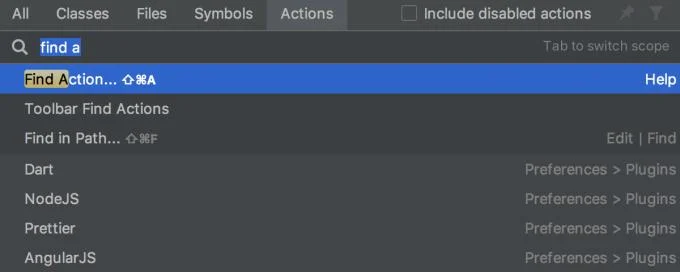
If the task has associated shortcut keys available, it is displayed near the task name. To add a shortcut to a frequently used task (or if you want to change an existing shortcut), select it and press Alt + Enter .
You can improve the efficiency of working better with the following features:
If you have a common task group, create a quick access list via a customized shortcut. For example, you can try the following predefined quick access lists:
WebStorm provides many different support tools, such as automatically adding tags and citations, detected by CamelHump.
When focusing on a tool window containing a tree, list, or table, start typing to see the corresponding entries.
Many tasks in WebStorm provide richer results when you deploy them multiple times. For example, when you call the basic code completion tool with Ctrl + Space on the field of information, parameters, and variable declaration, it suggests the name depending on the type of item in the current scope. If you invoke this feature again, it will include classes that are available via module-dependent values. When a third query is in a row, the proposal list will cover the entire project.
You can adjust the tool window size without the mouse:
Above are tips to help you quickly master the most useful keyboard shortcuts when using WebStorm programming software . Hope the article is helpful to you.
Master how to use a vegetable steamer basket for perfectly cooked, nutrient-rich vegetables in minutes. Follow this clear step-by-step guide to start steaming today.
How Long to Steam Broccoli in Microwave Steamer? Get the precise timing and step-by-step instructions for tender-crisp results that lock in nutrients and flavor.
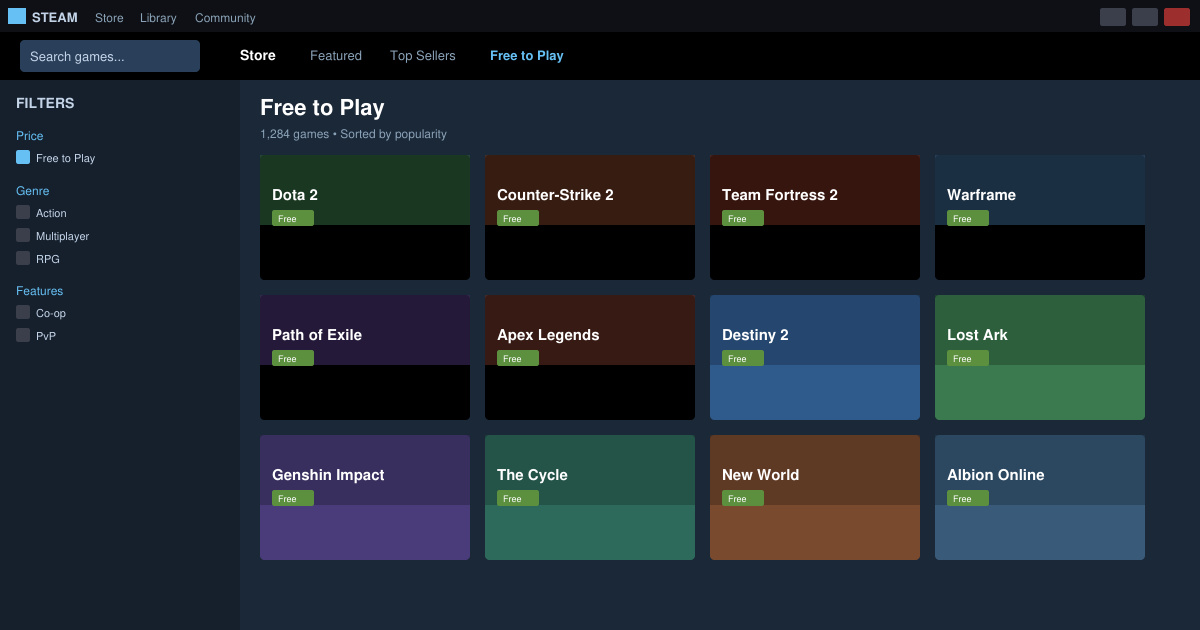
Find and download the best free games for PC Steam with this complete guide. Learn how to browse, install, and play top free-to-play titles quickly.
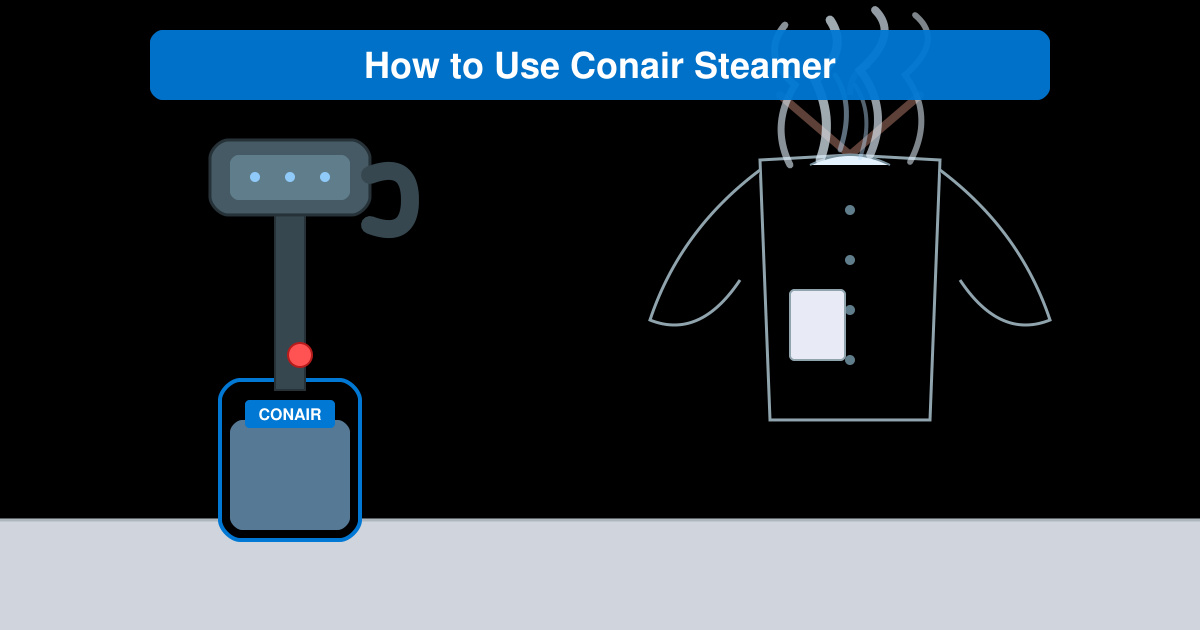
How to Use Conair Steamer correctly to remove wrinkles fast from clothes and fabrics. Follow these clear steps for safe, effective results every time.
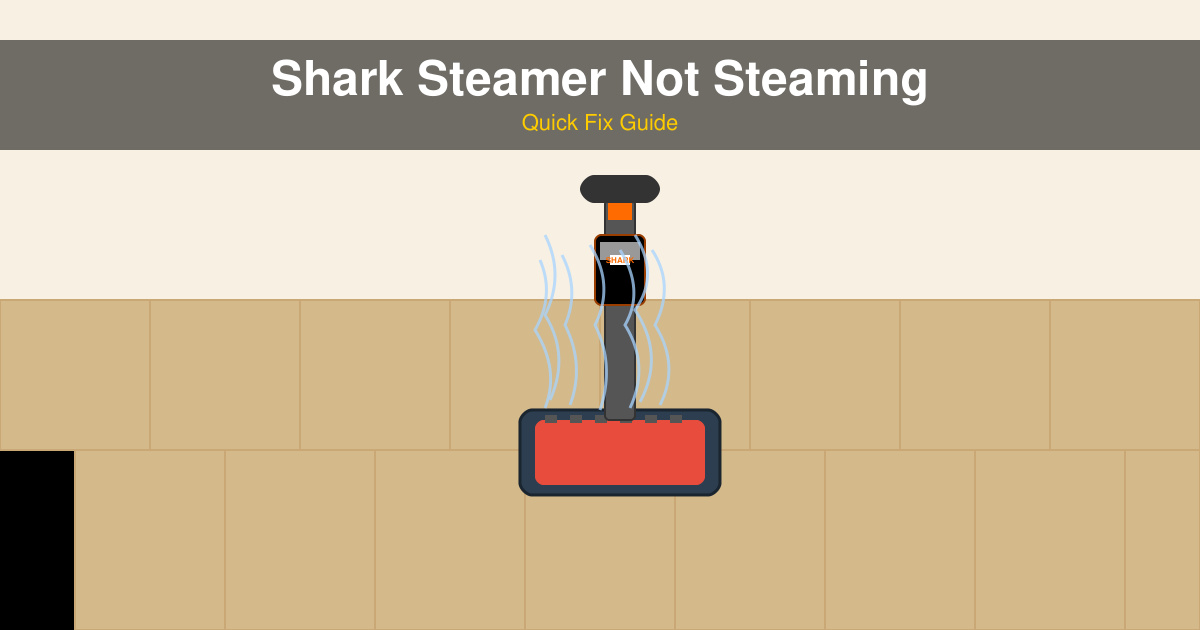
Shark Steamer Not Steaming? Follow these targeted troubleshooting steps to identify and fix the issue so your Shark steam cleaner works properly again.
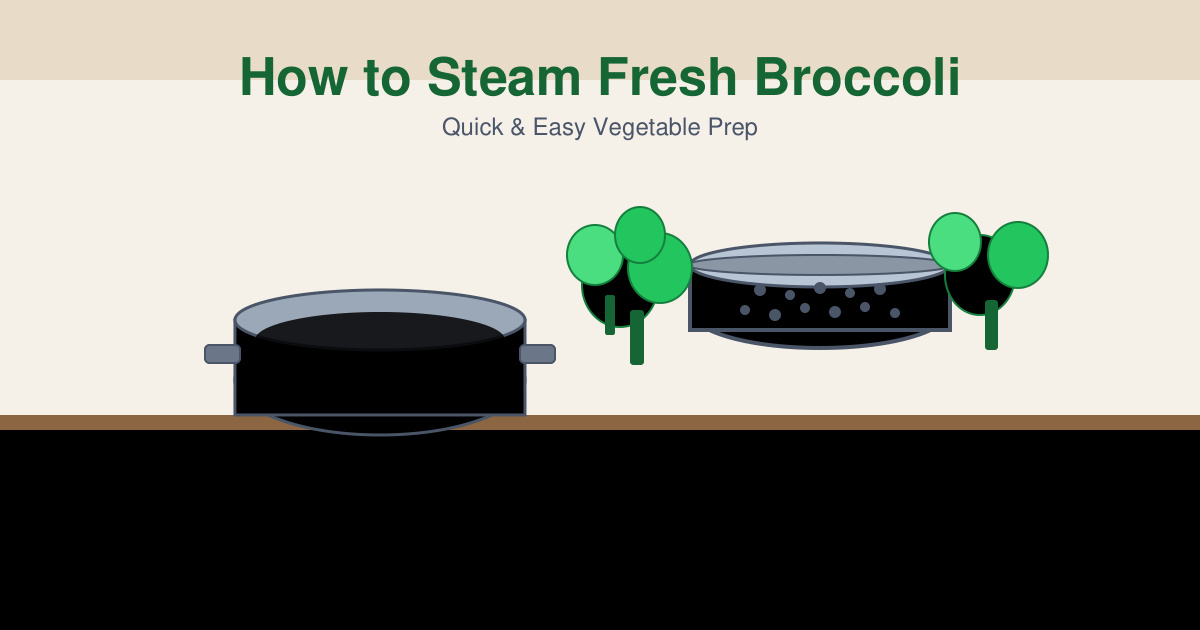
Learn how to steam fresh broccoli perfectly in just five minutes. This simple stovetop method keeps nutrients intact and delivers tender-crisp results every time.
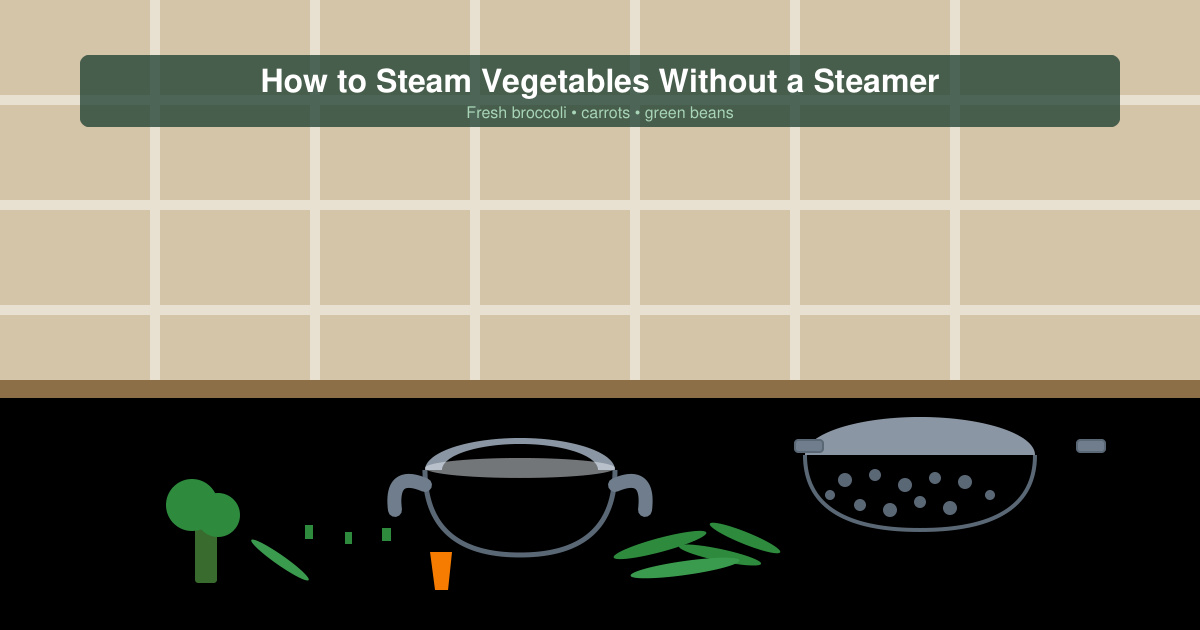
How to Steam Vegetables Without a Steamer using everyday kitchen tools like a pot, colander or microwave. Get crisp, nutrient-rich results with these proven methods.
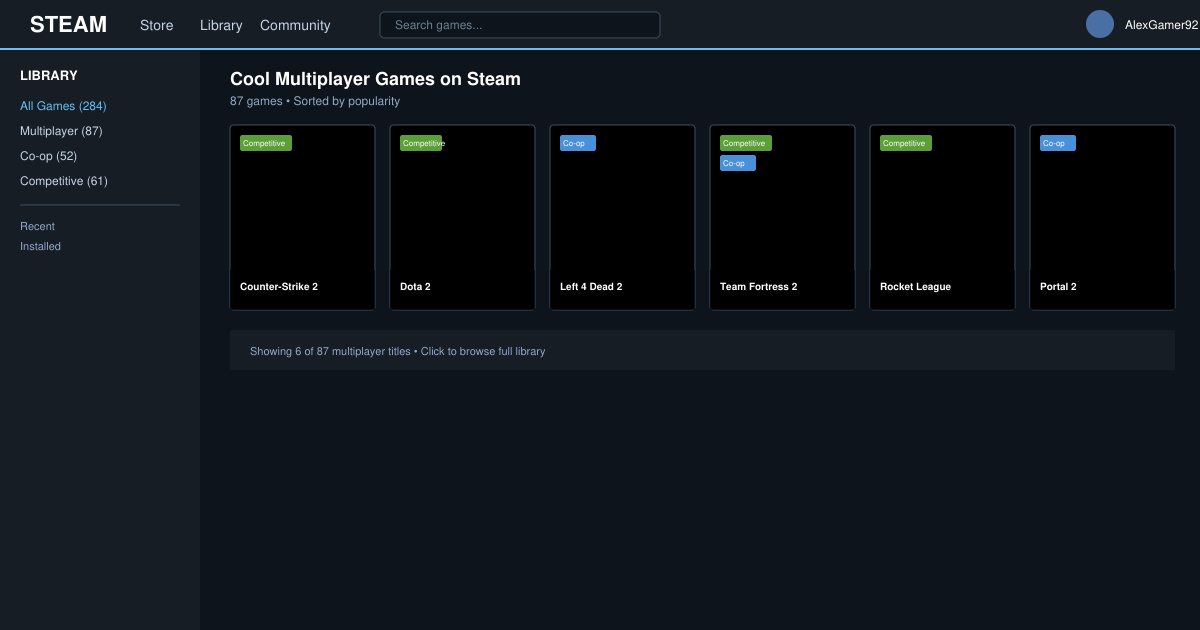
Find cool multiplayer games on Steam with this guide covering discovery, installation, and play. Jump into co-op and competitive titles with friends today.
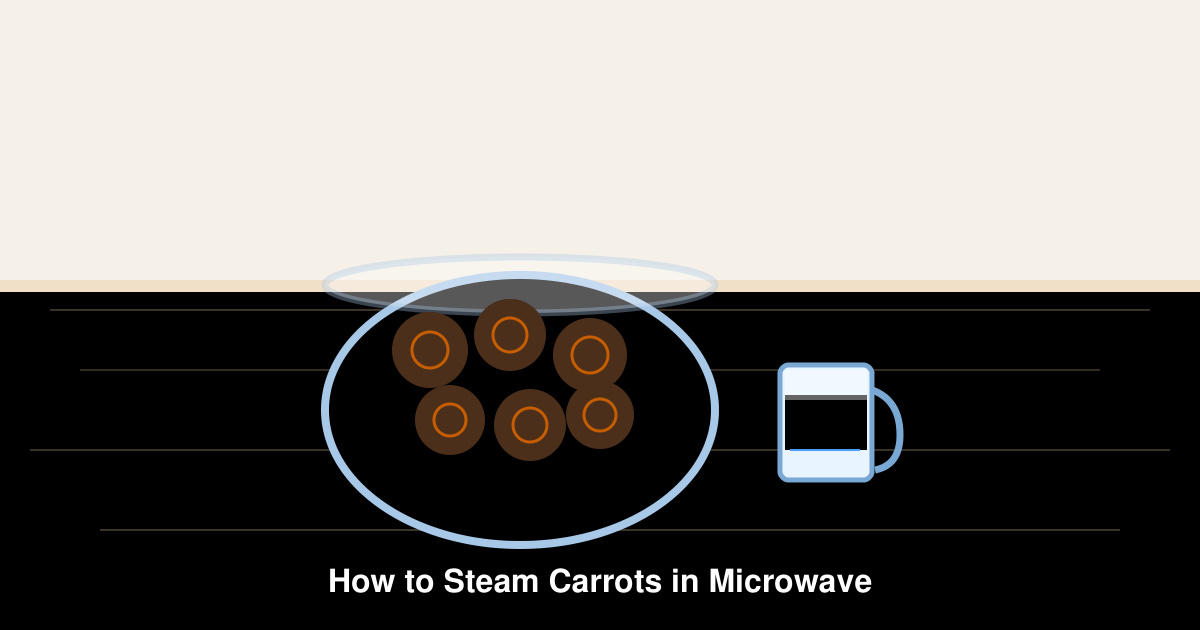
How to steam carrots in microwave delivers tender, nutrient-rich results in under 10 minutes. Follow these precise steps for perfectly cooked carrots without a steamer basket.
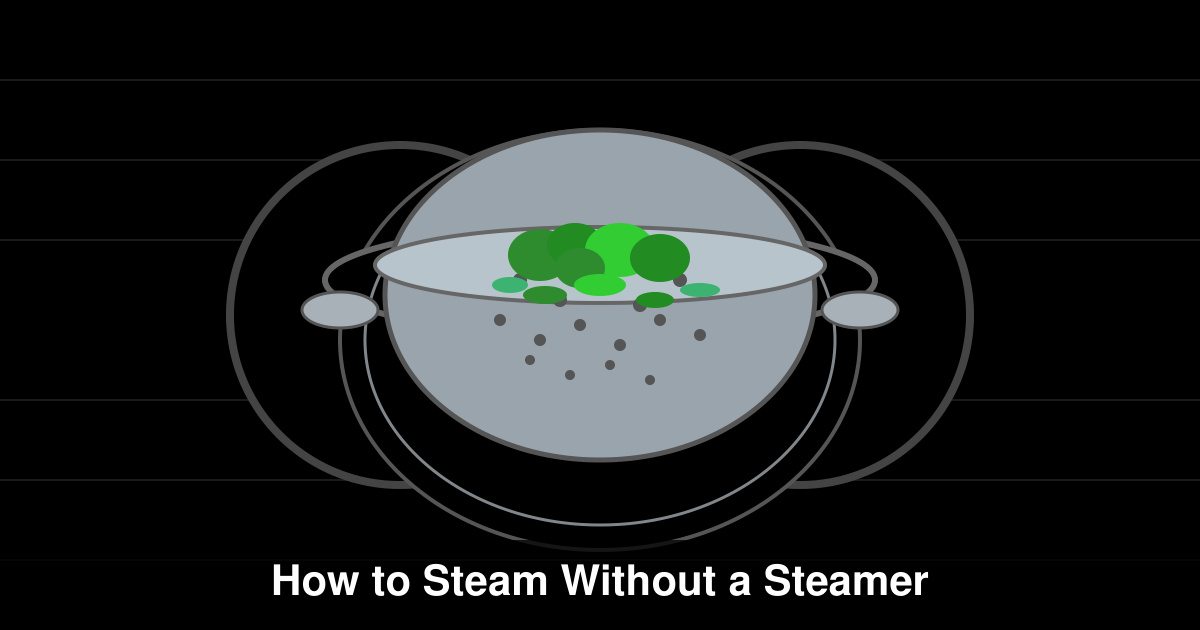
How to Steam Without a Steamer using everyday kitchen tools for perfectly cooked vegetables and dumplings. Discover fast methods that deliver restaurant-quality results at home.