Read and listen to your personal library at home or on the go with iBooks with great ease. The instructions below will help you use iBooks comfortably on any device.
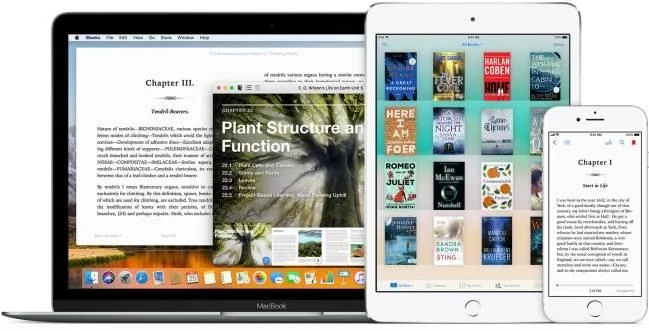
Use iBooks on iPhone, iPhone, iPad, iPod touch, Mac to buy and download books, manage shopping, organize library ... Find audio books in iBooks on iPhone, iPad, iPod touch and in iTunes on Mac.
Add books to the library
To download and buy books from the iBooks Store, you need an Apple ID. It is the account you use to access Apple devices. If you already use other Apple services like iCloud or App Store on Mac, you should sign in to iBooks Store with your Apple ID. If not, create one.
In iBooks, you can also read non-DRM files like PDFs, ePubs ... like other applications.
Download the book from iBooks Store
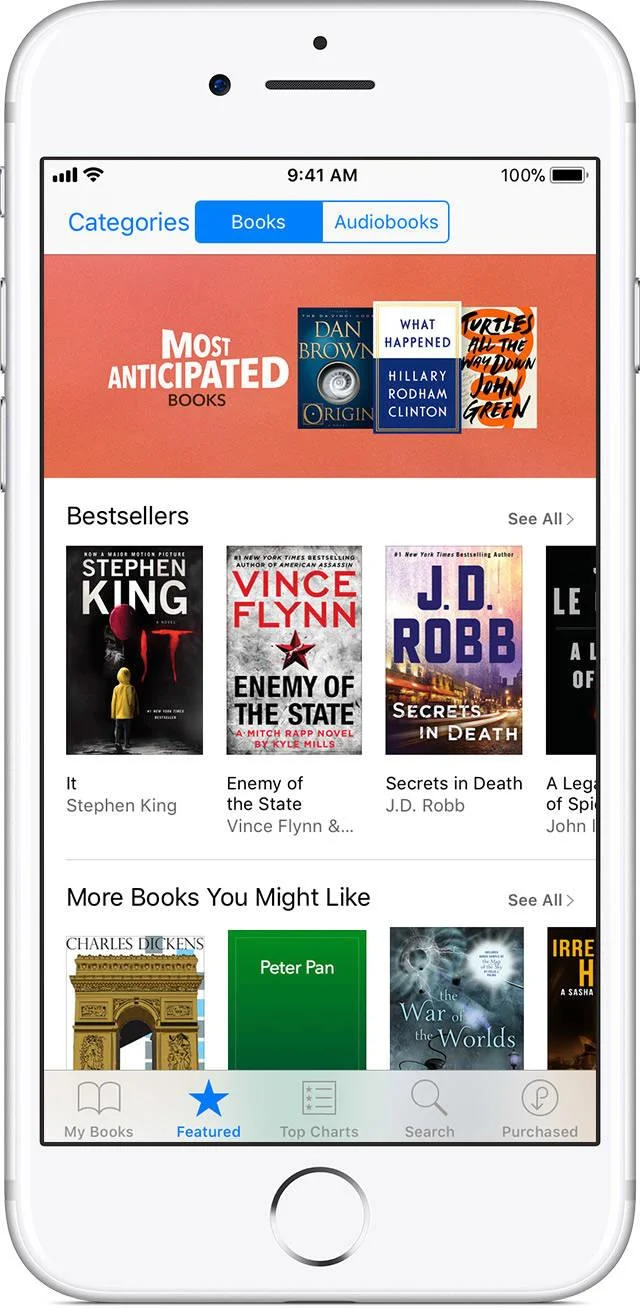
When using iBooks, you can browse books in the Featured or Top Charts tab , or search by specific titles on the Search tab. Tap on any favorite book to learn more about it, read reviews, see related titles. If there is a test reading, touch Sample in the right corner of the screen.
To buy a book, tap the price on the right of the screen, then click Buy. To get a free book, touch Get on the right of the screen> touch Get Book .
To find books you've bought in the past or to the latest version of books you currently have, tap Purchased at the bottom of the screen.
Note: If using Touch ID or Face ID, you may not see Buy or Get Book.
Read and listen
When reading books on iBooks, you can choose the font size, adjust the screen brightness to enjoy your favorite work in all lighting conditions, or change the book to a different color background. You can also turn on audio books purchased from iBooks Store, iTunes Store, even other sources.
Read and listen on iPhone, iPad, iPod touch
In iBooks, touch My Books, then touch the book cover to start reading or listening. When i / read stops, iBooks remembers the position and starts right there the next time.
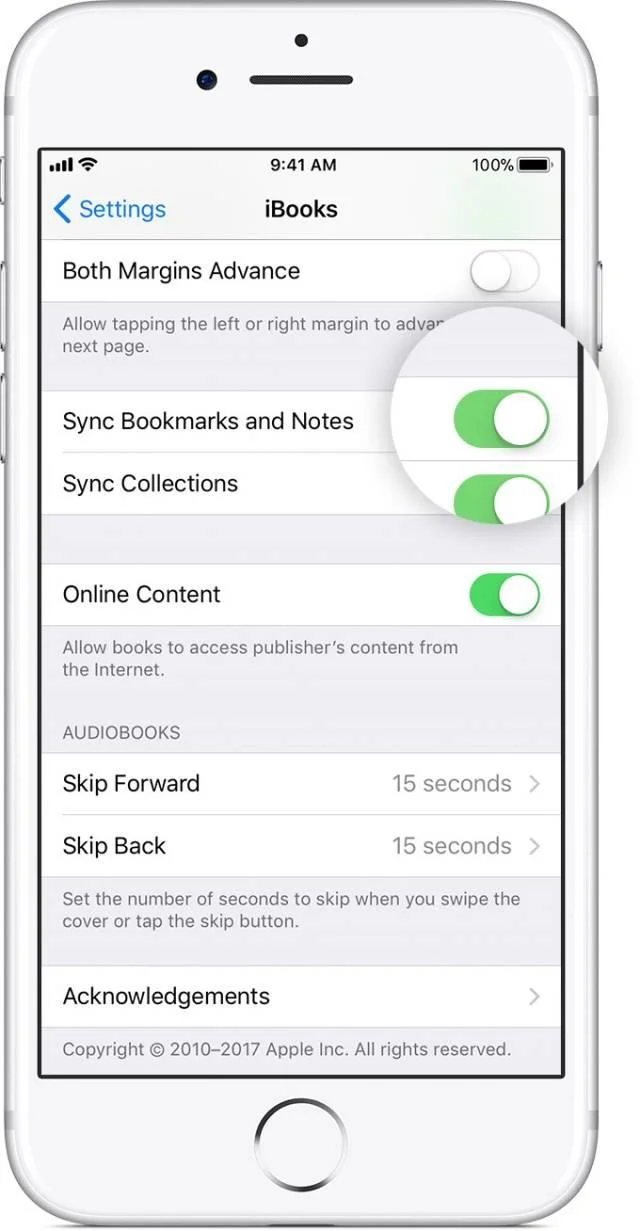
If you want iBooks to remember where a page goes off on another device, go to Settings> iBooks> turn on "Sync Bookmarks and Notes."
Read books on Mac
Double click the book cover in iBooks to read it. When you stop reading, iBooks will remember the location so that users can continue unfinished content the next time they use it.
If you want iBooks to remember where you paused reading on another device, select iBooks> Preferences from the menu at the top of the computer screen. Click the General tab , select "Sync bookmarks, highlights, and collections across devices."
Listen to audiobooks on Mac
In iTunes, select Audiobooks from the lower left corner menu. Double click on the audio book to start listening. iTunes will also remember where users stopped listening to continue next time.
If you want iTunes to remember a bad listening position on all devices, select iTunes> Preferences . Click the Store tab , select "Sync playback information across devices."
Read iBooks StoryTime on Apple TV
StoryTime's iBooks brings a unique and different way to experience classic children's books and new features for your family. With the "Read aloud" narrative combined with beautiful illustrations, every selection book in this app makes Apple TV an attractive place for young readers to enjoy the stories they love.
Look up the definition
iBooks supports users to look up information about specific words in a book, including definitions.
- On an iOS device: Touch and hold from there for a while, then select Look Up .
- On Mac: Double-click the word to search.
Change wallpaper or font size
While reading a book, touch  to adjust how the book appears on iPhone, iPad, iPod touch. From this table, you can adjust the screen brightness, size and font style, change the background color. If Scrolling View is enabled, you have the ability to scroll a page continuously without having to turn the page.
Library organization
Library iBooks includes books, audiobooks, PDF files that users save to the application. You can keep user manuals, proposal papers, project plans ... here for easy access.
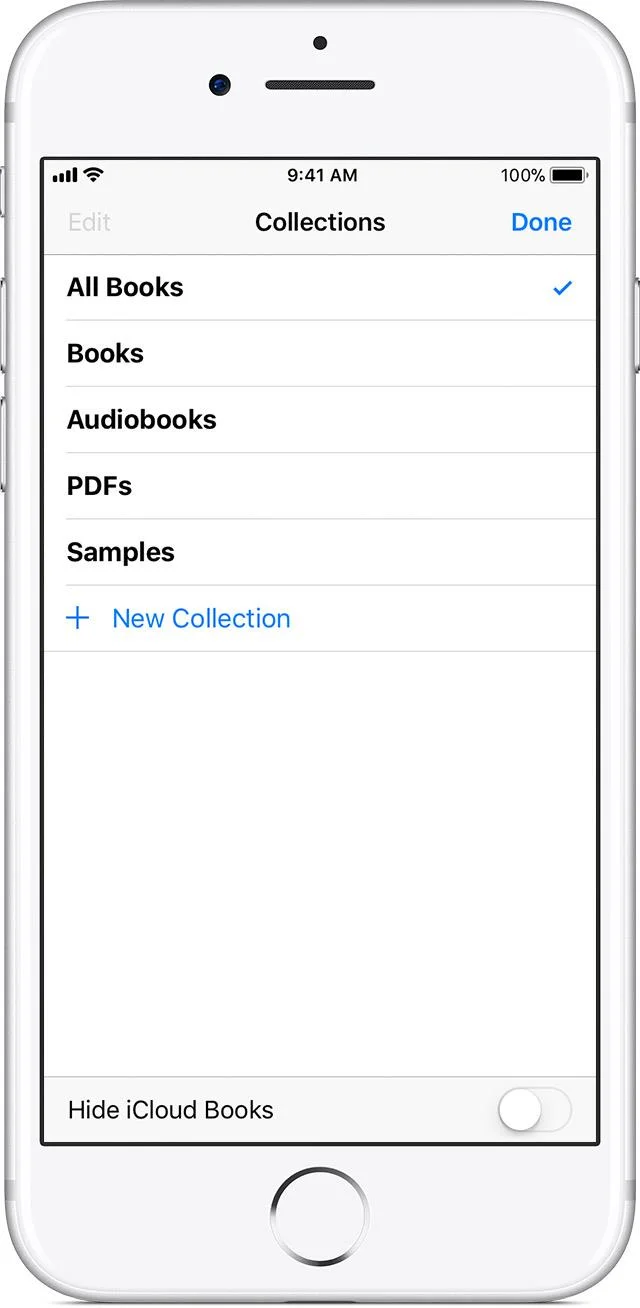
By default, the iBooks library is sorted by predefined collections: All books or file types (Books, Audiobooks, PDFs). Books are in iCloud but not downloaded to the device, automatically displayed in the library.
Create, view and organize collections
Use collections to organize your books in groups. To create a custom collection on your iPhone, iPad, or iPod touch, tap All Books or the file type menu at the top of the screen, and then New Collection . In iBooks on Mac, click Collections, then click the + icon in the lower left corner of the screen.
If you want to rearrange the items in the gallery on your iPhone, iPad, iPod touch, touch and hold the book you want to move and drag it to a new location. On Mac, make sure Sort Manually is selected in the Sort By menu , then click and drag the desired book to the new location.
To automatically sync Collections with other devices, sign in with the Apple ID on all devices. Then, on iPhone, iPad, or iPod touch, go to Settings> iBooks> enable Sync Collections . To sync from a Mac, select iBooks> Preferences in the menu bar at the top of the computer screen. Click the General tab > select "Sync bookmarks, highlights, and collections across devices."
Access books on all devices
Before you can access books and audiobooks on all devices, make sure you are logged in with your Appe ID account on them.
Books purchased from the iBooks Store automatically appear in the iBooks app on all your devices. The Audiobook you buy from the iBooks Store or the iTunes Store automatically resides on the iBooks on iPhone, iPad, iPod touch using iOS 9 or later, iTunes 12.4 or later on Mac.
If you use iCloud Drive, you can access ePub, iBook Author books, PDFs on all devices.
You can also manually sync Audiobooks not purchased from the iTunes Store using iTunes and USB.
If you are part of Family Sharing, you can share content with other family members.
Delete books and audio books
If you want to delete a book or audiobook, open iBooks on your iOS device, then touch Select . Scroll to find the item you want to delete, then tap it. Select Delete , then touch one of the following options:
- Touch Remove Download to remove it only from your device.
- Tap Delete Everywhere to remove the item from iCloud and automatically move it from all other devices.
Hope the article is helpful to you.

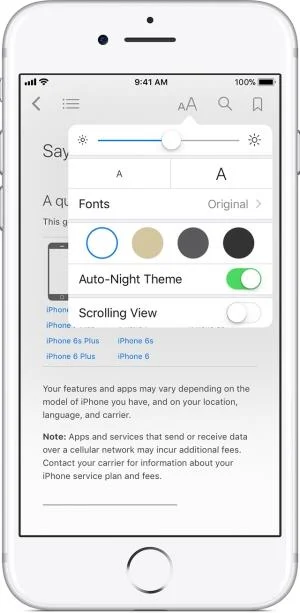
 to adjust how the book appears on iPhone, iPad, iPod touch. From this table, you can adjust the screen brightness, size and font style, change the background color. If Scrolling View is enabled, you have the ability to scroll a page continuously without having to turn the page.
 on an iOS device or click
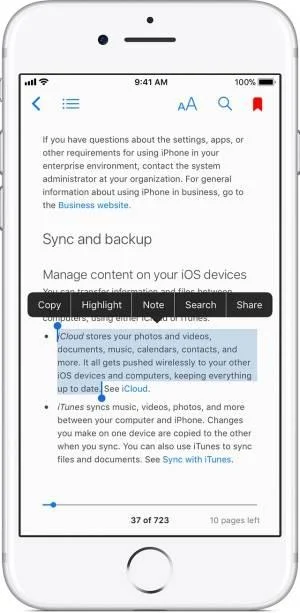
  on the Mac in the upper right corner to bookmark a specific page. You can also highlight any text in a book or create a Note from the selected highlight.
 in the upper left corner.
 in the upper left corner to see the highlights and notes. Click
  next
next