Home
» Wiki
»
Open notifications on Samsung in Split Screen view or pop-up window
Open notifications on Samsung in Split Screen view or pop-up window
Some users stumbled upon a cool multitasking feature while playing around with their Samsung phones a while back. There’s no dedicated menu in the Settings section, so it’s easy to miss. However, it’s incredibly easy to use and often useful, which is why everyone should give it a try.
You can open notifications on Samsung in Split Screen view or pop-up window
You may know that Android phones can open two apps at once in Split Screen view. This is one of many Android features that can help you stay productive. You may also know that Samsung phones add to this multitasking ability by allowing you to open certain apps in pop-up windows, just like you would on your desktop or laptop.
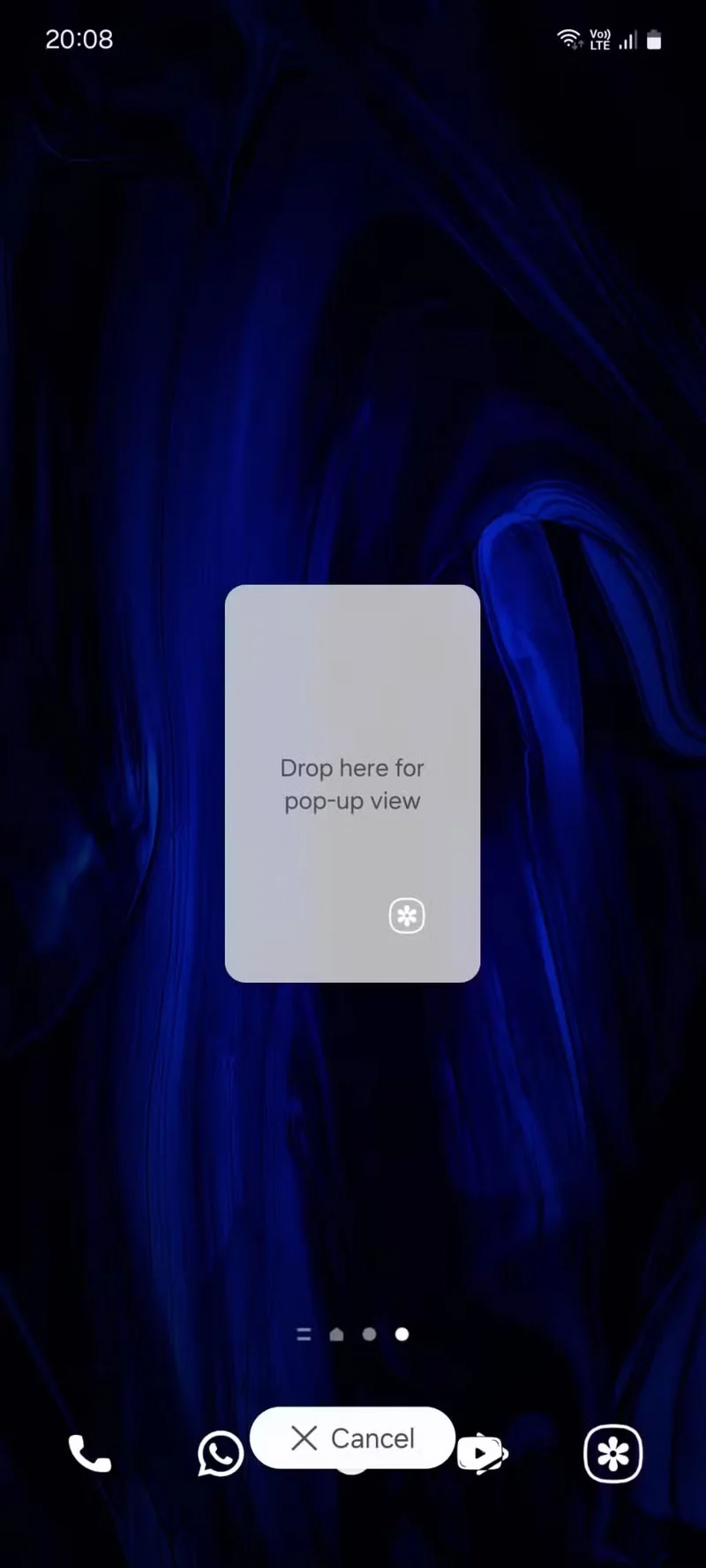
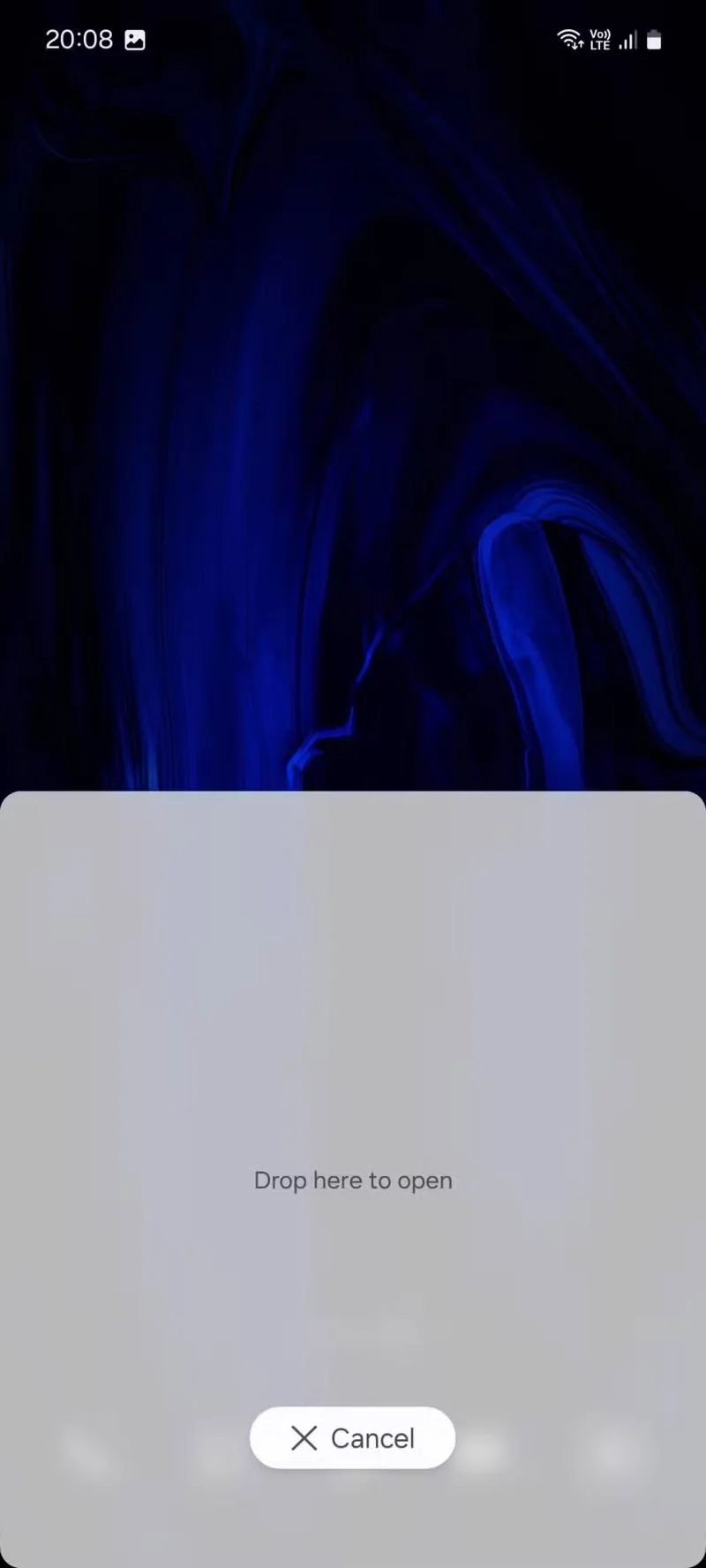
However, you may not know that, on Samsung phones, you can press and hold a notification to drag and drop it on the home screen to open the corresponding app in a pop-up window or Split Screen view.
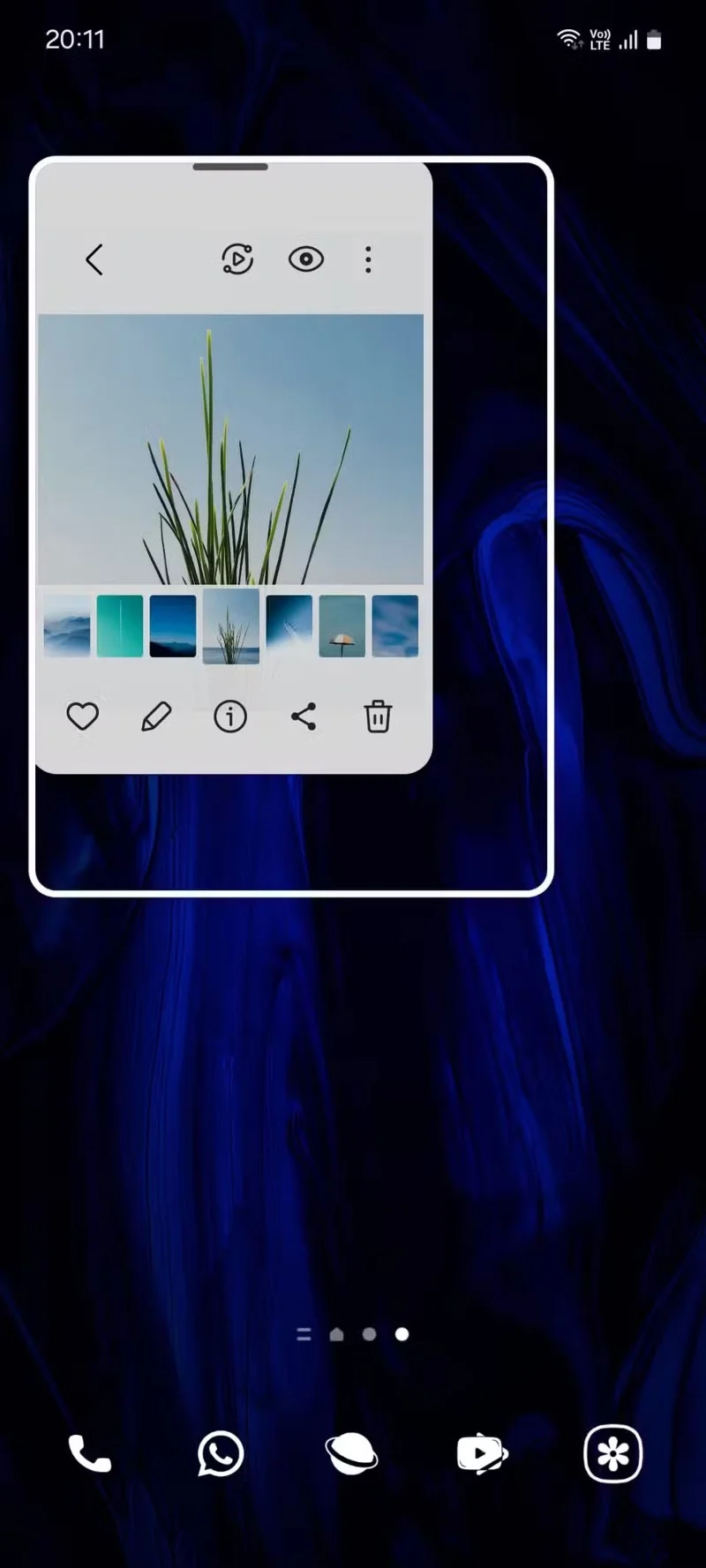
You just tap the notification and the app opens normally and takes up the entire screen. This may not be ideal if you're in another app. But with this method, you can drag and drop the notification to the middle of the screen to open it in pop-up view or to either side of the screen to open it in Split Screen view.
Tip : You can freely adjust the size of the pop-up window by dragging any corner of it.
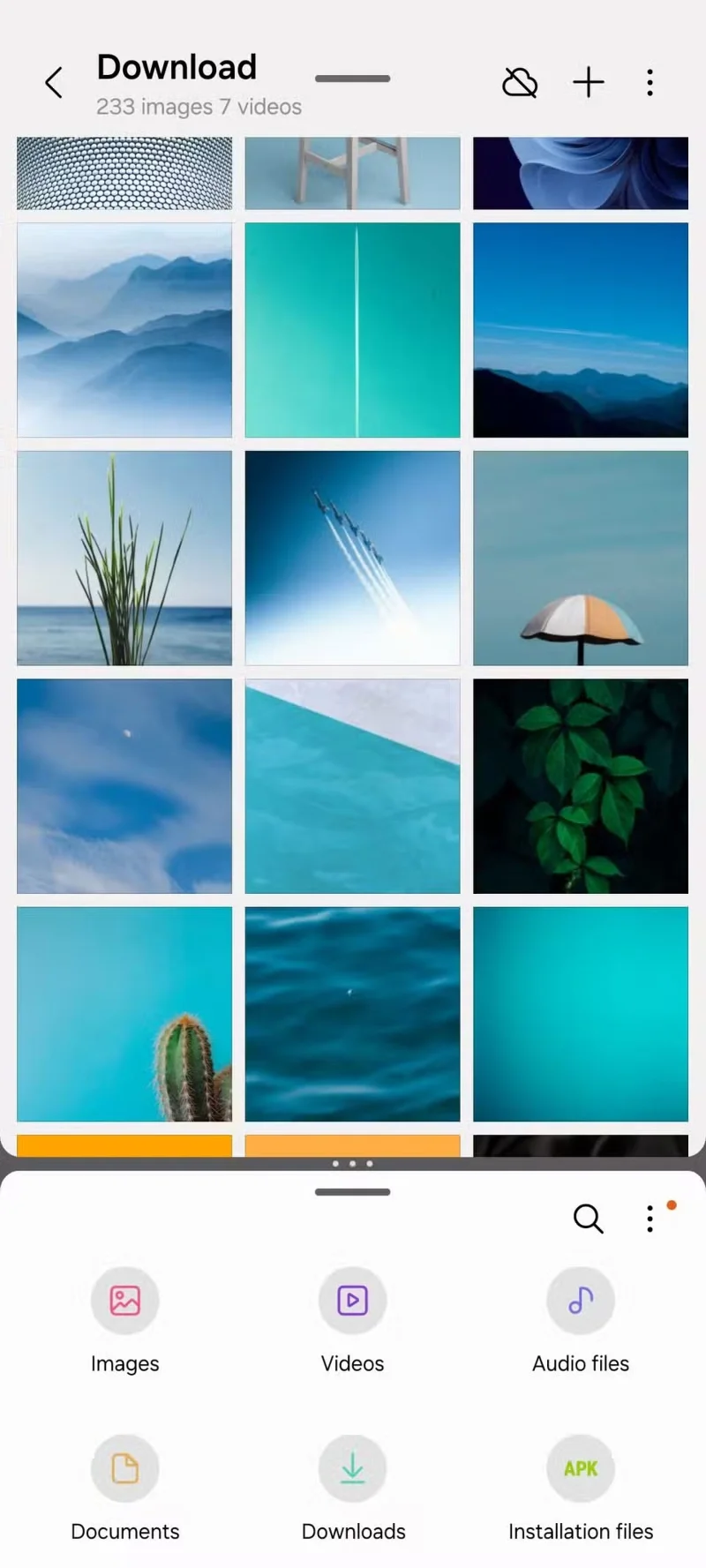
For split screen, if you have one app open, the second app will simply open above or below it (depending on where you drop the notification) and take up half of the screen. You can manually adjust how much space the app takes up after that using the handle located between the two apps.
If you don't have any apps open, a list of apps will appear so you can select one.
If you open multiple apps in pop-up view, they will all be neatly arranged under the same floating bubble so the screen doesn't get crowded and you don't have to switch back and forth between them.
These multi-window features are especially useful when you’re taking notes while researching information online, checking upcoming events and setting reminders, or preparing a to-do list while reviewing your current tasks. Since you stumbled upon it, Split Screen mode and pop-up windows have completely changed the way you multitask on your Samsung phone.