Readlang is a leading web application designed to help users learn foreign languages effectively by providing access to translations of articles available in the Readlang community, as well as texts that users upload themselves.
The best way to learn a foreign language is to immerse yourself in the language as much as possible. By engaging with the language daily, you will gradually see improvements in your proficiency. Readlang allows you to translate websites and paragraphs, create flashcards, and build personalized word lists for effective learning. With consistent use of Readlang, you will notice significant advancements in your language skills.
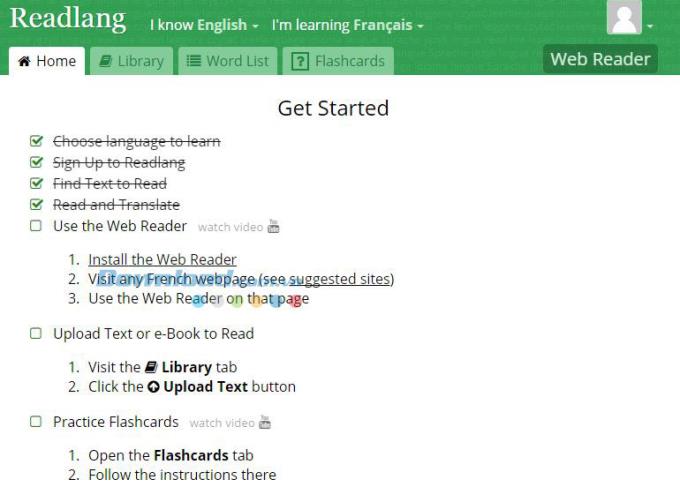
The user interface of Readlang is simple and intuitive, which makes it accessible for learners at all levels. The application has gained over 35,000 active users and supports more than 40 languages, including popular choices like German and French, as well as lesser-known languages. This wide range of options makes Readlang a trusted platform for language learners worldwide.
To start learning, simply visit readlang.com and click on Start Learning. Select the language you wish to learn and quickly create an account by providing your email address and name. After choosing your preferred language, a toolbar will appear to guide you through the learning process.
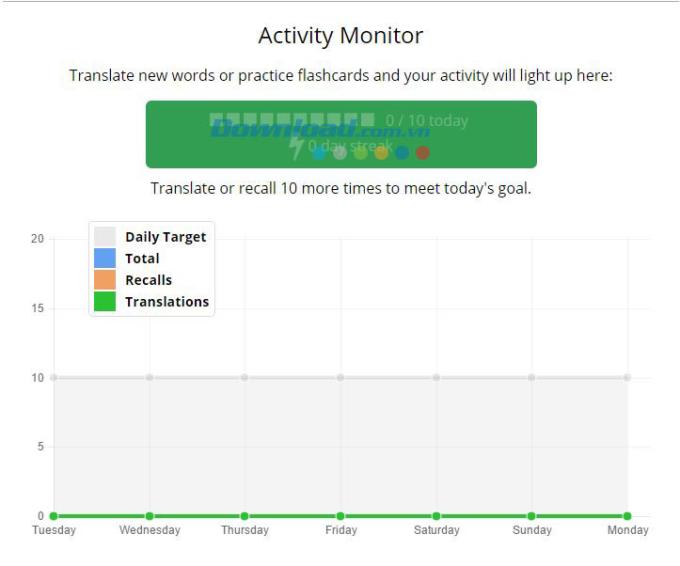
Readlang’s Activity Monitor tool helps users track their learning progress, located in the Home tab. The Home section provides guidelines to experience Readlang’s features effectively, including a progress tracking table that displays your learning journey over time.
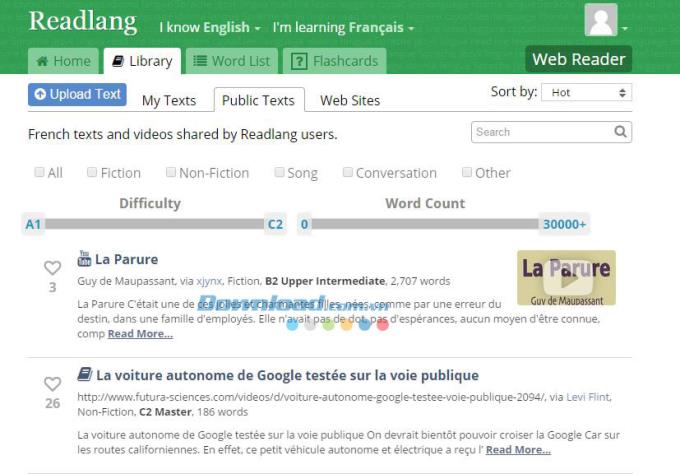
The Library section offers a vast array of texts from various sources. Users can choose to upload new texts or select from the existing library built by community contributions. In addition, learners can use the Website feature to translate articles from their favorite sites.
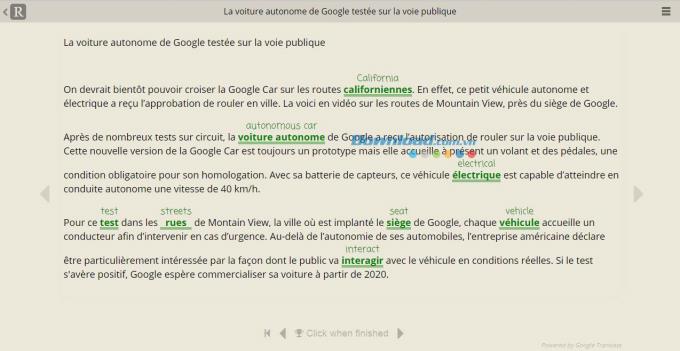
When you select a piece of text, it occupies the entire screen to enhance focus. Readlang allows you to annotate words or phrases in your preferred language (including your native language). By clicking on unfamiliar words, you can access translations, enriching your vocabulary during each session.
This platform also provides a wealth of articles and videos contributed by Readlang users, allowing you to filter content based on word difficulty and length, significantly enhancing your learning experience.
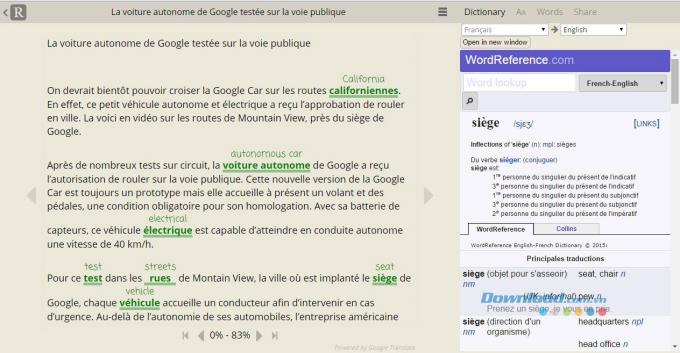
Clicking the icon in the top-right corner launches WordReference.com, which offers definitions and examples for the selected words, ensuring a comprehensive learning experience.
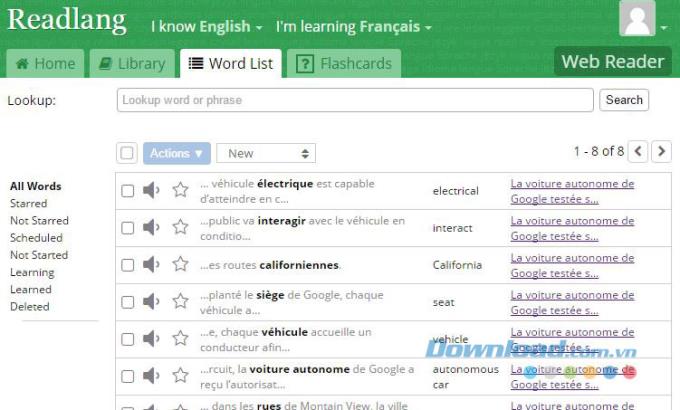
Upon completing a text, users can share their findings and progress on social media platforms such as Facebook and Twitter. To return to the homepage, simply click the Readlang logo. Your Word List will display words you have recently looked up, along with their meanings and context, complete with audio for pronunciation practice.
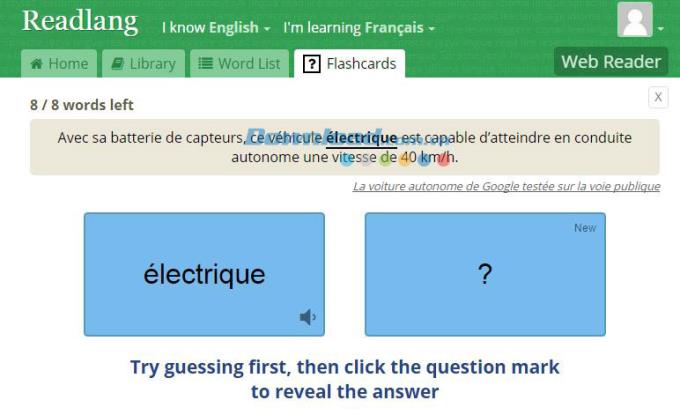
For learners utilizing flashcards, Readlang offers an engaging Flashcard feature. It presents a word on one side and a sentence containing that word above for context, allowing users to test their memory effectively.
Readlang offers two usage options. The free version allows unlimited word lookups and flashcard creation but limits phrase lookups to 10 per day. For $30 annually, the Premium plan grants unlimited access to all features.
For language learners unable to invest heavily in expensive courses or struggling to find resources for less common languages, Readlang is an excellent choice. After utilizing Readlang consistently, you will see substantial improvements in your language skills without the need for formal classes or software installations. A simple visit to Readlang.com will open the door to an immersive multilingual experience and a unique approach to language learning.
How to Use Readlang for Online Language Learning
For an optimal experience with Readlang, follow the steps outlined below:
- Visit readlang.com and select your preferred language to learn.
- Create your account providing necessary details like email and name.
- Utilize the Activity Monitor to track your progress.
- Access the Library section for a variety of texts.
- Use the Word List to keep track of new vocabulary.
- Engage with flashcards for effective memorization.