
Leftover Halloween Candy and Pumpkins: What to Do Next

Sort leftover Halloween candy safely, share or repurpose sealed treats, and choose food use or compost for pumpkins based on their condition.
The "Find My Device" feature on smartphones and tablets can be a lifesaver if your device is lost or stolen. However, even if you no longer use your old device, you should still keep it registered on "Find My Device" for the following reasons.
1. You can track and recover your device
One of the main reasons you should never delete any of your old devices from “Find My Device” is for tracking and recovery purposes. Even if you don’t use some of these devices regularly, they can still serve as backup options or be passed on to family members.
Being able to remotely locate your devices saves you the trouble of tracking them down or guessing where they might be. This helps prevent permanent loss of your devices.
2. You can remotely lock your device and erase data

In the event that one of your devices is stolen or lost, registering it with “Find My Device” allows you to remotely lock it instantly. This feature helps you prevent unauthorized access by setting a passcode or screen lock, even if the device is no longer there. If you believe the device is lost rather than stolen, you can also display a custom message on the screen with contact information for return, while keeping the rest of your data safe.
If things get worse—like if the device actually disappears—you can take it one step further and remotely wipe all of your data. This is a lifesaver, especially considering how much personal and sensitive information we store on our devices these days.
This way, even if someone tries to access your device, they won’t be able to access your photos, documents, or account logins. They won’t even be able to answer calls, read any notifications, or steal your identity in any way. That level of protection should give you peace of mind.
3. This maintains the activation key for security
Keeping old Apple devices in Find My also helps maintain iCloud Activation Lock, which is an important security feature. Likewise, removing an old Android phone or tablet from Find My Device by removing the Google account also disables FRP (Factory Reset Protection). For this reason, it's best not to remove the device from your account even if it's lost and remotely erased.
The security features mentioned above remain active as long as the device is linked to an account, so even if someone gets their hands on your device, they can’t wipe it and use it or resell it without entering your login information.
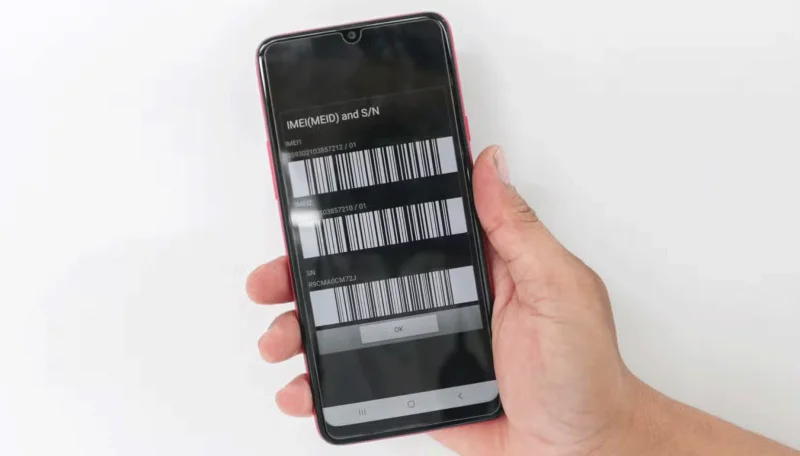
4. Keep access to IMEI for recovery
The IMEI (International Mobile Equipment Identity) number is a unique identifier for every mobile device and can be extremely useful in recovery situations. Keeping your old devices listed in the "Find My Device" list gives you a central, easy-to-access place to retrieve important information like the IMEI.
Having the IMEI on hand is a huge advantage if your phone is lost. Reporting the IMEI to the authorities or your mobile carrier can help blacklist the device, making it difficult for anyone else to use it on any network. Without Find My Device, I would have to dig through old paperwork or linked devices to find the number, which isn't always possible.
Having a reliable method of locating and securing your devices gives you peace of mind, especially considering the sensitive information they often contain. Plus, there are no significant downsides to keeping them listed, which is why keeping old devices in Find My Device is a smart decision.
Sort leftover Halloween candy safely, share or repurpose sealed treats, and choose food use or compost for pumpkins based on their condition.
Compare workplace Halloween costume choices by respect, dress code, mobility, and safety—and learn when a subtle accessory or a policy check is the better option.
Find a couples costume that fits your style, budget, and comfort level, from Addams Family classics to original inside-joke duos.
Need a last-minute high school Halloween costume? Compare 10 easy closet-based ideas by prep time, comfort, school-day practicality, and simple safety checks.
Use a simple 2026 Halloween decorating timeline for indoor décor, outdoor displays, and fresh pumpkins, with practical adjustments for weather and events.
Mix five vivid, approachable Halloween cocktails with measured recipes, simple prep tips, and an alcohol-free option for your party guests.
Find 15 office-friendly Halloween costume ideas for 2026, with practical checks for dress codes, respectful themes, comfort, and workplace safety.
Plan a fun elementary school Halloween party with easy crafts, games, inclusive treats, costume tips, and a sample 75-minute classroom schedule.
Compare realistic side hustles for 2026 by startup cost, fees, flexibility, and income control, with current tax and scam guidance from official sources.
Upgrade your home office ergonomics with current OSHA and NIOSH guidance on chair fit, monitor height, laptop setup, lighting, and movement.








