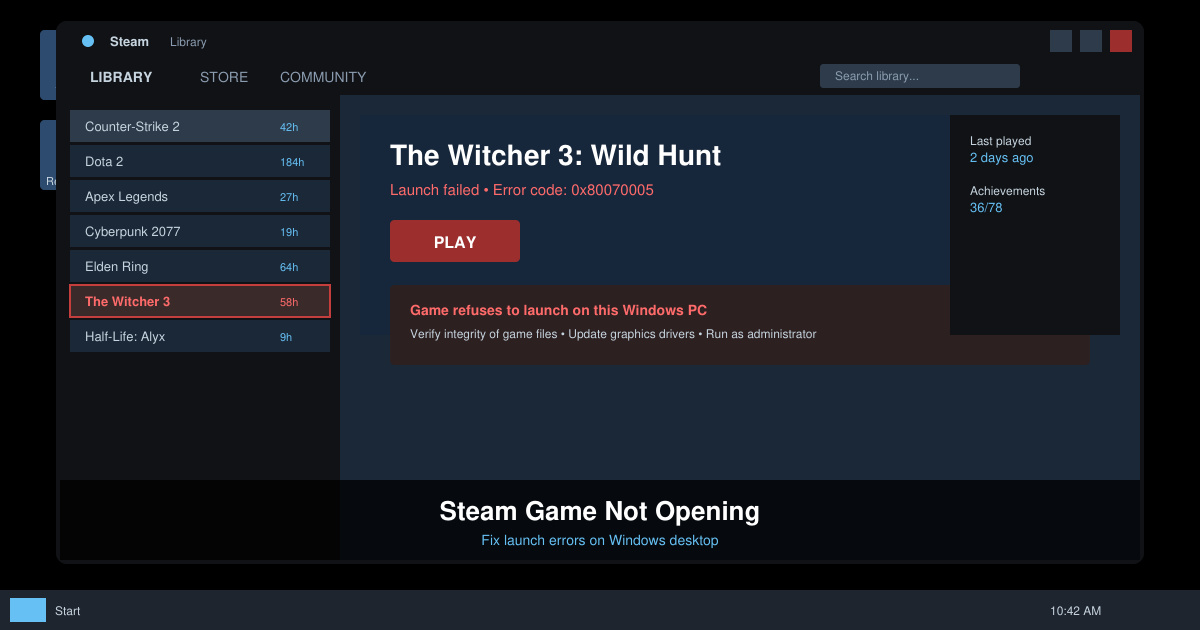
Steam Game Not Opening can stop you from playing without warning, usually due to file corruption, outdated components, or permission conflicts. This guide gives direct, tested steps to identify and resolve the problem so your games launch properly. Expect to spend 10-20 minutes applying the most effective solutions in order.
Why Steam Game Not Opening Occurs
Games fail to start in Steam when installation files become damaged during updates, graphics drivers fall out of date, or background services interfere with the launch process. Checking your internet connection and ensuring Steam itself runs the latest version often eliminates basic blockers before deeper troubleshooting begins. Users frequently report success after verifying game files or adjusting compatibility settings.
Before starting, confirm the issue affects only one game or multiple titles. Note any error messages that appear and check the Steam download folder for sufficient free space.
How to Fix Steam Game Not Opening
-
Restart Steam and your computer
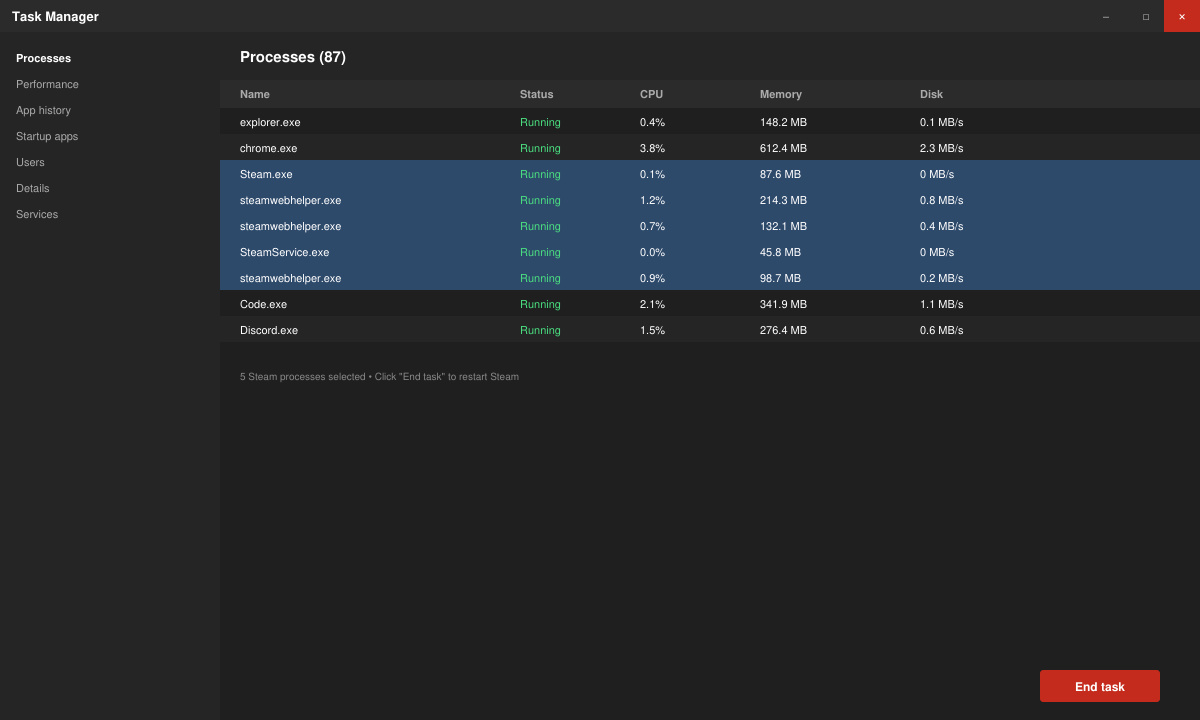
Close Steam completely through Task Manager by ending all Steam processes. Restart your PC, then reopen Steam from the desktop shortcut or Start menu. This clears temporary memory conflicts that prevent games from initializing.
-
Verify integrity of game files
In Steam, right-click the problematic game in your library, select Properties, then go to the Installed Files tab. Click Verify integrity of game files. Steam will scan and replace any missing or corrupted files automatically, which resolves most launch failures.
-
Update your graphics drivers
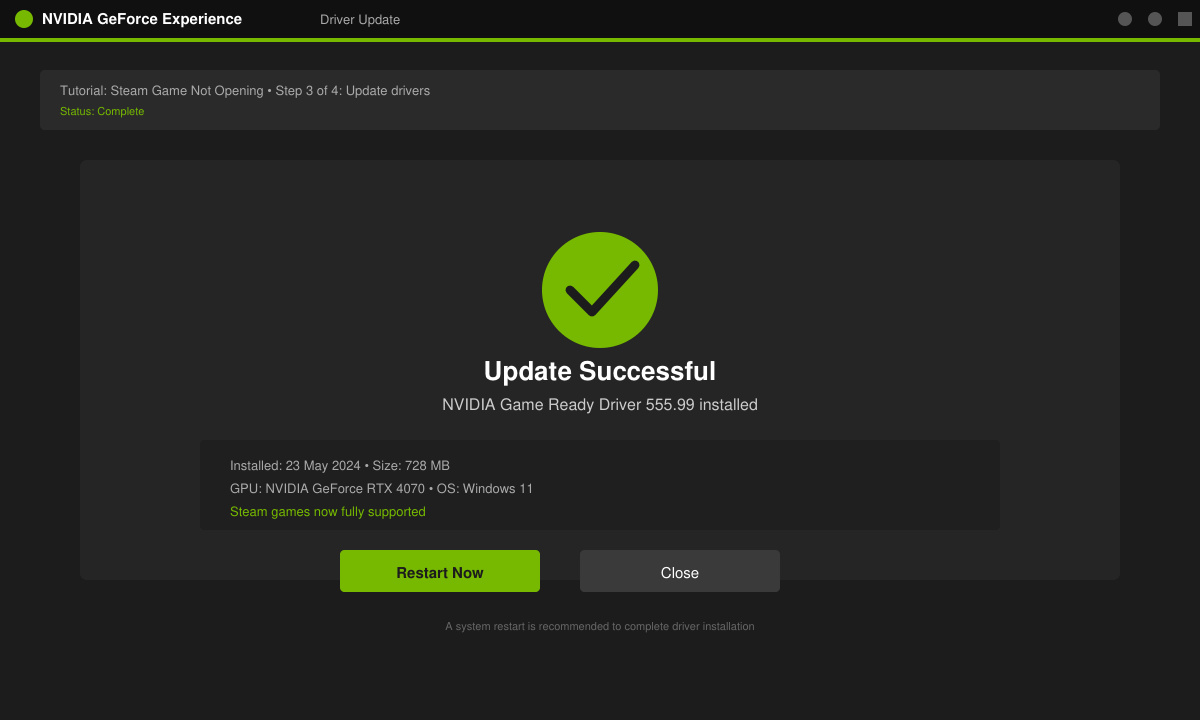
Visit the official site of your GPU manufacturer (NVIDIA, AMD, or Intel) and download the latest driver package for your card. Run the installer in clean mode if offered. Outdated drivers frequently cause Steam Game Not Opening errors during the initial loading screen.
-
Run the game as administrator and in compatibility mode
Right-click the game's executable in the Steam folder, choose Properties, then the Compatibility tab. Enable Run this program as an administrator and test different Windows versions under compatibility mode. Apply the changes and launch the game from Steam.
-
Clear Steam download cache
Open Steam settings, navigate to Downloads, and click Clear Download Cache. Restart Steam afterward. This forces fresh downloads of any needed launcher components without deleting your installed games.
Tips and Common Mistakes
- Disable third-party overlays such as Discord or NVIDIA GeForce Experience before testing the launch again.
- Avoid running Steam in offline mode when troubleshooting, as some games require server checks even for single-player titles.
- If the problem persists after file verification, reinstall the specific game rather than the entire Steam client first.
- Check Windows Event Viewer for application errors around the time of the failed launch to identify missing DLL files.
Frequently Asked Questions
Does Steam Game Not Opening affect every title?
No. The issue is often isolated to one game after an update. If multiple games fail, focus on system-level fixes like driver updates or Steam reinstallation.
Can antivirus software block game launches?
Yes. Temporarily disable real-time protection in your antivirus program and test the launch. Add the game's folder and Steam.exe as exceptions if the game starts successfully.
Will I lose progress if I verify game files?
No. Verifying files replaces only damaged files while preserving your saved games and settings stored in the cloud or locally.
Conclusion
Applying the steps above in sequence resolves Steam Game Not Opening for the majority of users. Start with file verification and driver updates, then move to compatibility adjustments if needed.