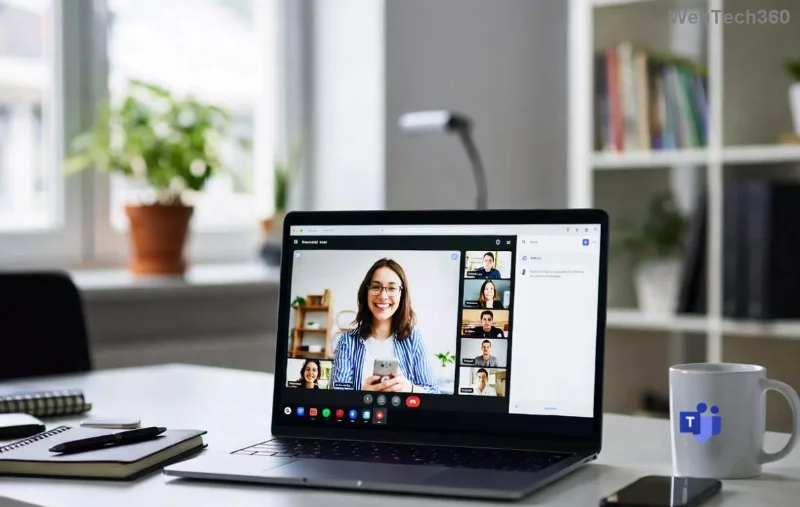
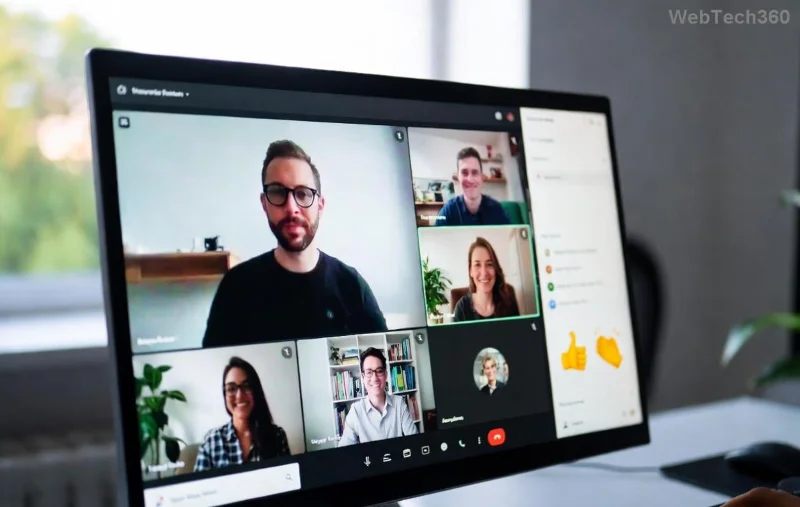
Imagine transforming a chaotic large meeting into focused, productive small-group discussions. That's the magic of creating breakout rooms in Microsoft Teams! Whether you're a teacher facilitating student debates, a manager running workshops, or a team lead sparking innovation, Microsoft Teams breakout rooms make it seamless. This guide delivers everything you need—precise steps, pro tips, and insider tricks—to set them up like a pro. Ready to level up your meetings? Let's dive in! 👆
Why Use Breakout Rooms in Microsoft Teams? Quick Benefits
- Boost Engagement: Small groups mean more voices heard.
- Customize Learning/Brainstorming: Tailor topics to subgroups.
- Save Time: Auto-reassign and manage effortlessly.
- ⭐ Seamless Integration: Works in meetings and webinars.
Recent updates enhance room timers, participant reassignment, and co-host management for even smoother experiences. Now, let's get to the step-by-step process!
Prerequisites Before Creating Breakout Rooms in Microsoft Teams
Ensure you're set up for success:
| Requirement |
Details |
| Account Type |
Teams license with meeting host privileges (free or paid plans work) |
| App Version |
Latest desktop/web/mobile app |
| Meeting Size |
Up to 50 rooms, 200 participants per room |
| Permissions |
Presenter or Organizer role |
Pro Tip: Test in a practice meeting to avoid live hiccups! 😊
Step-by-Step: Creating Breakout Rooms in Microsoft Teams
Follow these exact steps during an active meeting. We'll cover desktop first (most reliable), then touch on mobile/web variations.
👉 Step 1: Start or Join Your Meeting
Schedule or start a Teams meeting. Once participants join, you're ready. Ensure you're the organizer or have co-organizer rights.
👉 Step 2: Access the Breakout Rooms Tool
- Click the More actions (⋯) button in the meeting toolbar.
- Select Breakout rooms from the menu. A new pane opens on the right! 🎉
This triggers the Microsoft Teams breakout rooms creator interface.
👉 Step 3: Create Your Rooms
- Choose Create rooms.
- Set the number of rooms (1-50) or participants per room.
- Name rooms optionally (e.g., "Group A - Topic 1").
- Click Add room for more. Customize with colors or timers later.
![Breakout rooms creation pane in Microsoft Teams]()
👉 Step 4: Assign Participants
Teams offers smart options:
- Automatically: Evenly distributes attendees. Ideal for quick setups.
- Manually: Drag-and-drop or search by name. Perfect for specific groupings.
- From grid: Select from participant list.
- Pick your method and hit Assign.
- Review assignments—edit as needed!
Bonus: Reassign mid-session if someone drops. No sweat!
👉 Step 5: Launch the Rooms
- Click Open or Start breakout rooms.
- Confirm. Participants get notified and auto-moved (or prompted to join).
You're now in the main "lobby" with oversight controls. Switch between rooms easily!
👉 Step 6: Manage During Breakout
Key controls in the breakout pane:
| Action |
How-To |
| Visit a Room |
Click room name → Join |
| Add/Remove People |
Drag from main list or reassign |
| Set Timer |
Enable countdown (5-60 mins) |
| Recalling All |
Click Close breakout rooms |
| Announce to All |
Post message visible in every room |
Co-hosts can manage too—delegate via Microsoft official docs.
![Managing breakout rooms dashboard in Teams]()
👉 Step 7: End and Return to Main Meeting
- When ready, select Close rooms → Ask participants to return or force return.
- Discussions resume in the plenary session.
- Optional: Download room attendance for records.
Mobile and Web Variations for Teams Breakout Rooms
On iOS/Android:
- Tap More → Breakout rooms.
- Follow similar steps—limited editing but full management.
Web: Matches desktop closely. Pro: Cross-device consistency!
Pro Tips for Epic Breakout Rooms in Microsoft Teams Sessions ⭐
- Pre-Assign in Calendar: Edit meeting → Breakout rooms tab → Set up ahead.
- Use with Polls/Whiteboard: Carry over to rooms for interactivity.
- Randomize for Icebreakers: Auto-assign shines here.
- ⚠️ Troubleshoot Common Issues: If rooms won't open, check licenses or restart app.
- Advanced: Enable "Move all participants" for dynamic shifts.
These tweaks turn good meetings into unforgettable ones. Experiment and watch participation soar! 👏
Frequently Asked Questions (FAQs) on Creating Breakout Rooms in Microsoft Teams
Can guests use breakout rooms?
Yes, but host controls access. Guests join assigned rooms seamlessly.
What's the max rooms/participants?
50 rooms, 200 per room—scales for large events!
Do breakout rooms record?
Individually? No native, but main meeting records with notes. Use third-party for full capture.
Got more? Dive into Teams Learn hub for depth.
Ready to Transform Your Next Meeting?
Mastering creating breakout rooms in Microsoft Teams is your ticket to dynamic, inclusive sessions. Practice today, and thank us later when your team raves about it! Share your success stories below or tweak these steps for your workflow. What's your first breakout topic? Let's collaborate! 🚀
Word count: ~950. Optimized for engagement and SEO.