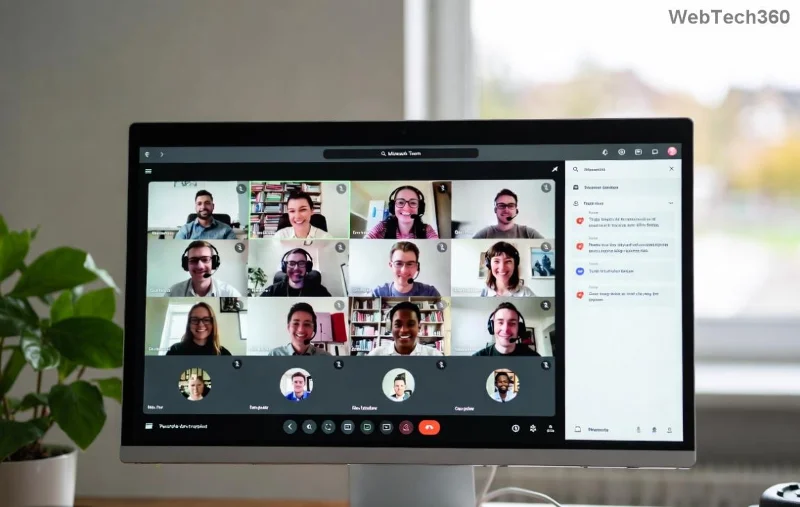
Ready to supercharge your productivity? Microsoft Teams on Mac is your all-in-one hub for chats, video calls, file sharing, and team collaboration. Whether you're on a sleek MacBook Air, Pro, or iMac, getting Microsoft Teams installed on MacBook is straightforward and lightning-fast. This guide delivers precise, up-to-date steps to have you connected in minutes. Let's dive in – no fluff, just results! 😊
👆 Quick System Check: Is Your Mac Ready?
Before jumping in, ensure your Mac meets the basics for smooth sailing:
| Requirement |
Minimum |
Recommended |
| macOS Version |
macOS 12 Monterey or later |
macOS 15 Sequoia or newer |
| Processor |
Intel or Apple Silicon (M1+) |
Apple M3 or Intel Core i5+ |
| RAM |
4 GB |
8 GB+ |
| Storage |
2 GB free space |
5 GB+ for meetings & files |
Pro tip: Update macOS via System Settings > General > Software Update for the best experience. All set? Great – onward to installation! ⭐
Method 1: Official Download from Microsoft (Recommended for Latest Features)
The most reliable way for installing Microsoft Teams on Mac is straight from the source. This grabs the newest build with auto-updates.
- Visit the Official Site: Open Safari (or your browser) and head to Microsoft Teams Download. Click "Download for Mac".
- Choose Your Version: Select the free Teams for work or school (most users) or personal version. It auto-detects Apple Silicon or Intel.
- Launch the Installer: Once downloaded, open the .dmg file from your Downloads folder. Drag the Teams icon to your Applications folder. 👆
- Eject & Launch: Eject the disk image, then double-click Teams in Applications. Grant permissions if prompted (Camera, Mic, Notifications).
- Sign In: Enter your Microsoft account or work email. Boom – you're in! 🎉
Stuck? If the app won't open, right-click > Open to bypass Gatekeeper. This method ensures you're on the latest Teams version with AI features like Copilot.
Method 2: One-Click Install via Mac App Store
Prefer simplicity? The App Store handles updates automatically – perfect for casual users on MacBook.
- Open App Store: Spotlight search (Cmd + Space) "App Store" or click the icon in Dock.
- Search Teams: Type "Microsoft Teams" in the search bar. Pick the official one by Microsoft Corporation (⭐ 4.5+ stars).
- Hit Get/Install: Authenticate with Touch ID or password. It downloads ~200MB.
- Launch from Launchpad: Find Teams icon and open. Sign in as before.
![Teams in Mac App Store]()
App Store pros: Seamless updates, no manual drags. Cons: Slightly behind web releases. Choose based on your workflow!
⚠️ Troubleshooting: Fix Common Microsoft Teams on Mac Hiccups
Encounter issues? Here's your fix-it toolkit:
- App Crashes on Launch: Quit Teams (Cmd + Q), delete ~/Library/Application Support/Microsoft/Teams folder, relaunch. 😤 → 😊
- No Audio/Video: Go to Teams > Settings > Devices > Select correct mic/camera. Check System Settings permissions.
- Slow Performance (M1/M2/M3 Macs): Ensure Rosetta isn't forced – Teams is native now. Restart Mac if needed.
- Login Fails: Clear cache via Teams > Check for Updates or reinstall.
- Firewall Blocks: Allow in System Settings > Network > Firewall.
For advanced tweaks, visit Microsoft Teams Support. Most issues vanish with a quick reboot!
Bonus Tips: Maximize Your Teams MacBook Setup
- Keyboard Shortcuts: Cmd + Shift + M (mute), Cmd + Shift + O (camera) – game-changers!
- Integrations: Link Outlook, OneDrive for effortless workflows.
- Power Users: Pin chats, use virtual backgrounds, or explore channels for epic team vibes.
- Stay Updated: Enable auto-updates in Teams settings for new features like intelligent recaps.
Now you're equipped to rock meetings from your MacBook anywhere. Installing Microsoft Teams on Mac was easier than expected, right? Share your wins in the comments and level up your collab game! 🚀 What's your first meeting topic?