Leftover Halloween Candy and Pumpkins: What to Do Next

Sort leftover Halloween candy safely, share or repurpose sealed treats, and choose food use or compost for pumpkins based on their condition.
Anyone who has ever suffered from wrist pain or desk clutter has wondered if there was another type of mouse. And the answer is yes! It's time to switch to a trackball !
Table of Contents
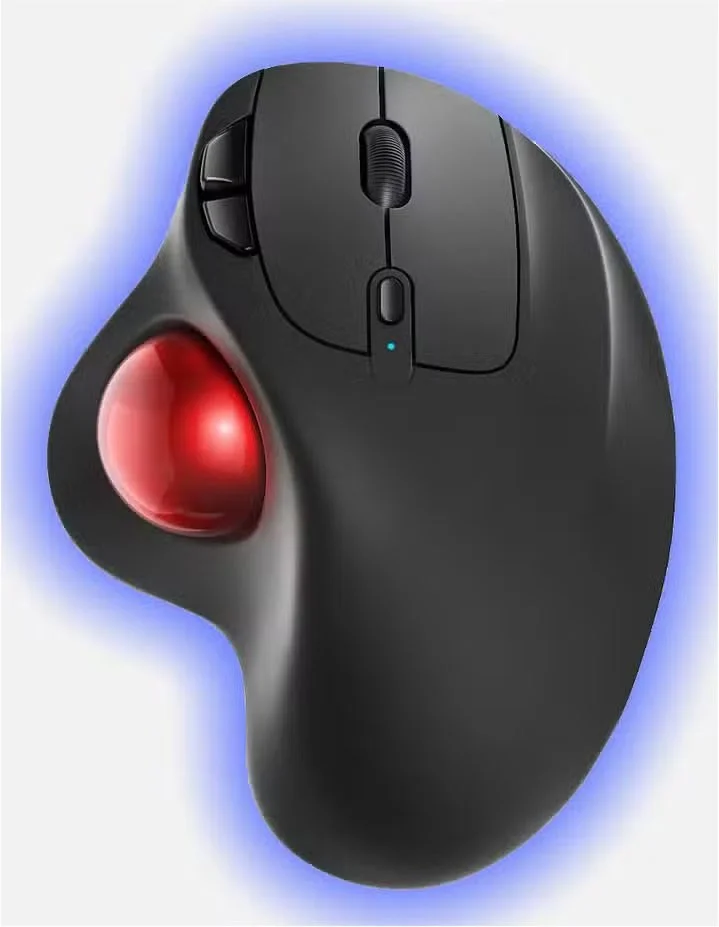
Traditional mice aren’t necessarily designed for comfort; the constant movement of your wrist can lead to pain over time. Switching to a trackball changes everything. Instead of moving your entire hand, you rotate the ball with your thumb, keeping your hand in a neutral, stationary position. This eliminates the repetitive strain of a traditional mouse and puts less pressure on your wrist and forearm.
With a trackball, all your fingers need to be active. You'll find yourself adjusting your grip less to get your hand into a comfortable position - your fingers control the ball, so your hand doesn't get tired from constantly adjusting.
This change isn’t just a temporary fix for comfort. Over time, using a trackball helps prevent repetitive strain injuries (RSI) like carpal tunnel syndrome. Even after hours of use, your hand will feel comfortable and your wrist won’t hurt, something that wouldn’t happen with a regular mouse. The ergonomic benefits are both immediate and long-lasting, making it a big win for anyone who spends long hours sitting at a desk.
One of the unexpected benefits of a trackball is that it frees up a lot of space on your desk. A regular mouse needs a lot of room to move around, and if your desk isn't very large, that can quickly become a problem. On the other hand, a trackball stays in one place, so you don't have to clear space to move it around.
It's a small thing, but when you realize how much space you've been wasting with your mouse, you'll appreciate the compact nature of the trackball. Whether you're working in a cramped office or want a great ergonomic setup, a trackball is a nice perk.
You might be skeptical that a trackball offers better precision than a regular mouse, but after using it for a while, you'll find that it's more than just a gimmick. Trackballs, especially the higher-end models, give you a level of precision that you simply can't get with a mouse. This is especially true for tasks like graphic design, 3D modeling, or video editing, where precision is key.
Your hand doesn’t have to move as much because you’re controlling the ball with your finger instead of moving the entire device. You get better control of the cursor, especially for small adjustments that a regular mouse would struggle with. For anyone who works on detailed tasks, the difference is obvious.
Another great feature of the trackball is the ability to “flick” the ball for quick movement. Just by swiping your finger, you can send the cursor flying across the screen, making it perfect for everyday web browsing or even gaming. This quick and easy movement can save time when navigating between windows or quickly switching between tasks. It’s a surprisingly useful feature that adds convenience and speed.
One of the most underrated advantages of trackballs is their durability. They tend to be more durable than mice due to the lack of moving parts, especially when compared to mice that rely on fragile sensors or moving wheels that wear out over time.
Mice often suffer from issues with feet or sensors losing accuracy as they wear out, but trackballs, being stationary devices, are much less susceptible to these issues. With just a single moving ball, they maintain consistent performance throughout their lifespan, giving you a reliable solution and a reliable input device.
With long-lasting durability and few moving parts, a trackball is an investment that will serve you well for years to come. If durability and consistent, reliable performance are your priorities, a trackball is a solid, cost-effective choice in the long run.
Switching to a trackball is easier than you might expect. While it takes some getting used to, you’ll likely be comfortable within a day or two and wonder why you didn’t make the switch sooner. Aside from convenience, trackballs come in two main flavors: thumb-controlled and finger-controlled. Choosing between the two depends on your comfort and the tasks you perform.
Thumb-controlled trackballs are compact and allow you to control the cursor with your thumb while keeping your hand in a natural, comfortable position. They are ideal for general tasks that don't require a lot of precision, but still provide a more comfortable alternative to a traditional mouse.
Finger-controlled trackballs offer greater control and precision, making them perfect for detailed work like photo editing, gaming, or design. No matter which style you choose, you'll likely find them more comfortable and productive than using a regular mouse.
For many people, switching to a trackball is a no-brainer. From the ergonomic benefits to the improved accuracy, everything about it feels like an upgrade. You can work longer without discomfort, your desk is less cluttered, and the overall experience is more enjoyable.
Sort leftover Halloween candy safely, share or repurpose sealed treats, and choose food use or compost for pumpkins based on their condition.
Compare workplace Halloween costume choices by respect, dress code, mobility, and safety—and learn when a subtle accessory or a policy check is the better option.
Find a couples costume that fits your style, budget, and comfort level, from Addams Family classics to original inside-joke duos.
Need a last-minute high school Halloween costume? Compare 10 easy closet-based ideas by prep time, comfort, school-day practicality, and simple safety checks.
Use a simple 2026 Halloween decorating timeline for indoor décor, outdoor displays, and fresh pumpkins, with practical adjustments for weather and events.
Mix five vivid, approachable Halloween cocktails with measured recipes, simple prep tips, and an alcohol-free option for your party guests.
Find 15 office-friendly Halloween costume ideas for 2026, with practical checks for dress codes, respectful themes, comfort, and workplace safety.
Plan a fun elementary school Halloween party with easy crafts, games, inclusive treats, costume tips, and a sample 75-minute classroom schedule.
Compare realistic side hustles for 2026 by startup cost, fees, flexibility, and income control, with current tax and scam guidance from official sources.
Upgrade your home office ergonomics with current OSHA and NIOSH guidance on chair fit, monitor height, laptop setup, lighting, and movement.








