Leftover Halloween Candy and Pumpkins: What to Do Next

Sort leftover Halloween candy safely, share or repurpose sealed treats, and choose food use or compost for pumpkins based on their condition.
Sometimes you download a video online but find that the downloaded MP4 video has no sound when it plays. This can be frustrating but it does not mean that the problem is unfixable. Here, you will identify the reasons why MP4 videos are experiencing this error, the symptoms to look out for and the solutions to fix the problem. It is important to note that the solutions you will be provided are quite simple so you do not need to be a tech expert to follow the steps involved.
Part 1: Overview of the MP4 no sound problem
1. What is MP4 without sound?
What does "MP4 with no sound" mean? An MP4 file that refuses to play sound when you play a video is said to have "no sound." This means that the MP4 file has not been able to sync the video and audio so that they will both play at the same time. An MP4 video with no sound is a video that is muted when you open it, even if it is playing.
2. Reasons why MP4 files have no sound
You should know the main reasons why MP4 files often encounter this problem to find the right solution for your case. These reasons include:
Missing or corrupted audio codec
If your MP4 media file does not have the appropriate codec associated with it, this can affect the functionality of the media file. This means that functions such as audio may be affected. If you play the video using a media player application that does not have a supported audio codec, it may cause the “MP4 has no sound” issue. Note that MP4 is usually encoded using different audio codecs such as WMA , LPCM, DTS-HD, MP3 , AAC , AC-3, Opus, etc. But if the media player application does not support the audio codec being used, you may not hear a sound when playing your video.
Corrupt MP4 file
MP4 can play without sound if the video file is corrupted. MP4 video files can be corrupted due to various factors such as virus attack, improper video conversion, compression and restoration.
Media player is broken
If the media player you are using to play the MP4 video is corrupted, it can affect the video file and cause the "no sound" phenomenon. Media players are usually set up to play media files such as MP4. However, if this media player setting is corrupted, it can cause the MP4 video to have no sound.
Part 2: 3 Common Solutions to Fix MP4 No Sound (For Regular Videos)
There are simple solutions you can try to fix the "MP4 no sound" problem. Each solution below addresses a specific cause of the MP4 video no sound error.
1. Identify and install the required audio codec
This solution applies to cases where the native audio codec supported by your media player is missing from your system. Therefore, it is necessary to install the correct codec required to play your MP4 video, such as the Microsoft MP4 codec for Windows Media Player. Follow these steps in Windows Media Player to retrieve the codec information to find out the codec required for your MP4 file:
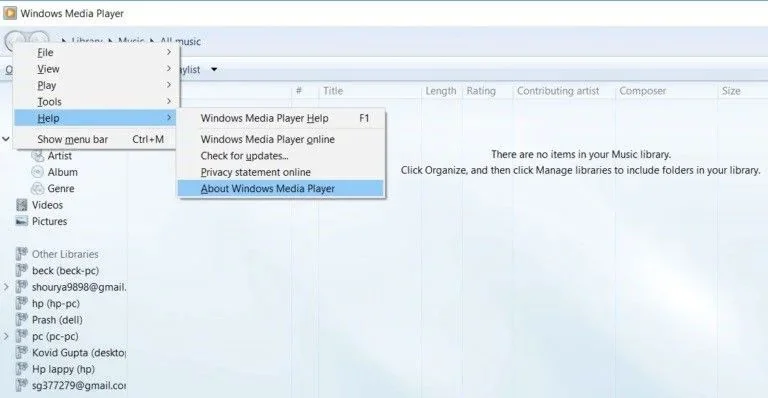
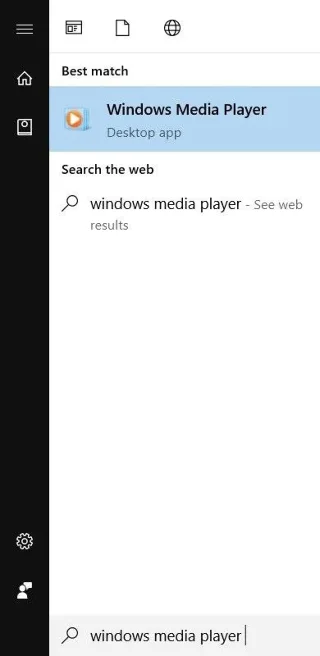
Go to Start and type "Windows Media Player" in the search field, then press Enter.
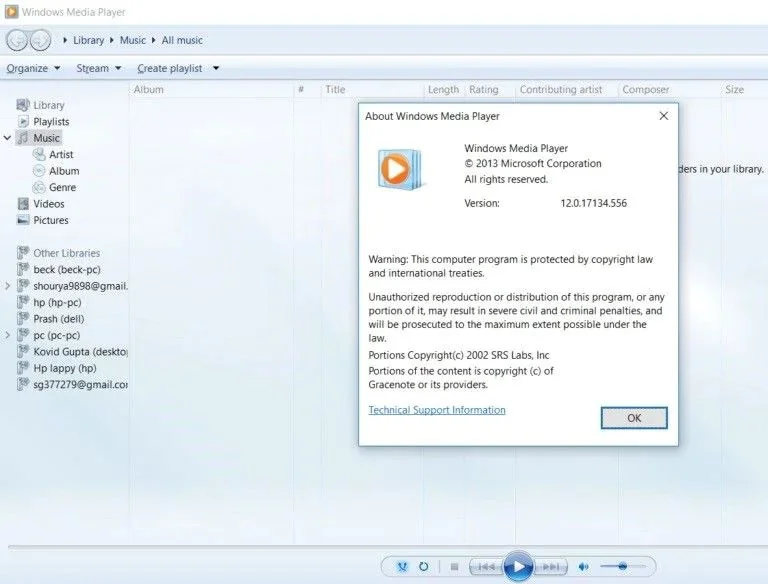
Go to the WMP Help section by pressing the Alt + H keys on your keyboard. Now, select About Windows Media Player .
Click on Technical Support Information in the new window that appears
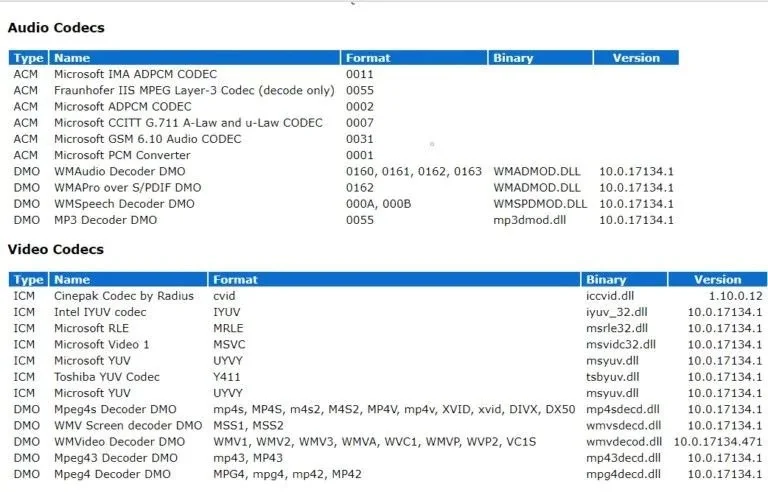
When a pop-up window appears, you will be asked where you want to open the file. Just go to Select your Web Browser . This is where all the information related to the audio and video codecs in your system will appear.
2. Convert MP4 files to other video formats
You can convert MP4 files to other video formats like WMV or AVI that are compatible with your media player. There are a number of video format converters available online for use.
The steps below will guide you through converting video file formats like MP4 using VLC media player:
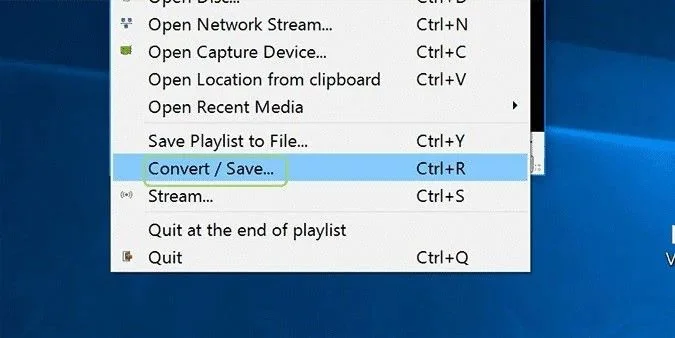
Launch VLC media player and go to Media . Next, select Convert/Save…
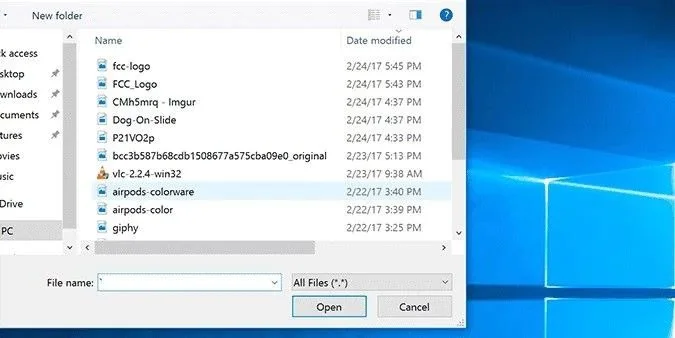
Add the MP4 video file you want to convert.
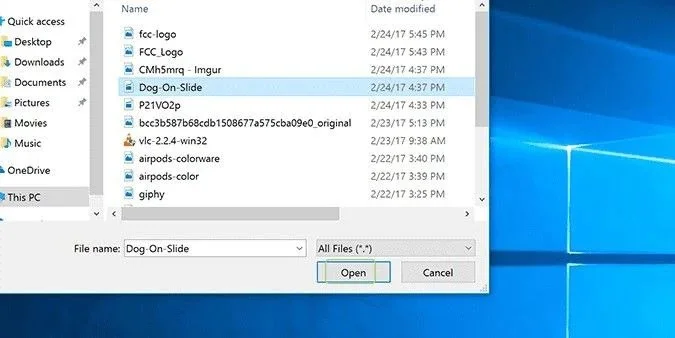
Scroll down and click Open .
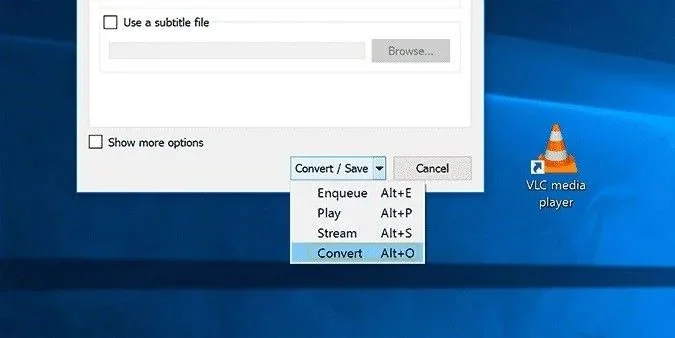
Click Convert , which is the last option in the Convert/Save drop-down list .
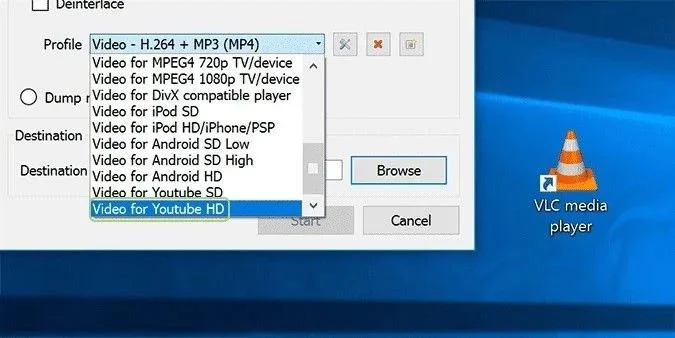
Select output format.
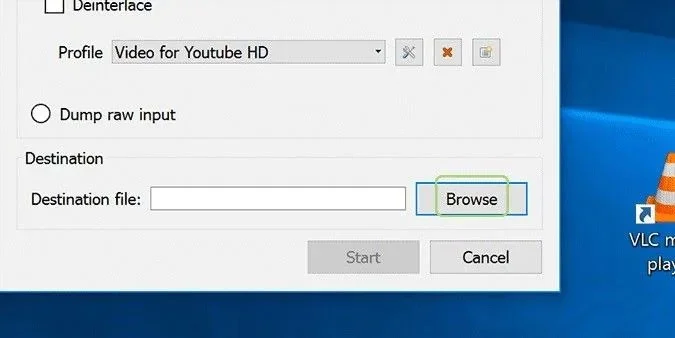
Select the Browse tab . Next, choose the destination folder for your video file once it is converted.
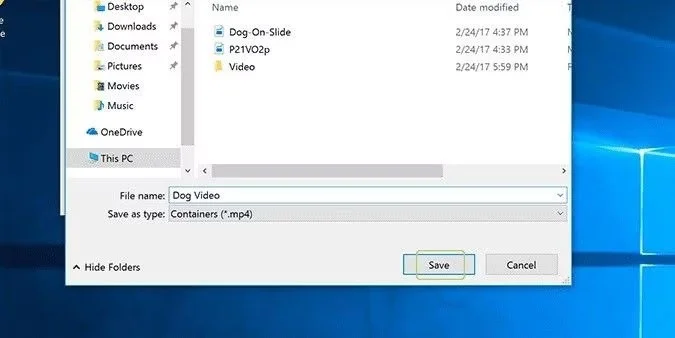
Rename the file.
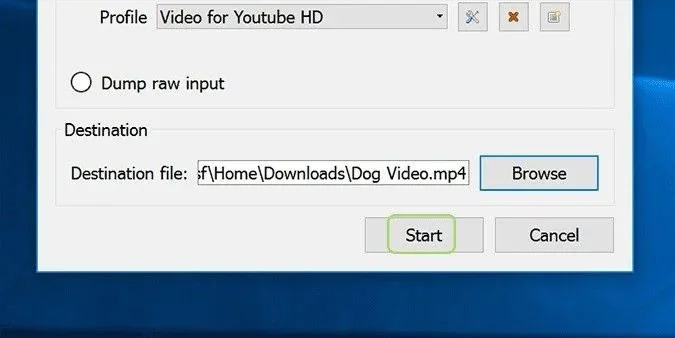
Now, click on Start to begin the conversion process.
3. Play the MP4 file on another media player
If your MP4 video refuses to play on your system's default media player, such as WMP, you should try playing it on a different media player, such as VLC Media Player , QuickTime, KMPlayer , 5KPlayer , RealPlayer, and many others. For media players like QuickTime, you may need to use an online converter to convert the MP4 file to a format supported by the media player. Use the steps to convert an MP4 video as instructed above (or with an online converter), and your MP4 file should be ready to be viewed in its new format on a different media player.
Also, if your MP4 video stops playing midway? Try playing the MP4 file on a different media player is a good option.
Good luck!
See more articles below:
Sort leftover Halloween candy safely, share or repurpose sealed treats, and choose food use or compost for pumpkins based on their condition.
Compare workplace Halloween costume choices by respect, dress code, mobility, and safety—and learn when a subtle accessory or a policy check is the better option.
Find a couples costume that fits your style, budget, and comfort level, from Addams Family classics to original inside-joke duos.
Need a last-minute high school Halloween costume? Compare 10 easy closet-based ideas by prep time, comfort, school-day practicality, and simple safety checks.
Use a simple 2026 Halloween decorating timeline for indoor décor, outdoor displays, and fresh pumpkins, with practical adjustments for weather and events.
Mix five vivid, approachable Halloween cocktails with measured recipes, simple prep tips, and an alcohol-free option for your party guests.
Find 15 office-friendly Halloween costume ideas for 2026, with practical checks for dress codes, respectful themes, comfort, and workplace safety.
Plan a fun elementary school Halloween party with easy crafts, games, inclusive treats, costume tips, and a sample 75-minute classroom schedule.
Compare realistic side hustles for 2026 by startup cost, fees, flexibility, and income control, with current tax and scam guidance from official sources.
Upgrade your home office ergonomics with current OSHA and NIOSH guidance on chair fit, monitor height, laptop setup, lighting, and movement.








