Desk Decorating Ideas for a Spooky Office Cubicle

Create a spooky office cubicle with Halloween desk decor ideas that keep your workspace usable, tidy, and mindful of workplace safety.
If you want to put data from your computer into the BlueStacks emulator but don't know how, you can refer to the following tutorial from WebTech360.
BlueStacks is rated as one of the best Android emulators available today. Although it can be quite resource-heavy, the utility this software provides to users is undeniable. If you're installing and using BlueStacks, you might wonder how to exchange data between your computer and BlueStacks.
ATTENTION:
Currently, the latest version of this Android emulator is BlueStacks 5. If you are using an older version, the implementation may differ. This article will guide you on how to transfer data from your computer into the emulator in both scenarios.
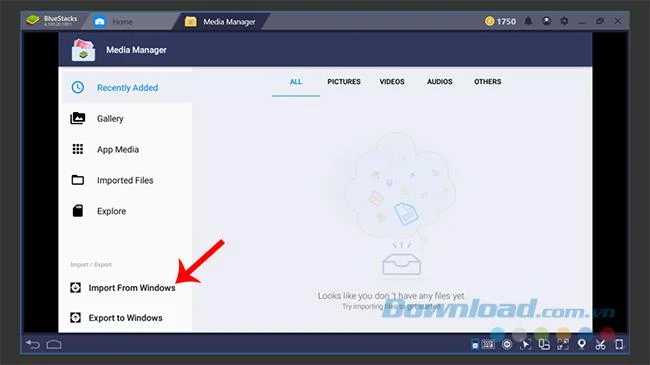
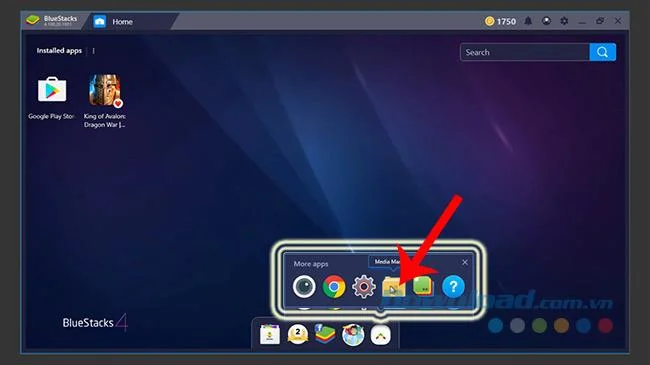
Step 1: Start the BlueStacks emulator. From the main screen, click on the More Apps icon at the bottom, then select Media Manager (the yellow folder icon).
Step 2: In the new interface, left-click Import From Windows to retrieve data from your computer.
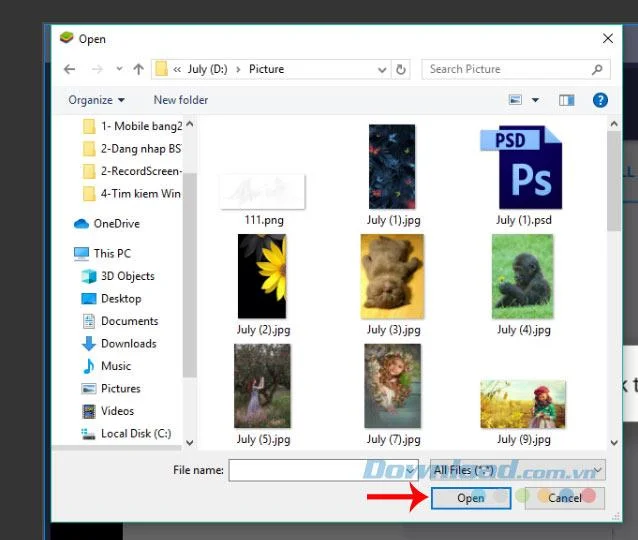
Step 3: A Windows window will appear. Navigate to the location of the files you want to transfer, left-click to select them, and then click Open to execute the transfer.
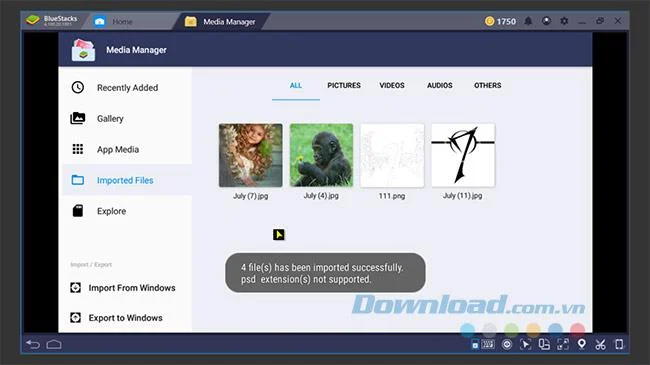
Step 4: Depending on the type and size of the data, the transfer time may vary. When the migration is complete, the files will retain the same format, name, and quality as they had on your computer.
In addition to photos, BlueStacks can receive various types of media data such as videos, audio files, or text documents of different formats.
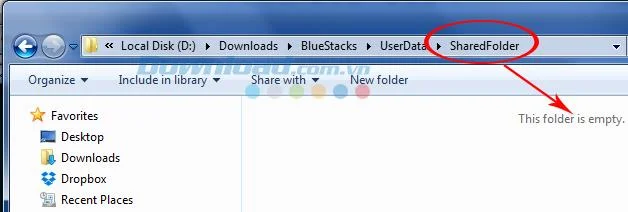
Step 1: Locate the installation drive of BlueStacks and navigate to BlueStacks / UserData / SharedFolder.
Step 2: If you wish to share files with BlueStacks, place the data into this folder.
ATTENTION: This method is only applicable for certain types of data such as images, text, music, or video clips, and does not support applications or utility programs.
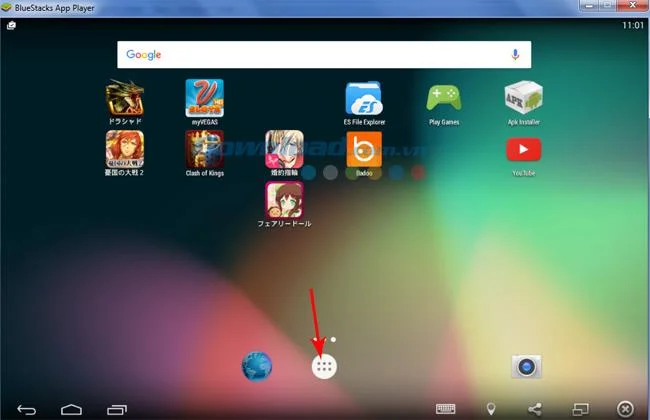
Step 3: Open the BlueStacks emulator, then click the white circle icon in the middle of the screen.
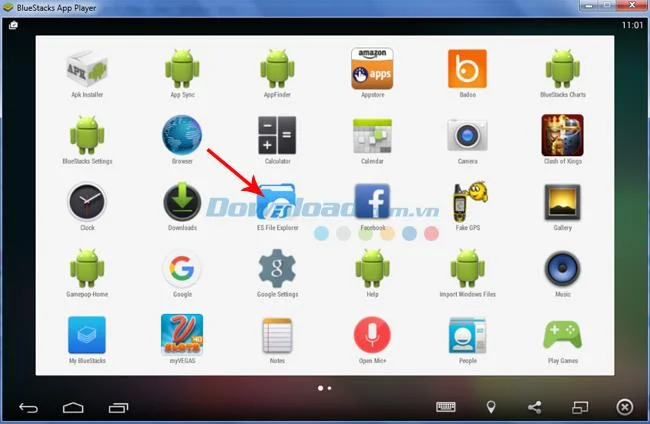
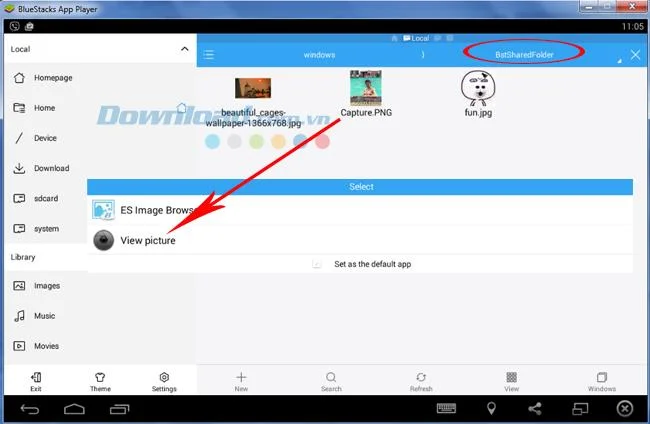
Step 4: Locate and launch the ES File Explorer application.
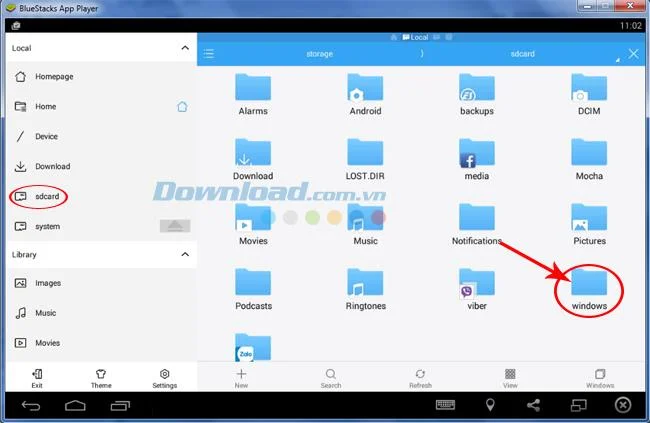
Step 5: In ES File Explorer, navigate to the sdcard item and then select the Windows folder on the right.
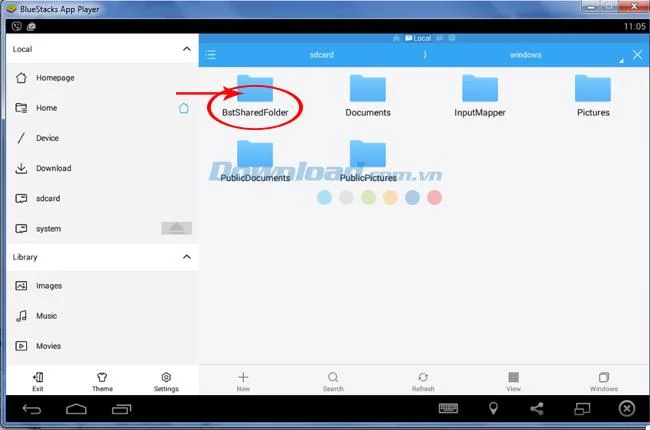
Step 6: Inside the Windows folder, click on BstSharedFolder to see all the files transferred from the SharedFolder directory.
Simply left-click any image to view or set it as wallpaper or contact avatar.
Further Tips: You can hold the left mouse button to select multiple photos and perform operations such as share, cut, or copy.
ATTENTION: Each file extension (e.g., JPG or PNG) may display differently in BlueStacks, which does not affect the transfer process itself.
For smooth operation, refer to additional instructions on fixing errors on BlueStacks for essential configurations needed during installation. You may also find it helpful to handle errors that arise during installation.
Create a spooky office cubicle with Halloween desk decor ideas that keep your workspace usable, tidy, and mindful of workplace safety.
Plan a recognizable Halloween 2026 look with pop culture costumes inspired by Spider-Man, Supergirl, Toy Story 5, Moana, Mario, and Wednesday.
Sort leftover Halloween candy safely, share or repurpose sealed treats, and choose food use or compost for pumpkins based on their condition.
Compare workplace Halloween costume choices by respect, dress code, mobility, and safety—and learn when a subtle accessory or a policy check is the better option.
Find a couples costume that fits your style, budget, and comfort level, from Addams Family classics to original inside-joke duos.
Need a last-minute high school Halloween costume? Compare 10 easy closet-based ideas by prep time, comfort, school-day practicality, and simple safety checks.
Use a simple 2026 Halloween decorating timeline for indoor décor, outdoor displays, and fresh pumpkins, with practical adjustments for weather and events.
Mix five vivid, approachable Halloween cocktails with measured recipes, simple prep tips, and an alcohol-free option for your party guests.
Find 15 office-friendly Halloween costume ideas for 2026, with practical checks for dress codes, respectful themes, comfort, and workplace safety.
Plan a fun elementary school Halloween party with easy crafts, games, inclusive treats, costume tips, and a sample 75-minute classroom schedule.








