



WhatsApp App Update Download

Get the latest WhatsApp App Update Download from official sources to access new features and security improvements. Follow these clear steps for Android and iOS devices.
Organizing the apps on your phone is a matter of preference. Some like to have their home screen clean and minimalist, while others don’t have an issue with having all their apps visible.

Android device users have access to the app drawer. This Android-only feature allows them to customize their home screen.
But what exactly is an app drawer, and why do you need it? Read on to find out.
The Android App Drawer….What Is It?
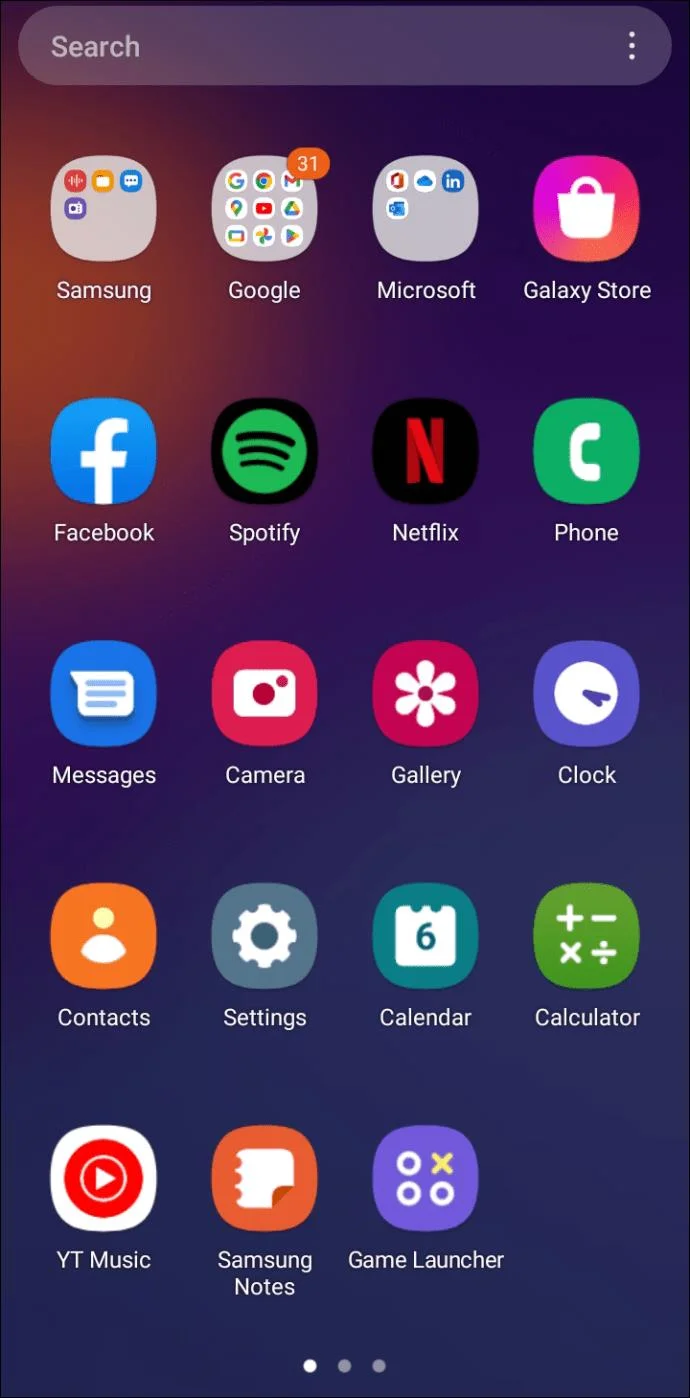
An app drawer is a pre-installed feature that lets you have a complete overview of all the apps on your phone. Its primary purpose is to help you organize your apps and keep your home screen tidy. The App drawer shows all the apps on your phone as icons. Some app drawers also show apps in a detailed list.
The app drawer is also known as “app launcher” and “app tray.” It allows you to launch the apps directly just by tapping on them.
App Drawer vs. Home Screen
The app drawer is similar to the home screen in terms of showing icons for apps. However, the main difference between the two is that the app drawer isn’t customizable. While you can arrange the apps and widgets on your home screen however you please, the app drawer is a type of a “permanent record” of the installed apps. The app drawer also doesn’t feature widgets.
Many users who switch from iPhone to Android get confused when encountering the app drawer. You’re used to swiping through the screen pages to find the desired app if you’re an ex-iPhone user. On Android devices, things are a little different.
Therein lies the main difference between the Android and an iPhone home screen, as iPhone immediately makes all apps accessible. This can result in a messy home screen. The Android app drawer helps deal with this issue, which is why Android is a more user-friendly system. If you hypothetically removed the app drawer from an Android device, it would look a lot like the iOS interface.
When sorting apps on Android, you can choose which ones you want on your home screen. The rest of the apps lie safely in the app drawer. You can look for them there when you need them, resulting in a cleaner and more organized screen.
How to Access the App Drawer
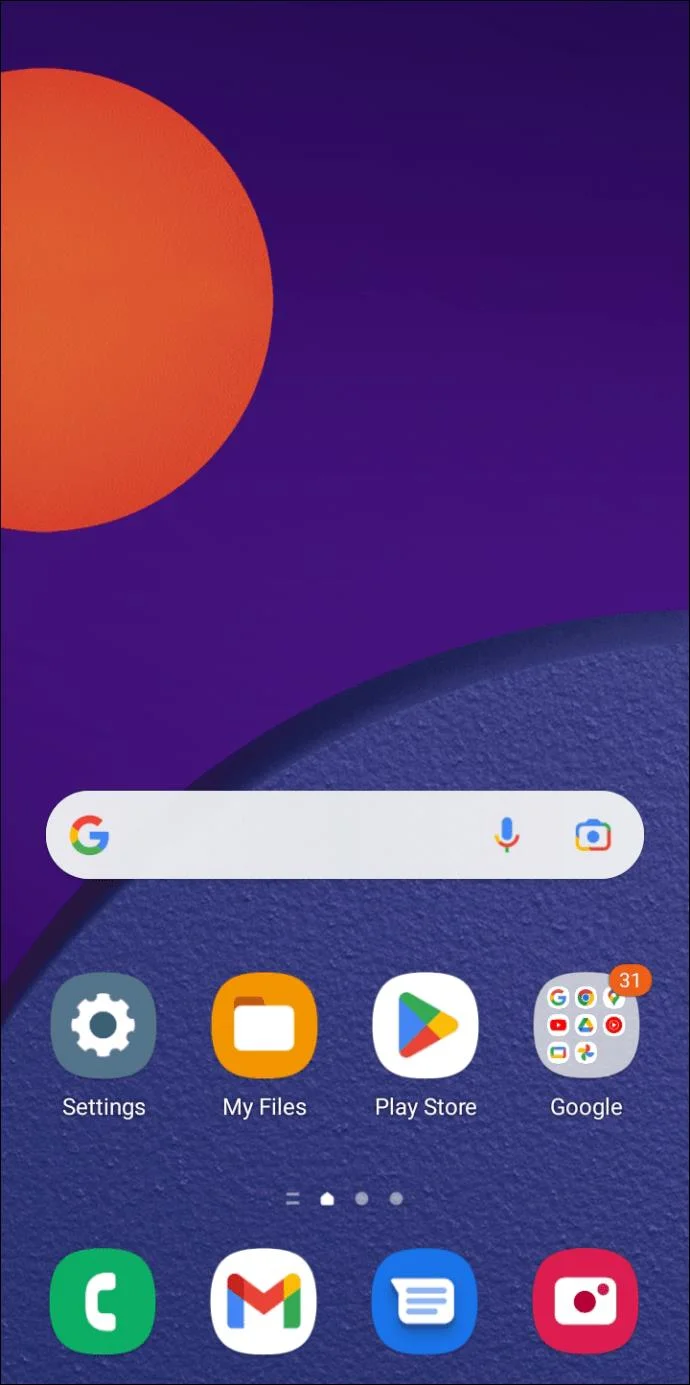
You can access the app drawer by swiping from the bottom to the top, starting from your home screen. That way, you’ll open the drawer and immediately have an overview of all apps on the device.
You can also access the drawer by tapping the app drawer icon. You can usually find it in the dock (at the bottom of the screen, where the leading apps such as messaging, calls, and cameras are situated).
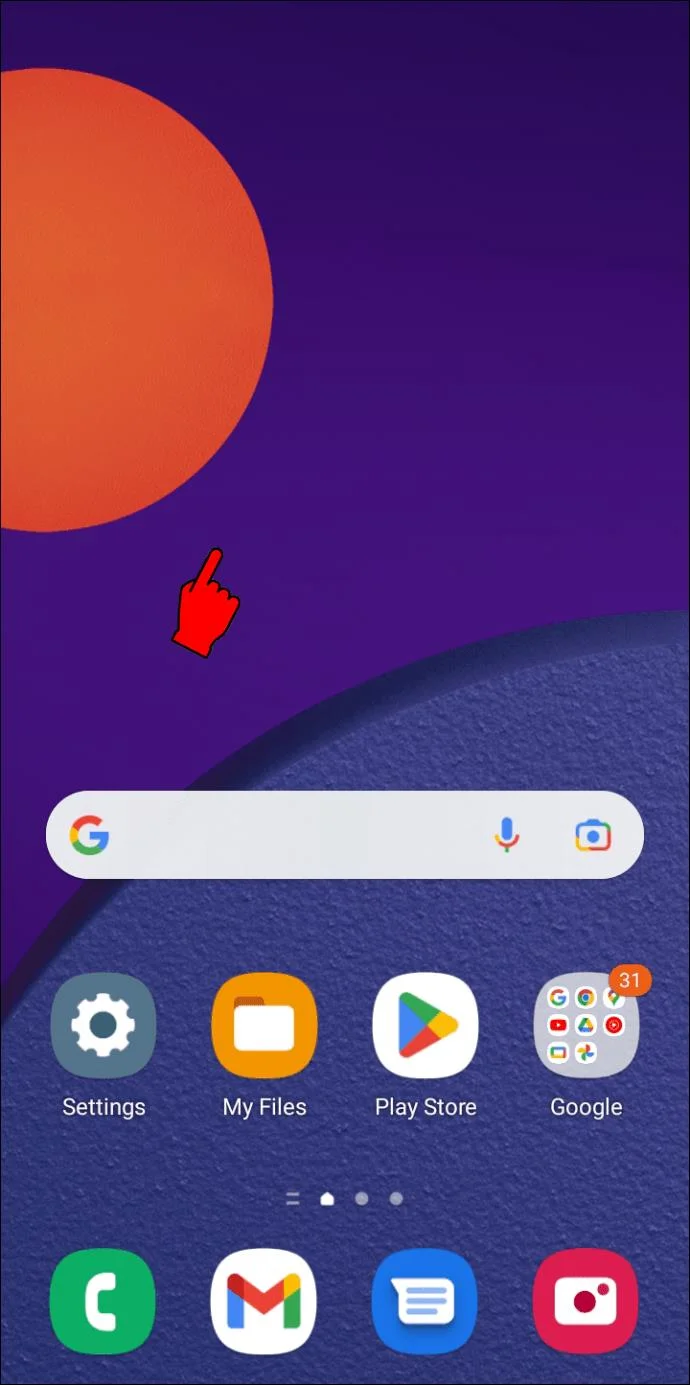
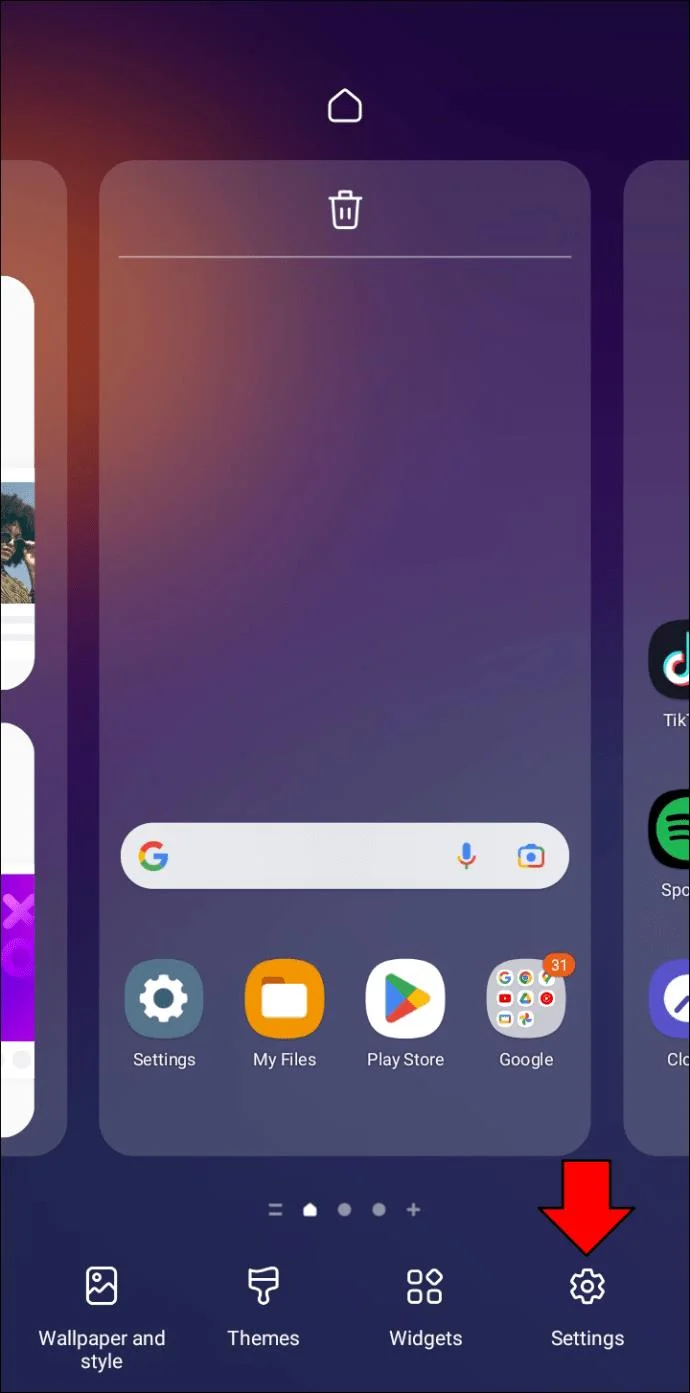
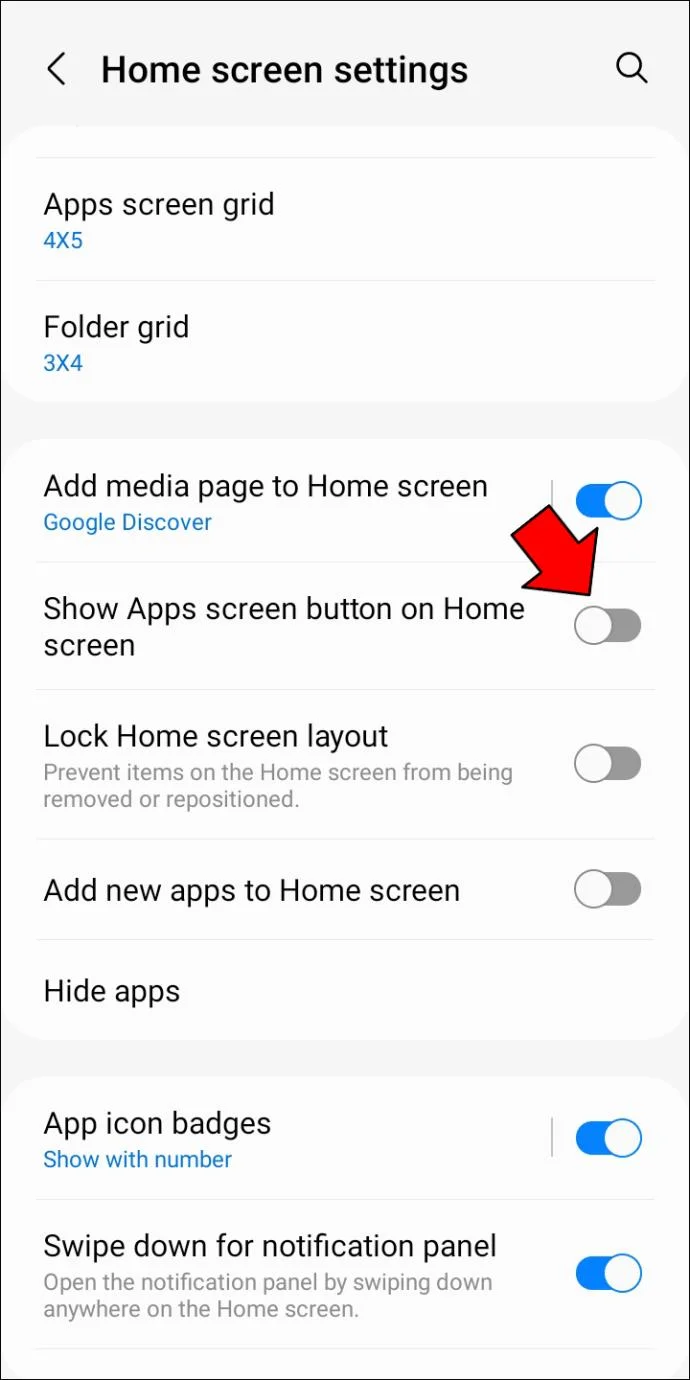
If your app drawer icon is missing from the home screen, or you have accidentally removed it, follow these steps to retrieve it:
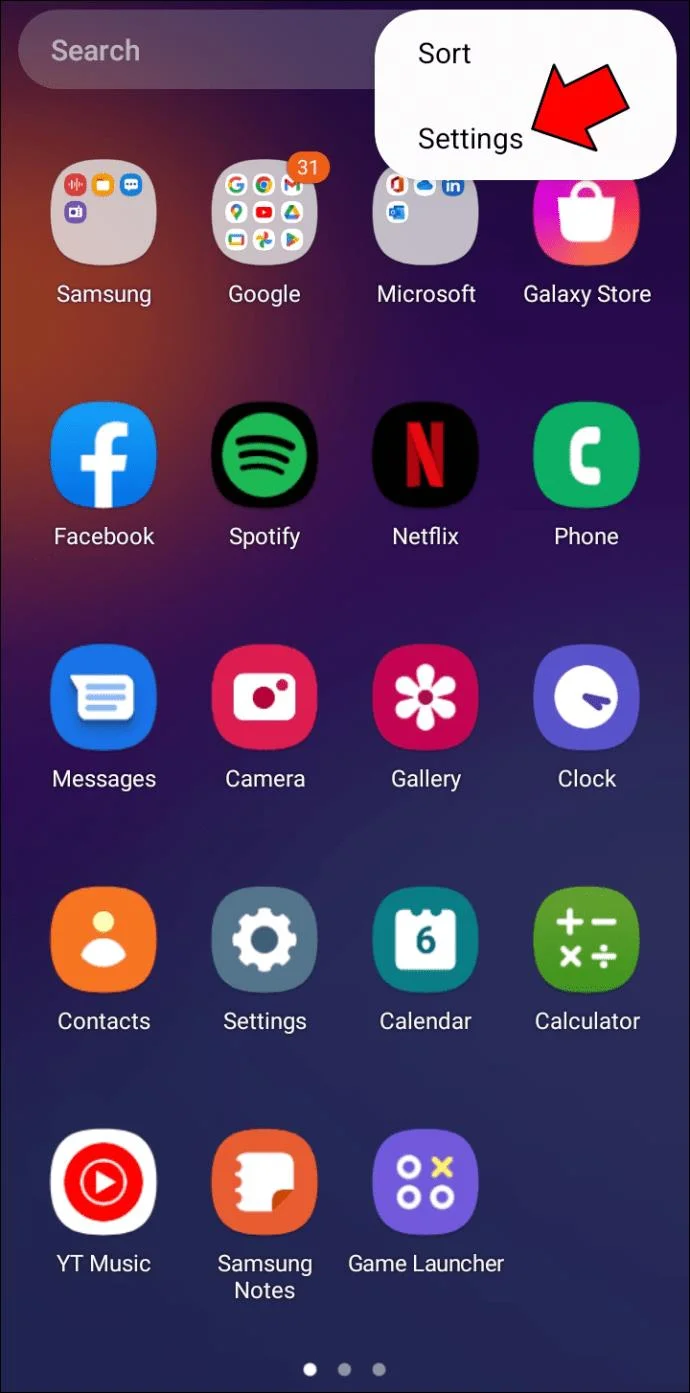
You can also find the app drawer options by doing the following steps:
Note that these are general steps for configuring the interface of the app drawer. The settings and the app drawer depend on the version of Android you’re using.
How to Use the App Drawer
Every new app you install on your phone is placed in the app drawer first. Some phones allow you to simultaneously put the latest apps in the app drawer and the home screen as soon as you download them.
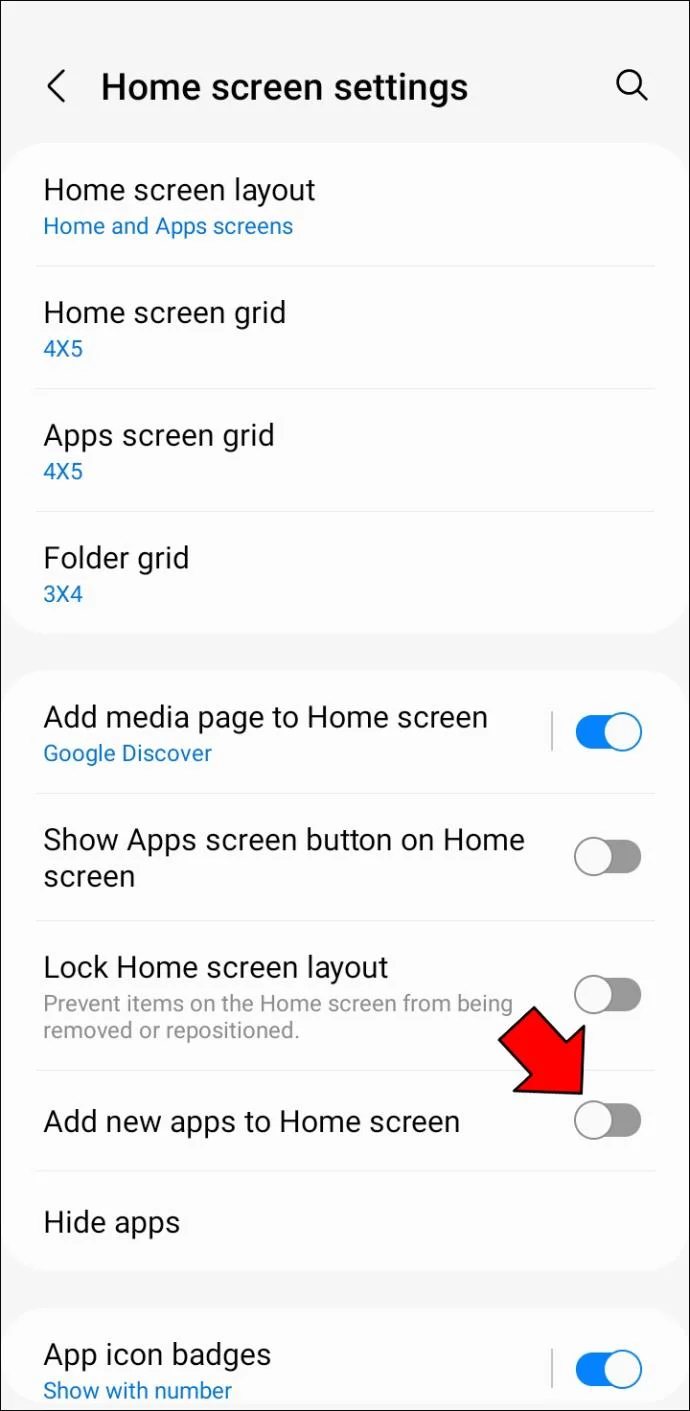
Here’s how you can enable and disable this option as preferred:
Your Android phone will automatically place the app icon on the home screen as soon as you download it if you enable this option. If this feature is disabled, you must drag and drop the newly downloaded app from the app drawer to the home screen.
Do the following if you want to place an app from the drawer to be accessible on your home screen:
Sorting Apps in the App Drawer
By default, App icons in this feature are sorted in alphabetical order, and some Android phones offer custom sorting modes.
You can sort the apps in your Android app drawer by the following criteria:
Depending on the phone or the Android system version, the app drawer can be a series of screens. You can navigate them by swiping left-to-right or searching the apps by scrolling up and down in a vertical layout. Users suggest the latter, as it provides quick access to the apps. If you choose the horizontal design instead, you will have to swipe through the pages with listed apps.
Some versions of Android let you set up a personalized search for your app drawer. This feature allows you to find the apps based on your preferences quickly. Enabling this feature in settings lets your phone suggest apps and app features in the top section of the app drawer.
To configure sorting in your app drawer, follow through the steps:
Once in Settings, you can set up an app drawer view according to your preferences.
All Your Apps in One Place
Android’s app drawer is an efficient tool for managing your apps. It’s one of the benchmark features of Android and lets you keep your home screen clean and organized. You can access all your apps in a single swipe with an app drawer. Instead of scrolling for a few pages to find the app you’re looking for, using a search bar is a time-saving feature.
Do you prefer using the app drawer or having all your apps on the home screen? Tell us in the comments section below.
Get the latest WhatsApp App Update Download from official sources to access new features and security improvements. Follow these clear steps for Android and iOS devices.
Learn how to safely Download WhatsApp App for Android from the official Google Play Store. Follow our clear step-by-step instructions to install the latest version quickly and securely.
Google Download WhatsApp App safely through the Google Play Store with this clear guide. Get the official version on your Android device quickly and avoid fake downloads.
Facebook and Messenger not working can disrupt your day. Follow these targeted fixes to restore access quickly on mobile and desktop.
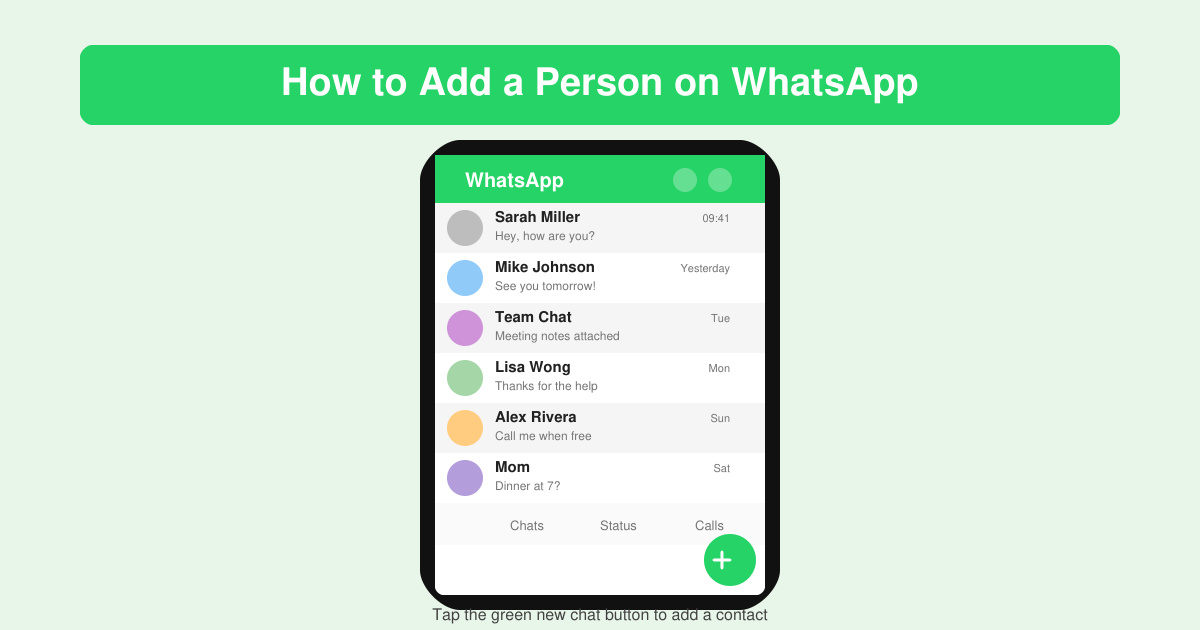
How to Add a Person on WhatsApp quickly on Android or iOS. Follow these exact steps to add a new contact using their phone number and start chatting right away.
Learn how to add contact in WhatsApp in seconds with this clear walkthrough. Save numbers directly inside the app and keep all your chats organized without switching to your phonebook.
Facebook Download Facebook Messenger safely from official sources. Follow this guide to install the app on any device quickly and securely.
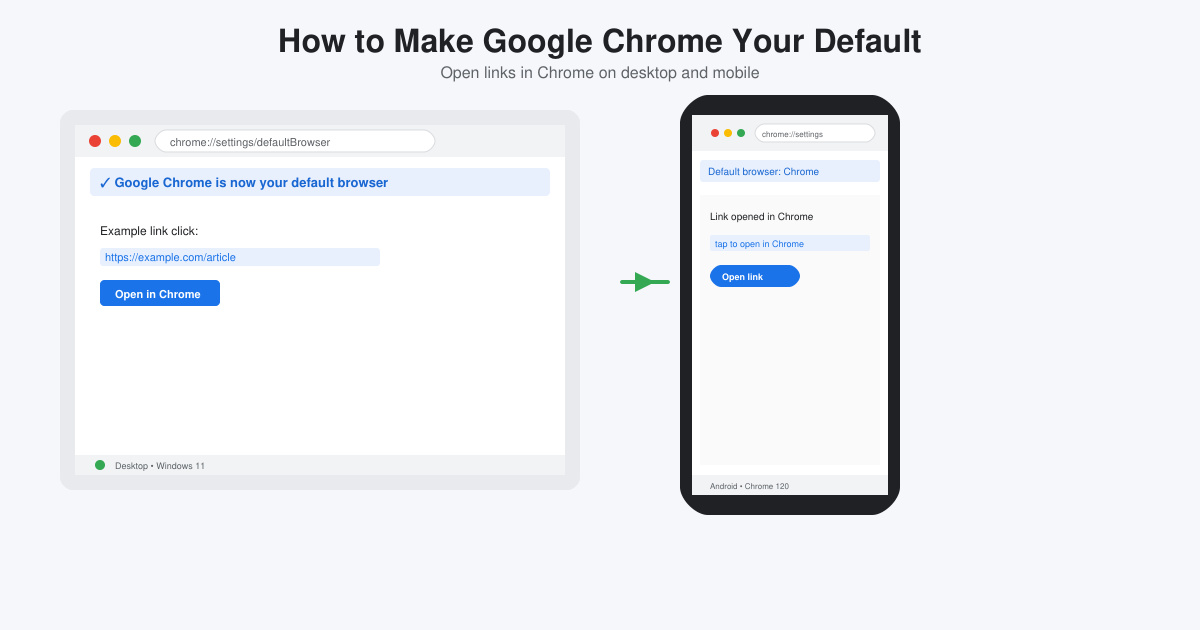
How to Make Google Chrome Your Default browser on Windows, Mac, Android and iOS takes just minutes. Follow these clear steps to ensure every link opens in Chrome automatically.
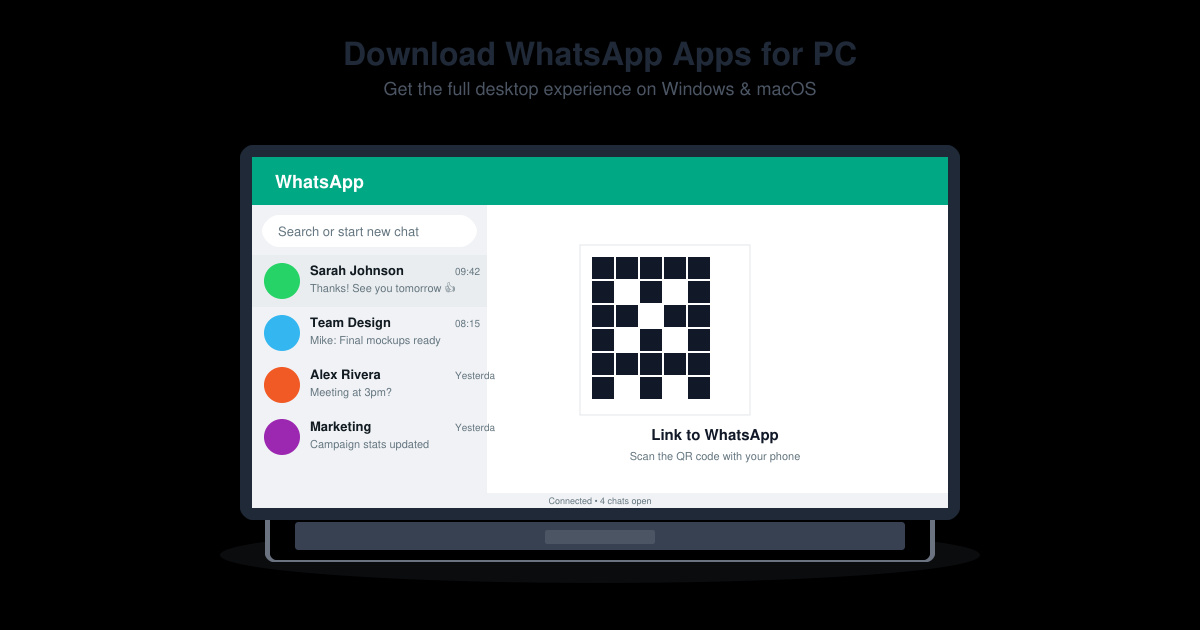
Download WhatsApp Apps for PC with our clear guide covering the official desktop app and WhatsApp Web setup. Get messaging on your computer in minutes.
Skype Download Skype Download Skype Download made easy with this official guide. Download the latest Skype version safely for Windows, Mac, Android and iOS in minutes.