How to Update Google Chrome Browser

Learn how to update Google Chrome browser on Windows, Mac, and Android in minutes to enjoy better security, speed, and new features. Follow these clear steps.
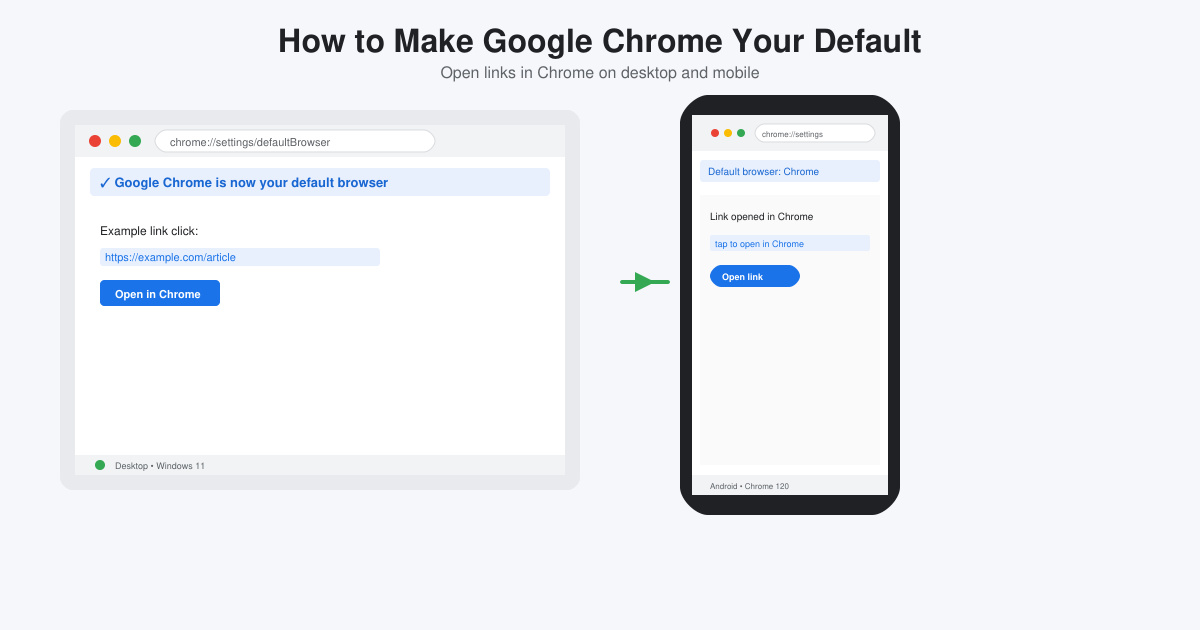
Making Google Chrome your default browser means every web link you click will open in Chrome instead of another browser. This gives you faster speeds, better sync across devices, and access to your saved passwords and extensions right away. The steps below show exactly how to make Google Chrome your default on the most common operating systems.
Chrome offers strong security updates, smooth tab management, and seamless integration with Google services. Once set as default, you avoid the hassle of manually choosing Chrome each time you open a link from email or documents. Users who switch report fewer interruptions and quicker access to bookmarks and history.
Click the Start button, then select the gear icon to open Settings. Go to Apps and choose Default apps from the left menu.
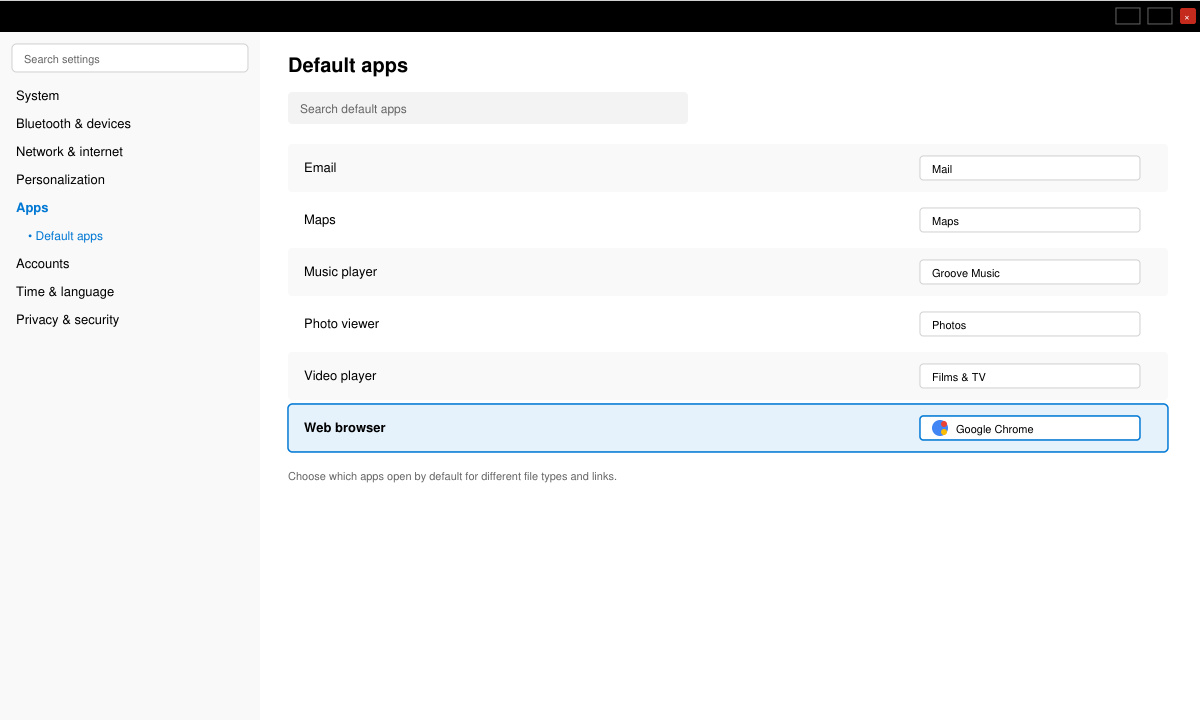
Scroll down until you see the Web browser heading. Click the current browser listed there.
Choose Google Chrome in the pop-up menu. Windows immediately applies the change and shows Chrome as the new default.
Open Chrome, click Chrome in the top menu bar, then select Settings. Scroll to the Default browser section near the top.
Press the Make default button. macOS opens System Settings automatically and highlights the browser selection.
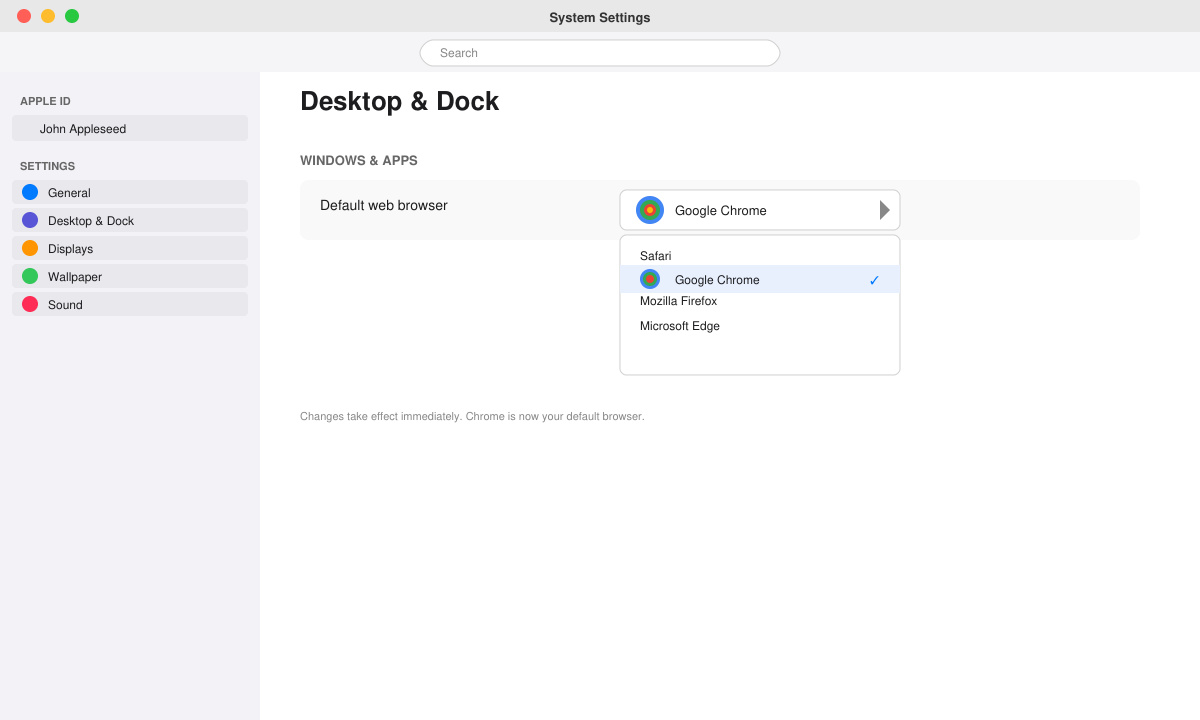
Select Google Chrome from the available browsers and close the window. All future links now launch in Chrome.
No. Only web links change their target browser. Your other applications continue to work normally.
Yes. Repeat the same steps and choose your previous browser instead of Chrome at any time.
Only if you sign in to Chrome with a Google account. The default setting itself stays local to each device.
Following the platform-specific steps above completes the process of how to make Google Chrome your default browser quickly and reliably.
Learn how to update Google Chrome browser on Windows, Mac, and Android in minutes to enjoy better security, speed, and new features. Follow these clear steps.
Learn how to download old media from WhatsApp and recover photos or videos from past chats. Follow these clear steps to save files that no longer appear in your gallery.
Facebook Messenger Isn T Working on your device? Use these exact troubleshooting steps to restore chats, calls, and notifications fast on Android, iOS, or desktop.
How to See Deleted WhatsApp Messages using your phone's built-in tools. Follow these exact steps to recover messages that contacts have deleted from chats.
Learn how to clear browser history in Chrome on desktop and Android with this exact step-by-step process. Keep your browsing private and free up storage space quickly.
Master how to use CapCut with this practical walkthrough covering project setup, editing tools, effects, and export options for high-quality video results.
Get the latest WhatsApp App Update Download from official sources to access new features and security improvements. Follow these clear steps for Android and iOS devices.
Learn how to safely Download WhatsApp App for Android from the official Google Play Store. Follow our clear step-by-step instructions to install the latest version quickly and securely.
Google Download WhatsApp App safely through the Google Play Store with this clear guide. Get the official version on your Android device quickly and avoid fake downloads.
Facebook and Messenger not working can disrupt your day. Follow these targeted fixes to restore access quickly on mobile and desktop.








