How to Update Google Chrome Browser

Learn how to update Google Chrome browser on Windows, Mac, and Android in minutes to enjoy better security, speed, and new features. Follow these clear steps.
CapCut is a free mobile and desktop editor developed by ByteDance. It supports 4K export, auto-captions, and an extensive library of royalty-free sounds. Before you start, make sure your device has at least 4 GB of free storage and a stable internet connection for downloading templates and music tracks.
Both the iOS and Android versions offer nearly identical tools, while the desktop version adds keyboard shortcuts and multi-track timeline precision. Sign in with a TikTok account if you want direct upload access later.

Open the App Store or Google Play Store, search for CapCut, and tap Install. After launching the app, tap the large “+” button on the home screen, then select “New Project.” Name your project and choose a 9:16, 16:9, or 4:3 aspect ratio based on your target platform.
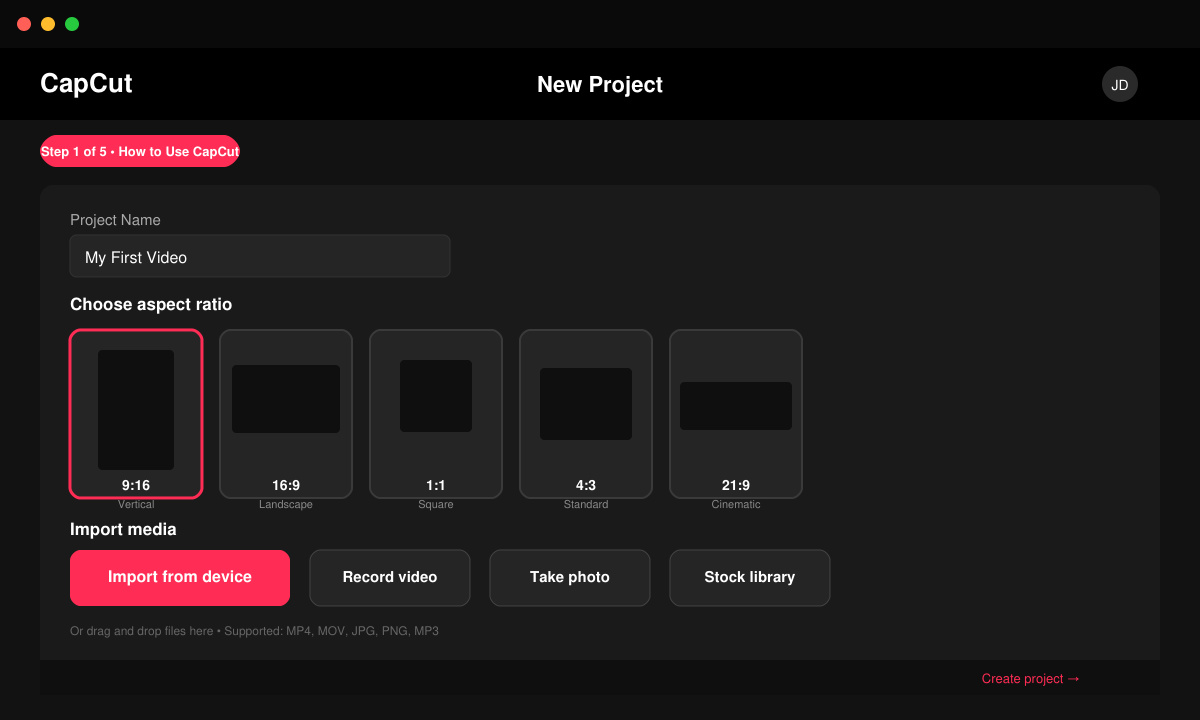
Tap “Import” to pull videos or photos from your camera roll. Long-press a clip and drag it onto the timeline. Use the split tool (scissors icon) to trim unwanted sections and the speed control to slow down or speed up specific segments.
Tap “Audio,” then “Sounds” to browse trending tracks or upload your own. For text, select “Text” and type your message, then choose from animated styles. Apply effects by tapping “Effects” and previewing overlays such as glitch, VHS, or light leaks directly on the preview window.
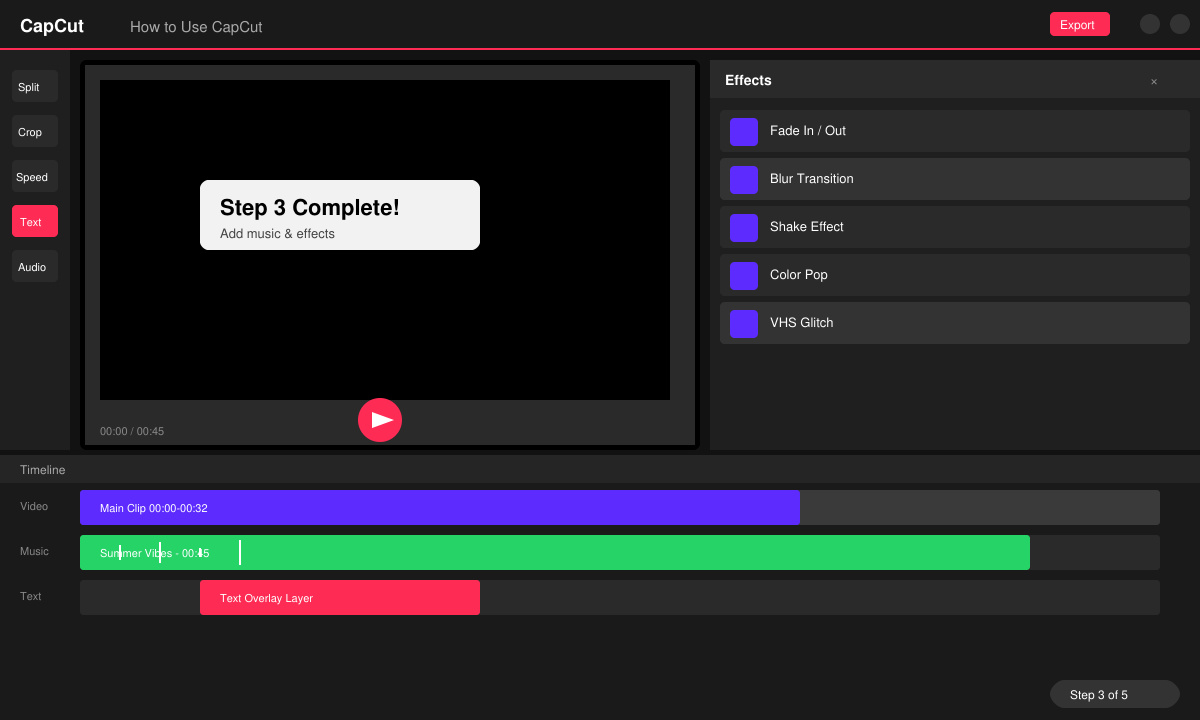
Open “Adjust” to tweak brightness, contrast, saturation, and temperature. Use the “Volume” slider on each audio layer to balance voiceover with background music, and add fade-in or fade-out points where needed.
Tap the export arrow in the top right. Choose resolution (up to 4K), frame rate (30 or 60 fps), and bitrate. Turn on “Smart HDR” if available, then hit Export. The finished file saves to your device and can be shared directly to social platforms.
Basic editing works offline, but downloading music, effects, and templates requires an active connection.
No watermark appears on exported videos when you are signed in with a TikTok account.
After adding a template, tap the template clip on the timeline and choose “Replace” or delete the branded intro clip manually.
Following these steps lets you move from raw footage to a polished video in minutes. Practice the timeline controls and effect previews, and you will quickly improve the quality of every project you create in CapCut.
Learn how to update Google Chrome browser on Windows, Mac, and Android in minutes to enjoy better security, speed, and new features. Follow these clear steps.
Learn how to download old media from WhatsApp and recover photos or videos from past chats. Follow these clear steps to save files that no longer appear in your gallery.
Facebook Messenger Isn T Working on your device? Use these exact troubleshooting steps to restore chats, calls, and notifications fast on Android, iOS, or desktop.
How to See Deleted WhatsApp Messages using your phone's built-in tools. Follow these exact steps to recover messages that contacts have deleted from chats.
Learn how to clear browser history in Chrome on desktop and Android with this exact step-by-step process. Keep your browsing private and free up storage space quickly.
Master how to use CapCut with this practical walkthrough covering project setup, editing tools, effects, and export options for high-quality video results.
Get the latest WhatsApp App Update Download from official sources to access new features and security improvements. Follow these clear steps for Android and iOS devices.
Learn how to safely Download WhatsApp App for Android from the official Google Play Store. Follow our clear step-by-step instructions to install the latest version quickly and securely.
Google Download WhatsApp App safely through the Google Play Store with this clear guide. Get the official version on your Android device quickly and avoid fake downloads.
Facebook and Messenger not working can disrupt your day. Follow these targeted fixes to restore access quickly on mobile and desktop.







