How to Update Google Chrome Browser

Learn how to update Google Chrome browser on Windows, Mac, and Android in minutes to enjoy better security, speed, and new features. Follow these clear steps.
Need to remove old searches, visited sites, or cached files from Google Chrome? Knowing how to clear browser history in Chrome helps protect your privacy and can speed up the browser by freeing space. This guide walks through the precise menus and options on desktop and Android so you finish in under a minute.
Chrome stores every page you visit, search terms you type, and files it downloads in the background. Over time this data grows large and can reveal personal information if someone else uses your device. Clearing it regularly also resolves loading problems caused by outdated cached pages. You can choose to delete only history, cookies, cached images, or everything at once.
Before starting, decide how far back you want to remove data. Chrome offers time ranges from the last hour to all time. Note that clearing history on one device does not automatically sync the deletion across other signed-in devices unless you also clear data from your Google account.

Launch Google Chrome on your computer. Click the three-dot menu in the top-right corner, then select Settings. In the left sidebar click Privacy and security, then choose Clear browsing data.
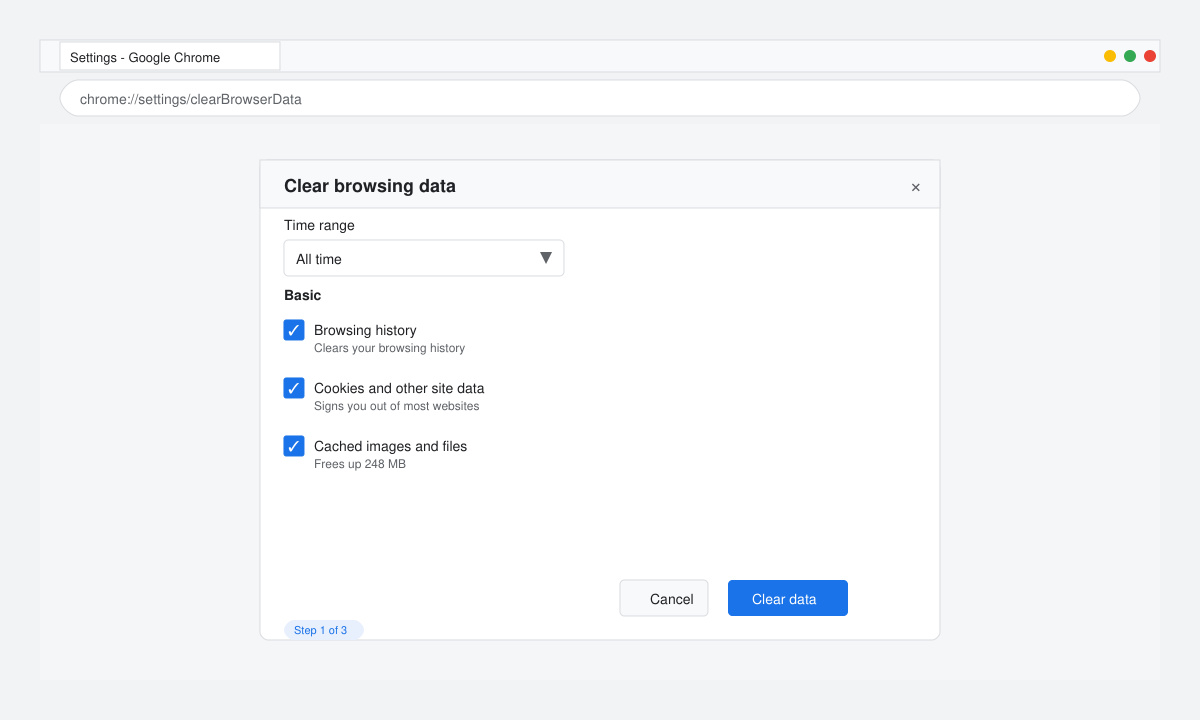
At the top of the dialog box select a time range such as Last hour, Last 24 hours, Last 7 days, Last 4 weeks, or All time. Check the boxes for Browsing history, Cookies and other site data, and Cached images and files. Uncheck any items you want to keep.
Click the Clear data button at the bottom. Chrome immediately removes the selected items and shows a brief confirmation message. Restart the browser to see the changes take full effect.
Tap the three-dot menu in the top-right corner of the Chrome app. Scroll down and select Settings, then tap Privacy and security followed by Clear browsing data.
Choose the same data types as on desktop: Browsing history, Cookies and site data, and Cached images and files. Pick a time range from the dropdown at the top of the screen.
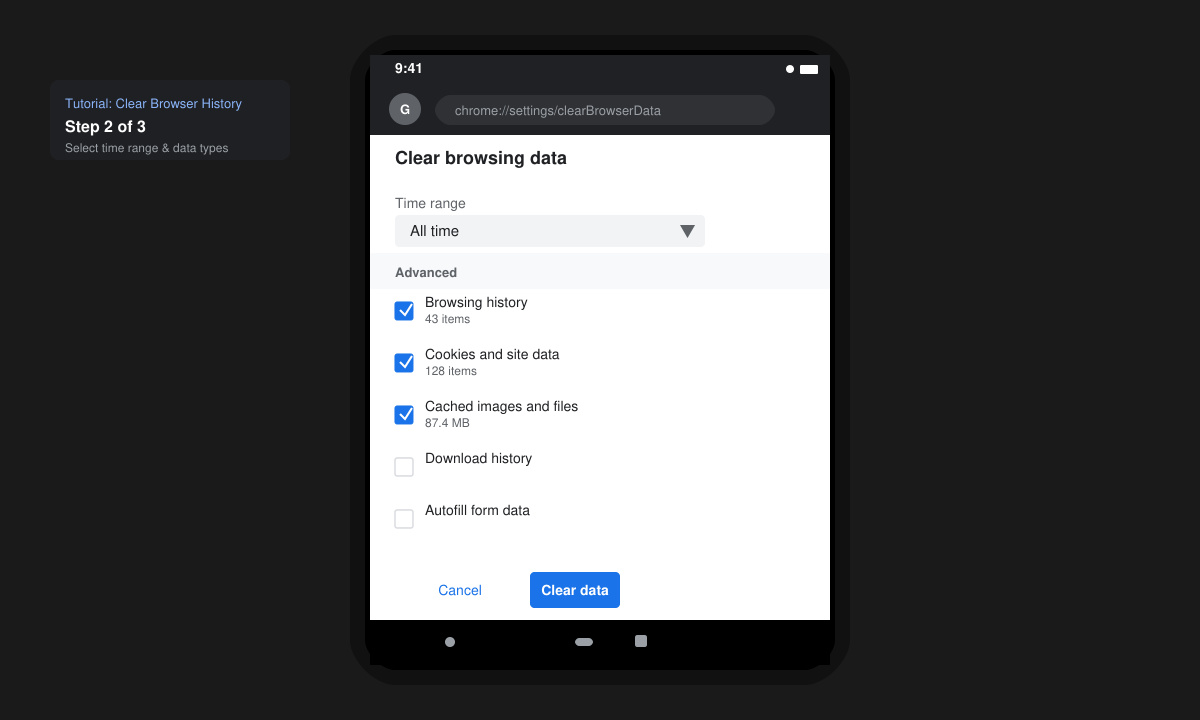
Tap Clear data and confirm with the second Clear data button. The app removes the selected information instantly and returns you to the previous screen.
No. Passwords stay stored unless you specifically check the Passwords and other sign-in data box in the clear browsing data window.
Chrome does not include a built-in scheduler. Use a third-party extension from the Chrome Web Store or set a recurring reminder on your phone to run the manual steps every few weeks.
Yes, especially if you select Cached images and files. Users often recover several hundred megabytes after clearing data older than four weeks.
Following these exact steps lets you control exactly what Chrome remembers. Run the process whenever you notice slowdowns or want to protect your privacy on shared devices.
Learn how to update Google Chrome browser on Windows, Mac, and Android in minutes to enjoy better security, speed, and new features. Follow these clear steps.
Learn how to download old media from WhatsApp and recover photos or videos from past chats. Follow these clear steps to save files that no longer appear in your gallery.
Facebook Messenger Isn T Working on your device? Use these exact troubleshooting steps to restore chats, calls, and notifications fast on Android, iOS, or desktop.
How to See Deleted WhatsApp Messages using your phone's built-in tools. Follow these exact steps to recover messages that contacts have deleted from chats.
Learn how to clear browser history in Chrome on desktop and Android with this exact step-by-step process. Keep your browsing private and free up storage space quickly.
Master how to use CapCut with this practical walkthrough covering project setup, editing tools, effects, and export options for high-quality video results.
Get the latest WhatsApp App Update Download from official sources to access new features and security improvements. Follow these clear steps for Android and iOS devices.
Learn how to safely Download WhatsApp App for Android from the official Google Play Store. Follow our clear step-by-step instructions to install the latest version quickly and securely.
Google Download WhatsApp App safely through the Google Play Store with this clear guide. Get the official version on your Android device quickly and avoid fake downloads.
Facebook and Messenger not working can disrupt your day. Follow these targeted fixes to restore access quickly on mobile and desktop.







