How to Update Google Chrome Browser

Learn how to update Google Chrome browser on Windows, Mac, and Android in minutes to enjoy better security, speed, and new features. Follow these clear steps.
Android keeps a record of notifications even after the app deletes the message. You need to turn on notification history first, then check the WhatsApp entries later. This method works on most devices running Android 11 or newer and requires no third-party tools.
Make sure WhatsApp notifications are enabled in your phone settings before starting. Without that, nothing will appear in the history log.

Open the Settings app on your Android phone. Tap Notifications, then scroll down and select Notification history. Toggle the switch at the top to turn it on. This starts logging all incoming alerts from WhatsApp and other apps.
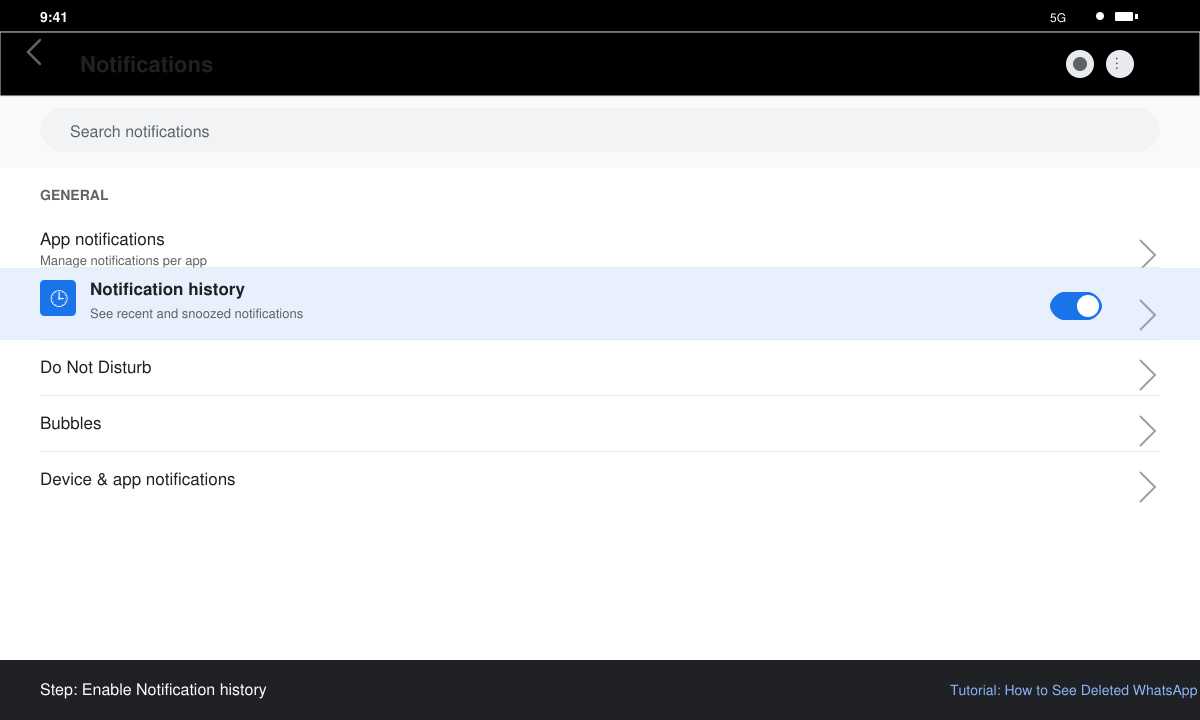
Keep your phone unlocked or allow background notifications. When a contact sends a message and later deletes it, the original notification text stays saved in the history even though the chat inside WhatsApp shows the deletion notice.
Return to Settings > Notifications > Notification history. Scroll through the list and tap any entry from WhatsApp. The full message text appears here even if it was removed from the conversation thread.
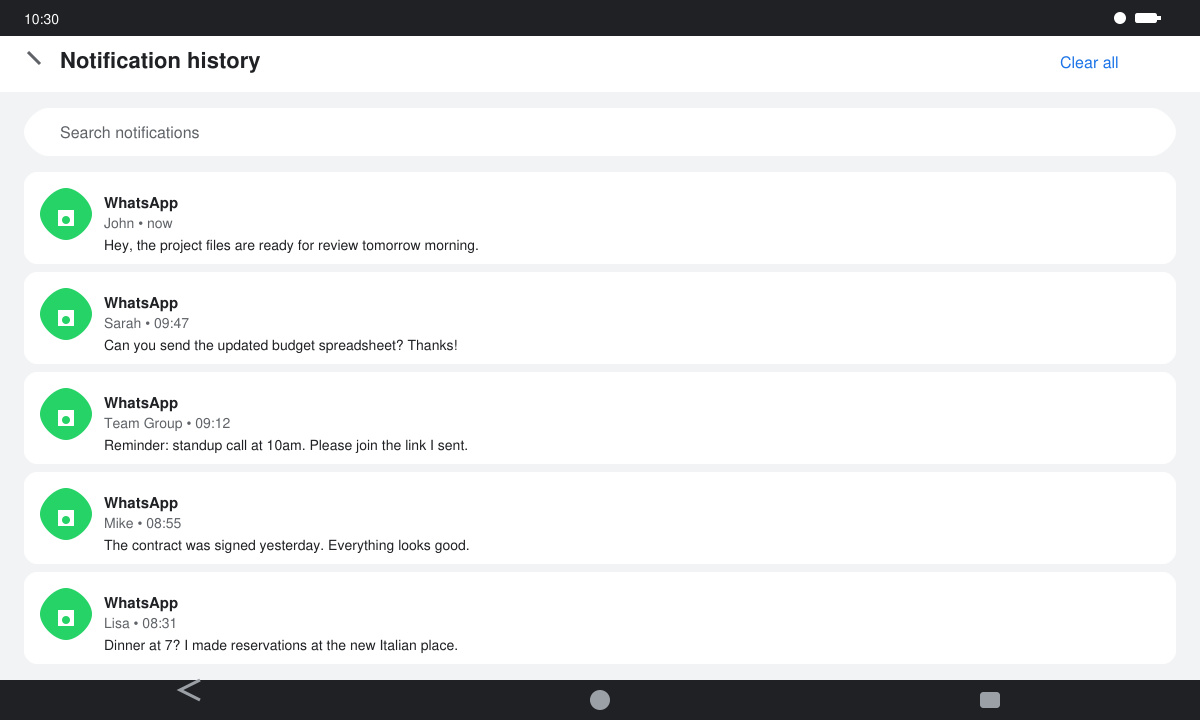
The history keeps recent items for several days depending on your device storage. Clear the log only after you have copied any important text you want to keep.
No. WhatsApp removes the content from both sender and receiver devices with no official recovery option inside the app.
Yes. Notification history records alerts from WhatsApp Business the same way it does for the standard app.
Usually not. Android clears older notification entries automatically to free storage space.
How to See Deleted WhatsApp Messages works reliably on Android through the notification history feature once it is enabled. Follow the steps above to keep a record of future messages before they disappear.
Learn how to update Google Chrome browser on Windows, Mac, and Android in minutes to enjoy better security, speed, and new features. Follow these clear steps.
Learn how to download old media from WhatsApp and recover photos or videos from past chats. Follow these clear steps to save files that no longer appear in your gallery.
Facebook Messenger Isn T Working on your device? Use these exact troubleshooting steps to restore chats, calls, and notifications fast on Android, iOS, or desktop.
How to See Deleted WhatsApp Messages using your phone's built-in tools. Follow these exact steps to recover messages that contacts have deleted from chats.
Learn how to clear browser history in Chrome on desktop and Android with this exact step-by-step process. Keep your browsing private and free up storage space quickly.
Master how to use CapCut with this practical walkthrough covering project setup, editing tools, effects, and export options for high-quality video results.
Get the latest WhatsApp App Update Download from official sources to access new features and security improvements. Follow these clear steps for Android and iOS devices.
Learn how to safely Download WhatsApp App for Android from the official Google Play Store. Follow our clear step-by-step instructions to install the latest version quickly and securely.
Google Download WhatsApp App safely through the Google Play Store with this clear guide. Get the official version on your Android device quickly and avoid fake downloads.
Facebook and Messenger not working can disrupt your day. Follow these targeted fixes to restore access quickly on mobile and desktop.







