While it’s possible to disable calls on WhatsApp, this option is not easily found in the app unless you make some modifications.

Many users choose to block specific people to prevent their calls from coming through. However, if you want to disable incoming WhatsApp calls without blocking anyone, this is also an option. Read on to learn how to disable different types of calls on WhatsApp.
If you want to turn off WhatsApp voice calls, you have a couple of options.
Use an Older Version of WhatsApp
Downloading an older version of WhatsApp will make it impossible to use the VoIP calling function because it wasn’t available on earlier versions. However, before you remove the current version of WhatsApp from your phone, make sure you have backed up all your communications.
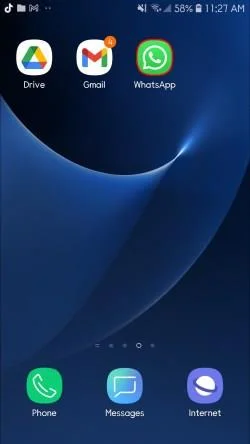
- Launch WhatsApp on your smartphone.

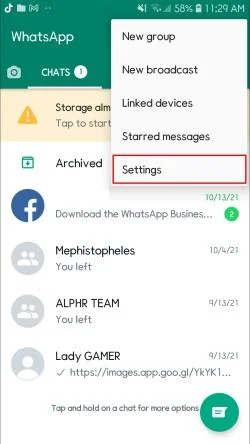
- Navigate to the Settings menu.

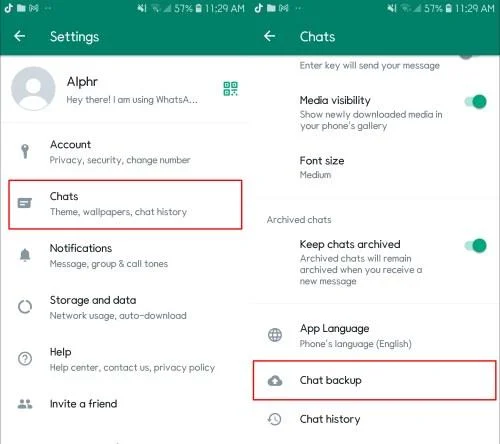
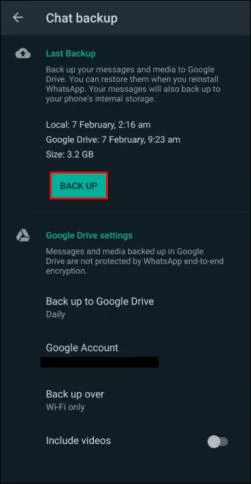
- To back up your chat history, go to Chat Settings and select Chat Backup.

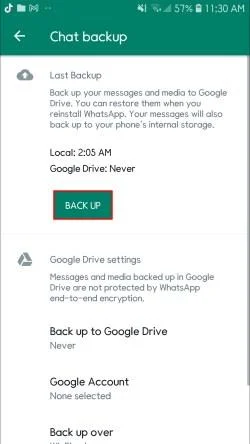
- Tap the BACK UP button.

- Download the previous WhatsApp version (2.12.4 or older) from this page once you’ve backed up your conversations.

- Enter your phone number.

- Select Restore to restore all of WhatsApp’s conversations, media, and videos.
Third-Party Apps
WhatsApp calling can be disabled with third-party software. A modified WhatsApp version called GBWhatsApp has many additional capabilities unavailable in the original version such as disabling voice and video calls. GBWhatsApp also has standard WhatsApp features that allow you to conceal blue ticks, modify layouts and fonts as well as remove sent messages.
- To use the GBWhatsApp app, you must first back up all your WhatsApp chats.

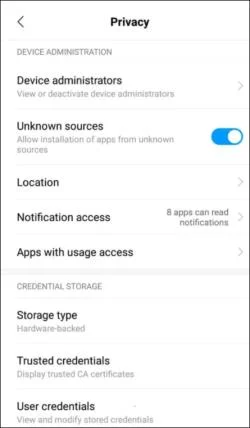
- Download GBWhatsApp. Ensure unknown sources are allowed on your phone so the app can be installed correctly.

- Restore your conversations, media, and other data from the Backup when installation is complete.
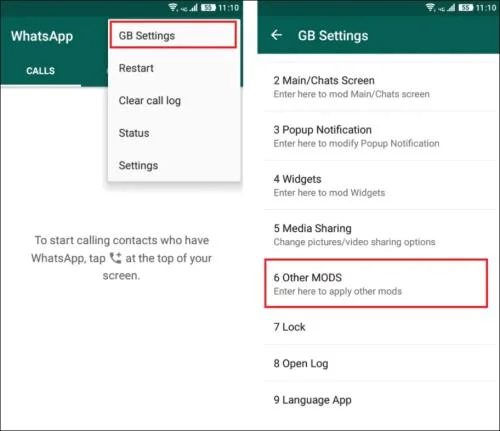
- In the GBWhatsApp app, press the three vertical dots in the upper right corner of the screen to get to the Settings section.
- Go to the GB settings and select Other MODS.

- Select Disable voice calls.
GBWhatsApp will then block all incoming voice calls.
Mute Voice calls
If you don’t want to turn off WhatsApp calling altogether, you can always mute the audio or video that comes in using the app’s inbuilt function. WhatsApp calls can be muted by following these steps:
- Open WhatsApp.
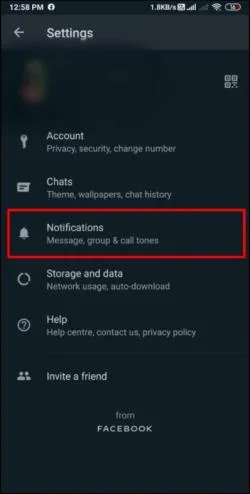
- To access the settings, click on the three vertical dots in the upper right corner of the screen.
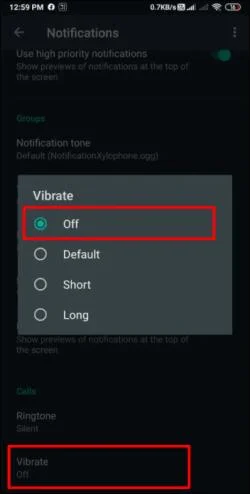
- Select Notifications from the Settings menu. Scroll to the bottom and select None.

- Finally, you may hit the Vibrate button and turn it off.

You’ll be able to silence all incoming voice calls on WhatsApp using this method.
How to Disable Conference Calls on WhatsApp
Unfortunately, there is no way to disable specific conference calls. All you can do is disable audio and video calls altogether. You can use any of the previously mentioned methods.
Use an Older WhatsApp Version
- Open WhatsApp on your phone.
- Go to the Settings menu.
- Select Chat Settings and select Chat Backup to back up your chat history.
- Choose the BACK UP option.
- Once you’ve backed up your chats using the current WhatsApp, you may download the prior version.
- Type in your phone number.
- Select Restore to recover all your WhatsApp chats, media, and videos.
Third-Party Apps
- Back up all of your WhatsApp conversations.
- Install GBWhatsApp. Ensure unknown sources are allowed on your phone so the app can be installed correctly.
- Once the installation is complete, restore your chats, media, and other data from the Backup.
- To access the Settings area of the GBWhatsApp app, tap the three vertical dots in the top right corner of the screen.
- Navigate to the GB settings and click Other MODS.
- Choose Disable voice calls.
How To Disable Video Calling on WhatsApp
Disabling video calls on WhatsApp is pretty simple. You can use two of the previously described methods to do so.
Install WhatsApp’s Older Versions
- Open WhatsApp
- Go to the Settings section of the app.
- Open Chat Settings and select Chat Backup to save your chats.
- Select BACK UP.
- Once you’ve backed up your chats using the current version of WhatsApp, you may download the prior version.
- Enter your phone number.
- To recover all of WhatsApp’s chats, media, and videos, hit Restore.
Third-Party Applications
- Before you use the GBWhatsApp software, you should first back up all your WhatsApp conversations.
- Install GBWhatsApp. Ensure unknown sources are allowed on your phone so the app can be installed correctly.
- Once the installation is complete, restore your chats, media, and other data from the Backup.
- To access the Settings of the GBWhatsApp app, tap the three vertical dots in the top right corner of the screen.
- Navigate to the GB settings and click Other MODS.
- Choose Disable voice calls.
If you’re an Android user, another option is to install Disable WhatsApp Call APK. After downloading the Disable WhatsApp Call APK application, you can simply turn on the Service option.
Then, you can navigate to the settings and switch on the WhatsApp call option, then select the video calls as needed. Following that, if someone wants to video chat with you through WhatsApp, that video call will be instantly terminated and converted to a regular call.
Have Control Over Your Calls
Your phone will no longer vibrate when you get a WhatsApp voice or video call. This preference will remain active until you manually change it back to the original settings.
At the beginning of 2021, WhatsApp implemented a new privacy policy that raised questions about this app’s reliability. Users continue to get WhatsApp calls from unknown individuals despite the company’s updated privacy policy. The techniques outlined above can be used to prevent calls from unknown numbers.
Have you ever had an unknown number call you on WhatsApp? Have you tried one of these methods before? Do you know another way to disable WhatsApp calls? Let us know in the comment section below!